

Usage
Checkout
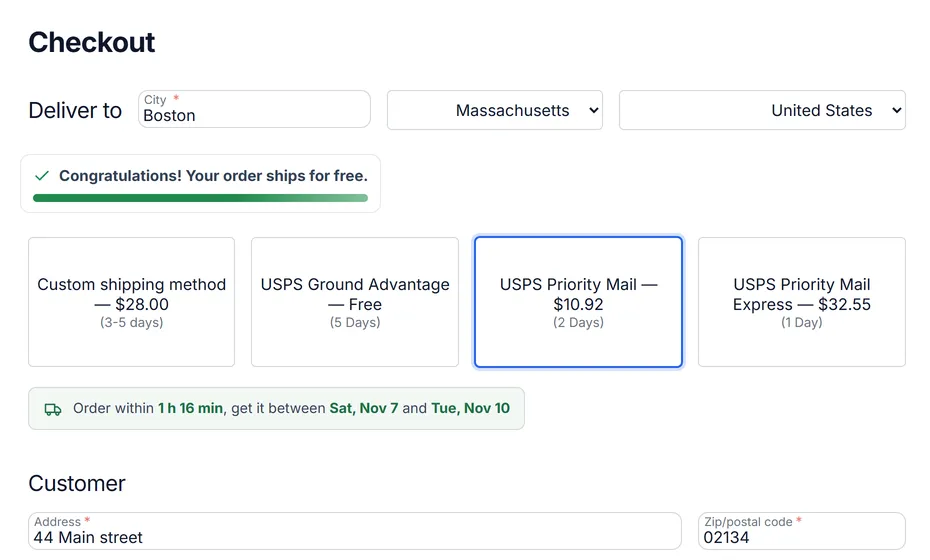
Section titled “Checkout”Customers with a US address see each USPS shipping method with its live price and the USPS delivery estimate. International addresses see the international methods. If USPS cannot price a package (for example, over 70 lb), that method is hidden or charged the fallback rate.
With address validation set to Suggest, a customer who enters a US address sees the USPS standardized version under the ZIP Code field and can apply it with Use this address or keep their own.
Buying a label
Section titled “Buying a label”- Open the order and its USPS tab.
- Check Ship to and click Validate address if needed. When USPS returns a corrected address, Use for this order writes it to the order.
- Choose the USPS service (preselected from the order’s shipping method), a box preset or enter the size, and the weight in pounds. A hint shows when dimensional weight applies (packages over 1 cubic foot).
- Set the mailing date, package value, format and size; tick Signature Confirmation or Insurance for domestic labels.
- For international orders, review the customs declaration: contents type and one line per product with description, quantity, unit value, weight, HS tariff number and country of origin. HS codes are remembered per product.
- Click Get rate to see the USPS price, delivery estimate and zone, then Buy label.
The label is stored with the order, a CS-Cart shipment with the tracking number is created for the unshipped items (the customer is not notified automatically), and the postage is charged to the USPS payment account.
Printing
Section titled “Printing”Print label opens the PDF in a new tab; Download saves PDF, PNG or ZPL. ZPL files go straight to thermal printers (Zebra and compatible).
Tracking
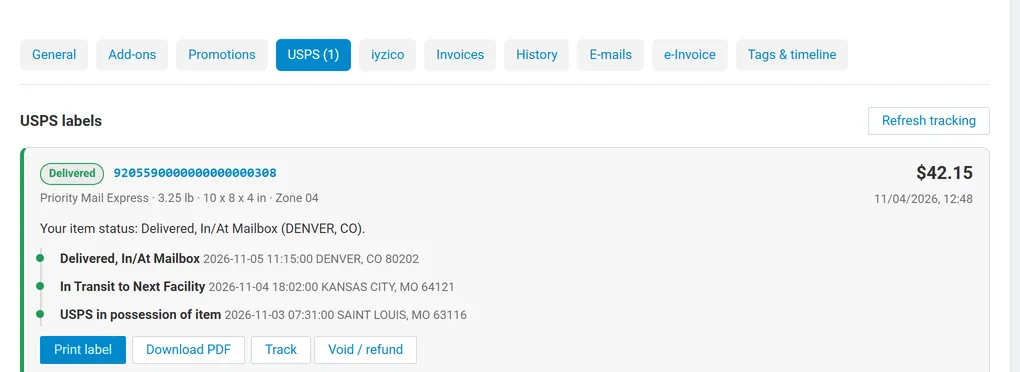
Section titled “Tracking”Each label card shows the USPS status, summary and latest scan events. Tracking refreshes with the cron job, with Refresh tracking on the order or Update tracking on the USPS labels page. When every label of an order is delivered, the order can move to the status set in the settings.
Customers see the tracking card on their order page in the account, and the tracking number links to the USPS tracking page in shipment e-mails.
Void and refund
Section titled “Void and refund”Void / refund on a label:
- an unused label that is not in a USPS shipping file yet is cancelled;
- a label that was already manifested gets a refund request; the dispute ID is shown on the label. USPS reviews unused label refunds and returns the postage to the payment account.
In both cases the shipment with that tracking number is removed from the order.
USPS labels page
Section titled “USPS labels page”Orders → USPS labels lists every label with order, customer, service, status and postage, with tiles for the last 30 days (labels, postage spent, in transit, delivered), search by tracking number or order ID and a status filter.
API log
Section titled “API log”USPS labels → API log shows USPS errors, and every request with Debug log on. Client secret, tokens and account numbers are masked; label images are never logged.