

Usage
How it works
Section titled “How it works”CS-Cart stores every product price in the primary currency, and all price logic (promotions, taxes, filters, sorting, the cart, orders, feeds) works with that price. This add-on keeps a second set of prices per product in the currency you choose, and writes the converted value into the normal price fields:
primary price = price in the product currency × rate of that currency (rounded by your rounding rule)
The rate is the one in Administration → Currencies: the value of one unit of the currency in the primary currency. Example with USD as the primary currency and EUR at 1.28: a product priced 19.90 EUR costs 25.47 USD. When you change the EUR rate to 1.31, the product costs 26.07 USD without any further work.
The storefront currency switcher is not affected: a customer who views the store in GBP still sees the primary price converted by CS-Cart as before.
Pricing a product in a currency
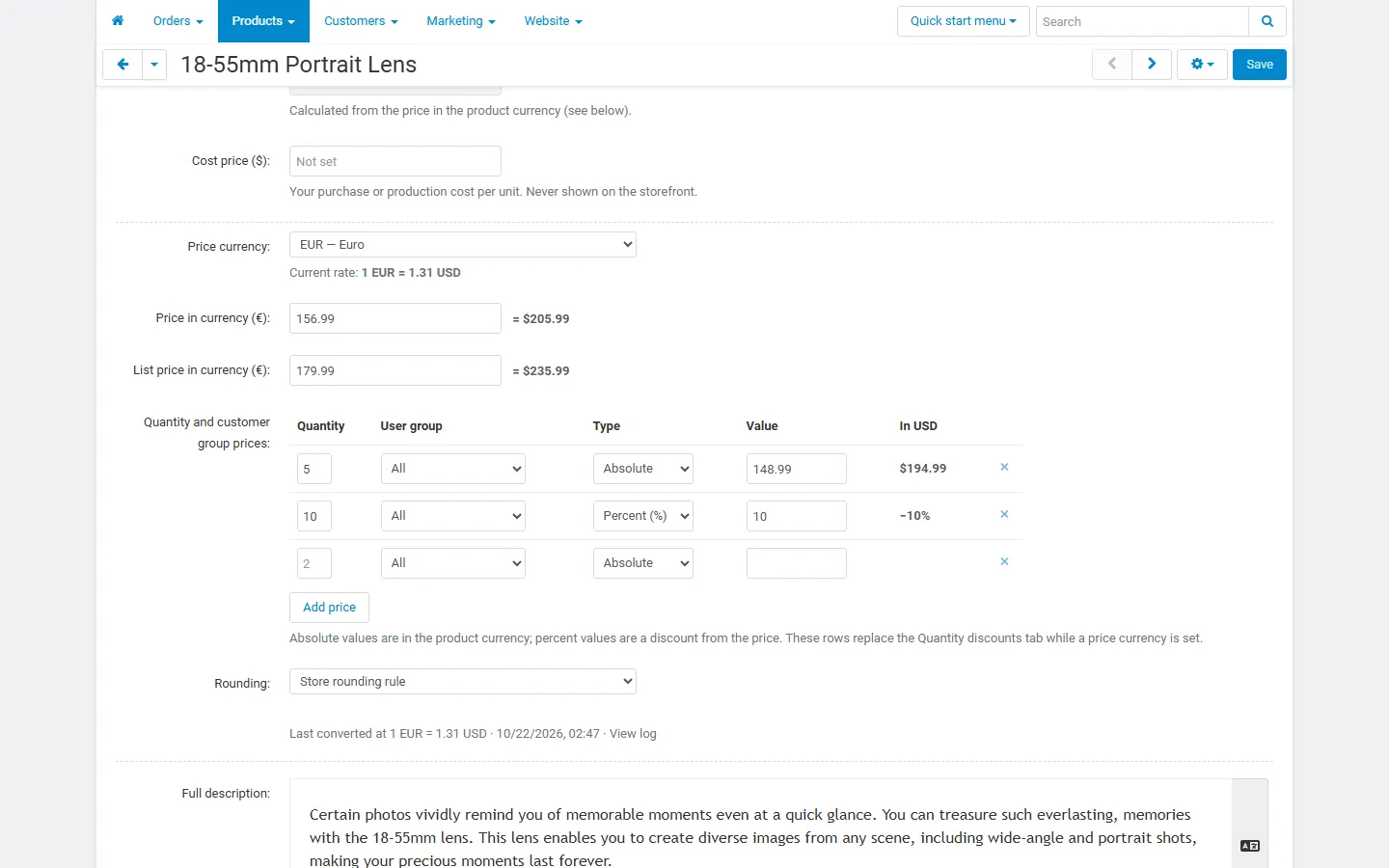
Section titled “Pricing a product in a currency”- Open the product (Products → Products → product). Below the Price field you find the price currency block.
- Choose the Price currency. The current rate is shown under the list.
- Enter the Price in currency and, if you use one, the List price in currency. The converted primary price is shown next to each field.
- Optional: add Quantity and customer group prices: a quantity (and customer group) with an absolute price in the product currency or a percent discount. These rows replace the Quantity discounts tab while the product has a price currency; the tab shows a note and its fields are read-only.
- Optional: choose No rounding for this product under Rounding.
- Save. The primary Price and List price fields show the converted values; they are read-only while a price currency is set.
To go back to pricing in the primary currency, choose Primary currency in the list and save: the product keeps its current prices, and you edit them directly again.
If the product has variations, tick Also use this currency for the other variations: every variation is priced in the same currency, each keeping its own current price. New variations of a product priced in a currency get that currency automatically.
When the exchange rate changes
Section titled “When the exchange rate changes”Change the rate in Administration → Currencies and save. All products priced in that currency are recalculated in the same request, and a notice tells you how many prices changed. Very large catalogs are recalculated for about 20 seconds in that request; the rest continues with the next cron run or Recalculate now.
If your rates are updated by another tool that writes them straight to the database, the cron job notices the new rate and recalculates.
Only prices that really change are written. Every change goes through the normal CS-Cart price saving, so other add-ons see it: our price history add-on (EU Omnibus) records the new price, feeds see the new “updated” time.
Products → Price currencies
Section titled “Products → Price currencies”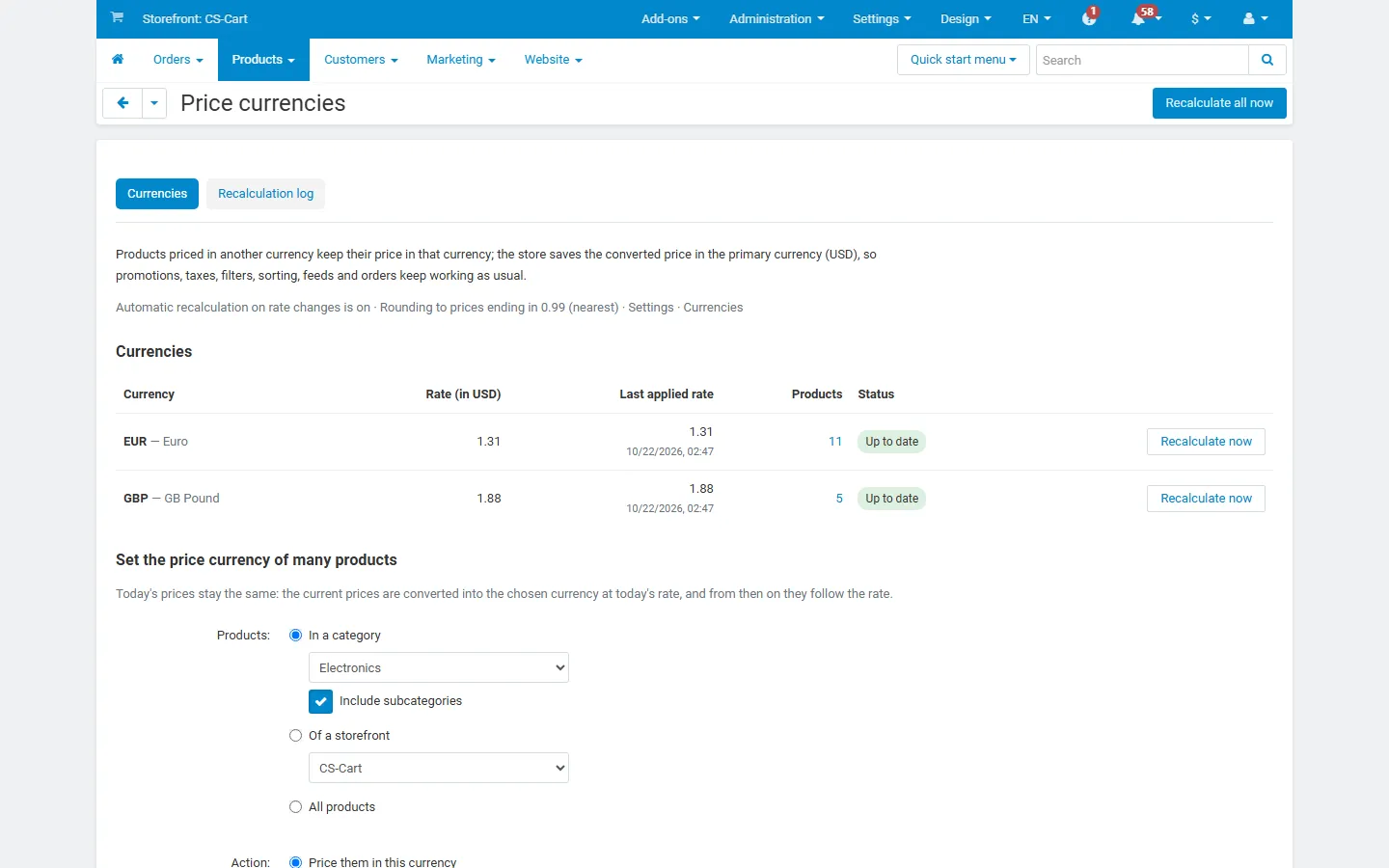
- Currencies: each currency with its current rate, the rate last applied to the products, the number of products (a link to the filtered product list) and the status: Up to date, Rate changed (waiting for a recalculation), Recalculation pending (a large run is still in progress) or Currency deleted (products priced in a currency that no longer exists keep their last price).
- Recalculate now per currency, or Recalculate all now at the top: checks every product priced in a currency and writes the prices that differ, for example after you changed the rounding rule.
Pricing many products at once
Section titled “Pricing many products at once”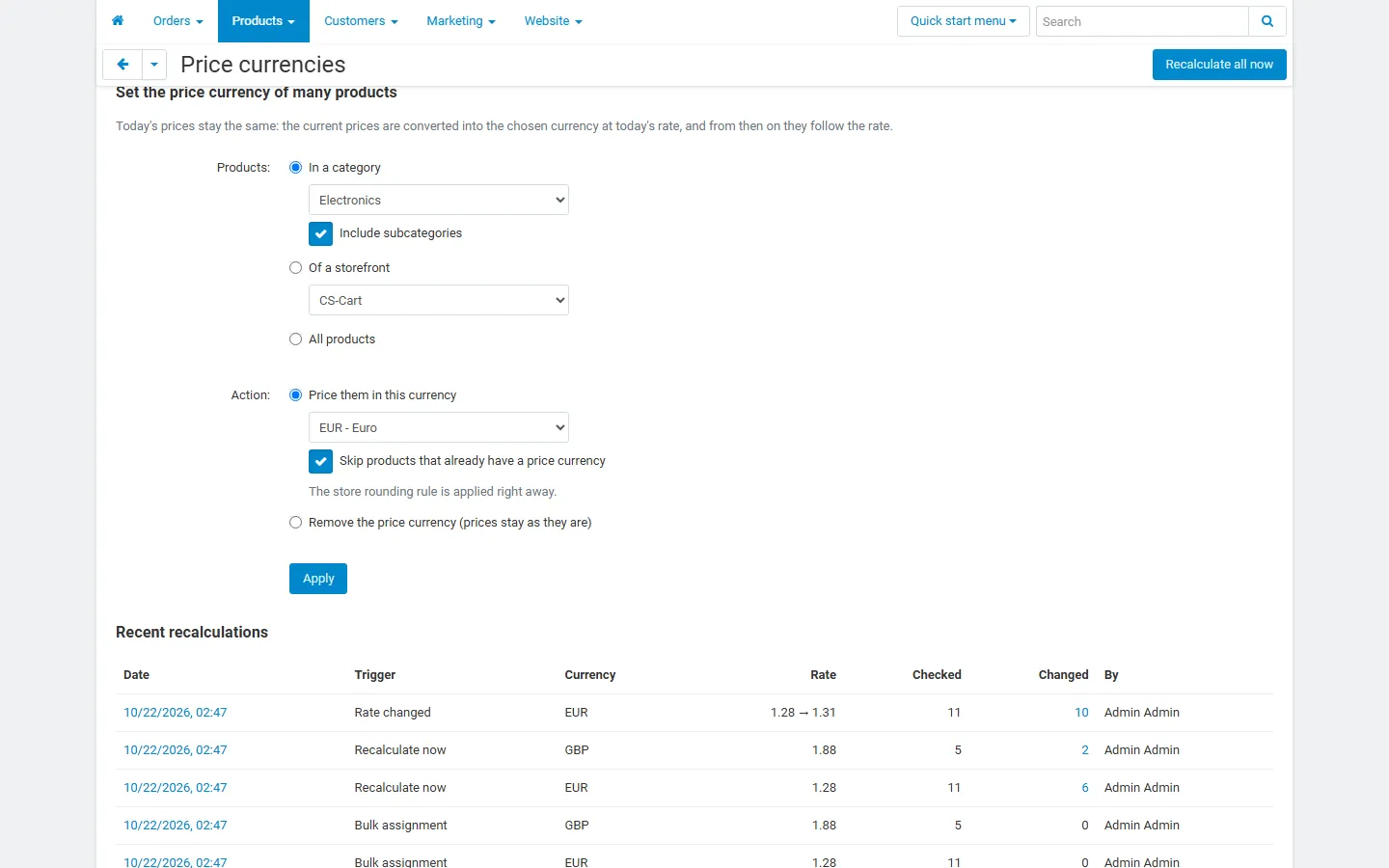
- Choose the products: In a category (with or without subcategories), Of a vendor (Multi-Vendor) or Of a storefront (CS-Cart with several storefronts), or All products.
- Choose Price them in this currency and the currency. Keep Skip products that already have a price currency ticked to leave products with another currency alone.
- Click Apply and confirm.
Today’s prices stay the same: the current primary prices (including list prices and quantity and customer group prices) are converted into the currency at today’s rate. The rounding rule is applied right away, so prices may move to the nearest rounded value. From then on the products follow the rate.
Remove the price currency turns the selected products back into normal products priced in the primary currency; their prices stay as they are.
Recalculation log
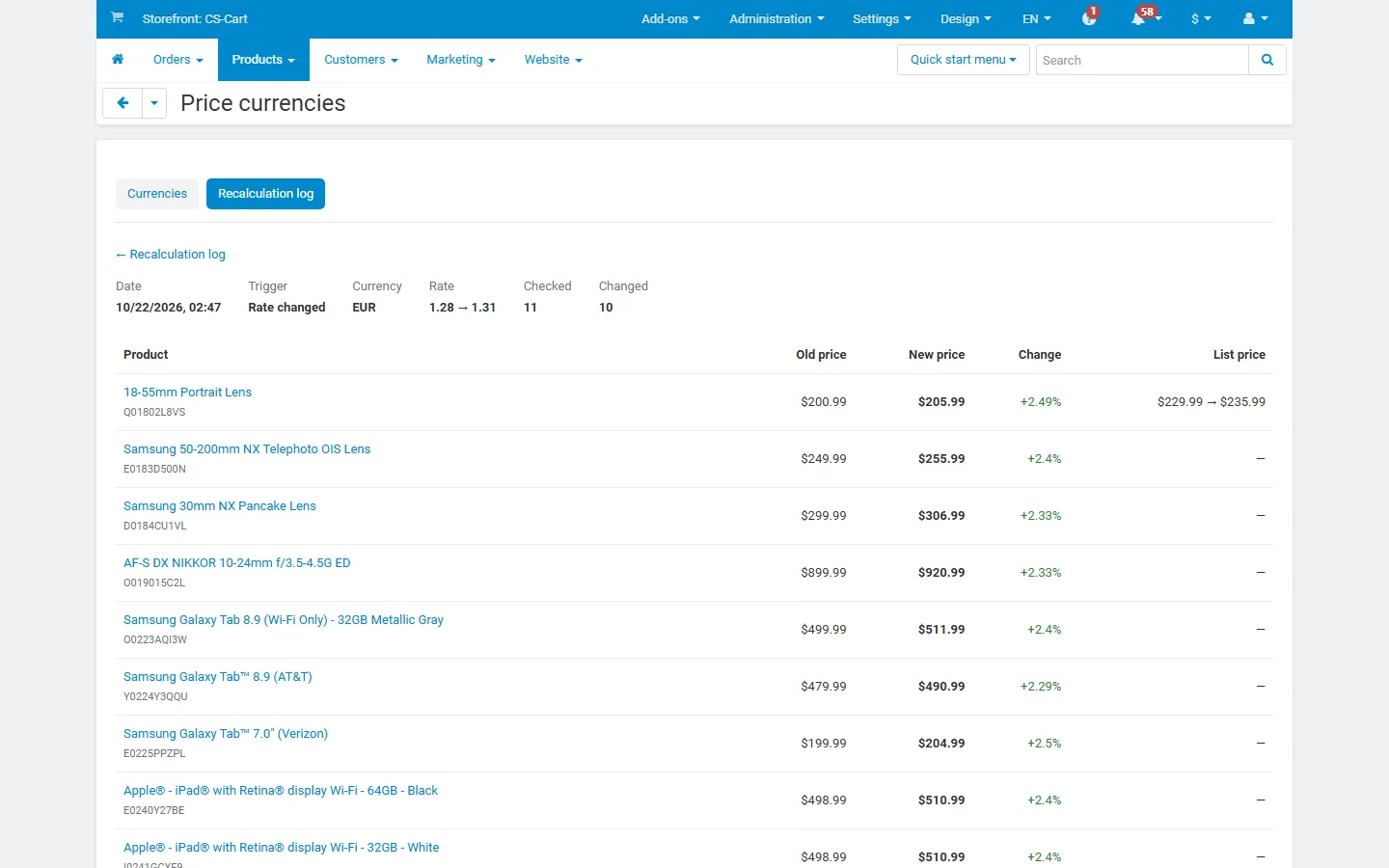
Section titled “Recalculation log”Products → Price currencies → Recalculation log lists every run: date, trigger (Product saved, Rate changed, Cron, Recalculate now, Bulk assignment, Import, REST API, Variations, Direct edit, Global update), currency, rate change, products checked and changed, and the administrator. Filter by currency or trigger. Click a run to see each changed product with its old and new price, the change in percent and the list price.
The View log link in a product’s price currency block shows the runs that changed this product.
Product list and search
Section titled “Product list and search”The product list shows the currency price under the primary price (for example EUR €156.99). In the search form, Price currency filters by one currency, by Any price currency or by Primary currency only.
Editing a price right in the list counts as a direct edit (see When the primary price is edited directly in Configuration).
Import and export
Section titled “Import and export”The product export and import (Administration → Export data / Import data → Products, and Products → Advanced import) offer three columns:
| Column | Example | Notes |
|---|---|---|
| Price currency | EUR | Currency code. Empty removes the price currency (the price stays). |
| Currency price | 19.90 | Price in the product currency. Without it, a new currency keeps today’s price (converted at today’s rate). |
| Currency list price | 24.90 | List price in the product currency. Empty clears it. |
The columns of a row are applied after the import, so they win over the Price column of the same row. Rows of currency-priced products that only change Price or List price are handled like direct edits. Quantity and customer group prices of a product keep their currency values.
REST API
Section titled “REST API”GET /api/2.0/products/:id and the product list return a kv_price_currency object (or null); PUT and POST accept it:
{ "kv_price_currency": { "currency_code": "EUR", "price": 19.9, "list_price": 24.9, "rounding": "default", "tiers": [ {"lower_limit": 5, "usergroup_id": 0, "type": "A", "value": 18.5}, {"lower_limit": 10, "usergroup_id": 0, "type": "P", "value": 10} ] }}currency_code: "" removes the price currency. GET /api/2.0/products?kv_price_currency=EUR (or any, primary) filters the list. A PUT that changes only price or list_price is a direct edit.
Vendors (Multi-Vendor)
Section titled “Vendors (Multi-Vendor)”When Vendors can set a price currency is on, vendors see the price currency block on their product pages and can choose one of the currencies you allow. They cannot open Products → Price currencies; bulk assignment by vendor is done by the administrator. A currency that you set on a vendor’s product stays visible to the vendor read-only when vendor pricing is off.
Shared products (CS-Cart with several storefronts)
Section titled “Shared products (CS-Cart with several storefronts)”A product shared with several storefronts gets the same converted prices on all of them.