

Configuration
Open Add-ons → Manage add-ons → Sponsored Products for Vendors → Settings. All amounts are in the primary currency of your marketplace.
General
Section titled “General”| Setting | Default | Description |
|---|---|---|
| Show sponsored products on the storefront | On | Switch off to hide every sponsored slot and stop counting impressions and clicks. Campaigns, statistics and balances stay as they are. |
| New campaigns need approval | All campaigns | All campaigns: every new campaign waits for an administrator. Only vendors without automatic approval: vendors you marked with Automatic approval on the Vendors tab run at once. No approval: campaigns run as soon as they are saved. A change of the product list sends an approved campaign back to review; bids, budgets and dates do not. |
| Minimum vendor balance to keep | 0 | Ads are only paid from the part of the vendor balance above this amount. With 0, advertising never makes a balance negative. A negative value lets vendors advertise into debt up to that amount (combine it with Vendor debt payout, which then asks them to pay). |
| Post ad charges to the vendor balance | Once a day | Charges are collected by the add-on and posted to vendor accounting as one Payout row per vendor and day, or per vendor and hour. See Posting and cron. |
| Order attribution window (days) | 7 | Orders placed this many days after a sponsored click count as ordered revenue of the campaign. 0 switches the attribution cookie off. |
| Max products of one vendor per slot group | 2 | How many products of the same vendor one strip or block may show. Keeps the slots varied. |
| Show the vendor name on sponsored cards | On | Shows “by vendor” under the product name. |
| Scheduled tasks | The cron command and the last run. |
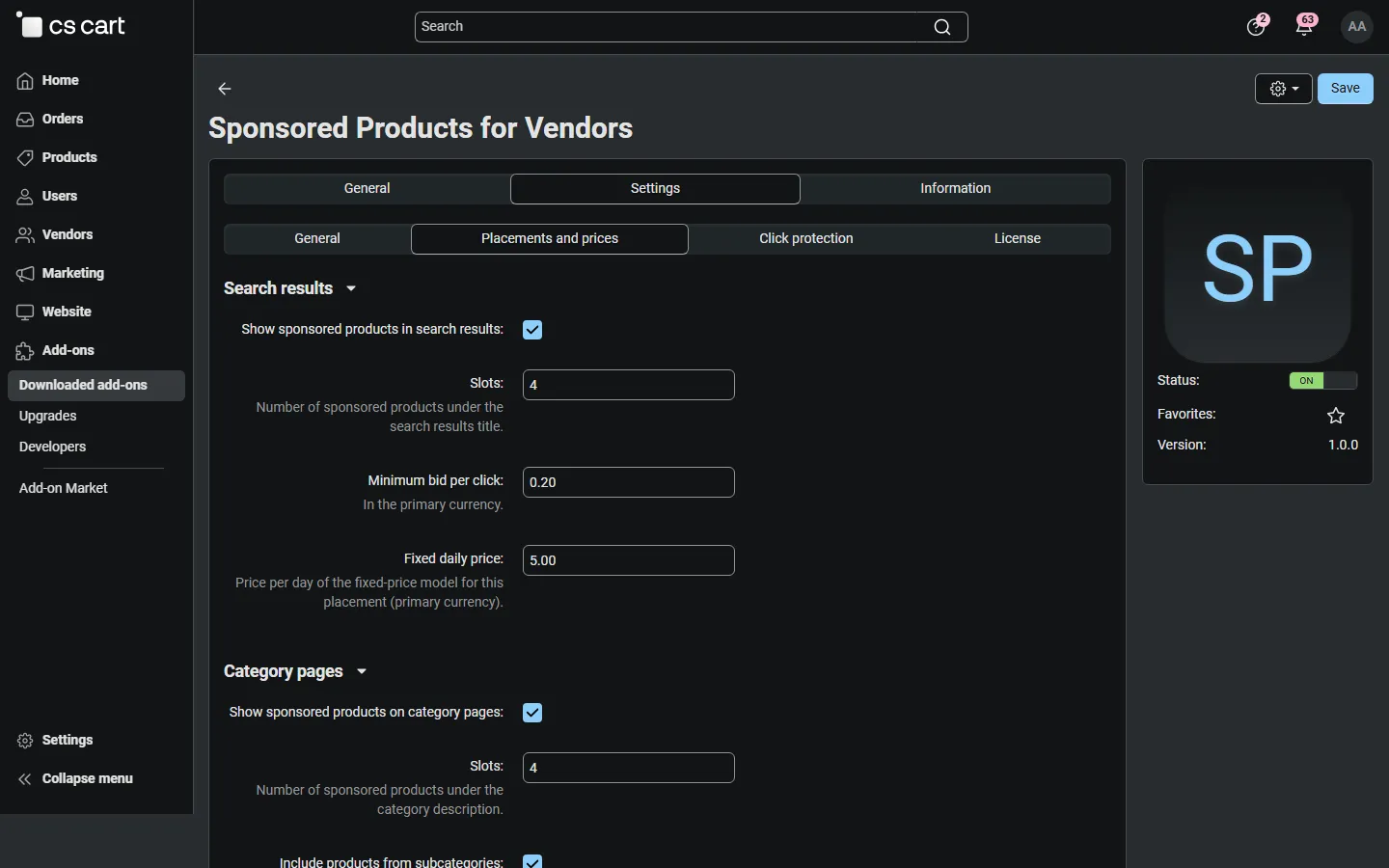
Placements and prices
Section titled “Placements and prices”For every placement: whether it is used, the number of slots, the minimum bid per click and the fixed daily price.
| Placement | Where | Products shown |
|---|---|---|
| Search results | Under the “Search results” title | Campaign products that match the search query (the search of your store decides, including search add-ons) |
| Category pages | Under the category description | Campaign products of the category; with Include products from subcategories also of its subcategories |
| Product pages | A “Sponsored products related to this item” row after the product tabs | Campaign products sharing a category with the viewed product; never the product itself, its variations or other offers of it |
| Sponsored products block | Wherever you place the block in Design → Layouts | All campaign products with the block placement, or only those of the current category or product page (block setting) |
Show on the first result page only (on by default) keeps the strips on page 1 of categories and search results.
A CPC campaign needs a bid of at least the minimum bid of every placement it uses. A fixed-price campaign pays the sum of the daily prices of its placements; the price is fixed when the campaign is saved, so later price changes affect a campaign only when the vendor saves it again.
Ranking. Fixed-price campaigns come first, then CPC campaigns by bid (highest first). Products with equal bids rotate every 15 minutes. A product that is in several campaigns is shown once, for its best campaign. Only products that the visitor can see (active, in stock when your store hides out-of-stock products, allowed for the visitor’s user group) are shown.
Click protection
Section titled “Click protection”| Setting | Default | Description |
|---|---|---|
| Free repeat clicks for (hours) | 24 | A visitor who clicks the same sponsored product again within this time is not charged again. Visitors are told apart by a first-party cookie, or by IP address and browser when cookies are blocked. |
| Max charged clicks per IP address and campaign per day | 3 | Further clicks from that address are logged as invalid. |
| Max charged clicks per IP address per hour | 20 | For all campaigns together. |
| Keep the click log for (days) | 180 | Only the detailed click log is trimmed; daily statistics, charges and postings are kept. |
Always free, whatever the settings: crawlers, previews and HTTP libraries (by user agent), requests without a user agent, clicks of signed-in administrators and of the campaign vendor’s own users, and clicks with an invalid or older-than-48-hours slot token.
Posting and cron
Section titled “Posting and cron”A click (or the first impression of a fixed-price campaign on a day) is recorded as a charge at once and lowers the vendor’s available for ads amount at once. Posting moves the charges into core vendor accounting:
- Once a day: after midnight (store time zone), one Payout row per vendor for the previous day, with the comment “Sponsored products: ad charges for 2026-10-21, 37 charges (SP-15)”.
- Every hour: one row per vendor and hour.
- Post now on the Posted charges tab posts everything up to now, including today.
The rows have a positive amount and the status Completed: they lower the vendor balance and count as marketplace income, exactly like the plan fees of Vendor plans.
Posting and the other scheduled tasks (ending campaigns after their end date, re-checking vendors that ran out of balance, trimming the click log) run every 15 minutes while administrators or vendors use their panel. For exact timing add this cron job (every 15 minutes):
php /path/to/store/admin.php --dispatch=kv_sponsored.cronor call https://your-store/admin.php?dispatch=kv_sponsored.cron&cron_password=<cron password> (the cron password is in Settings → Security). The Scheduled tasks setting shows both with your paths.
Privileges
Section titled “Privileges”The add-on adds two privileges in the Vendors group: View sponsored products and Manage sponsored products. Administrators without them cannot open the add-on pages. Vendors always manage their own campaigns and see only their own statistics; moderation, posting and the vendor list are for administrators.
License
Section titled “License”The license status is shown in a License card at the top of the add-on page, above the tabs, so you see it on every tab. The License tab holds the key itself. The key is stored once for the whole installation.
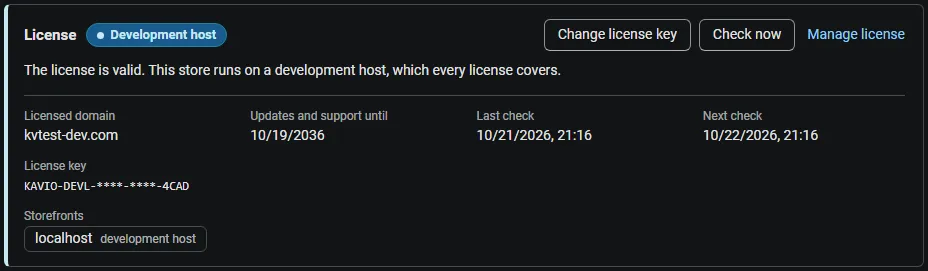
The License card shows:
- the status in color: green when valid, blue for a development host or the 14-day period before a key is required (with the days left), amber when the license server could not be reached (with the days left) or a Marketplace number is still being verified, red when the add-on is switched off;
- in plain words what the status means and, when the add-on is (or will be) switched off, what stops: sponsored slots disappear from the storefront and no impressions, clicks or charges are recorded; campaigns, reports and vendor balances stay as they are, and charges recorded earlier are posted after the license is valid again;
- the licensed domain, every storefront with its result (covered, development host, not covered), the end of the updates and support period, the last and the next check, and the key in use (masked);
- the actions Enter license key / Change license key (opens the License tab), Check now (verifies at once and stays on the page), Manage license (your licenses on cs-cart.kaviolabs.com) and, without a valid license, Buy a license.
In Add-ons → Manage add-ons the add-on’s row shows a small license badge next to its name, for example License: Valid or License: Pending · 9 days left.
The add-on’s own admin pages show the license status in a bar at the top: a small green chip when the license is valid, or a banner with the status, what is switched off and the same actions as the card. Vendors never see license information; while the add-on is switched off their campaign page says that sponsored products are not shown at the moment.
| Setting | Description |
|---|---|
| License key | Your Kavio Labs license key (KAVIO-XXXX-XXXX-XXXX-XXXX, from My licenses on cs-cart.kaviolabs.com) or your CS-Cart Marketplace license number. If you entered the Marketplace license number in Add-ons → Manage add-ons (the add-on’s license field), leave this empty: the add-on uses that number. |
| License status | Points to the License card and explains what the check sends. |
What the license covers. A license is bound to the base domain you entered at purchase (for example yourstore.com) and covers every subdomain of it (www.yourstore.com, shop.yourstore.com, staging.yourstore.com). Local development hosts are always allowed: localhost, 127.0.0.1 and other private IP addresses, and host names ending in .localhost, .test, .local, .example or .invalid. A marketplace on a different base domain needs its own license. If you move your marketplace to a new domain, contact support.
When the add-on checks. When you save the key, and then once a day. The check runs only in the admin panel (on a page you open) or from cron, never while customers browse the storefront or place orders, and takes a few seconds at most. A cron job keeps the license verified even when nobody opens the admin panel:
php /path/to/store/admin.php --dispatch=kv_vendor_sponsored_products_license.checkWhat is sent. The check sends this to https://cs-cart.kaviolabs.com and nothing else: the license key, the add-on ID and version, the host names of your storefronts, your CS-Cart version and edition, and a random one-time value. No customer, vendor, order or campaign data is sent. The server answers with a digitally signed result, so a forged answer is ignored.
Statuses.
| Status (card) | Color | What happens |
|---|---|---|
| Valid | Green | The license is valid for this domain. Everything works. |
| Development host | Blue | The store runs on a local development host, which every license covers. Everything works. |
| Pending verification | Amber | A CS-Cart Marketplace license number was accepted, but the Marketplace has not confirmed it yet. Everything works. |
| Pending · N days left | Blue | No verified key yet (a new installation). Everything works for 14 days. |
| Grace period · N days left | Amber | The last checks failed (for example a network problem). The add-on keeps working for 14 days after the first failed check. |
| Not activated, Invalid key, Revoked, Domain mismatch, Not verified | Red | Sponsored slots disappear from the storefront and the tracking endpoint records nothing: no impressions, no clicks, no charges. Campaigns, statistics and vendor balances stay as they are; vendors and administrators can still edit, approve and export. Charges recorded before are not posted until the license is valid again. Domain mismatch shows the licensed domain next to the domain your store runs on. |
When your updates and support period ends, the add-on keeps working. Only updates and support stop.
License information appears in the admin panel only, and only for administrators who may manage add-ons; vendors and customers never see it. When the add-on is switched off, other admin pages also show a notice once per session with a link to the add-on page; the add-on page and the add-on’s own pages show the card or the status bar instead.