

Configuration
Open Add-ons → Manage add-ons → Vendor Performance & SLA Monitor → Settings. The KPI thresholds and actions are not settings: they live in the SLA policies (see below).
General
Section titled “General”| Setting | Default | Description |
|---|---|---|
| Enable performance monitoring | On | Off: nothing is computed, no e-mails are sent, badges are hidden and automatic actions are not enforced. The last results stay visible. |
| Rolling window (days) | 30 | The KPIs cover the orders placed in the last N days (7 to 180). |
| Review window (days) | 90 | Product reviews of the last N days count for the review average (7 to 365). |
| Count Saturday and Sunday as handling days | Off | Off: the handling time counts business days (Monday to Friday). |
| Accepted (processing) statuses | Processed, Complete | The first change into one of these statuses made by the vendor or an administrator is the acceptance time. Statuses set by payment callbacks or while the order is placed do not count. |
| Shipped statuses | Complete | The first change into one of these statuses counts as shipped, like the first shipment. |
| Cancelled statuses | Canceled | |
| Statuses that never count | Failed, Declined | Incomplete orders never count either. |
| Cancellations that count against the vendor | Vendor, Administrator | Who changed the order to a cancelled status: Vendor, Administrator, Customer or System (payment callbacks, cancellations found by the nightly check). |
| Nightly run after (hour, 0-23) | 2 | Without a cron job, the first administrator or vendor panel page view after this hour starts the daily run. |
Cron job. For a fixed time, run the nightly task from cron, for example every night at 02:30:
30 2 * * * php /path/to/store/admin.php --dispatch=kv_vendor_performance_sla.cronOr request admin.php?dispatch=kv_vendor_performance_sla.cron&cron_password=<your cron password> (the password from Settings → Security). The settings page shows the exact command and URL of your store.
Storefront badges
Section titled “Storefront badges”| Setting | Default | Description |
|---|---|---|
| Show performance badges on the storefront | Off | Opt-in. Badges use the last nightly results only. Vendors in breach never get a badge. |
| “Ships on time” badge from (%) | 95 | Shown when the on-time shipment rate is at least this value (50 to 100) and there are enough due orders. |
| “Replies within” badge up to (hours) | 24 | Shown when the average first response is at most this many hours (rounded up to 1, 2, 4, 8, 12, 24 or 48 hours). |
| Show the badges on vendor pages | On | Vendor details page and vendor store page. |
| Show the badges next to the vendor name of products | On | Product pages, product lists that show the vendor, and the cart. |
Notifications and actions
Section titled “Notifications and actions”| Setting | Default | Description |
|---|---|---|
| Send the administrator digest to | empty | Comma-separated addresses. Empty: the Help/Support department e-mail of the marketplace. |
| Lift actions for (days) | 14 | When you lift the automatic actions of a vendor, they stay lifted for this many days. |
SLA policies
Section titled “SLA policies”Vendors → Vendor performance → SLA policies lists the default policy and every vendor plan. A plan uses the default policy until you give it its own (Own policy). Each policy has:
| Field | Default | Description |
|---|---|---|
| Handling time | 2 | Business days to ship an order. The due date is the end of the last handling day. A vendor override is available on the vendor’s performance page. |
| Minimum orders | 10 | Order KPIs are rated only with at least this many orders in the window (the response time needs 3 conversations, the review average 5 reviews). |
| KPI thresholds | see below | Per KPI: measure on/off, warning threshold, breach threshold. |
| E-mail the vendor | On | When the level changes to warning or breach, recovers, or an action starts or ends. |
| Include in the administrator digest | On | One e-mail per run listing new breaches, review flags and actions. |
| Flag for review on breach | On | Marks the vendor in the league table until you clear the flag. |
| Hide products after the grace period | Off | The vendor’s products disappear from the storefront catalog, search and product pages. |
| Pause new orders after the grace period | Off | Products stay visible, but customers cannot add them to the cart or check out with them. |
| Grace period (days) | 7 | Days in breach before hiding or pausing starts. |
Default thresholds:
| KPI | Warning | Breach |
|---|---|---|
| Late shipment rate | above 5% | above 10% |
| Cancellation rate | above 2.5% | above 5% |
| Acceptance time | above 24 h | above 48 h |
| Tracking upload rate | below 90% | below 75% |
| Return rate | above 5% | above 10% |
| First response time | above 24 h | above 48 h |
| Review average (off by default) | below 4.0 | below 3.5 |
A value equal to the warning threshold is still good.
License
Section titled “License”The license status is shown in a License card at the top of the add-on page, above the tabs, so you see it on every tab. The License tab holds the key itself. The key is stored once for the whole installation.
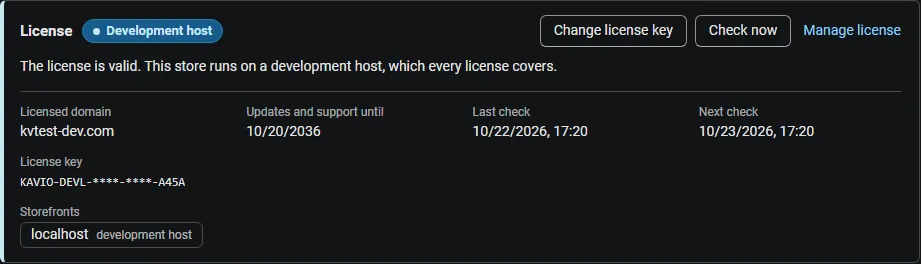
The License card shows:
- the status in color: green when valid, blue for a development host or the 14-day period before a key is required (with the days left), amber when the license server could not be reached (with the days left) or a Marketplace number is still being verified, red when the add-on is switched off;
- in plain words what the status means and, when the add-on is (or will be) switched off, what stops: no new performance data is computed, no e-mails are sent, storefront badges are hidden and automatic actions (hidden products, paused orders) are not enforced; the last computed results stay visible to administrators;
- the licensed domain, every storefront with its result (covered, development host, not covered), the end of the updates and support period, the last and the next check, and the key in use (masked);
- the actions Enter license key / Change license key (opens the License tab), Check now (verifies at once and stays on the page), Manage license (your licenses on cs-cart.kaviolabs.com) and, without a valid license, Buy a license.
In Add-ons → Manage add-ons the add-on’s row shows a small license badge next to its name, for example License: Valid or License: Pending · 9 days left. The Vendor performance pages show the license status in a bar at the top.
| Setting | Description |
|---|---|
| License key | Your Kavio Labs license key (KAVIO-XXXX-XXXX-XXXX-XXXX, from My licenses on cs-cart.kaviolabs.com) or your CS-Cart Marketplace license number. If you entered the Marketplace license number in Add-ons → Manage add-ons (the add-on’s license field), leave this empty: the add-on uses that number. |
| License status | Points to the License card and explains what the check sends. |
What the license covers. A license is bound to the base domain you entered at purchase (for example yourstore.com) and covers every subdomain of it (www.yourstore.com, shop.yourstore.com, staging.yourstore.com). Local development hosts are always allowed: localhost, 127.0.0.1 and other private IP addresses, and host names ending in .localhost, .test, .local, .example or .invalid. A store on a different base domain needs its own license. If you move your store to a new domain, contact support.
When the add-on checks. When you save the key, and then once a day. The check runs only in the admin panel (on a page you open) or from cron, never while visitors browse the storefront, and takes a few seconds at most. A cron job keeps the license verified even when nobody opens the admin panel:
php /path/to/store/admin.php --dispatch=kv_vendor_performance_sla_license.checkWhat is sent. The check sends this to https://cs-cart.kaviolabs.com and nothing else: the license key, the add-on ID and version, the host names of your storefronts, your CS-Cart version and edition, and a random one-time value. No vendor, order or other personal data is sent. The server answers with a digitally signed result, so a forged answer is ignored.
Statuses.
| Status (card) | Color | What happens |
|---|---|---|
| Valid | Green | The license is valid for this domain. Everything works. |
| Development host | Blue | The store runs on a local development host, which every license covers. Everything works. |
| Pending verification | Amber | A CS-Cart Marketplace license number was accepted, but the Marketplace has not confirmed it yet. Everything works. |
| Pending · N days left | Blue | No verified key yet (a new installation). Everything works for 14 days. |
| Grace period · N days left | Amber | The last checks failed (for example a network problem). The add-on keeps working for 14 days after the first failed check. |
| Not activated, Invalid key, Revoked, Domain mismatch, Not verified | Red | No new results are computed, no e-mails are sent, badges are hidden and automatic actions are not enforced. Administrators still see the last results, the history and the CSV export. Domain mismatch shows the licensed domain next to the domain your store runs on. |
When your updates and support period ends, the add-on keeps working. Only updates and support stop.
License information appears in the admin panel only, and only for administrators who may manage add-ons; vendors never see it.