

Usage
Overview · Installation · Configuration · Developer notes · FAQ
Price lists
Section titled “Price lists”Open Customers → Price lists. The overview shows every list with its priority, who it is assigned to, the number of products, the validity and the state: Active, Scheduled (starts later), Expired or Disabled. Select lists to activate, disable or delete them together.
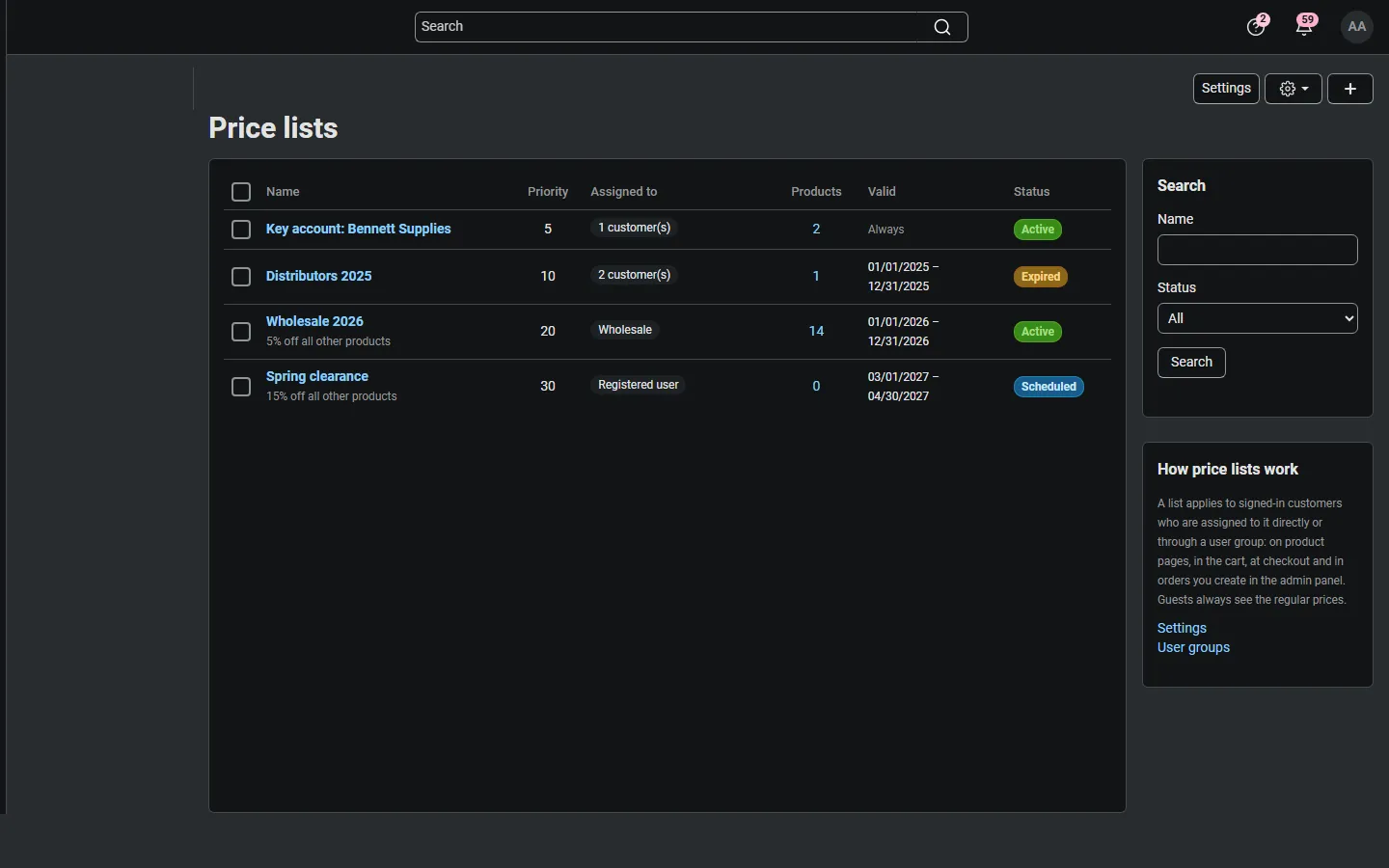
Click + to create a list. On the General tab:
| Field | Description |
|---|---|
| Name | Shown to the customer on the My price list page. |
| Status | Active or Disabled. |
| Priority | Lower number = stronger list. Used when the setting “When several lists apply” is Highest priority list wins, and to sort the lists. |
| Valid from / Valid until | Optional dates. “Valid until” includes the whole day. Empty: no limit. |
| Discount on all other products | Optional percent discount for every product without its own price in this list (0 = none). |
| Note for the customer | Shown on the My price list page, for example payment terms or a contract number. |
| Internal note | Only for you. |
| Storefront | CS-Cart (Ultimate) with several storefronts, in “All storefronts” mode: the storefront the list belongs to, or all storefronts. A list created while a storefront is selected belongs to that storefront. |
Prices and quantity breaks
Section titled “Prices and quantity breaks”The Prices tab lists the products of the list with their regular price (the price for all customers) and the list’s rows. Search by product name or SKU; 30 products per page.
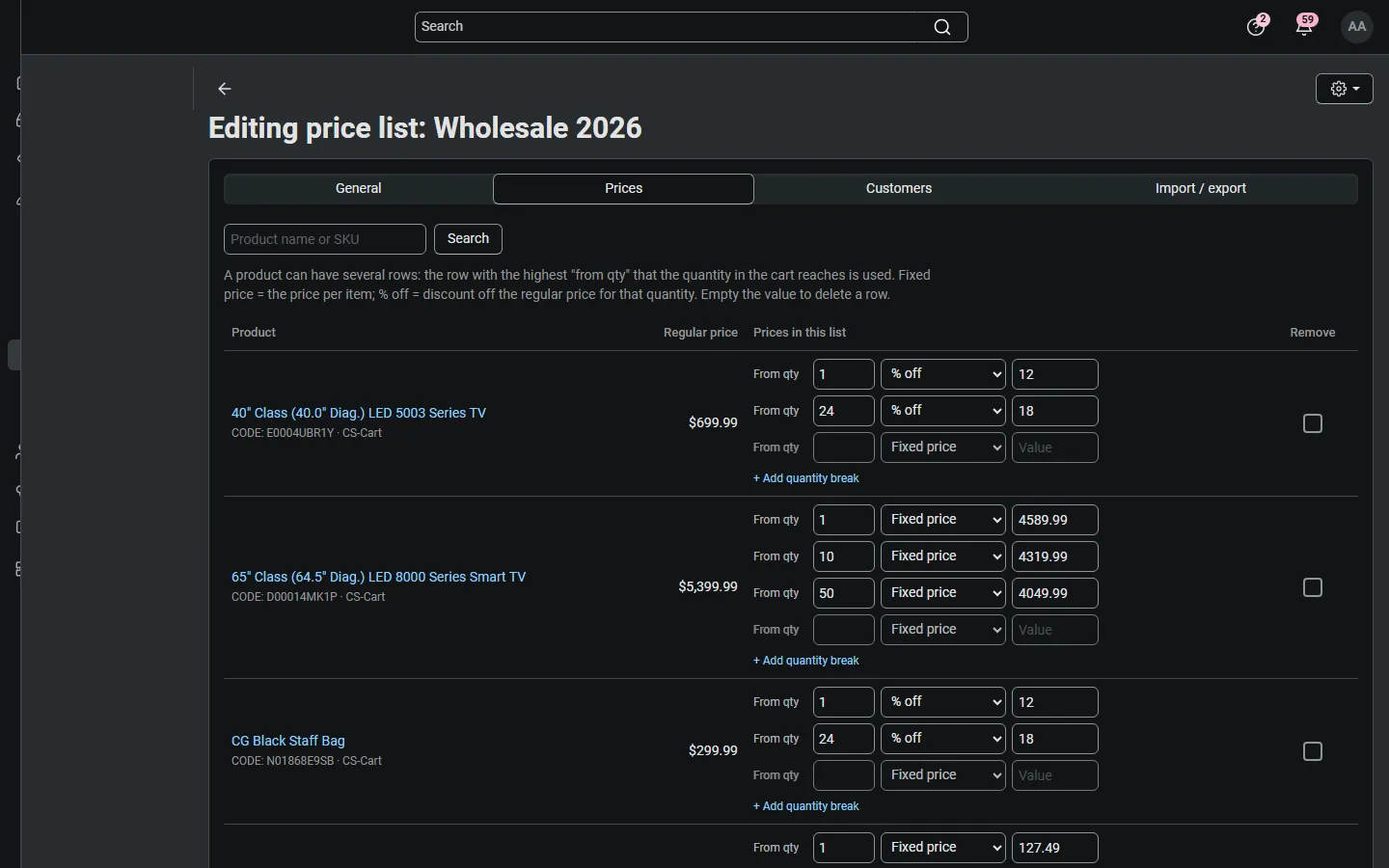
Every product can have several rows. Each row has:
- From qty: the quantity from which the row applies (1 = always).
- Type: Fixed price (the price per item) or % off (a discount off the regular price for that quantity).
- Value: the price or the percent.
The row with the highest “from qty” that the quantity in the cart reaches is used. Example: 1+ $19.90, 10+ $17.50, 50+ $15.90; a customer buying 12 pays $17.50 per item. The quantity is the total of the product in the cart (all option combinations together), the same way core quantity discounts work.
Click + Add quantity break for more rows, empty a value to delete a row, tick Remove to take a product out of the list, and Save. Add products opens the product picker: picked products are added with a neutral row (0% off from quantity 1), ready to edit.
Variations: a variation without its own rows uses the rows of its parent product, so you can price a whole variation group at once. Rows on a variation win over the parent’s rows.
Options: option price modifiers are added to the list price, as they are to the regular price.
Assignment
Section titled “Assignment”On the Customers tab tick user groups and add individual customers with Add customers. The list applies to every signed-in customer who is assigned directly or is an active member of one of the groups. “Registered” means every signed-in customer. Guests never get a list price.
Our B2B Registration & Approval add-on approves trade applications into user groups: assign your trade list to that group and approved customers get their prices at once.
Several lists for one customer
Section titled “Several lists for one customer”A customer can have several lists (for example a general trade list through a group and a contract list of their own). The setting When several lists apply to a customer decides:
- Lowest price wins: for every product and quantity the cheapest list price is used.
- Highest priority list wins: the list with the lowest priority number that has a price for the product (at that quantity) is used.
With Never charge more than the regular price on, the result is never above what the customer would pay without lists.
CSV import and export
Section titled “CSV import and export”The Import / export tab imports a CSV file into the list and exports the list.
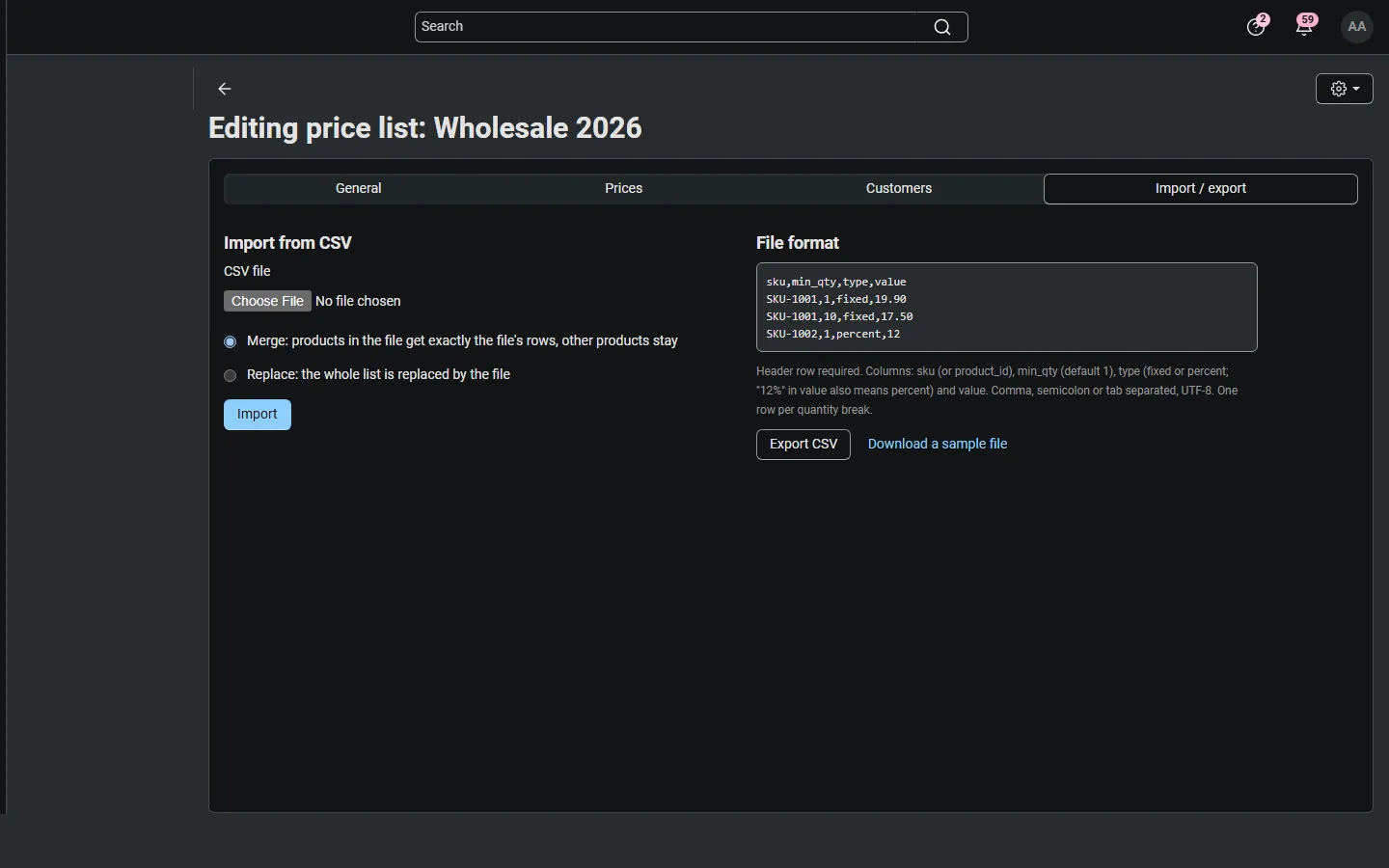
sku,min_qty,type,valueSKU-1001,1,fixed,19.90SKU-1001,10,fixed,17.50SKU-1002,1,percent,12- A header row is required. Columns (any order, case-insensitive):
sku(orproduct_code),product_id(optional; wins over the SKU),min_qty(orqty; default 1),type(fixedorpercent; default fixed; a value like12%also means percent) andvalue(orprice). Comma, semicolon or tab separated, UTF-8; decimal comma or point. - One row per quantity break.
- Merge: every product in the file gets exactly the file’s rows; other products of the list stay. Replace: all rows of the list are replaced by the file.
- Rows with an unknown SKU, an SKU that several products share (use
product_idfor those), an unknown type or an invalid value are skipped and listed with their line number; the rest is imported. Up to 200,000 rows per file. - On CS-Cart (Ultimate), SKUs are looked up in the products of the list’s storefront when the list belongs to one.
Export CSV downloads the list in the same format (plus the product name), ready to edit and import again.
What customers see
Section titled “What customers see”Signed-in customers with a list:
- Product pages and lists: their price; optionally the regular price crossed out and “Your price: you save N%”. The quantity discount table shows the list’s breaks.
- Cart and checkout: the list price for the quantity in the cart. Promotions, taxes, shipping and payment surcharges are calculated on it as usual.
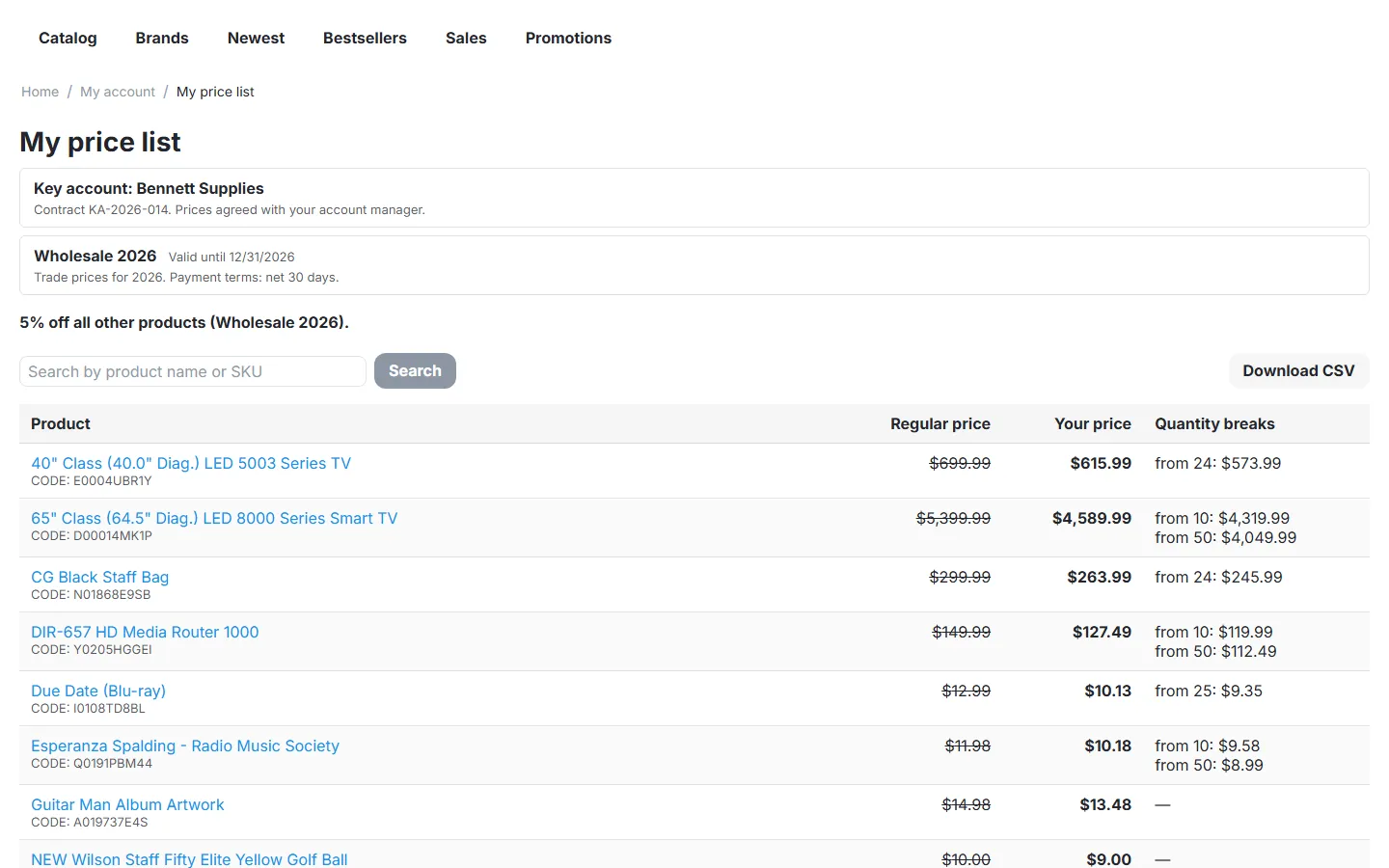
- My price list (account menu): the lists with their validity and note, a searchable table of the products with regular price, your price and quantity breaks, the “% off all other products” line, and Download CSV.
Guests and customers without a list see your regular prices.
Orders created in the admin panel
Section titled “Orders created in the admin panel”When you create or edit an order in Orders → Add new order for a customer, the customer’s list prices are used, the same as on the storefront.
Promotions
Section titled “Promotions”Catalog and cart promotions work on top of the list price (a “10% off” catalog promotion gives 10% off the list price). If trade customers should not get a promotion, exclude their user group in the promotion’s conditions.
Multi-Vendor
Section titled “Multi-Vendor”In 1.0.0 price lists are managed by the marketplace administrator and can contain products of every vendor. Vendors have no access to the price lists pages. Orders carry the list price, so vendor commissions and payouts are calculated on the price the customer paid. Vendor-defined price lists are planned for version 1.1.
CS-Cart (Ultimate)
Section titled “CS-Cart (Ultimate)”A list belongs to one storefront or to all storefronts. Settings are per storefront. The regular price a percent discount starts from is the storefront’s price of the product (shared products with storefront prices included).
Known limits
Section titled “Known limits”- Sorting by price and the price filter use the regular prices (they are calculated by the database for all customers).
- Product feeds and exports use the regular prices.