

Configuration
Overview · Installation · Usage · Developer notes · FAQ
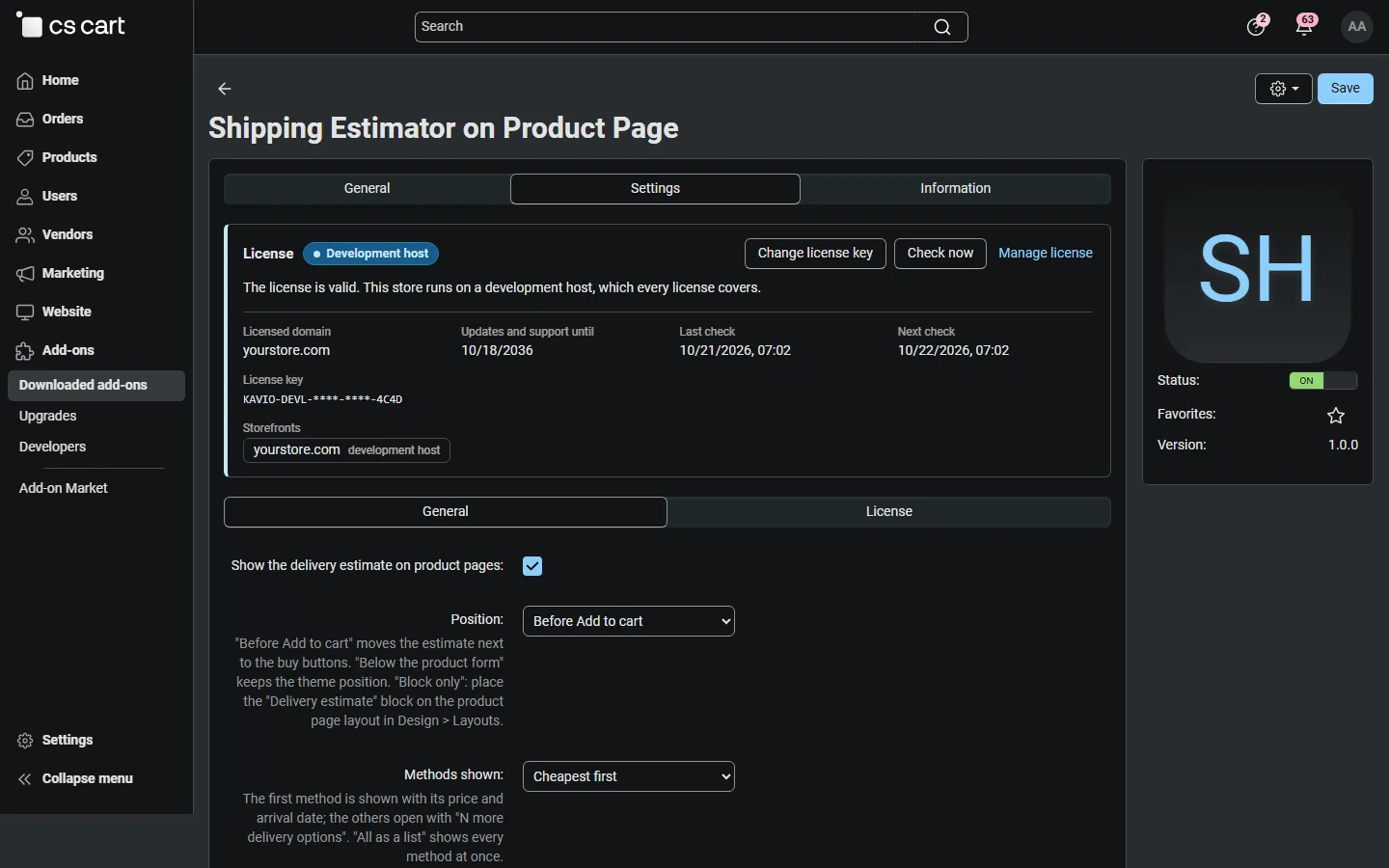
Open Add-ons → Manage add-ons → Shipping Estimator on Product Page → Settings. On CS-Cart Ultimate every storefront can have its own values.
General
Section titled “General”| Setting | Default | What it does |
|---|---|---|
| Show the delivery estimate on product pages | On | Switches the estimate on or off without uninstalling. |
| Position | Before Add to cart | Before Add to cart moves the estimate next to the buy buttons. Below the product form keeps the position the theme gives the add-on (below the form). Block only shows it only where you place the “Delivery estimate” block. |
| Methods shown | Cheapest first | Cheapest first or Fastest first shows one method with its price and arrival date; the others open with “N more delivery options”. All as a list shows every method at once. |
| Maximum number of methods | 5 | 1 to 20. |
| Include the customer’s cart in the estimate | Off | When on, the estimate is calculated for the cart plus this product. Use it when your rates depend on weight or order total, so the estimate matches what checkout will charge. |
| Include realtime carrier rates | On | Realtime carriers are asked for a live rate. The page never waits for them (see Usage). Switch off to show only your manual rates. |
| Cache rates for (minutes) | 15 | Rates for the same product, quantity, options and location are reused. Any change to shipping methods, rates, products, promotions or taxes clears the cache at once. 0 = no cache. Delivery dates are always calculated fresh. |
| Show the free shipping hint | On | “Add $X more for free delivery” when one of the methods becomes free from an order total. |
Delivery dates
Section titled “Delivery dates”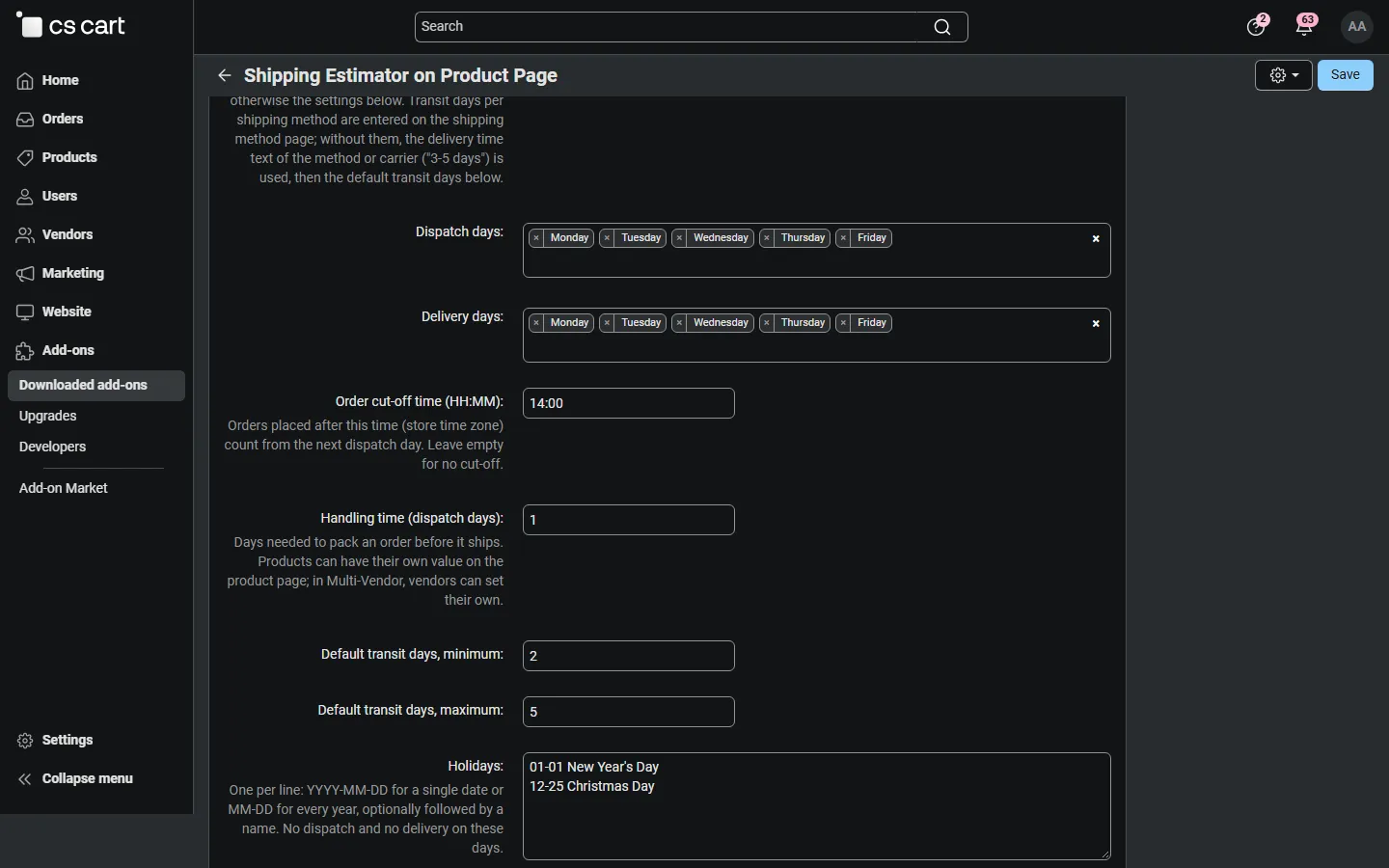
| Setting | Default | What it does |
|---|---|---|
| Delivery dates | Automatic | Automatic: Kavio Delivery Date & Time Slots provides the calendar when it is installed, otherwise the settings below. Settings below: always these settings. Off: prices only, no dates. |
| Dispatch days | Monday – Friday | Days your warehouse ships orders. |
| Delivery days | Monday – Friday | Days carriers deliver. Add Saturday if your carriers deliver on Saturdays. |
| Order cut-off time (HH:MM) | 14:00 | Orders after this time (store time zone, Settings → Appearance) count from the next dispatch day. Empty = no cut-off. Before the cut-off the estimate shows “Order within 2 h 15 min”. |
| Handling time (dispatch days) | 1 | Days you need to pack an order before it ships. 0 = same-day dispatch before the cut-off. |
| Default transit days, minimum / maximum | 2 / 5 | Used for a method without its own transit days and without a readable delivery time. |
| Holidays | New Year’s Day, Christmas Day | One per line: YYYY-MM-DD for a single date or MM-DD for every year, optionally followed by a name. No dispatch and no delivery on these days. |
| Show the order countdown | On | The “Order within …” line. |
Transit days per shipping method
Section titled “Transit days per shipping method”Each shipping method page (Administration → Shipping & taxes → Shipping methods) gets a Delivery estimate on product pages section with Transit days (minimum – maximum delivery days from dispatch to arrival).
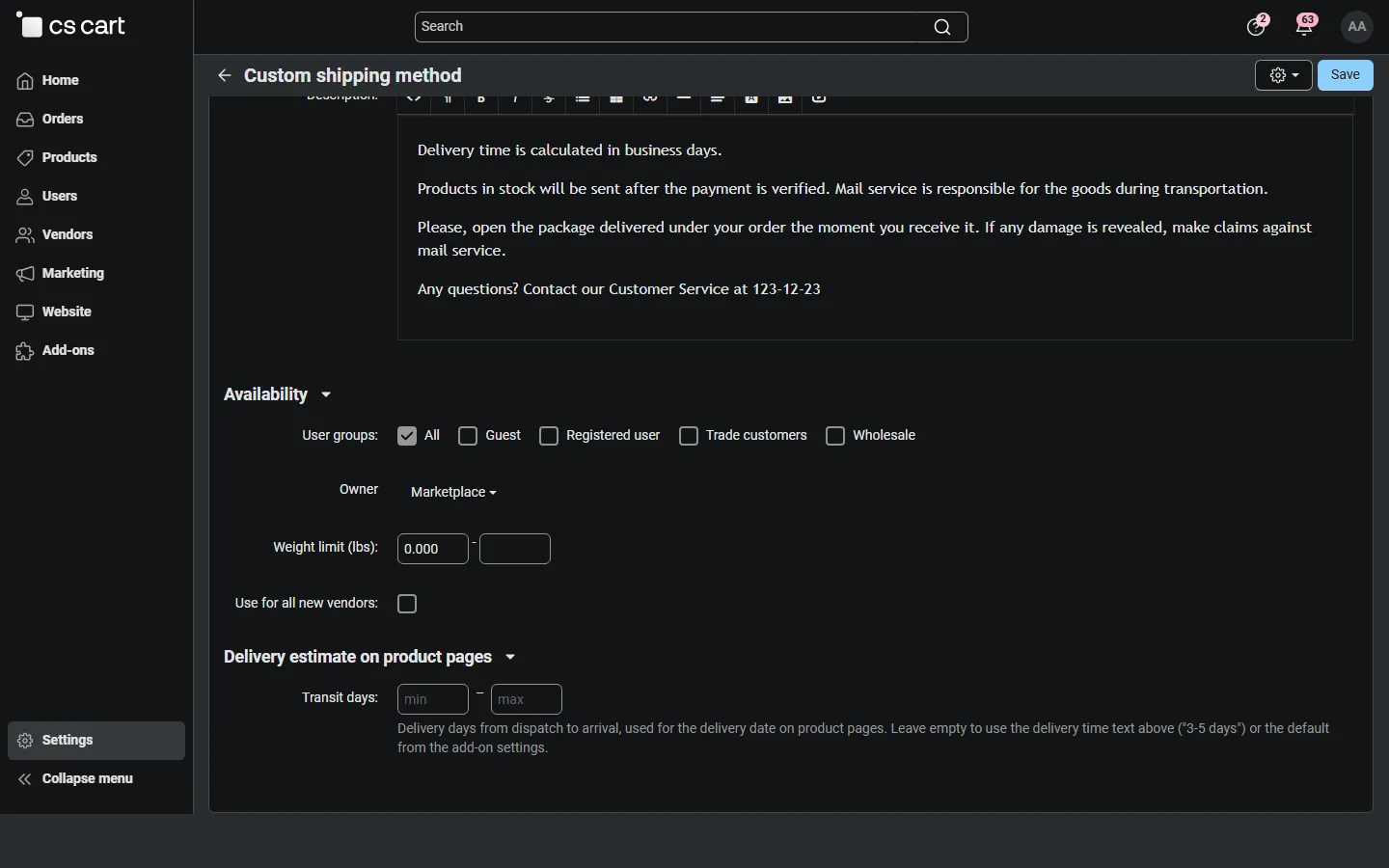
Which transit days are used, in this order:
- the method’s Transit days;
- the method’s Delivery time text, or the delivery time a realtime carrier returns (“3-5 days”, “2 business days”, “1-2 weeks”, “Next business day”);
- the default transit days from the settings.
A delivery time text without a number (“Collect in store”) is shown as it is, without a date.
Handling time per product
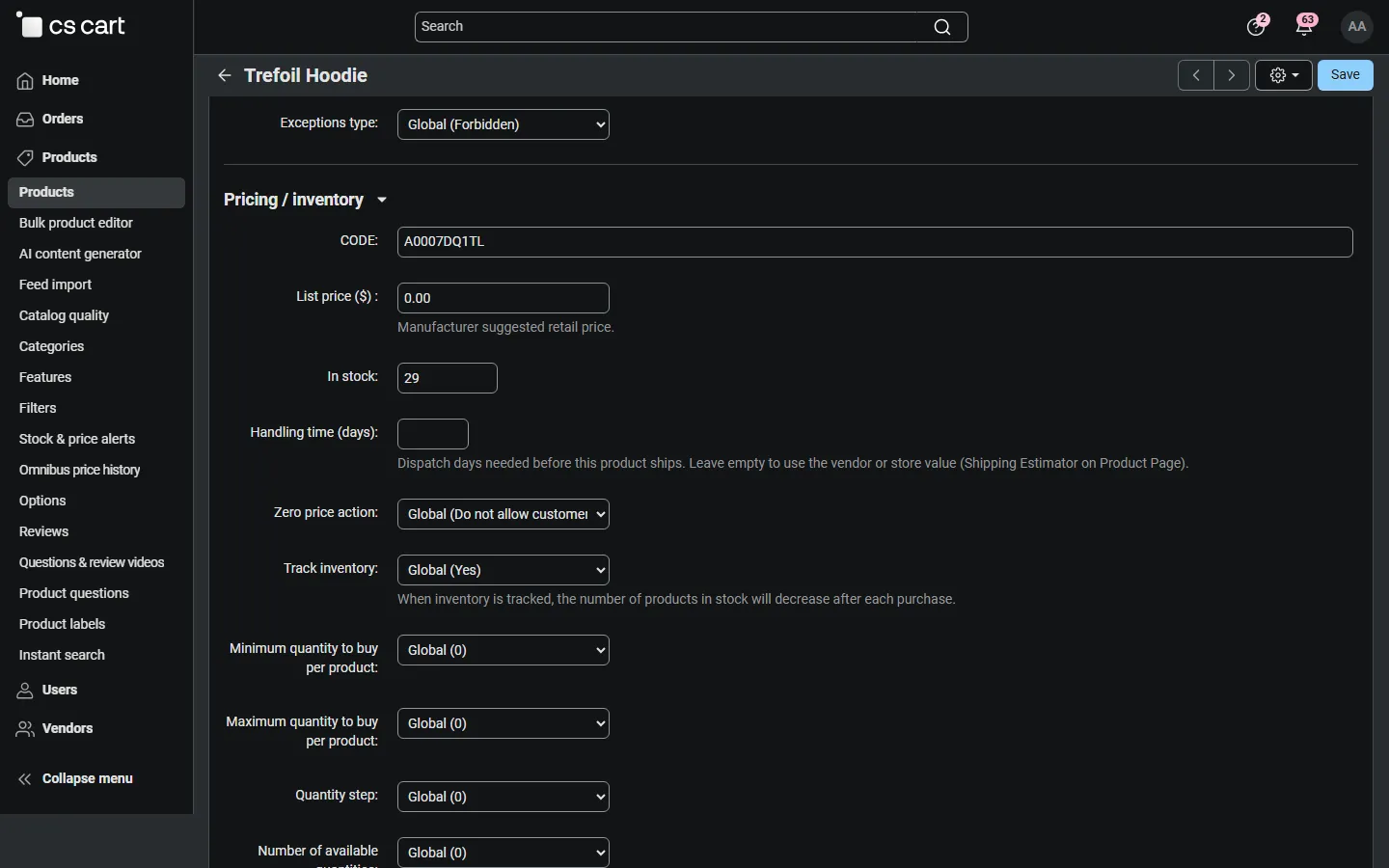
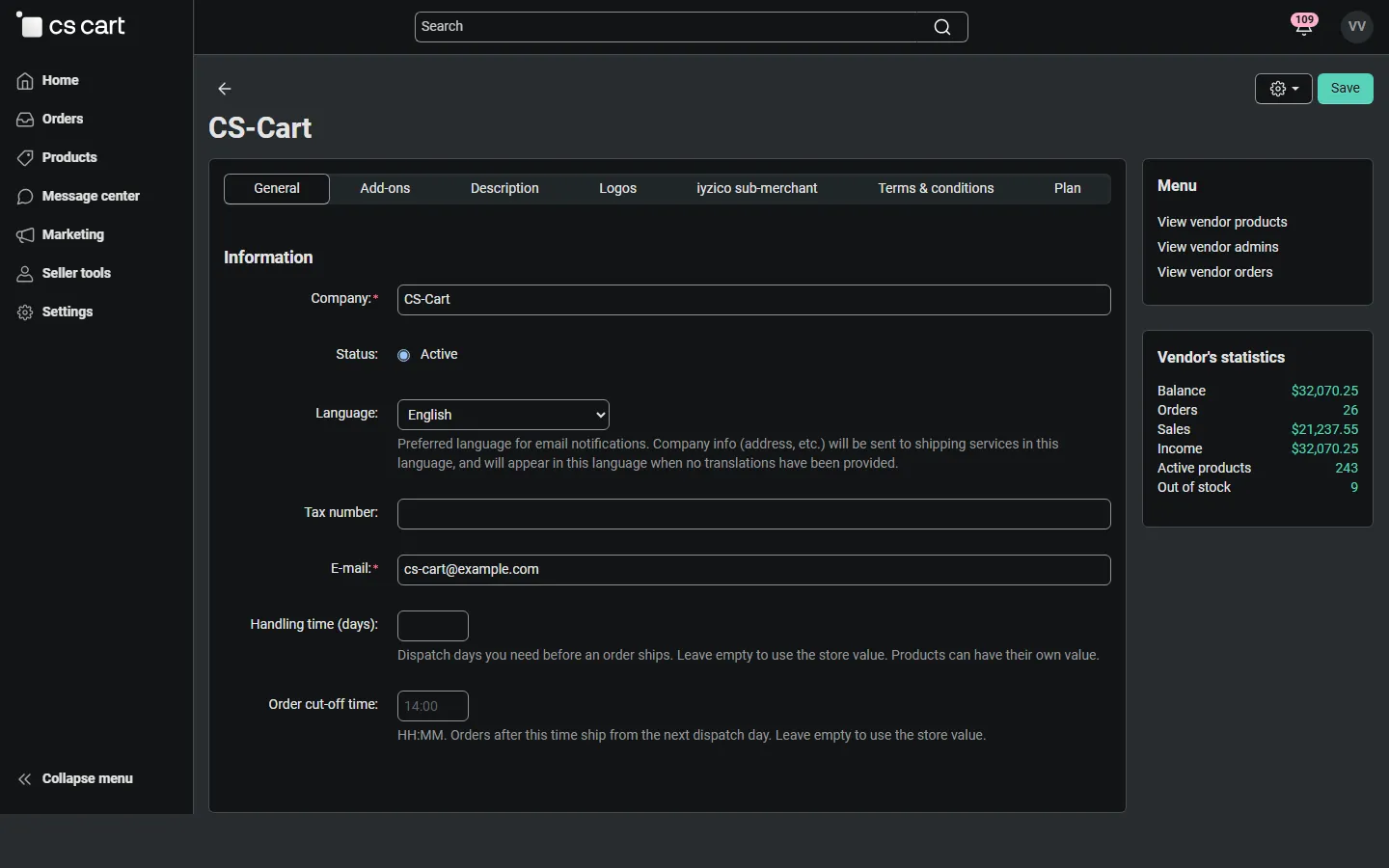
Section titled “Handling time per product”The product page in the admin (Pricing / inventory, under In stock) has a Handling time (days) field. Leave it empty to use the vendor or store value. When the cart is included, the slowest product decides.
Multi-Vendor: vendor handling time and cut-off
Section titled “Multi-Vendor: vendor handling time and cut-off”With Vendors can set their own handling time and cut-off time (Multi-Vendor section, on by default), the vendor profile (General tab, in the vendor panel and in the admin panel) has Handling time (days) and Order cut-off time. Empty fields use the store values.
For a custom position, set Position to Block only and add the block Delivery estimate to the product page layout in Design → Layouts (it shows nothing on other pages).
License
Section titled “License”The license status is shown in a License card at the top of the add-on page, above the tabs, so you see it on every tab. The License tab holds the key itself. The key is stored once for the whole installation.
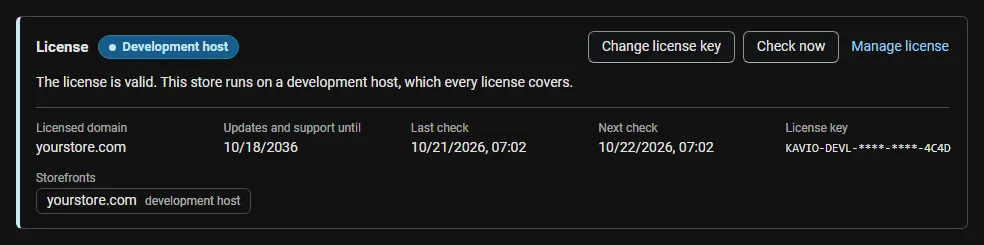
The License card shows:
- the status in color: green when valid, blue for a development host or the 14-day period before a key is required (with the days left), amber when the license server could not be reached (with the days left) or a Marketplace number is still being verified, red when the add-on is switched off;
- in plain words what the status means and, when the add-on is (or will be) switched off, what stops: the delivery estimate on product pages and its block are hidden; checkout, shipping rates and orders are not affected;
- the licensed domain, every storefront with its result (covered, development host, not covered), the end of the updates and support period, the last and the next check, and the key in use (masked);
- the actions Enter license key / Change license key, Check now, Manage license and, without a valid license, Buy a license.
In Add-ons → Manage add-ons the add-on’s row shows a small license badge next to its name.