

Usage
Building the form
Section titled “Building the form”Open Vendors → Vendor applications and choose Vendor application form in the gear menu. The page shows the steps of the application in order: step 1 is the core account form (company, e-mail, name, plan; edit those in Vendors → Seller profile fields), then one card per section with its fields.
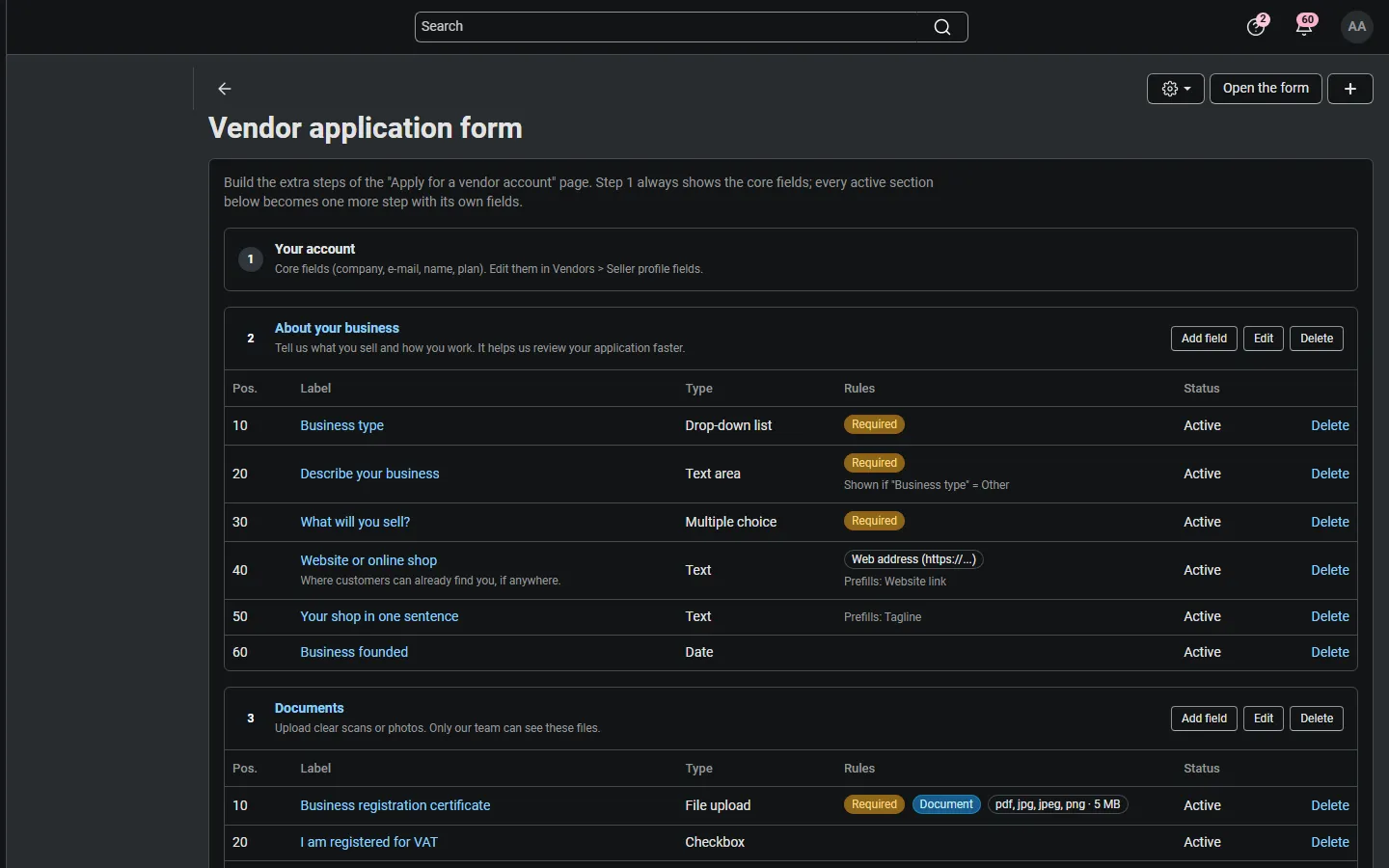
- Add section (the + button): title, optional description, position, status and, with vendor plans, the plans it is for. Each active section with at least one active field becomes one step of the form.
- Add field in a section card: label, type, options (one per line for drop-down lists and multiple choice), placeholder, help text, position and status.
- Set the validation: required, format (text fields), minimum and maximum length, and for file uploads the allowed file types, maximum size and number of files.
- Optional: Show only if another field equals a value, Vendor plans, and the Vendor Storefront Pro target.
- Click Open the form in the toolbar to see the storefront page.
Texts are saved for the language selected at the top of the page. A new section or field starts with the same texts in every language; switch the language to translate them.
Field types
Section titled “Field types”| Type | Storefront | Stored as |
|---|---|---|
| Text | One line; e-mail, web address, phone, number or letters-and-digits format | Text |
| Text area | Several lines | Text |
| Drop-down list | One option | The option |
| Multiple choice | Check boxes, any number of options | The options |
| Checkbox | One box with your text next to it (placeholder); required = must be ticked | Yes / No |
| Date | Date picker | Date |
| File upload | One or more files | Protected files |
Conditions
Section titled “Conditions”Show only if shows a field only when another field of the form has a value. The comparison ignores upper and lower case. For a checkbox use Y (ticked) or N; for multiple choice the value must be one of the ticked options; an empty value means “has any answer”. Conditions can be chained (a field that depends on a field that depends on another). A hidden field is never required, its answer is not stored, and the form checks the same rules again on the server.
Questions per vendor plan
Section titled “Questions per vendor plan”With the core Vendor plans add-on active, sections and fields can be limited to plans. The applicant picks a plan in the plan field of the form (or arrives from the plans page with the plan chosen), and the form shows only the questions of that plan; a section without visible fields is skipped as a step. Nothing ticked means “all plans”.
Documents
Section titled “Documents”A file upload field accepts the file types you list (for example pdf,jpg,png), up to the size and number you set. Scripts and web pages are never accepted, and the content of PDF, image and Office files has to match the file type. Files are stored under random names in var/custom_files/kv_vendor_registration_builder/<vendor id>/, which is not reachable from the web; only administrators can download them. Tick Required document (together with Required) to have the applications list count vendors who have not sent it; fields that were hidden from an applicant by a condition or plan are not counted.
The application on the storefront
Section titled “The application on the storefront”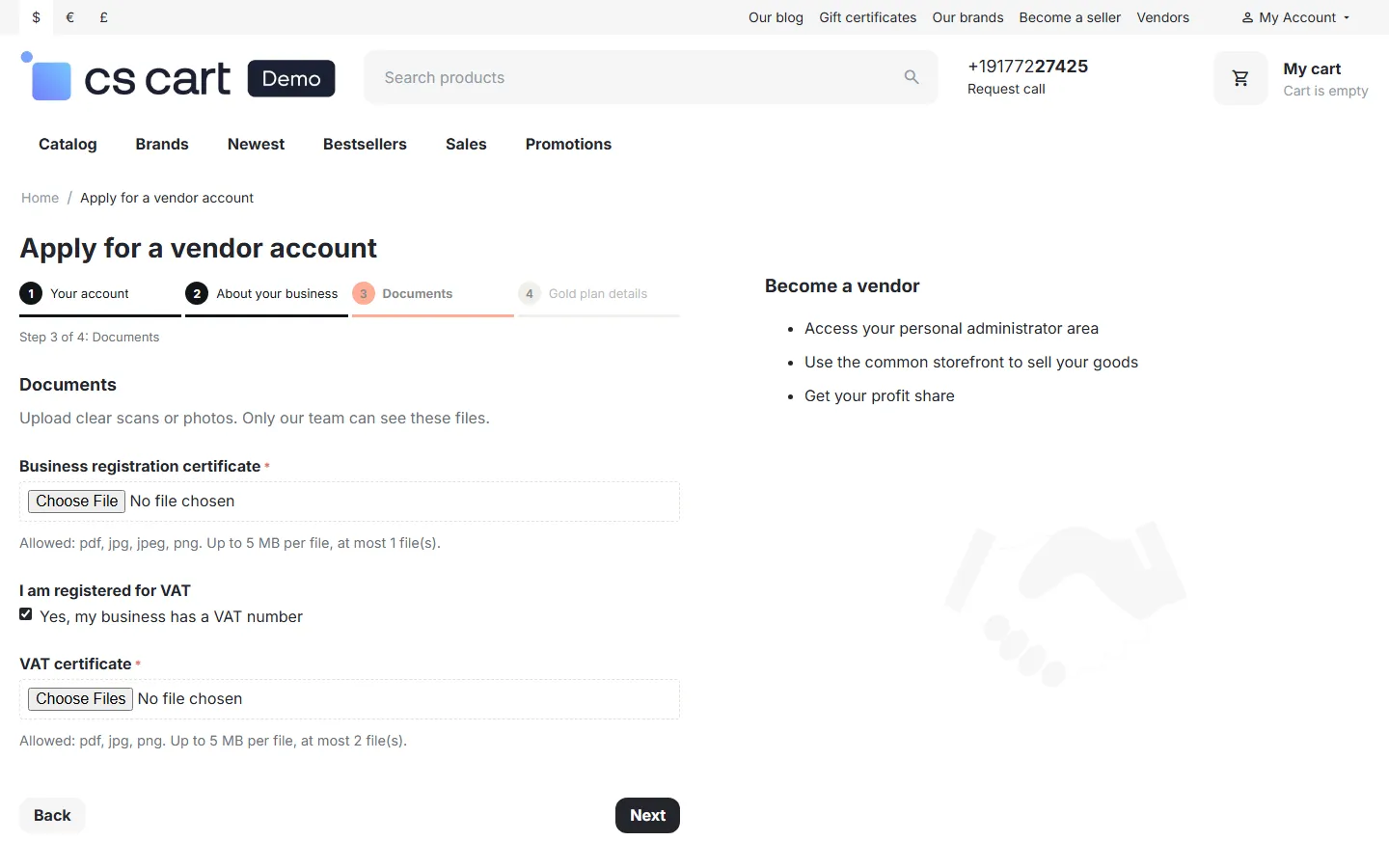
The applicant fills in step 1 (the core fields) and clicks Next. Each step is checked before the next one opens; required fields, e-mail format and file limits are checked in the browser and again on the server. On the last step the GDPR agreement, the image verification (if on) and Submit appear. If something is wrong after submitting, the form opens again with the messages and with every answer filled in (files have to be chosen again).
The core then creates the vendor as usual (New, or active at once when two-step approval is off) and sends its e-mails. The add-on stores the answers and files with the new vendor and sends its e-mail with all answers to your team and a copy to the applicant.
Reviewing applications
Section titled “Reviewing applications”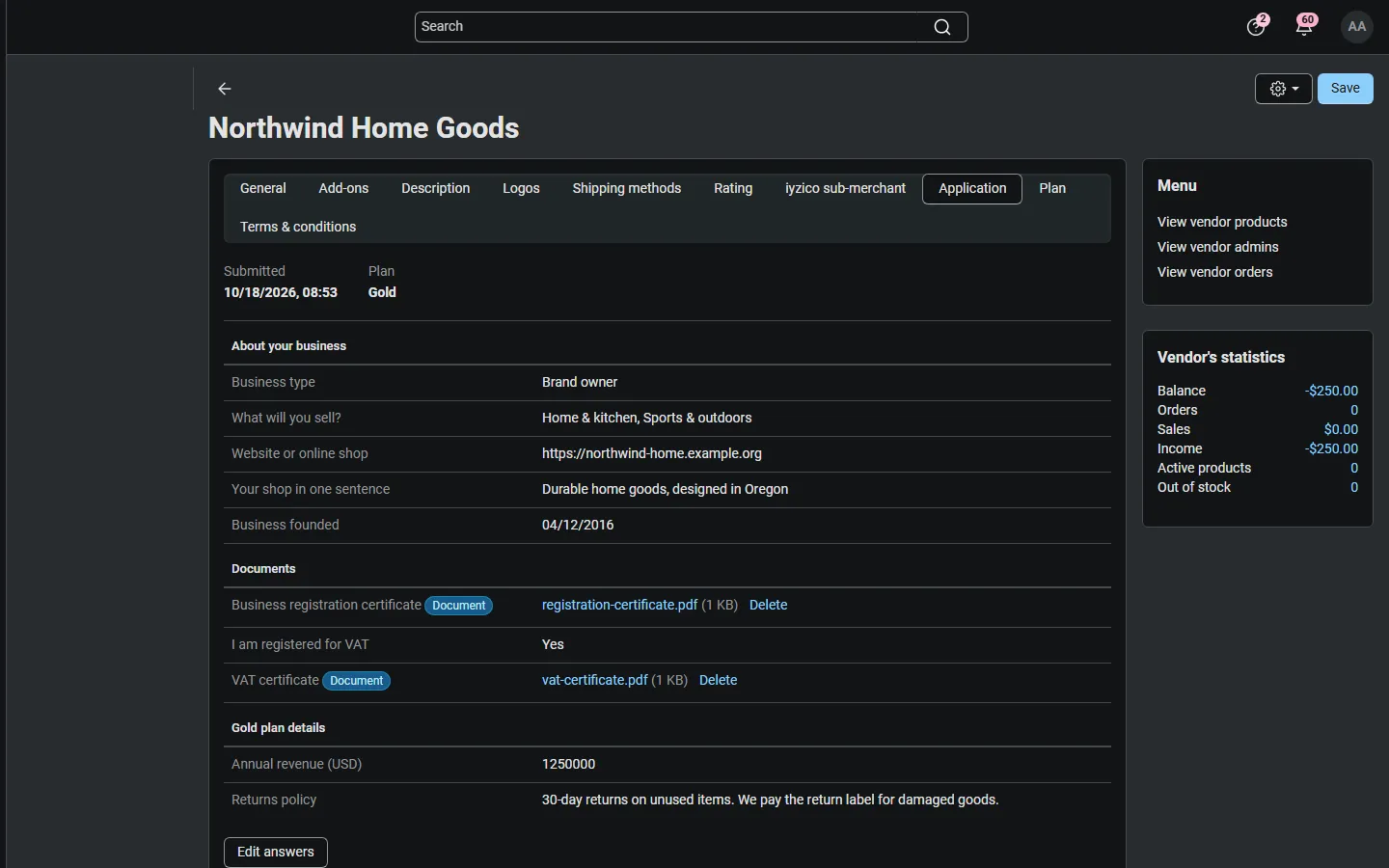
- Vendors → Vendor applications lists every vendor with answers: status tabs (New, Active, Pending, Disabled …), search by name or e-mail, period, plan, number of files and missing required documents. The name opens the vendor.
- The vendor page has an Application tab with all answers grouped by section and the documents (click to download). Edit answers opens the same fields as a form: you can correct answers, fill in answers for vendors you added yourself and upload more files; delete a file with its Delete link. Required fields are not enforced for administrators.
- Approve and disapprove the vendor with the core buttons, as before.
- Export CSV (toolbar) downloads the applications of the current filter with one column per question; multiple choice answers are joined with commas, files are listed by name.
Answers of fields you delete later stay with the vendor under “Fields no longer in the form”.
Privacy
Section titled “Privacy”When you disapprove a new application (status New → Disabled), the countdown of Settings → Privacy starts; after it the answers and documents are deleted and the Application tab says so. Delete the answers and documents now on the Application tab deletes them at once (for data deletion requests). Deleting a vendor deletes its answers and files too.
Vendor Storefront Pro
Section titled “Vendor Storefront Pro”With our Vendor Storefront Pro add-on, map text fields to the vendor’s storefront profile: tagline, about us, shipping policy, returns policy and the website and social links. When an application arrives and the vendor has no storefront profile yet, the mapped answers become the profile draft, which the vendor edits and publishes as usual. Existing profiles are never overwritten. Without Vendor Storefront Pro the mapping is ignored.