

Usage
The storefront widget
Section titled “The storefront widget”A round chat button sits in the bottom corner of every page (except the checkout, if you keep that setting). It opens a chat window with your welcome message and suggested questions. On phones the window takes the full screen.
- Shoppers type a question and press Enter (Shift+Enter for a new line).
- Answers come from your store information only. When products fit, they appear as cards with the image, the current price (and the old price during a sale), stock, and Add to cart. Products with options show Choose options and open the product page; out-of-stock products show View.
- Add to cart uses the store’s own cart, so the mini cart and the cart notification update as usual.
- Each answer has Helpful / Not helpful buttons. Answers the assistant could not give show your fallback text and a Contact us link.
- The conversation continues on other pages of the same browser; New chat starts a fresh one.
- The widget is keyboard friendly: Tab to the button, Enter to open, Esc to close; new answers are announced to screen readers.
What the assistant will not do
Section titled “What the assistant will not do”- It does not invent products, prices, discounts, stock, delivery times or policies. Prices in the text must match your store data, and product cards always show the live price.
- It does not answer questions unrelated to your store; it says it can only help with the store.
- Messages that try to change its instructions (“ignore previous instructions…”) get a fixed answer without reaching the AI service, and are flagged in the history.
- It never looks up orders itself. Order questions open the order form.
Order status
Section titled “Order status”Questions such as “Where is my order?” open the Track my order panel (also available as a suggested question):
- Signed-in customers see their five latest orders with status, date, total, tracking numbers and a link to the order page.
- Guests enter the order number and the e-mail address of the order. If they match, the store sends a 6-digit code to that address with your store’s mailer (e-mail template AI shopping assistant: order status code in Design → E-mail templates). The code is valid for 10 minutes and allows 5 attempts. The answer is the same whether or not the details match, so the form cannot be used to find out who ordered.
- In Multi-Vendor, a marketplace order shows the status of each vendor’s part.
Overview
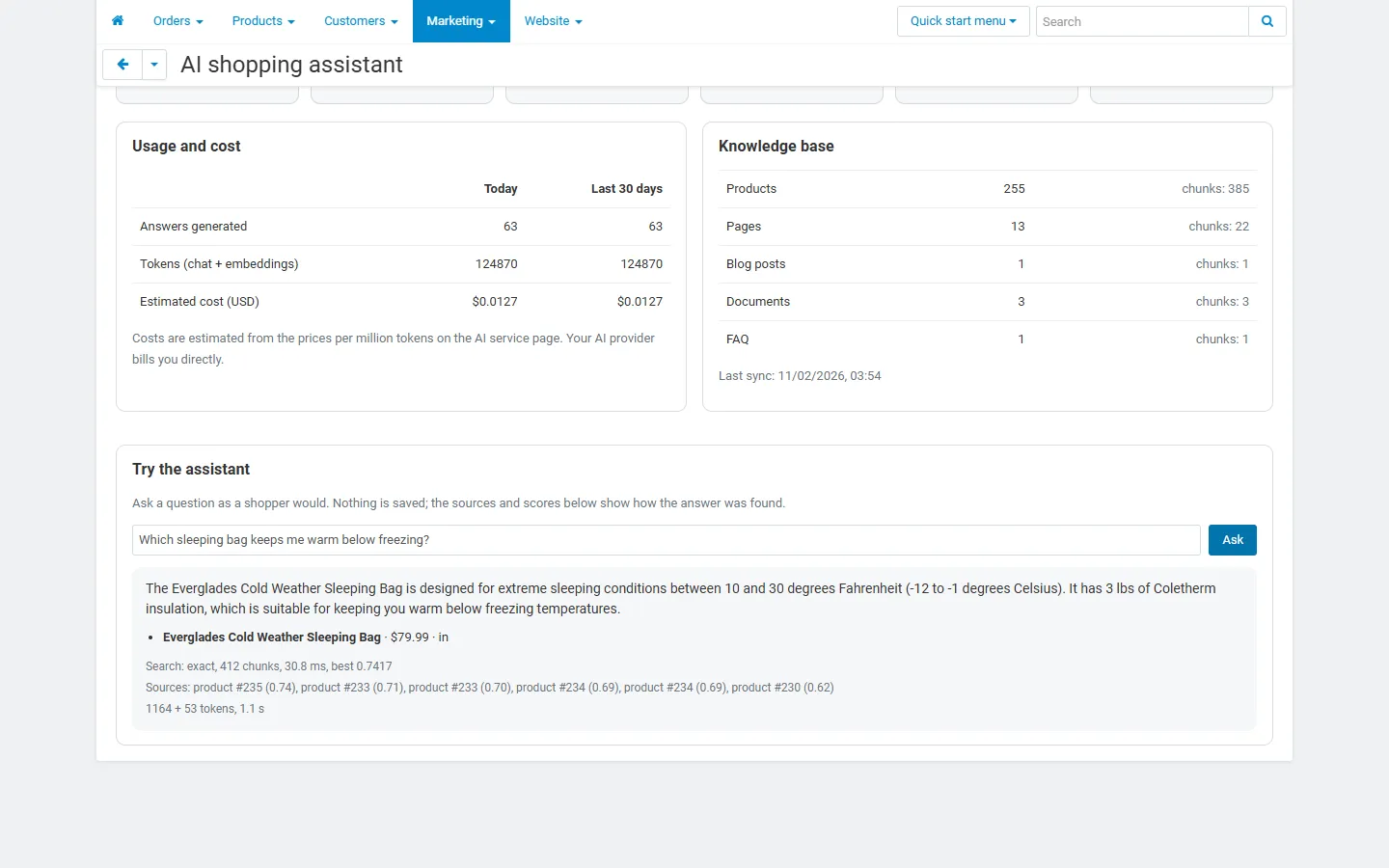
Section titled “Overview”Marketing → AI shopping assistant shows the setup steps, conversations and answered rate of the last 30 days, helpful / not helpful counts, answers with product cards, open unanswered questions, average answer time, tokens and estimated cost, and the size of the knowledge base.
Try the assistant asks a question as a shopper would, without saving anything, and shows the sources the answer came from with their similarity scores, the flags and the token count. Use it to tune the minimum similarity and your FAQ.
Conversations
Section titled “Conversations”Conversations lists every chat with its first question, the shopper (or Guest), messages, unanswered questions, ratings and tokens. Filters: with unanswered questions, rated helpful, rated not helpful, flagged. A conversation shows each message with the product cards that were shown, the sources and their scores, and flags such as Price not in the sources, Instruction attack or Off topic.
Unanswered questions
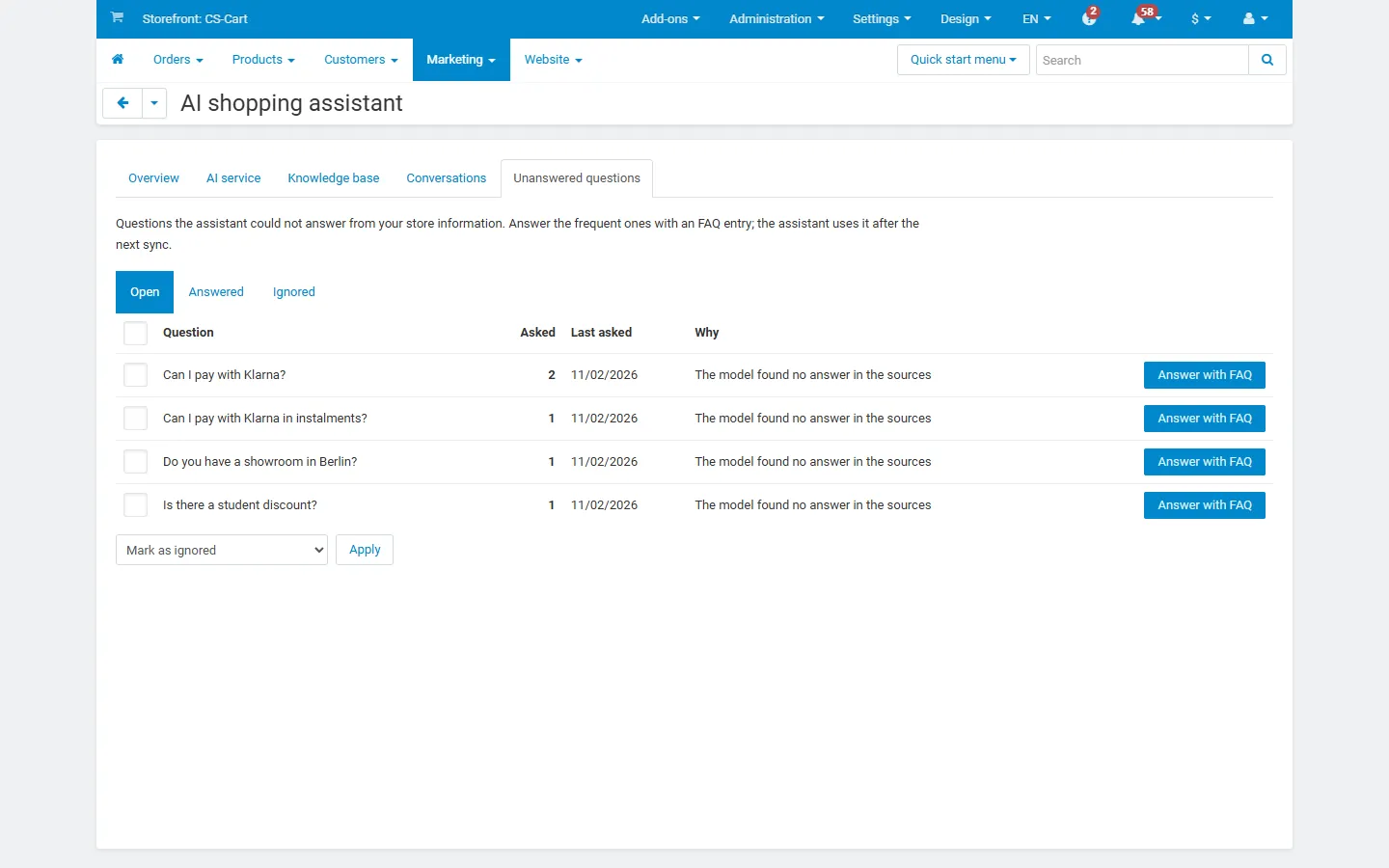
Section titled “Unanswered questions”Questions the assistant could not answer are grouped by their wording with a counter. Answer with FAQ opens a new FAQ entry with the question filled in; after saving, the question is marked answered and the assistant uses the answer after the next sync. Questions you do not want to answer can be marked as ignored. Off-topic questions are not listed.
Vendors (Multi-Vendor)
Section titled “Vendors (Multi-Vendor)”Vendors decides whose products the assistant may recommend: a switch per vendor, whether new vendors are on, whether vendors may switch it themselves, and whether vendors may add FAQ entries and documents. A vendor’s FAQ entries and documents are used only when the shopper asks on that vendor’s product or store pages, and the assistant is told which vendor they apply to.
Vendors find AI shopping assistant under Marketing in their panel: the switch for their products (if allowed), their FAQ entries and their documents.