

Configuration
Overview · Installation · Usage · Developer notes · FAQ
Open Add-ons → Manage add-ons → AI Product Content Generator → Settings. The settings apply to the whole installation (all storefronts).
Connection
Section titled “Connection”| Setting | What it does |
|---|---|
| AI provider | OpenAI-compatible API (OpenAI and every service with the same Chat Completions API), Anthropic API, or Test mode (sample texts without any API call or cost; the default after installation). |
| API key | Paste the key of your provider and save. The key is stored encrypted and shown only masked (for example sk-…7Q2c); enter a new key to replace it or tick Remove the saved key. Not needed for test mode or a local server. |
| Test connection | Sends one tiny request with the saved settings and shows the model, the tokens and the response time, or the error. |
| API base URL | Empty = the official endpoint (https://api.openai.com/v1 or https://api.anthropic.com). For other OpenAI-compatible services enter their base URL, for example https://openrouter.ai/api/v1, https://api.groq.com/openai/v1, https://api.mistral.ai/v1, https://generativelanguage.googleapis.com/v1beta/openai or http://127.0.0.1:11434/v1 for a local Ollama server. |
| Model | The model ID of your provider. Empty = gpt-4.1-mini (OpenAI-compatible) or claude-haiku-5-5 (Anthropic). Small, fast models are usually enough for product texts and cost little. |
| Temperature | Empty = the provider’s default (recommended; several current models accept only their default). |
| Max output tokens per request | Upper limit of one answer (default 4,000). |
| Timeout (seconds) | How long to wait for one answer (default 60) before it counts as failed and is retried. |
Writing
Section titled “Writing”| Setting | What it does |
|---|---|
| Default tone | Professional, Friendly, Premium, Playful, Technical, Persuasive or Minimal; preselected on the product tab and in bulk jobs. |
| Default length | Short, Medium or Long. Each content type has its own target, for example about 80 / 150 / 300 words for the full description, or 3 / 5 / 7 bullets. |
| Store guidelines for the AI | Added to every request: your brand voice, target audience, words to use or avoid, formatting rules. Variables such as {store_name} work here too. |
| Key feature bullets are written to | The short description (replaces it) or the end of the full description (appended). |
| Meta title / meta description: maximum characters | 70 and 160 by default. Longer answers are cut at a word boundary. |
Costs and queue
Section titled “Costs and queue”| Setting | What it does |
|---|---|
| Price per 1M input / output tokens (USD) | Copy them from your provider’s price list. The usage log calculates the cost of every request from the tokens the provider reports. 0 = cost not tracked. |
| Monthly budget (USD) | When the logged cost of the calendar month reaches the budget, new requests stop (bulk jobs pause) until the next month or until you raise it. 0 = no limit. |
| Requests per minute | The add-on never sends more requests per minute than this (default 30), so bulk jobs stay below your provider’s rate limit. |
| Retries per request | Rate limits, timeouts and server errors are retried with increasing waits (default 2). A bulk item that still fails is tried again later, up to 3 times. |
| Products per step | How many texts one step of a browser bulk job generates (default 3). |
| Keep history and usage log for (days) | Applied, discarded and failed items and the usage log are deleted after this time (default 180). Texts waiting for review are kept. |
| Cron | The command and the URL for bulk jobs that run in the background. Run one of them every 5 minutes. The URL contains a secret key; keep it private. |
*/5 * * * * php /home/yourstore/public_html/admin.php --dispatch=kv_ai_content_generator.cronPrivileges
Section titled “Privileges”Administrators need the View catalog privilege to open the pages and Manage catalog to generate, apply, discard and undo. On Multi-Vendor the add-on is available to the marketplace administrators; vendors do not see it in 1.0.0.
License
Section titled “License”The license status is shown in a License card at the top of the add-on page, above the tabs, so you see it on every tab. The License tab holds the key itself. The key is stored once for the whole installation.
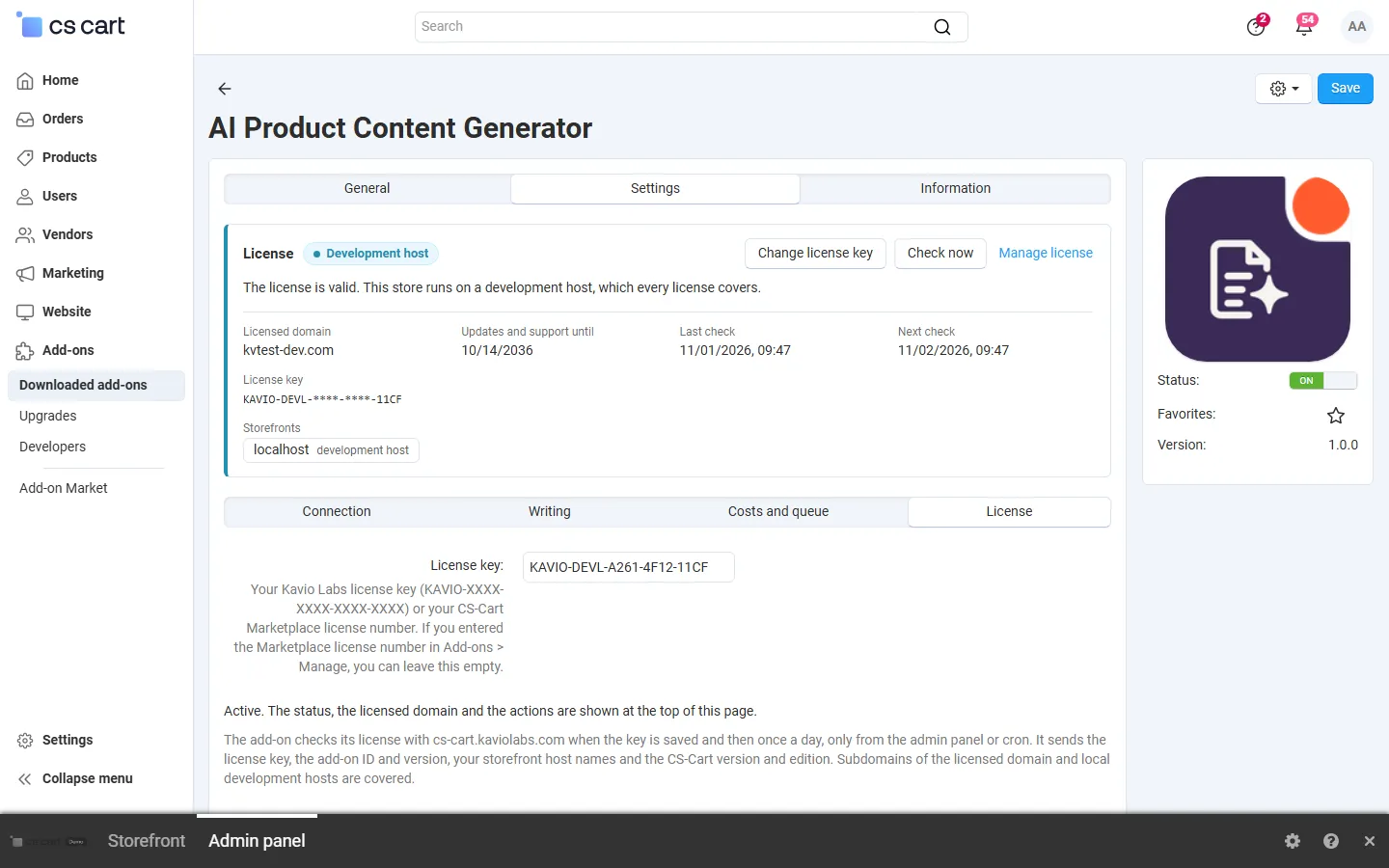
The License card shows:
- the status in color: green when valid, blue for a development host or the 14-day period before a key is required (with the days left), amber when the license server could not be reached (with the days left) or a Marketplace number is still being verified, red when the add-on is switched off;
- in plain words what the status means and, when the add-on is (or will be) switched off, what stops: new AI generations are switched off (product tab, bulk jobs and cron); content that was already generated can still be reviewed and applied, and the history with undo and the usage log keep working;
- the licensed domain, every storefront with its result (covered, development host, not covered), the end of the updates and support period, the last and the next check, and the key in use (masked);
- the actions Enter license key / Change license key (opens the License tab), Check now (verifies at once and stays on the page), Manage license (your licenses on cs-cart.kaviolabs.com) and, without a valid license, Buy a license.
You can also enter your CS-Cart Marketplace license number in Add-ons → Manage add-ons instead of a Kavio Labs key.