

Usage
How it works
Section titled “How it works”Blog Pro builds on the core blog. A blog is a page of the type Blog in Website → Blog; its posts are the blog pages under it. You keep writing posts in the core editor (title, text, image, SEO, availability, tags, comments). Blog Pro adds a Blog Pro tab to that editor and new storefront pages around the posts.
Writing a post
Section titled “Writing a post”Open Website → Blog, open or add a post and go to the Blog Pro tab.
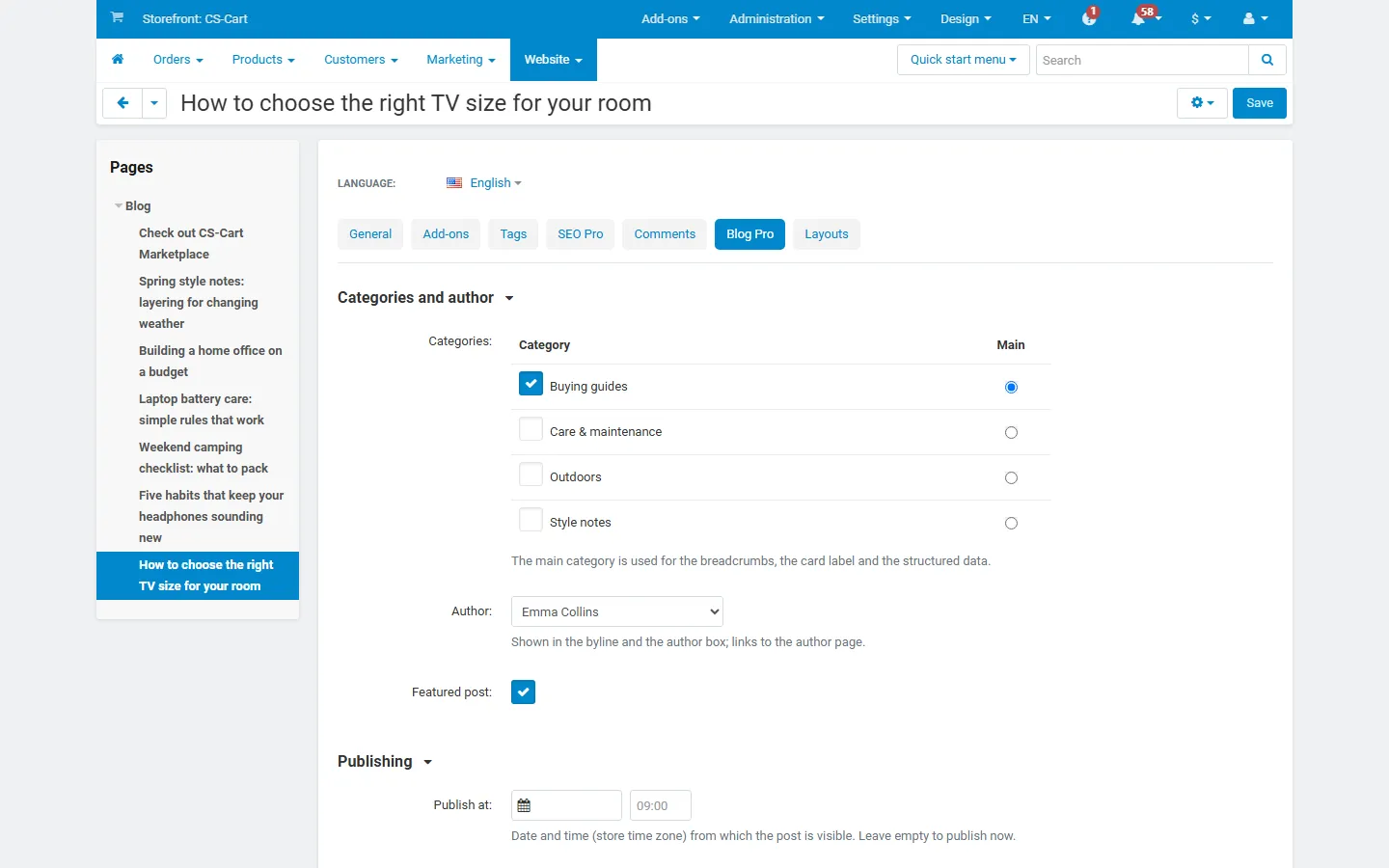
- Categories: tick one or more categories and choose the Main one. The main category is shown first on the card, used in the breadcrumbs and in the structured data.
- Author: the person shown in the byline and the author box. Administrators see the store’s administrators; vendors see the administrators of their vendor account. A profile is created automatically the first time someone is chosen.
- Featured post: shows a “Featured” label on the cards and puts the post into the “Featured posts” blocks.
- Publish at: date and time from which the post is visible (see Scheduling).
- Table of contents: default (the add-on setting), always show, or hide.
- Structured data type: default (the add-on setting), BlogPosting, Article or NewsArticle.
- Shop the post: the products shown under the post. Use Add products; they appear in the order you add them.
- Related posts: posts shown first under “Related posts”. If you choose fewer than the setting, Blog Pro adds posts that share categories or tags (most shared first, newest first).
Products inside the text. Type [product id=12] on its own line in the post text (12 is the product ID from the product list). The storefront shows a product card with image, name, price and a “View product” button in that place. A product the customer cannot see is left out silently.
Tags stay on the core Tags tab of the editor. Blog Pro shows them under the post and gives every tag a blog page.
The post image stays on the core Add-ons → Blog section of the General tab. It is used on the cards, at the top of the post and in the structured data.
Categories
Section titled “Categories”Website → Blog categories lists the categories with their number of posts. Click + to add one.
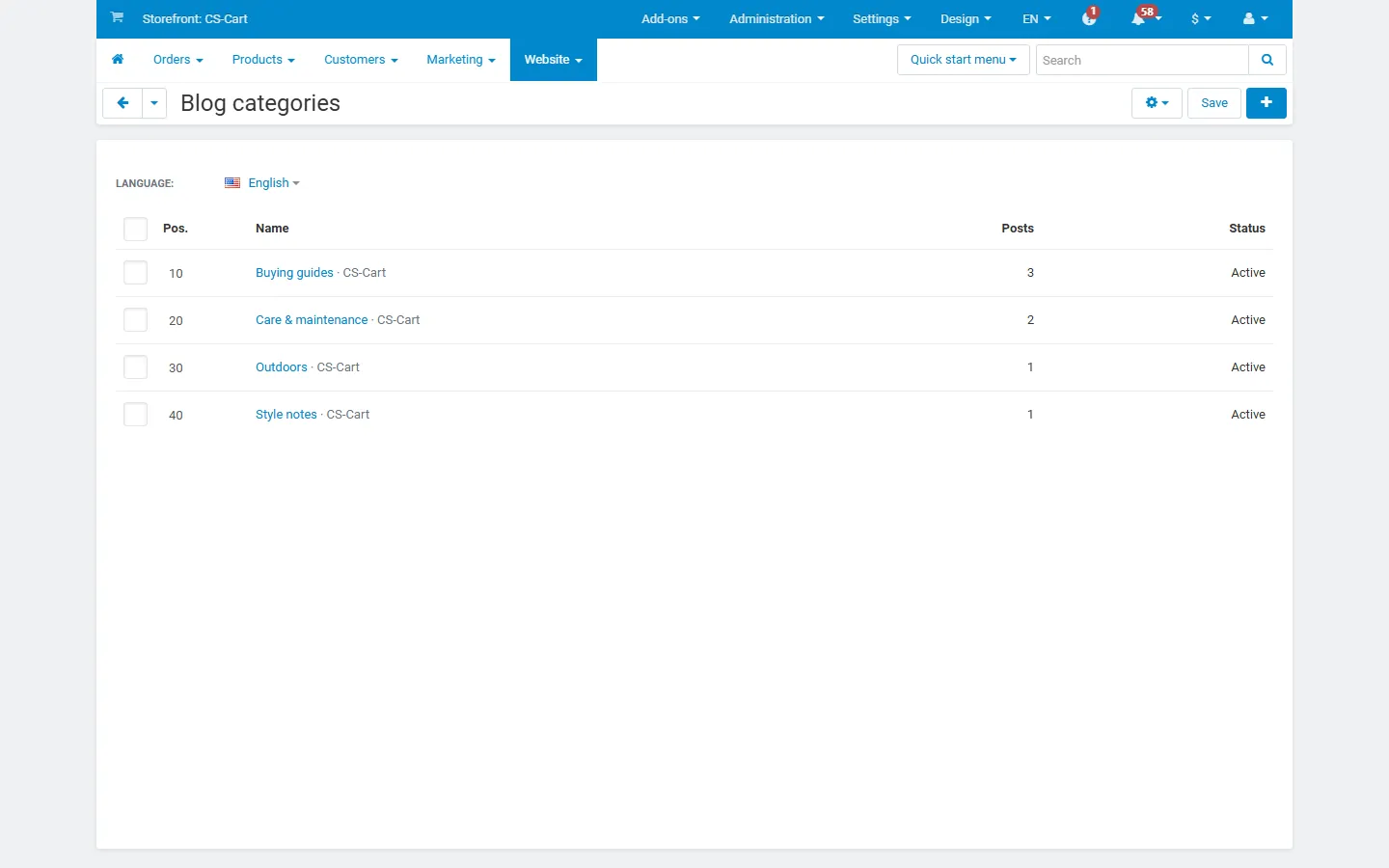
Each category has a name, a description (shown at the top of its page), a position, a status, an SEO name and its own page title, meta description and meta keywords. Switch the language at the top to translate the texts. A disabled category disappears from the storefront (its page answers “page not found”); its posts stay visible in other categories and on the blog page.
In CS-Cart (Ultimate) a category created while a storefront is selected belongs to that storefront; a category created for all storefronts is shared.
Authors
Section titled “Authors”Website → Blog authors lists the author profiles. Add a profile for an administrator from the list at the top, or let Blog Pro create it when you choose an author in a post.
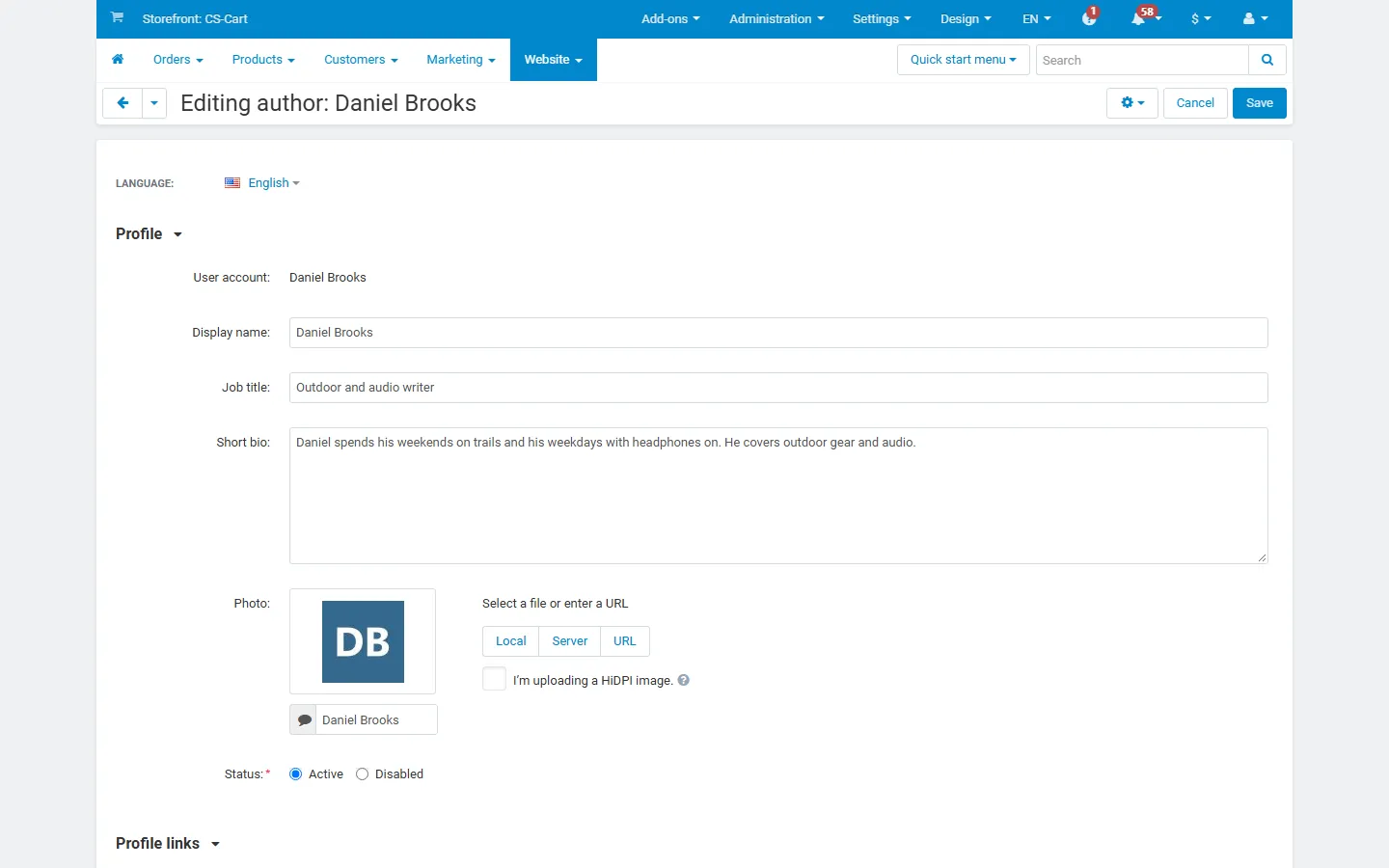
A profile has a display name (the user’s name when empty), a job title, a short bio, a photo, links to a website and social profiles, an SEO name and a status. A disabled profile hides the author box and the author page; the byline then shows only the name. Texts can be translated with the language switch.
Scheduling
Section titled “Scheduling”Enter a date and a time in Publish at and save. Until then the post does not appear on the blog page, in category, tag and author pages, in blocks, in the RSS feeds, and its own URL answers “page not found” to customers. Preview in the editor still shows it to you. The post date becomes the publish time, so the post appears at the top when it goes live.
Blog Pro stores the schedule in the core availability fields of the page, so a schedule is respected by every part of the store. Empty Publish at publishes the post now.
On the storefront
Section titled “On the storefront”- Blog page: cards in the layout of the settings, with image, categories, featured label, title, excerpt and byline (photo, author, date, reading time, comments). Pagination as in the core blog.
- Post: categories, byline with “Updated” when the post was changed later, the post image, the table of contents, the text with product cards, tag chips, “Shop the post”, the author box, related posts and the core comments.
- Category page: the category name and description, an RSS link and the posts of the category.
- Tag page: “Posts tagged …” and the posts with that tag (
noindexby default). - Author page: the author card and the author’s posts.
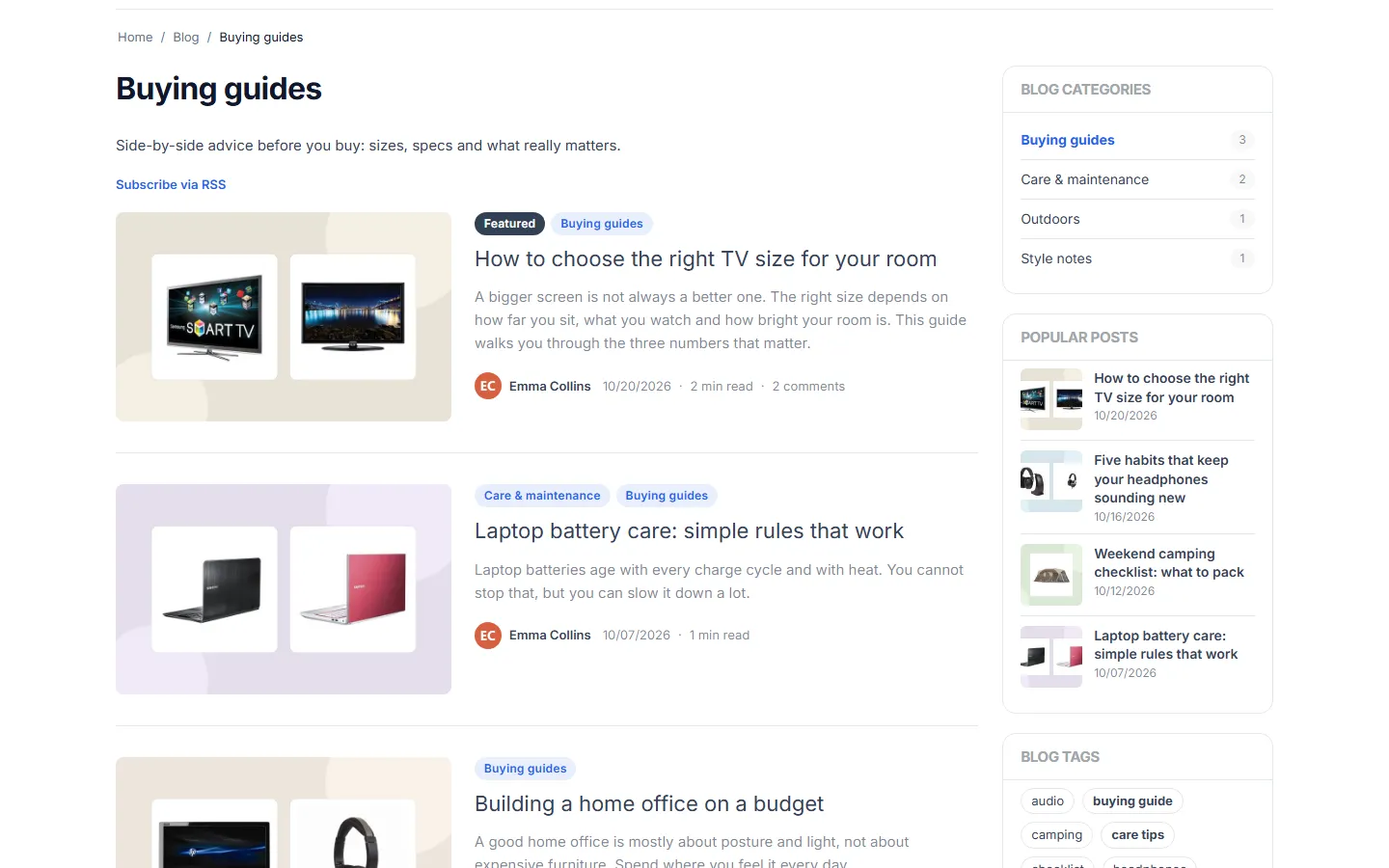
All three new pages use your layout pages Blog category, Blog tag and Blog author and get SEO URLs from the core SEO add-on (for example /buying-guides/, /emma-collins/).
Blocks
Section titled “Blocks”Add a Blog Pro block anywhere in Design → Layouts, for example “Recent posts” as cards on the home page or “Posts featuring this product” on the product page. See Configuration.
Vendor posts (Multi-Vendor)
Section titled “Vendor posts (Multi-Vendor)”Vendors can write posts once the Blog item of the vendor panel menu is switched on for them (core add-on Vendor panel configurator; the item is off by default). In the Blog Pro tab vendors choose categories, an author from their own team and products from their own catalog only; they cannot approve posts.
With Vendor posts need approval on, a new vendor post gets the moderation status Pending approval and stays hidden on the storefront, whatever its status. Open the post, set Moderation in the Blog Pro tab to Approved (or Rejected) and save. Edits of an approved post do not need a new approval.
Vendor posts appear on the blog page and in categories together with the marketplace’s posts, and on the vendor’s microstore through the core Vendor blog block.