

Usage
Overview · Installation · Configuration · Developer notes · FAQ
Go to Products → Feed import. The list shows every feed with its source, schedule, the result of the last run and the next run. Add feed (the + button) opens a new feed; the tools menu of a row has Run now, Preview, Run history and Delete.
1. Source and schedule
Section titled “1. Source and schedule”- Name, Vendor (Multi-Vendor: the vendor whose products the feed creates and updates) or Storefront (Ultimate), and Status (disabled feeds are not run by the cron).
- Source:
- URL (HTTP or HTTPS): the feed address, with an optional user name and password for basic authentication.
- FTP / FTPS:
ftp://host/path/file.csv(orftps://), with the FTP login. - SFTP:
sftp://host/path/file.xml, with the SFTP login. - File on this server (administrators only): a path relative to the store’s file folder
var/files/, for examplefeeds/supplier.xml. - Uploaded file: upload a CSV, XML, JSON or .gz file; upload a new file whenever you want to import it again.
- Format:
- CSV: the first row holds the column names. The delimiter (comma, semicolon, tab, pipe) and the encoding (UTF-8 or Windows-1252) are detected, or choose them.
- XML: the Product element path selects the element that holds one product, for example
//product,//offeror/catalog/items/item. - JSON: the dot path to the product list, for example
data.products(empty when the file is the list itself or an object with one list).
- Run automatically: manually only, or every 15 or 30 minutes, every 1, 3, 6 or 12 hours, or once a day.
Click Save and load fields from the feed: the add-on downloads the feed once and lists its fields with a sample value on the mapping tab.
2. Field mapping
Section titled “2. Field mapping”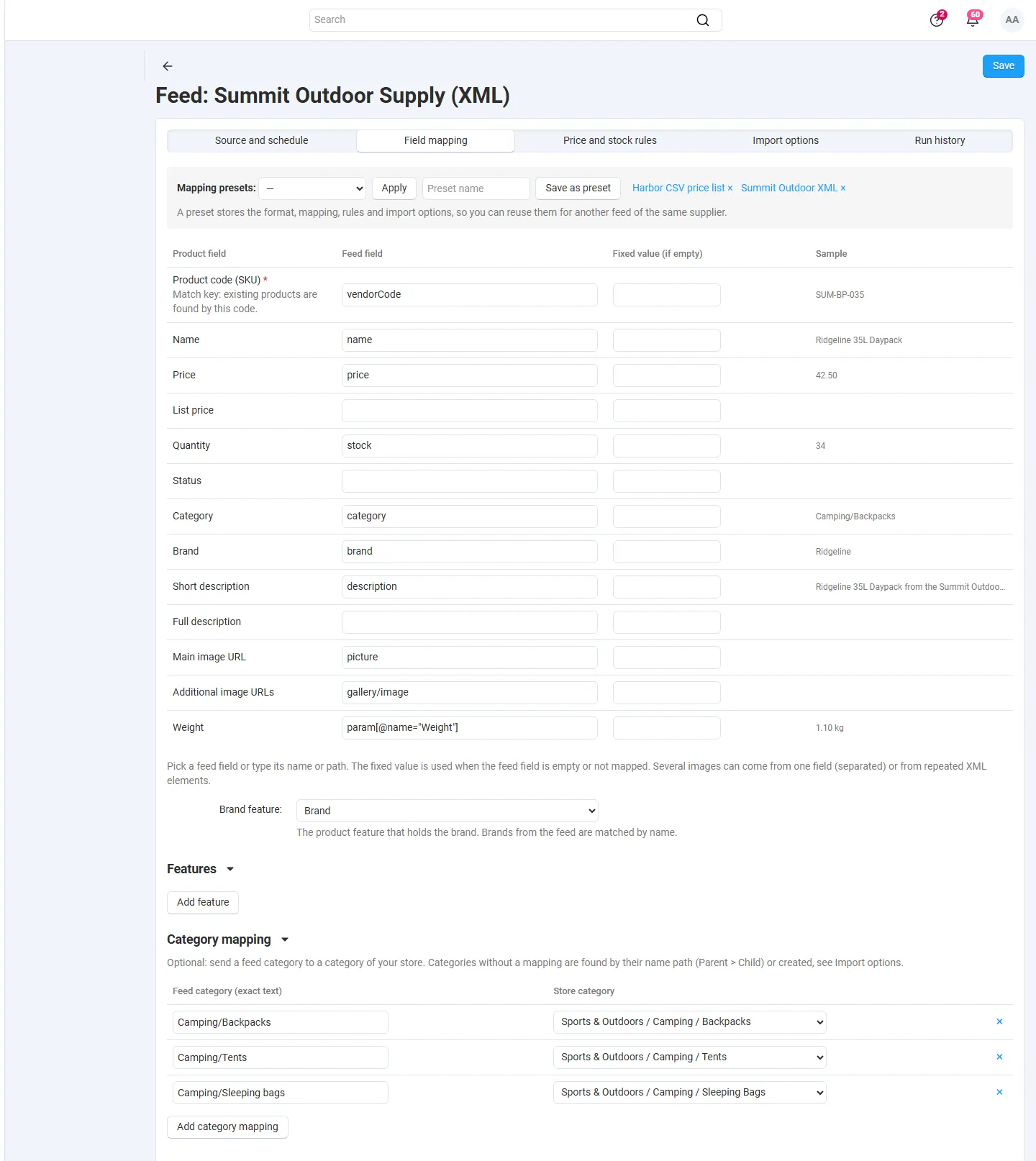
For each product field, pick the feed field (or type its name or path) and optionally a fixed value that is used when the feed field is empty or not mapped (for example a weight or a description for all products).
- Product code (SKU) is required: it is the match key. A row updates the product of the feed’s vendor or storefront with the same code, otherwise a new product is created.
- Category: the feed’s category text. A path like
Apparel > Shirtsis found by name (the separator is set on the import options tab) or created when Create missing categories is on. The Category mapping table sends exact feed category texts to a store category instead; a numeric value is taken as a category ID. - Brand and Features: choose the brand feature once; add any other features (text, number, checkbox, select, multiple choice, brand). Select values are found by name and, when Create missing feature values is on, created.
- Main image URL and Additional image URLs: several URLs can come from one field (separated,
|by default) or from repeated XML elements (picture). The first image becomes the main image. Images are downloaded again only when their URLs change. - XML field paths are XPath expressions relative to the product element:
price,@id,price/@currency,images/image,param[@name="Color"]. JSON paths use dots:price.amount,images.0.
Mapping presets store the format, mapping, rules and import options. Save as preset saves the current feed’s setup; choose a preset and click Apply to copy it into another feed.
3. Price and stock rules
Section titled “3. Price and stock rules”- Price markup: rules with Apply to (price or list price), a feed price range, an optional Category contains text, and a percentage or a fixed amount. The first matching rule per field is applied. A list price rule starts from the feed price when the feed has no list price, so “list price = feed price + 60%” is one rule.
- Round prices: to cents, whole numbers, or up to .99, .95 or .90.
- Stock: Treat stock below this as 0 (for example 3) and Show at most (a cap).
- Replace values: change feed values before they are used, matching the whole value or a part of it, for example
in stock→10,yes→A.
Number formats such as 1,234.56, 1.234,56, 12,5 and $19.90 are understood. Status values can be A/D/H or words like active, disabled, hidden, yes, no, true, false.
4. Import options
Section titled “4. Import options”- Create new products (off = update only) and the Status of new products (for example Hidden until you check them).
- Update on existing products: which fields an import changes on products that already exist, for example only Price and Quantity. New products get every mapped field.
- Skip unchanged rows: rows whose values did not change since the last run are not saved again.
- When a product is no longer in the feed: do nothing, disable, hide or set the quantity to 0. Only products this feed created or updated before are affected, and only after a complete run. A product that returns to the feed is shown again. The Safety limit stops the action when more than the given share of the feed’s products is missing (a broken or truncated file).
- Category for new products, Create missing categories, Create missing feature values, and the category path and image URL separators.
Preview downloads the feed and shows what would happen to the first rows (create, update, unchanged, skip or error, with the final prices and quantities and the messages); nothing is saved. Run now imports the whole feed with a progress bar; you can leave the page, and the cron finishes the run.
5. Run history
Section titled “5. Run history”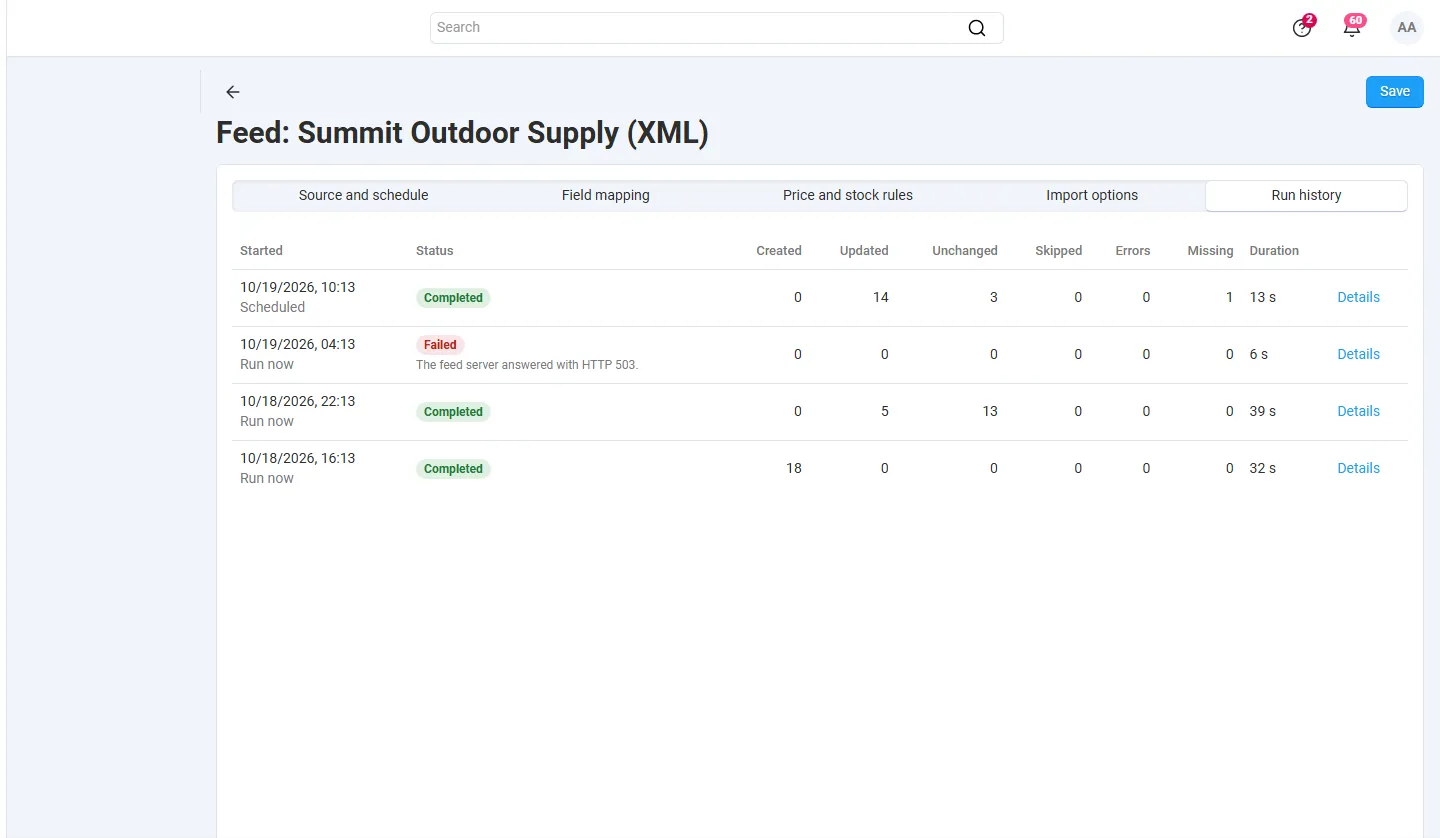
The Run history tab lists the runs with the start time, Run now or Scheduled, the status (Completed, Failed with the reason, Cancelled, Running) and the counters: created, updated, unchanged, skipped, errors and missing. Details opens the row log: each warning or error with the row number, the product code and the reason (for example Price: “n/a” is not a valid number, A new product needs a category, an image that could not be downloaded). A running run can be cancelled; rows imported so far stay imported.
Vendors (Multi-Vendor)
Section titled “Vendors (Multi-Vendor)”When Vendors can manage their own feeds is on, vendors see Products → Feed import in the vendor panel. They see and edit only their own feeds, and their feeds create and update only their own products: the vendor is fixed, a product code of another vendor is never matched. Vendor feeds cannot use server paths or private network addresses and use only existing categories and feature values. Core vendor rules apply to every product: product premoderation, vendor plan product limits and allowed categories. Administrators can create feeds for any vendor.
CS-Cart Ultimate
Section titled “CS-Cart Ultimate”Each feed belongs to a storefront. With a storefront selected, the list shows that storefront’s feeds. Products and categories are created in the feed’s storefront, and only products of that storefront are matched by code.