

Configuration
Overview · Installation · Usage · Developer notes · FAQ
There are two places: the add-on settings for switches, and Design > One Step Checkout for the layout, the fields and the payment methods. On CS-Cart 4.21 the page sits next to Themes, under Website.
Add-on settings
Section titled “Add-on settings”Add-ons > Manage add-ons > One Step Checkout > Settings
| Setting | Default | What it does |
|---|---|---|
| Enable | On | Off gives every customer the standard checkout. |
| Who sees the one step checkout | Everyone | Preview link only keeps the standard page for customers. Only a browser that opened the preview link gets the one step page. |
| Layout | Three columns | Same choice as on the Layout tab. |
| Keep the order summary in view while scrolling | On | The summary card stays on screen on desktops and tablets. |
| Phone bar with the total and the Place order button | On | Fixed bar at the bottom of the phone screen. Off leaves the button in the page. |
| Show product images in the order summary | On | A small image next to each line. |
| Let customers change quantities in the order summary | On | Adds minus and plus buttons to each line. Products with a fixed list of quantities keep their amount. |
| Keep the promo code box closed until asked for | On | Shows “Have a promo code?” instead of the box. |
| Keep the order note closed until asked for | On | Shows “Add a note to this order”. A note that is already filled in stays open. |
| Separate first name and last name inputs | Off | Replaces the full name input of the standard checkout. |
| Skip the shipping address when nothing needs shipping | Off | For carts with downloads or free services only. Taxes then use the default location of the store. |
| Keep what the customer typed after a reload | On | Keeps typed values in that browser tab until the order is placed. Passwords and card data are never kept. |
| Group the order summary by vendor | On | Multi-Vendor only. |
| Show a link to the standard checkout | Off | A small link under the form. |
On CS-Cart Ultimate these settings can differ per storefront.
Layout tab
Section titled “Layout tab”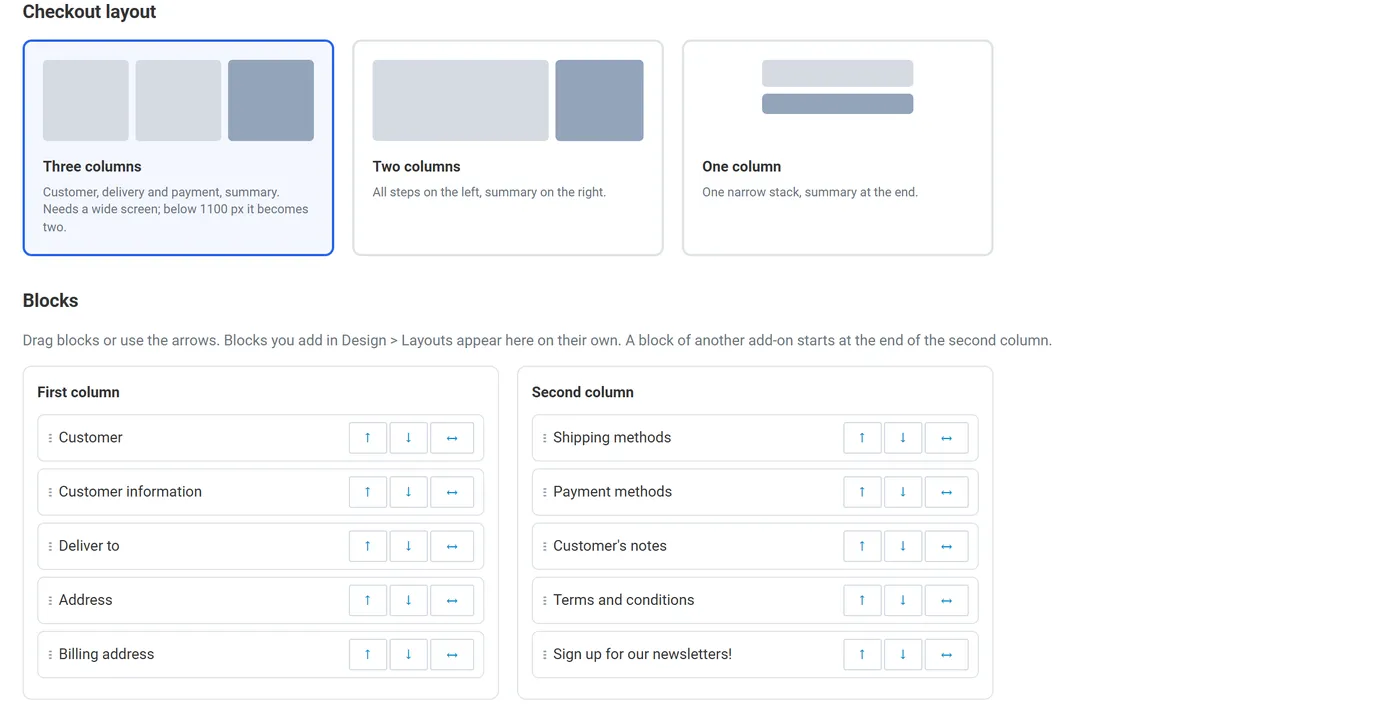
Layouts
- Three columns: customer data in the first, delivery and payment in the second, the summary in the third. Under 1100 px it becomes two columns.
- Two columns: all blocks on the left, the summary on the right.
- One column: one narrow stack with the summary at the end.
Blocks. Drag a block, or use the arrow buttons. The list follows the blocks of the Checkout page in Design > Layouts: to remove a block for good, disable it there. With one or two columns, the two lists print one after the other. A block of another add-on starts at the end of the second column.
Fields tab
Section titled “Fields tab”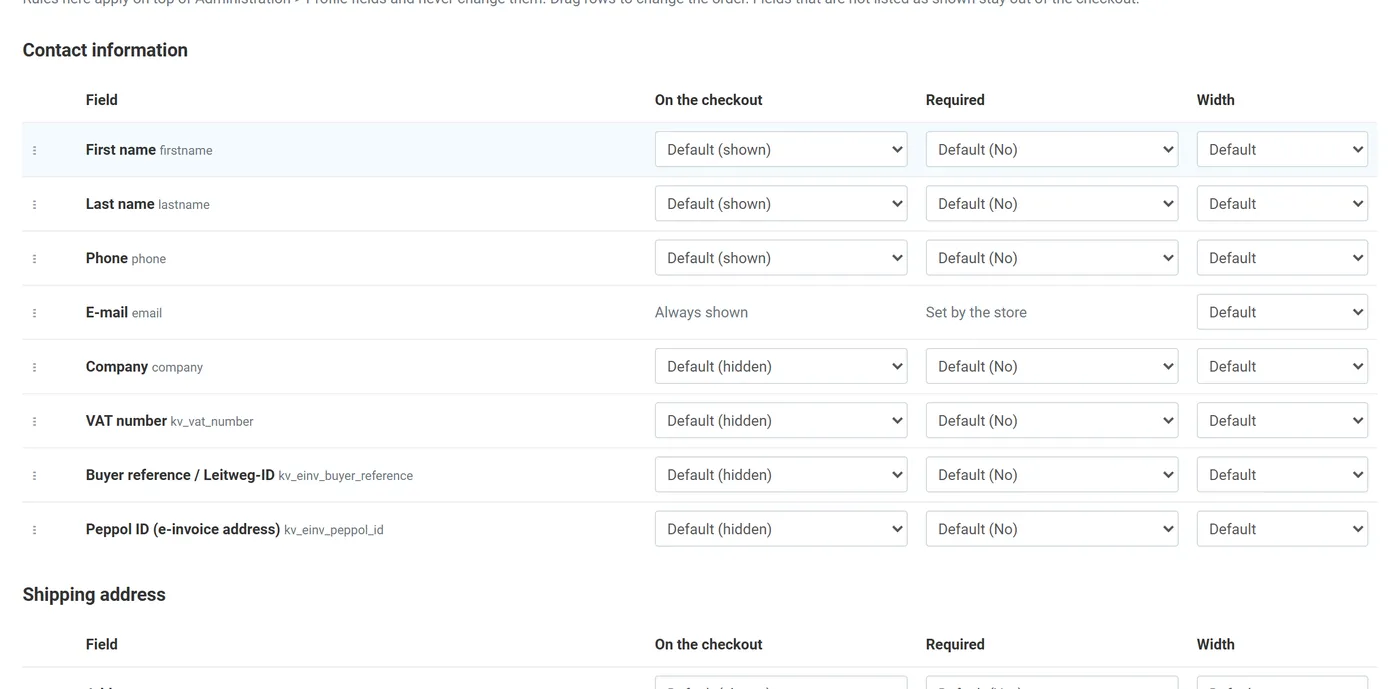
Every rule starts at Default, which shows the current value of your Profile fields and block settings.
- On the checkout: Show or Hide. A hidden required field no longer blocks the order. E-mail, Country and City always stay: core needs them to place the order and to rate shipping.
- Required: Required or Optional. For E-mail, Country, City and State the store setting decides.
- Width: Full, Half or Third of the column.
- Order: drag the rows. The order works inside each block.
To keep one name input, hide Last name. Rules are stored by the add-on and applied while the page runs: your Profile fields and block settings do not change, so turning the add-on off brings your own setup back.
Payments and preview tab
Section titled “Payments and preview tab”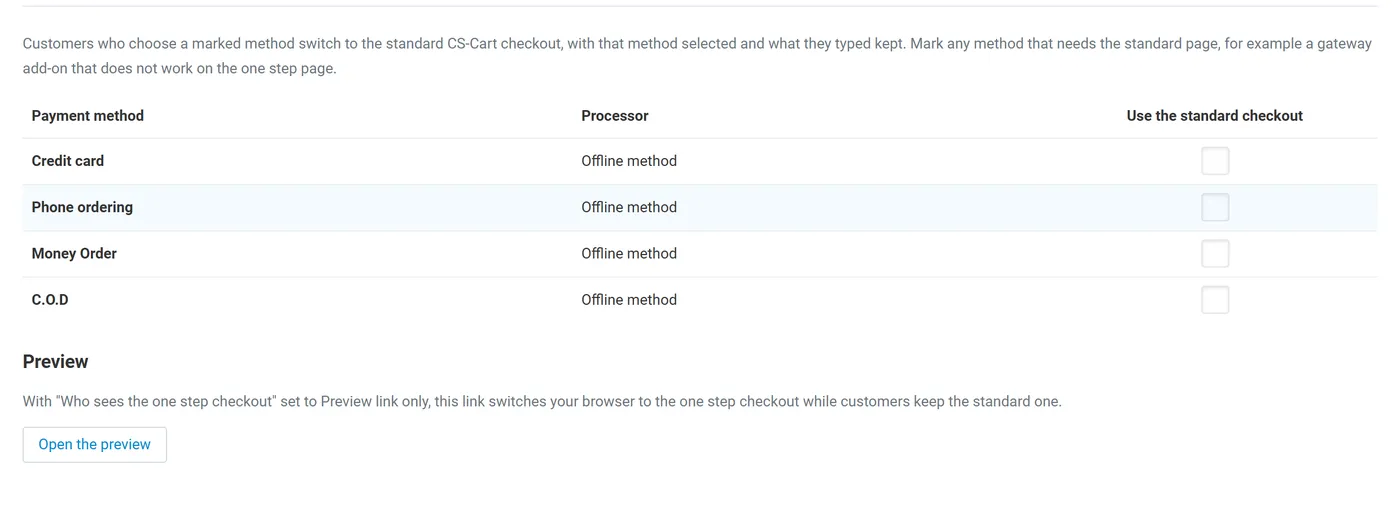
Use the standard checkout. Tick a payment method if it needs the standard page, for example a gateway add-on that fails on the one step page. A customer who picks it reloads into the standard page with that method selected and typed values kept. Picking another method brings the one step page back. On the standard page, field rules are off too: it is the plain CS-Cart page.
Preview. With Preview link only, the Open the preview button switches your browser to the one step page. The page shows a notice with a link back to the standard page.
Reset to defaults removes the layout, field and payment rows. Settings on the add-on page stay.
License
Section titled “License”The License tab of the add-on page holds the license key and its status. If the license is not active, customers get the standard CS-Cart checkout again with your own field setup, and your layout, field and payment settings are kept. See Installation.