

Configuration
Open Add-ons → Manage add-ons → Cookie Consent Manager with Consent Mode v2 → Settings. Settings can differ per storefront (CS-Cart Ultimate storefronts and Multi-Vendor storefronts): pick the storefront at the top of the page first.
Banner tab
Section titled “Banner tab”| Setting | Default | Description |
|---|---|---|
| Status | Overview: GDPR add-on notice, Consent Mode, blocking, integrations, policy version and logged choices. Has the button that turns off the GDPR cookie notice. | |
| Layout | Box | Bar: full width at the top or bottom. Box: a card in a bottom corner. Popup: centered over a dimmed page. |
| Position | Bottom left | Bar: top or bottom. Box: bottom left or bottom right. The popup is always centered. |
| Colors | Follow the theme | Uses the theme style’s primary button color, text color, background and font. Light and Dark use fixed palettes. |
| Accent color | empty | A hex color such as #1f6feb for the buttons and switches. The text color on the buttons is picked automatically for contrast. |
| Privacy policy page | GDPR add-on page | The page linked from the banner and the preference center. |
| Show the floating “Cookie settings” button | Yes | A small round button that reopens the preference center after a choice. |
| Button position | Bottom left | Corner of the floating button. |
| Cookie policy version | 1 | Raise it after you change your cookie policy or add a service. Every visitor sees the banner again; their previous choice is preselected. |
| Remember the choice for (days) | 180 | After this period the banner is shown again (1 to 395 days). |
The three first-layer buttons (Reject all, Customize, Accept all) always have the same size, color and weight. European regulators consider a hidden or weaker “reject” option a dark pattern, so this cannot be changed in the settings.
Consent Mode v2 tab
Section titled “Consent Mode v2 tab”| Setting | Default | Description |
|---|---|---|
| Send Google Consent Mode v2 signals | Yes | Prints gtag('consent', 'default', …) as the first script of the page and sends update after each choice. |
| Google tags before consent | Basic | Basic: Google tags are blocked until the visitor agrees (recommended in the EU). Advanced: Google tags load at once with denied consent, so Google can model conversions from cookieless pings. Other services stay blocked in both modes. |
| Regions with “denied” defaults | EEA, UK, CH | ISO 3166 country or region codes. All non-essential types are denied here until the visitor agrees. |
| Default in other regions | Denied | Set Granted if you sell outside Europe and your local law allows it. Applies only to Google tags until the visitor chooses. |
| wait_for_update (ms) | 500 | Time Google tags wait for an update before they send data. |
| Redact ad click IDs | Yes | ads_data_redaction while ad_storage is denied. |
| Pass ad click information through URLs | No | url_passthrough. |
| Send the Meta Pixel consent signal | Yes | `fbq(‘consent’, ‘grant’ |
| Send the TikTok Pixel consent signal | Yes | ttq.grantConsent() / ttq.revokeConsent(). |
Category mapping:
| Consent Mode type | Category |
|---|---|
analytics_storage |
Analytics |
ad_storage, ad_user_data, ad_personalization |
Marketing |
functionality_storage, personalization_storage |
Preferences |
security_storage |
Always granted |
Script blocking tab
Section titled “Script blocking tab”| Setting | Default | Description |
|---|---|---|
| Block known third-party scripts until consent | Yes | Turns the server-side rewriting on. Turn it off if you prefer to tag scripts manually (see Usage). |
| Services | all | Google Analytics, Google Tag Manager and Google Ads, Meta Pixel and TikTok Pixel, Hotjar and Microsoft Clarity, YouTube and Vimeo embeds. The category of each service is shown in brackets. |
| Custom rules | empty | One rule per line: `category |
Scripts of other add-ons and themes are matched wherever they are printed: layout custom HTML, blocks, product descriptions, pages and add-on templates.
Consent log tab
Section titled “Consent log tab”| Setting | Default | Description |
|---|---|---|
| Log every choice | Yes | One row per saved choice. |
| Keep log entries for (days) | 365 | Older rows are deleted once a day. 0 keeps them forever. |
The log is under Administration → Cookie consent log: filter by date, consent ID or action, see acceptance rates and click Export CSV.
License
Section titled “License”The license status is shown in a License card at the top of the add-on page, above the tabs, so you see it on every tab. The License tab holds the key itself. The key is stored once for the whole installation (not per storefront).
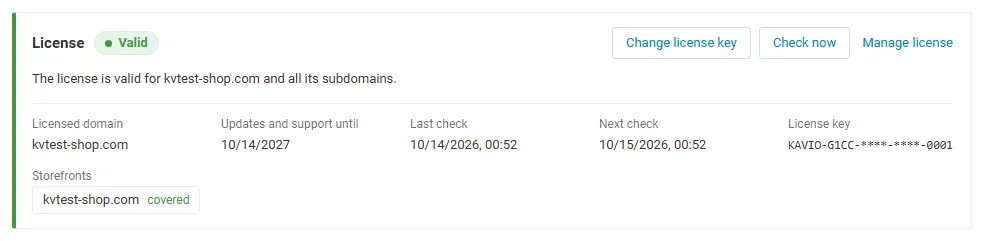
The License card shows:
- the status in color: green when valid, blue for a development host or the 14-day period before a key is required (with the days left), amber when the license server could not be reached (with the days left) or a Marketplace number is still being verified, red when the add-on is switched off;
- in plain words what the status means and, when the add-on is (or will be) switched off, what stops: safe mode: tracking scripts and embeds stay blocked, Google Consent Mode stays “denied” and no cookie banner is shown, so nothing is tracked. The consent log, the GDPR notice bridge and the Meta/TikTok signals are off. The store and checkout keep working;
- the licensed domain, every storefront with its result (covered, development host, not covered), the end of the updates and support period, the last and the next check, and the key in use (masked);
- the actions Enter license key / Change license key (opens the License tab), Check now (verifies at once and stays on the page), Manage license (your licenses on cs-cart.kaviolabs.com) and, without a valid license, Buy a license.
In Add-ons → Manage add-ons the add-on’s row shows a small license badge next to its name, for example License: Valid or License: Pending · 9 days left.
The add-on’s own admin page, the consent log (Administration → Cookie consent log), shows a compact license status line at the top: a small green License: Valid chip (blue for a development host, amber while a Marketplace number is being verified) when licensed, and a banner with the status, what is switched off and the actions otherwise.
| Setting | Description |
|---|---|
| License key | Your Kavio Labs license key (KAVIO-XXXX-XXXX-XXXX-XXXX, from My licenses on cs-cart.kaviolabs.com) or your CS-Cart Marketplace license number. If you entered the Marketplace license number in Add-ons → Manage add-ons (the add-on’s license field), leave this empty: the add-on uses that number. |
| License status | Points to the License card and explains what the check sends. |
What the license covers. A license is bound to the base domain you entered at purchase (for example example.com) and covers every subdomain of it (www.example.com, shop.example.com, staging.example.com). Local development hosts are always allowed: localhost, 127.0.0.1 and other private IP addresses, and host names ending in .localhost, .test, .local, .example or .invalid. A store on a different base domain needs its own license. If you move your store to a new domain, contact support.
When the add-on checks. When you save the key, and then once a day. The check runs only in the admin panel (on a page you open) or from cron, never while customers browse the storefront, and takes a few seconds at most. A cron job keeps the license verified even when nobody opens the admin panel:
php /path/to/store/admin.php --dispatch=kv_cookie_consent_mode_license.checkWhat is sent. The check sends this to https://cs-cart.kaviolabs.com and nothing else: the license key, the add-on ID and version, the host names of your storefronts, your CS-Cart version and edition, and a random one-time value. No customer, order or personal data is sent. The server answers with a digitally signed result, so a forged answer is ignored.
Statuses.
| Status (card) | Color | What happens |
|---|---|---|
| Valid | Green | The license is valid for this domain. Everything works. |
| Development host | Blue | The store runs on a local development host, which every license covers. Everything works. |
| Pending verification | Amber | A CS-Cart Marketplace license number was accepted, but the Marketplace has not confirmed it yet. Everything works. |
| Pending · N days left | Blue | No verified key yet (a new installation, or right after upgrading from 1.0.x). Everything works for 14 days. |
| Grace period · N days left | Amber | The last checks failed (for example a network problem). The add-on keeps working for 14 days after the first failed check. |
| Partly valid | Amber | (CS-Cart with several storefronts) Some storefronts run on another base domain. The add-on runs in safe mode on those storefronts only. |
| Not activated, Invalid key, Revoked, Domain mismatch, Not verified | Red | The add-on runs in safe mode (see below): tracking scripts and embeds stay blocked, Google Consent Mode stays “denied” and the banner is not shown, so nothing is tracked. Domain mismatch shows the licensed domain next to the domain your store runs on. |
When your updates and support period ends, the add-on keeps working. Only updates and support stop.
License information appears in the admin panel only, and only for administrators who may manage add-ons; vendors (Multi-Vendor) and customers never see it. When the add-on is switched off, other admin pages also show a notice once per session with a link to the add-on page; the add-on page itself shows the card instead.
Safe mode (without a valid license)
Section titled “Safe mode (without a valid license)”Without a valid license the add-on does not switch itself off, because that would let tracking scripts run without consent. Instead it keeps your store on the safe side: the store never tracks without consent, and no consent can be given.
- Every non-essential script and embed that the add-on blocks stays blocked. Blocked videos and maps show a placeholder without the Load once and Always allow buttons.
- Google Consent Mode defaults stay denied for every type, and nothing is ever granted (the add-on sends no consent update).
- The banner, the preference center, the floating cookie button and the Cookie settings links block are not shown.
- Choices that visitors made earlier are ignored (they stay in the visitors’ browsers and apply again when the license is valid).
- The consent log, the GDPR add-on bridge (Turn off the GDPR cookie notice) and the Meta and TikTok consent signals are off.
- Ecommerce Tracking Pro waits for analytics consent (which cannot be given) and its remembered choice is reset to “denied”, so it sends no tag, no events and no server-side purchases for these visitors. Other Kavio Labs tracking add-ons read “no consent” as well.
- The License card says so in red, the admin panel shows a safe mode notice on other pages, and the Status block on the Banner tab has a License row.
As soon as the license is valid again, everything works as configured.
Texts and translations
Section titled “Texts and translations”All texts are language variables. Edit them in Administration → Languages → Translations and search for kv_cookie_consent_mode. The most important ones:
| Variable | Text |
|---|---|
kv_cookie_consent_mode.banner_title |
We value your privacy |
kv_cookie_consent_mode.banner_text |
The first-layer explanation |
kv_cookie_consent_mode.prefs_text |
The preference center introduction |
kv_cookie_consent_mode.category_<category> / ..._description |
Category names and descriptions |
kv_cookie_consent_mode.placeholder_text |
Text on blocked videos ([service], [category]) |
English is included. For another language, add the translations in the same screen.