

Usage
Overview · Installation · Configuration · Developer notes · FAQ
What customers see
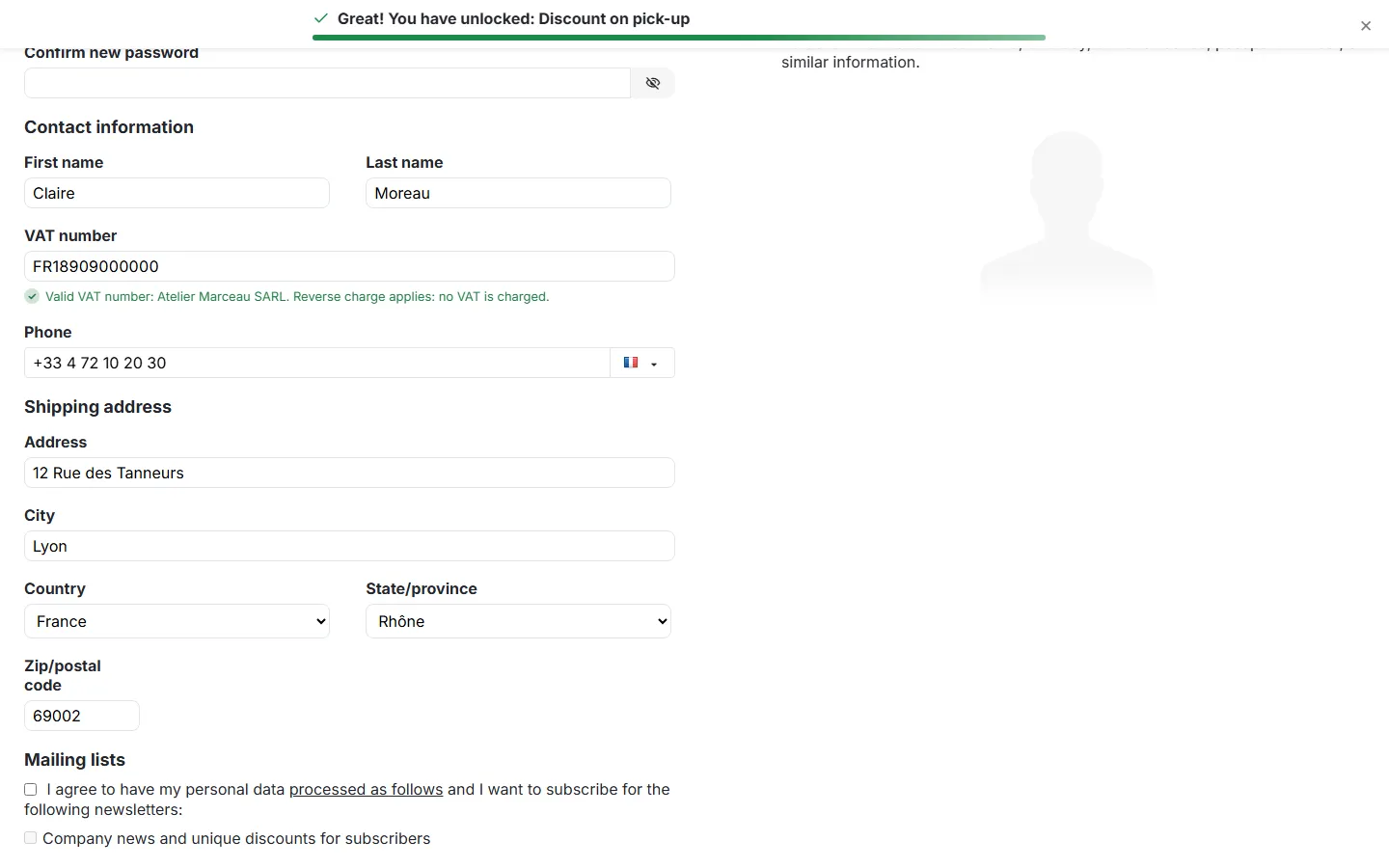
Section titled “What customers see”- Profile page and checkout: a VAT number field in the contact information. Business customers enter the number with or without the country code; spaces and dots are fine.
- While they type, the result appears under the field:
- “Valid VAT number: registered name. Reverse charge applies: no VAT is charged.” (another EU country than the store);
- “Valid VAT number … VAT is charged because you are in the same country as the store.” (domestic);
- “The VAT number … is not registered in the EU VIES system. VAT will be charged.”;
- “The VAT number … belongs to another country than your billing address.”;
- “This is not a valid VAT number format for country.”;
- when VIES is down, depending on the setting: accepted for now, or VAT is charged.
- Checkout summary: a Reverse charge · VAT 0% line with the number; prices and totals are shown without VAT.
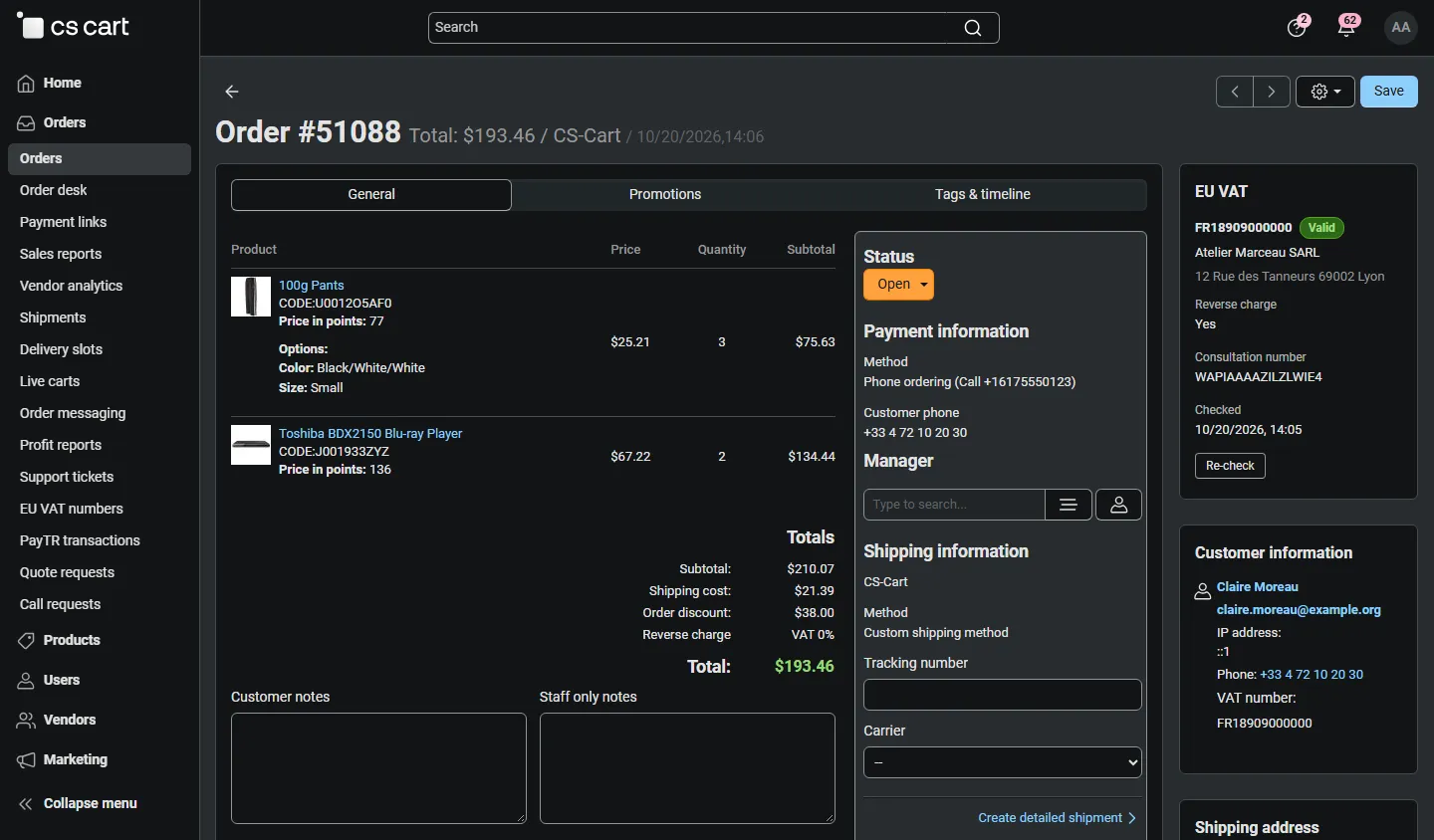
- Order details: the VAT number and the reverse charge note.
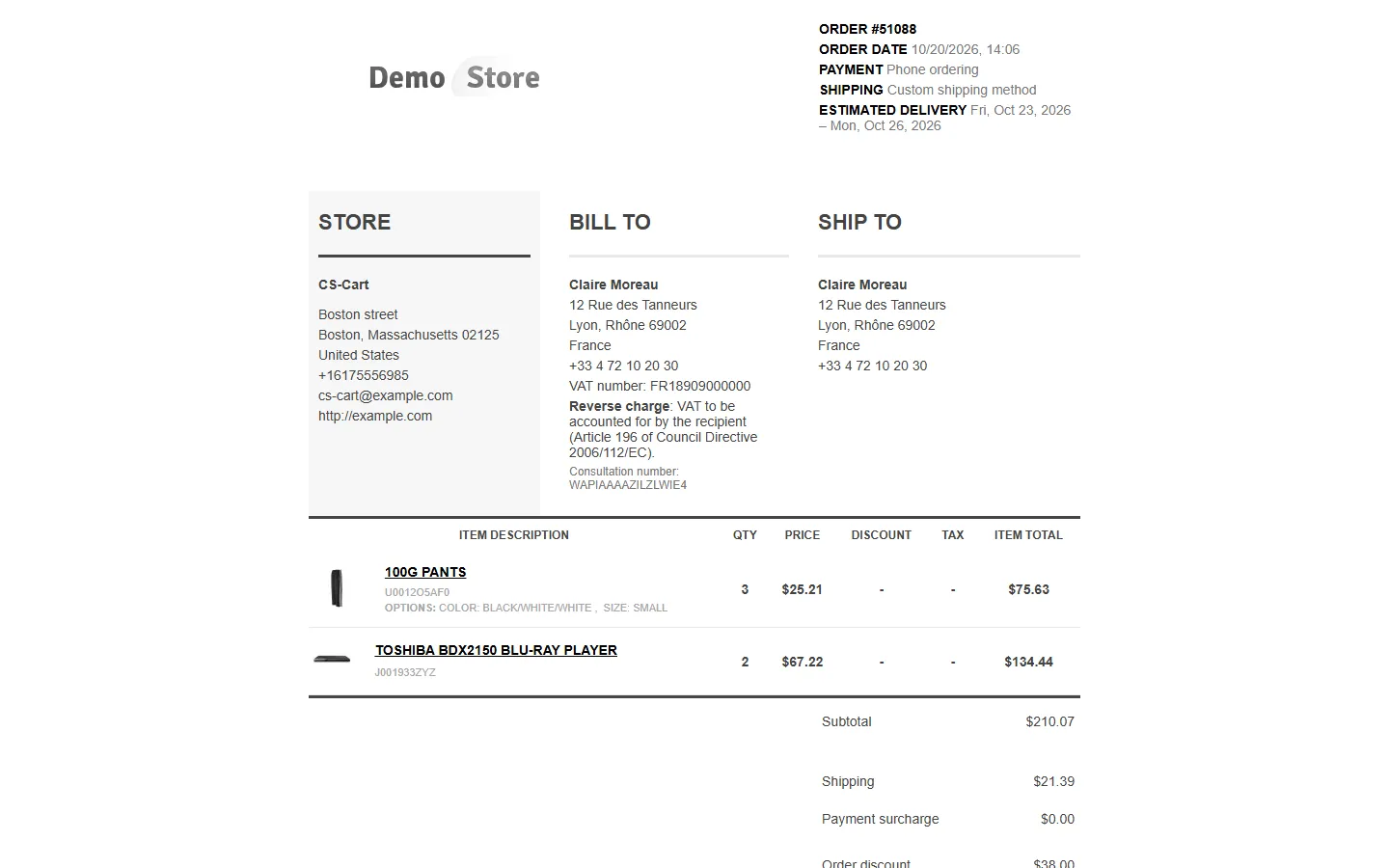
- Invoice: the VAT number under the billing address, the reverse charge note “VAT to be accounted for by the recipient (Article 196 of Council Directive 2006/112/EC)” and the consultation number; your VAT number under the store address. Change the wording in Settings → Languages (variable
kv_eu_vat_validation.reverse_charge_note).
The rule
Section titled “The rule”Reverse charge (0% VAT) applies when all of these are true:
- the store country is an EU member state;
- the buyer’s country (billing address by default) is another EU member state, or Northern Ireland with an XI number;
- VIES confirms the number (or VIES is down and the setting accepts the number for review);
- the number belongs to the buyer’s country (setting).
Everything else keeps VAT: sales to consumers, domestic business sales, invalid numbers, sales from a store outside the EU.
Orders
Section titled “Orders”- Order page (admin): the EU VAT panel at the top of the sidebar shows the number, the result, the registered name and address from VIES, whether the reverse charge was applied, the consultation number and the check date. Re-check asks VIES again; the order totals never change. If a reverse charge order turns out invalid later, the order gets the review flag and you decide.
- Needs review: orders placed while VIES was down show a warning in the panel. Re-check the number, or click Mark as reviewed after checking it yourself.
- Orders list: in the advanced search, EU VAT filters reverse charge orders, orders that need review, orders with a VAT number and orders with an invalid number.
- Editing orders in the admin panel: the decision taken when the order was placed is kept while the VAT number stays the same.
Orders → EU VAT numbers
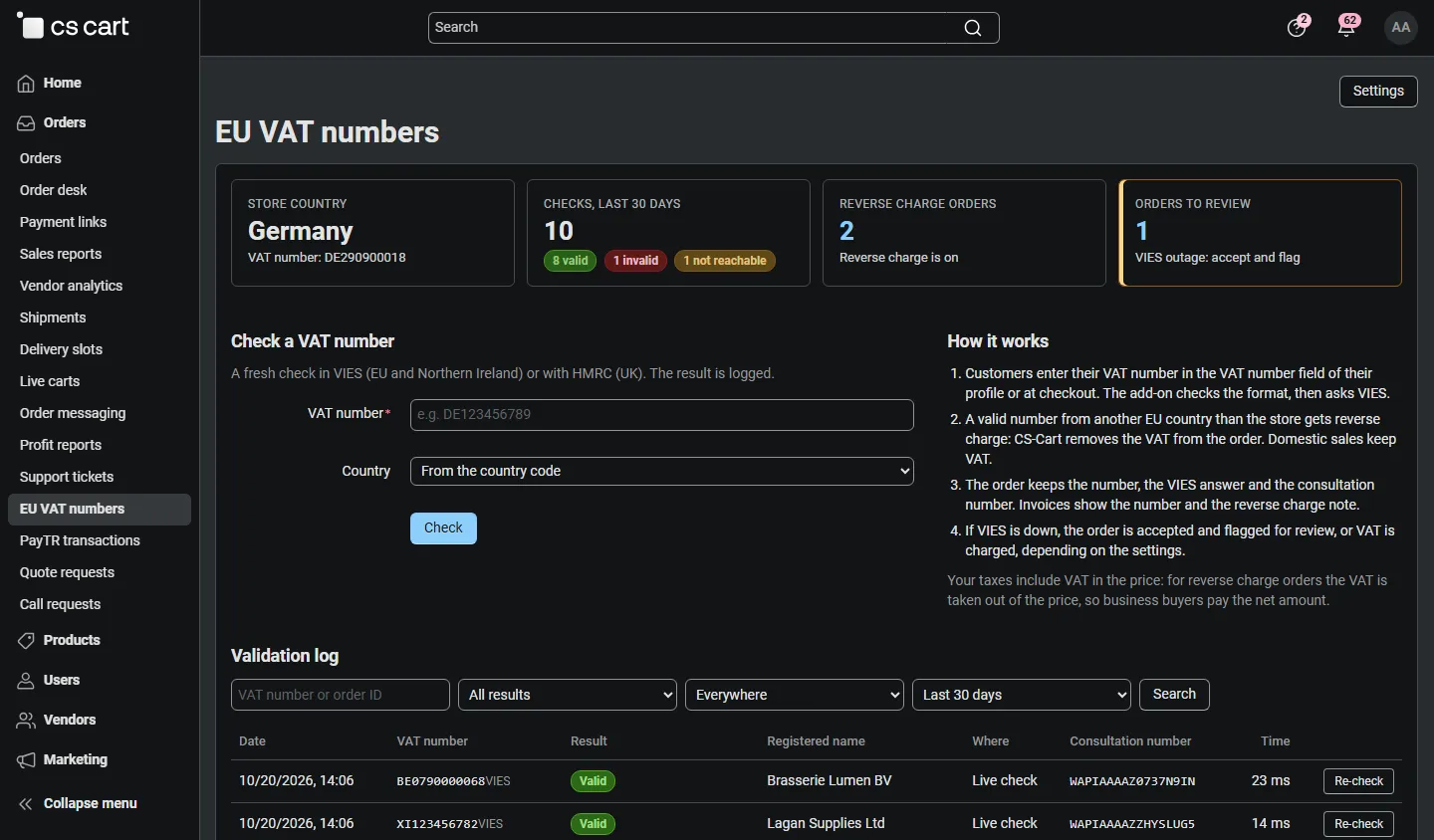
Section titled “Orders → EU VAT numbers”- Counters: checks in the last 30 days, reverse charge orders, orders to review, your store country and VAT number, and warnings if something is missing (for example your own VAT number, or the field missing at checkout).
- Check a VAT number: a fresh check in VIES or with HMRC, logged.
- Validation log: every live lookup with date, number, result, registered name, where it happened (checkout, live check, admin, vendor), consultation number and response time. Filter by result, place, period or number/order ID; Re-check per row.
Multi-Vendor
Section titled “Multi-Vendor”- Taxes in Multi-Vendor are set up by the marketplace administrator and apply to all vendors. The reverse charge decision therefore uses the marketplace’s store country, and it is the same for all vendors in a cart; every vendor order (sub-order) stores its own VAT data.
- If your vendors are the sellers of record in different countries, the marketplace country is not the right test for all of them. In that case keep Apply reverse charge off (numbers are still checked and printed) and let your tax setup handle it.
- Vendors keep their own VAT number in the core Tax number field of the vendor profile. It is optional; when it looks like a European VAT number it is checked on save (notice + log entry) and printed under the vendor address on that vendor’s invoices.
- Vendors do not see the EU VAT numbers page; the order panel is read-only for them.
CS-Cart Ultimate
Section titled “CS-Cart Ultimate”The store country and your VAT number can be set per storefront (select the storefront at the top of the admin panel before opening the settings).