

Usage
Overview · Installation · Configuration · Developer notes · FAQ
Setting up two-step sign-in
Section titled “Setting up two-step sign-in”Customers open My account → Sign-in security (also linked on the profile page). Administrators and vendors open their profile, tab Sign-in security, and click Manage my sign-in security.
- Authenticator app: click Set up authenticator app, scan the QR code (or type the key shown next to it), enter the 6-digit code. The first method also creates 10 recovery codes, shown once: copy or print them.
- Passkey: type a name (for example Work laptop) and click Add a passkey. The browser asks for the fingerprint, face, screen lock or security key. A passkey can be added next to an authenticator app; several passkeys are fine (phone, laptop, security key).
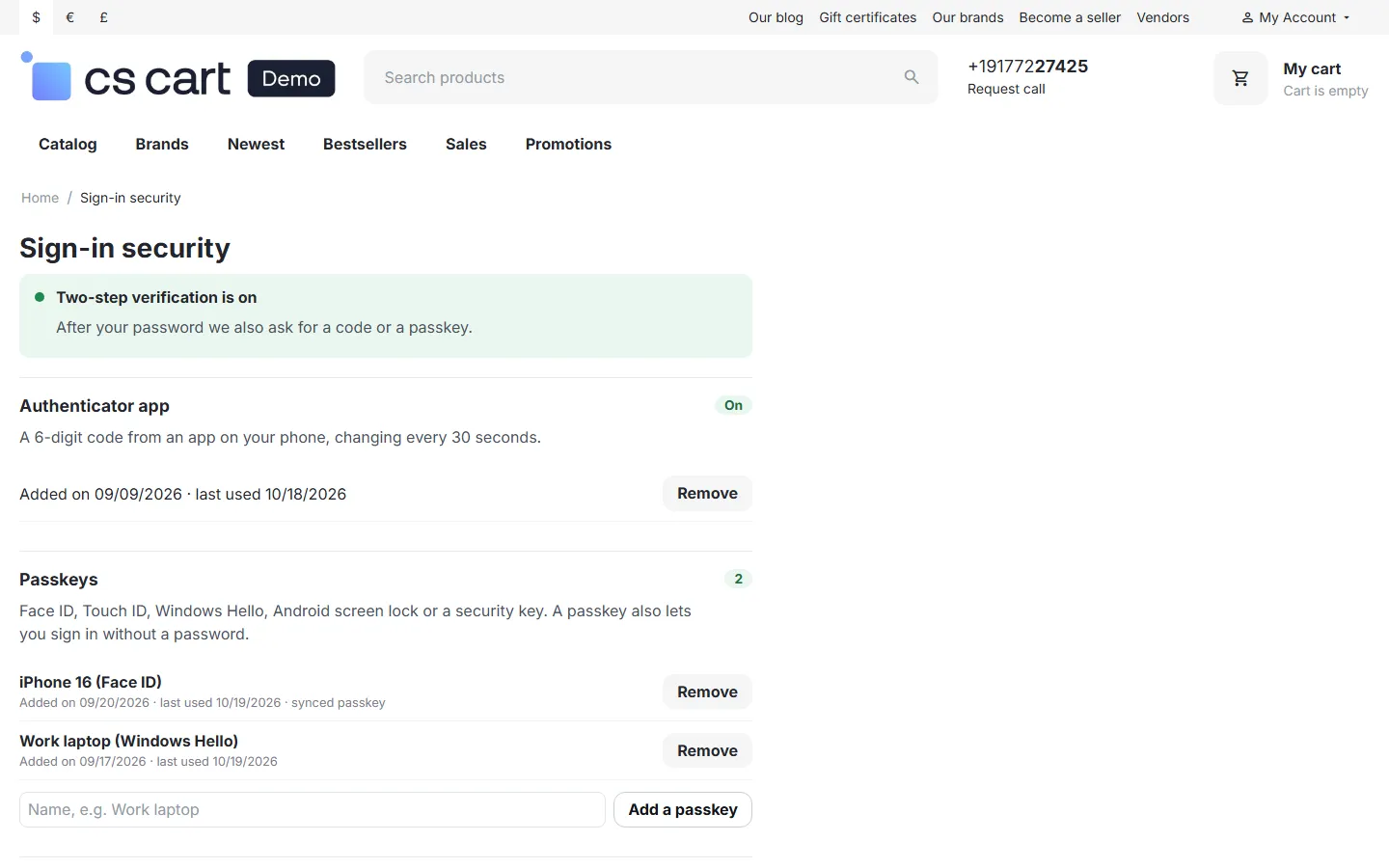
The page lists every method with the date it was added and last used, the number of unused recovery codes, and the trusted devices. Create new recovery codes replaces the old ones. Remove deletes a method; while two-step sign-in is required for the user, the last method can’t be removed.
Signing in
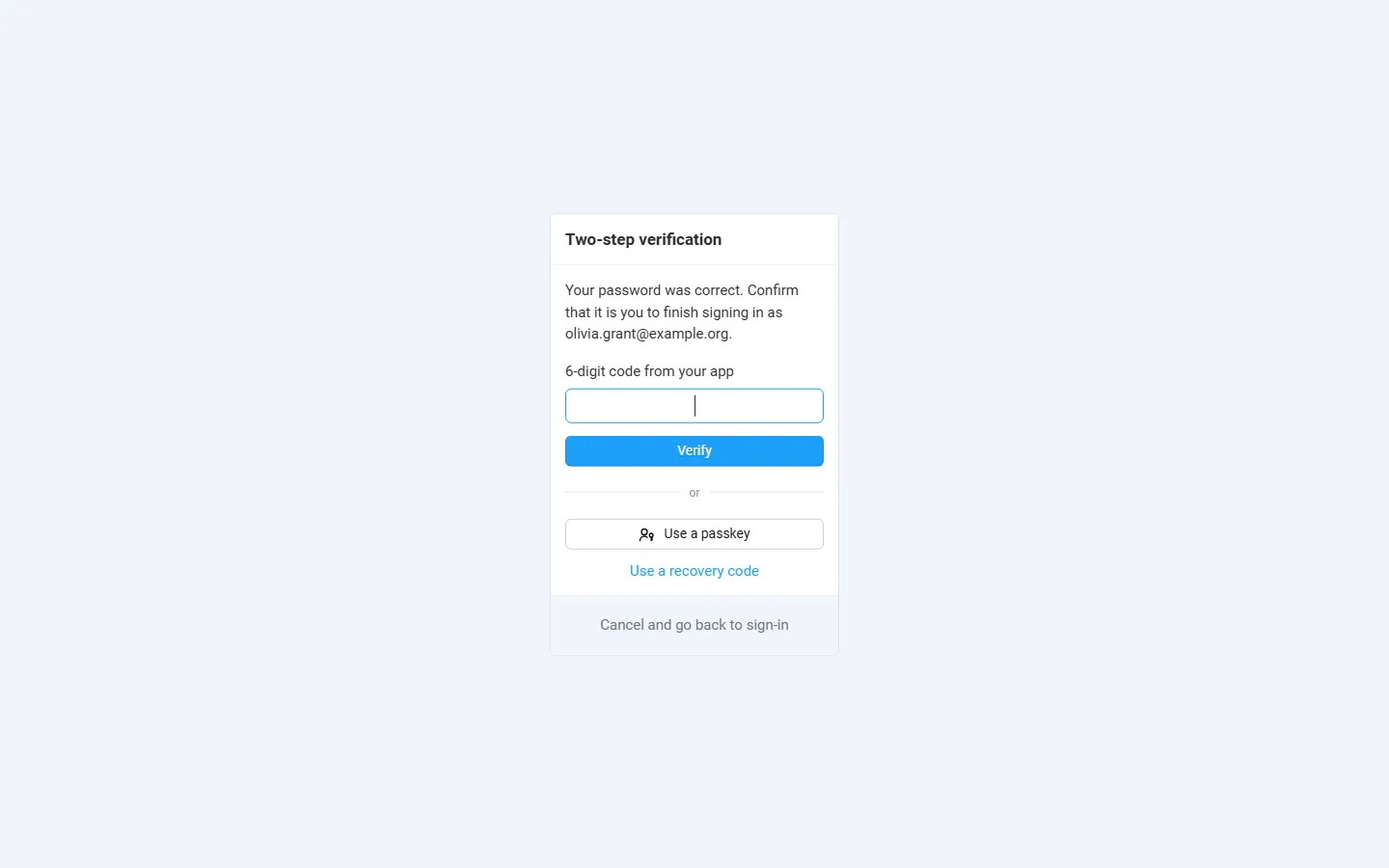
Section titled “Signing in”After a correct password the user sees the Two-step verification page instead of being signed in:
- the 6-digit code from the authenticator app (the field accepts the code from the phone’s autofill), or
- Use a passkey, or
- Use a recovery code when the phone is lost.
Ticking Don’t ask again on this device for 30 days remembers the browser (if allowed for the user type). Cancel and go back to sign-in drops the parked sign-in. The page expires after 10 minutes.
The second step applies to every way of signing in that ends in a CS-Cart account: password, the e-mail one-time password of CS-Cart 4.21, the built-in Social login, Social Login Pro and Phone OTP Login by Kavio Labs, and the password-recovery link. Remember me is applied only after the second step.
With the required policy, a user without a method gets Set up two-step verification right after the password: authenticator app or passkey, then the recovery codes, then the store.
Passwordless passkey sign-in
Section titled “Passwordless passkey sign-in”Under the sign-in form there is a Sign in with a passkey button. The browser shows the passkeys saved for your store; the user picks one and confirms with a fingerprint, face or PIN and is signed in without a password. Because the device checks the user, this counts as both steps. The button is hidden in browsers without passkey support.
Lost access
Section titled “Lost access”- Recovery code: each of the 10 codes works once. The user gets an e-mail when one is used.
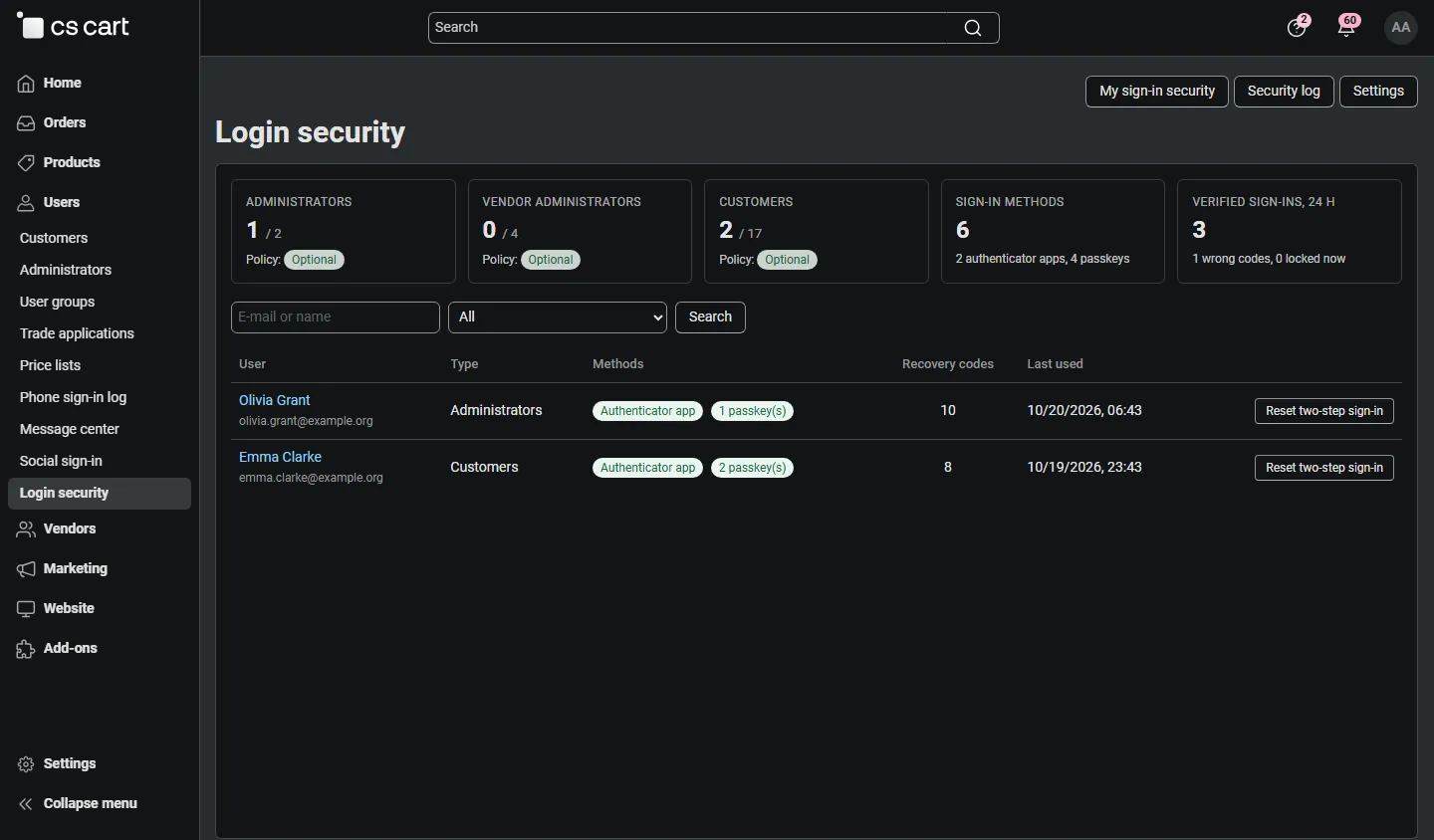
- Reset by an administrator: Customers → Login security lists every user with two-step sign-in; Reset two-step sign-in removes the user’s methods, recovery codes and trusted devices (the user gets an e-mail and sets it up again). The same button is on the user’s profile, tab Sign-in security. Only the root administrator can reset their own two-step sign-in.
- Emergency switch for the store owner: if no administrator can sign in, add this line to
config.local.phpon the server:The admin and vendor panel then skip the second step (customers are not affected), every use is logged and a red notice reminds you to remove the line after you set up a method again.define('KV_LS2FA_EMERGENCY_OFF', true);
After 5 wrong codes (setting) the second step of the account is locked for 15 minutes, the parked sign-in is dropped and the user gets an e-mail. Only someone who knows the password can cause a lock. Unlock on the Login security page lifts it at once.
Admin pages
Section titled “Admin pages”Customers → Login security (Users → Login security in CS-Cart 4.21):
- tiles: users with two-step sign-in per user type with the policy, methods in use, verified sign-ins and wrong codes of the last 24 hours, accounts locked now;
- a list of users with methods or locks, with search and a type filter, methods, unused recovery codes, last use, Unlock and Reset two-step sign-in;
- Security log: every second step asked, verified sign-in (with method), wrong code, lock, trusted device, passkey sign-in or refusal, setup, removal, new recovery codes, reset, unlock, emergency switch and cancel, filterable by event. IP addresses are never stored, only a short keyed hash.
Multi-Vendor and Ultimate
Section titled “Multi-Vendor and Ultimate”- Multi-Vendor: vendor administrators follow the vendor policy, set up methods on their profile in the vendor panel and see the second step and the passkey button on the vendor panel sign-in page. The Login security page is for marketplace administrators only.
- CS-Cart Ultimate: policies apply to the whole installation. When customers are kept separate per storefront, passkey sign-in on a storefront only accepts customers of that storefront. Passkeys are bound to the host name the user added them on: a passkey added on
shop-a.comworks there, not onshop-b.com.