

Usage
The shopper
Section titled “The shopper”- On the product page (or in quick view) the shopper selects the options or variation and the quantity and clicks Make an offer next to Add to cart.
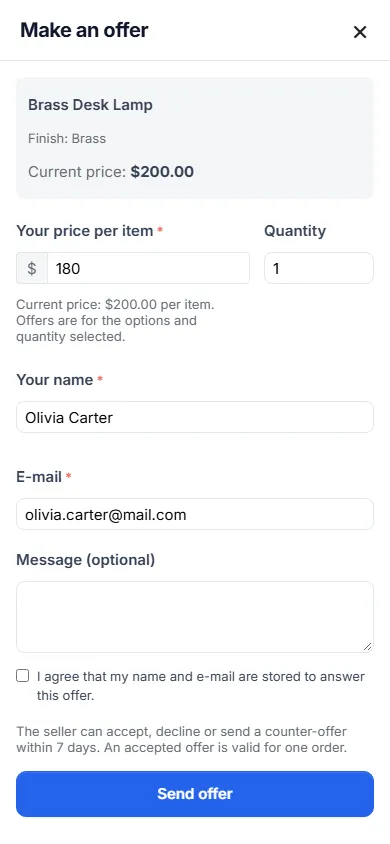
- The dialog shows the product, the selected options and the current price for that quantity. The shopper enters a price per item and an optional message. Guests also enter their name and e-mail and tick the consent box. Changing the quantity in the dialog updates the current price.
- Send offer. The dialog confirms the offer and the date by which you will answer. If an automatic rule applies, the shopper sees “Your offer was accepted!” with Add to cart at offer price, or a polite “We cannot accept this offer”.
- Reopening the dialog for the same item shows the open offer instead of a new form; a customer can have one open offer per item and option combination.
My offers (account menu) lists all offers with status, price and deadline. Guests reach their offers through the link in the e-mail.
The offer page shows the prices, the deadline and the history, and the next step:
- Waiting for answer: Withdraw offer.
- Counter-offer: Accept counter-offer, Decline, or Make a new offer (higher than the last offer, lower than the counter-offer) while rounds are left.
- Accepted: Add to cart at offer price and the deadline. Account offers need the customer to be signed in to buy.
The cart
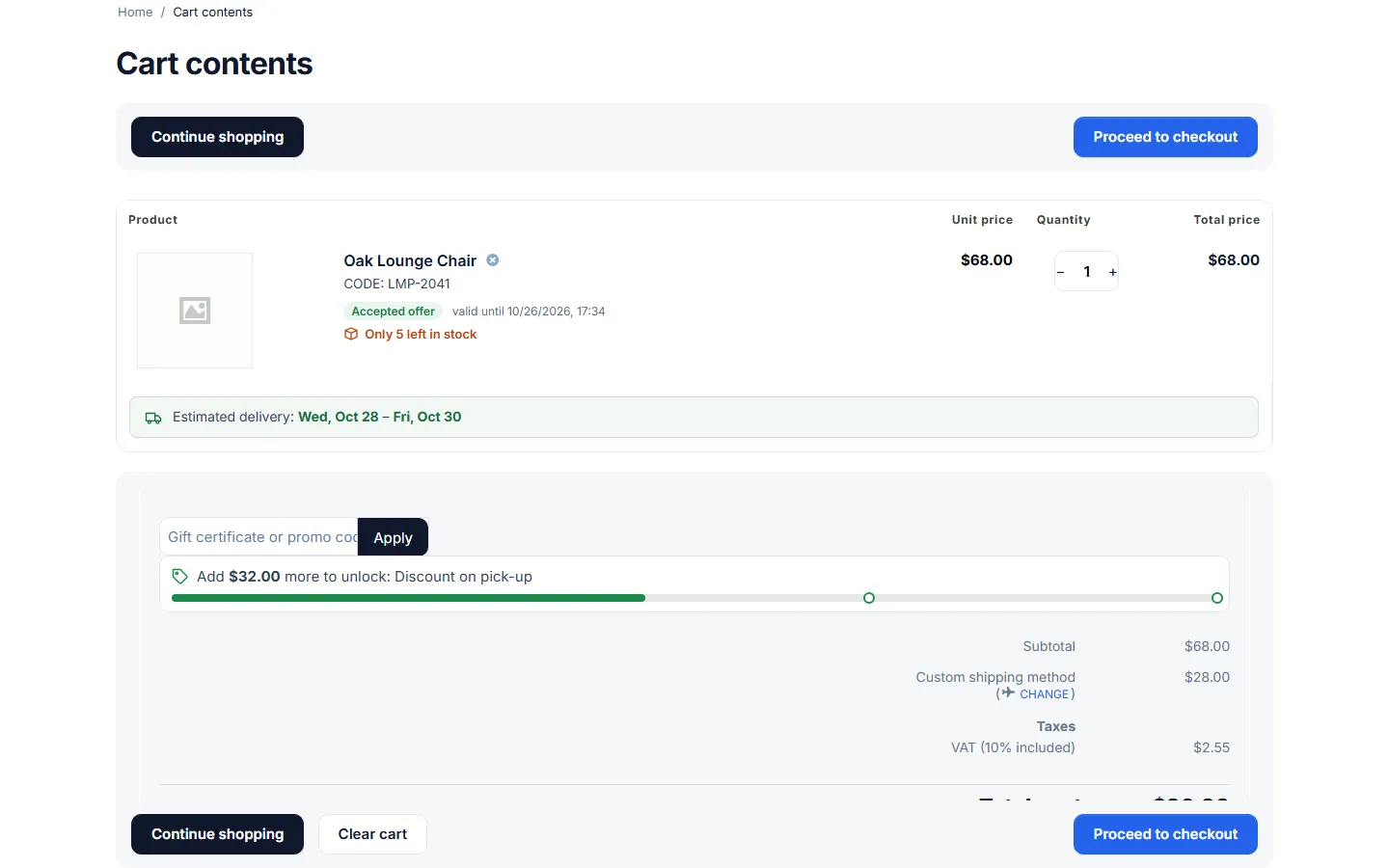
Section titled “The cart”The offer item shows an Accepted offer badge with the deadline. The add-on checks the line on every cart calculation:
- the price is the agreed price; the quantity is always the offered quantity;
- changing the options, a deadline that has passed, another customer or an offer that was already used remove the line with a notice;
- placing the order uses the offer once: a second order with the same offer is refused, even from two browsers at the same time;
- a failed, declined or canceled order (or a deleted order) gives the offer back while its deadline has not passed.
Promotions follow the Promotions setting.
Answering offers
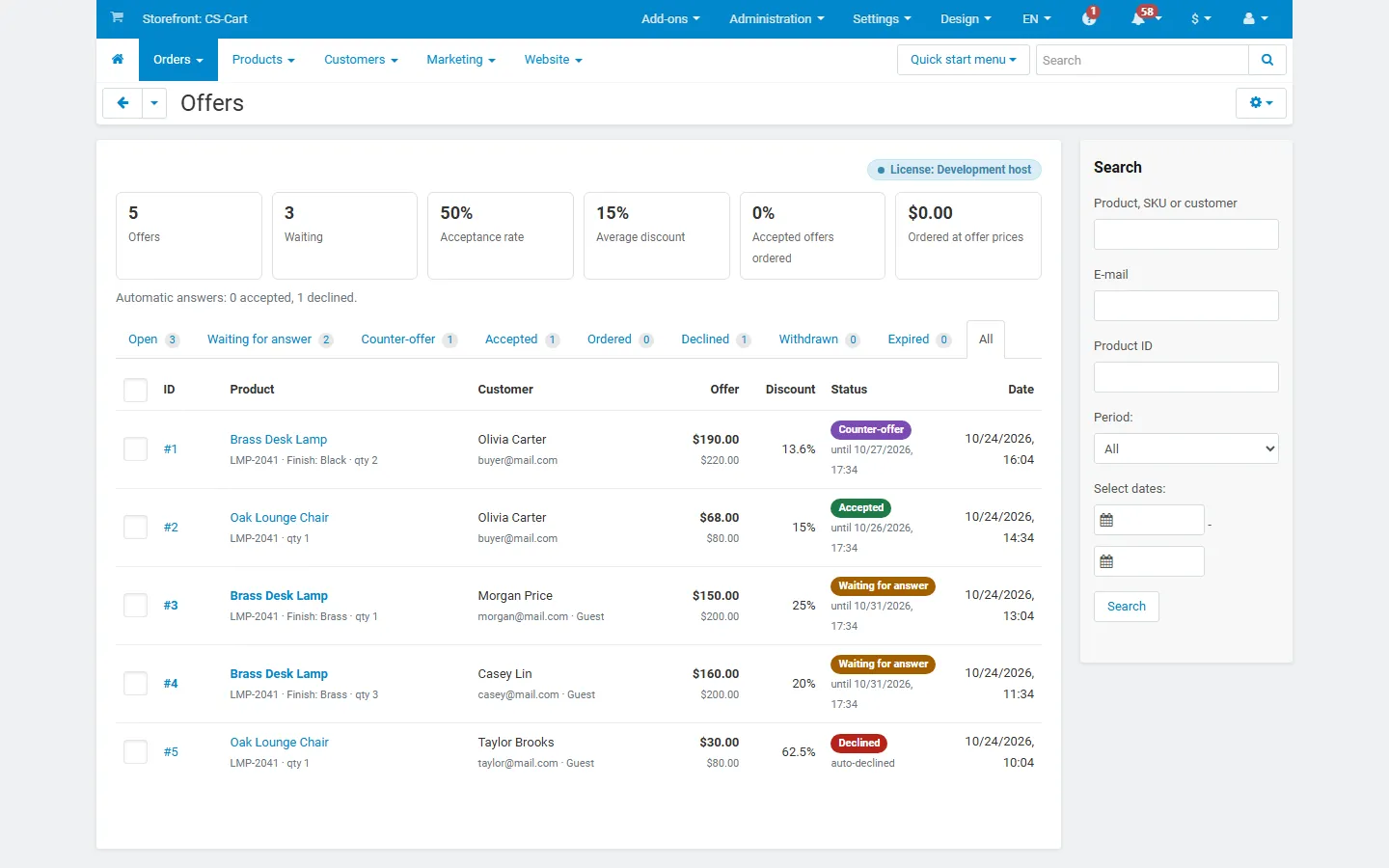
Section titled “Answering offers”Orders > Offers opens the list with the tabs Open, every status and All. The cards on top show statistics for the current filter: offers, waiting, acceptance rate (accepted and ordered offers of all decided offers), average discount of accepted offers, accepted offers that were ordered and the amount ordered at offer prices. Filters: product, SKU or customer, e-mail, product ID, vendor (marketplace administrator) and period. gear > Export to CSV downloads the filtered list.
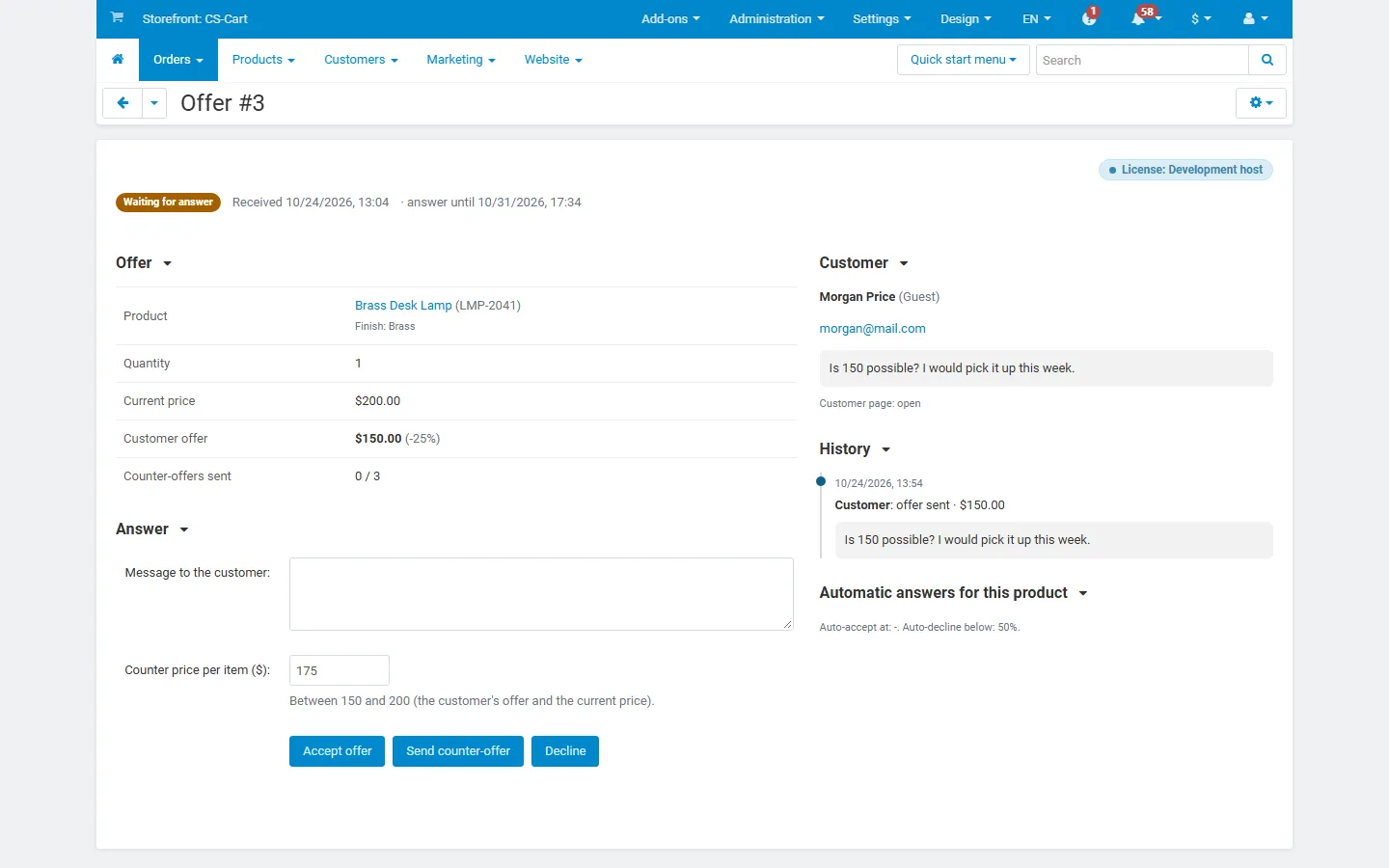
Open an offer to answer it. The page shows the product and options, quantity, current price, the customer’s offer with the discount, the history, other offers of the customer and the automatic rules that apply to the product.
- Accept offer: the customer can buy at the offered price within Hours to buy at the accepted price.
- Send counter-offer: enter a unit price between the customer’s offer and the current price (a value halfway is suggested) and an optional message. The customer has Days for the customer to answer a counter-offer to reply.
- Decline: with an optional message. You can also decline while a counter-offer is waiting.
Every action sends the matching e-mail to the customer.
Vendors (Multi-Vendor)
Section titled “Vendors (Multi-Vendor)”Vendors see Orders > Offers in the vendor panel with the offers on their own products only, and answer them in the same way. They cannot open, answer or export other vendors’ offers and cannot delete offers. With Vendors can set offer rules, they set the rule of their products (product editor, Add-ons tab) and their vendor defaults (gear > Vendor offer rules). E-mails about their offers go to the vendor, not to the marketplace administrator. The administrator sees all offers and can answer any of them.
Expiry
Section titled “Expiry”Pending offers expire after Days to answer an offer, counter-offers after Days for the customer to answer a counter-offer, accepted offers after Hours to buy at the accepted price. Expired offers are marked when someone opens them or the list, and by the optional cron command; the cart checks the deadline itself. The customer gets an “offer expired” e-mail.