

Usage
Creating an auction
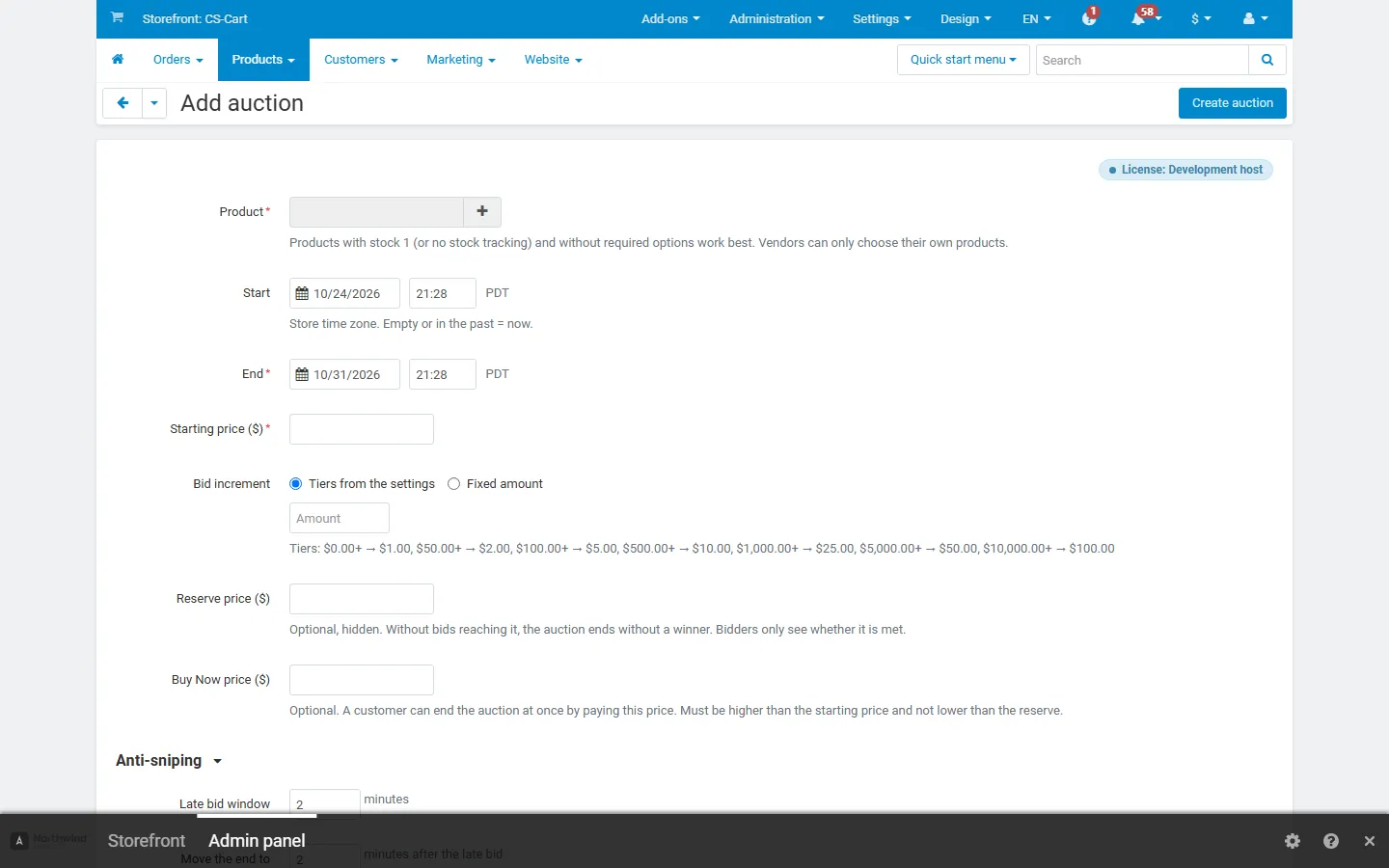
Section titled “Creating an auction”- Products → Auctions → + (or the Auction section of a product in the product editor → Add auction).
- Choose the product, the start and end, the starting price, the increment and, if you like, a reserve and a Buy Now price.
- Click Create auction. A scheduled auction shows its start time on the product page; a running one takes bids at once.
While a product has an auction (running, or ended and waiting for payment), it cannot be bought normally: the product page shows the auction panel instead of Add to cart, and add-to-cart requests for it are refused. “Make an offer”, “Request a quote” and “Frequently bought together” of other Kavio Labs add-ons are hidden for it.
The bidder
Section titled “The bidder”- The auction panel on the product page (and in quick view) shows the current bid, the time left, the reserve status, the number of bids and bidders and the bid history with masked names (for example “J***n”). It updates itself every few seconds.
- Guests see Sign in to bid. Signed-in customers enter an amount and click Place bid. The first bid asks them to accept the bidder terms (when required).
- Bid automatically up to this amount turns the bid into a maximum bid: the store bids for the customer one increment at a time, only as much as needed to stay in the lead. Nobody sees the maximum.
- A bid that is lower than another customer’s maximum is answered at once by an automatic bid; the panel says “You have been outbid”. Outbid customers also get an e-mail.
- Buy Now (when offered) ends the auction at once and puts the item into the cart.
- Watch adds the auction to My auctions → Watching.
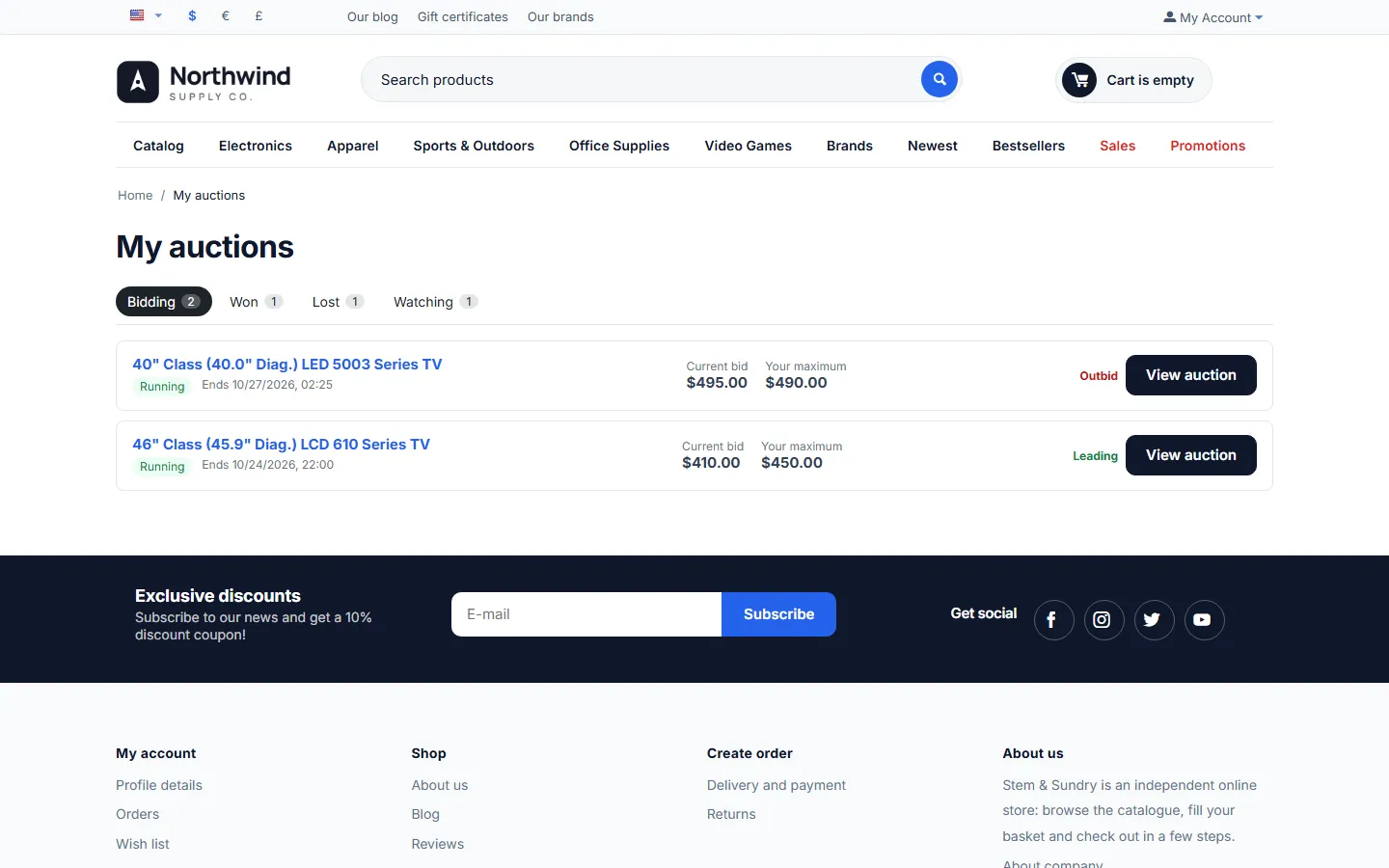
- My auctions (account menu): Bidding (leading / outbid and the own maximum), Won (Pay now), Lost, Watching.
How the price is set
Section titled “How the price is set”Example with tiers (100 and above: steps of 5): Anna sets a maximum of 200 while the starting price is 120; the current bid is 120. Ben bids 150; Anna’s maximum answers with 155. Ben sets a maximum of 250; Anna’s automatic bid goes to 200 and Ben leads at 205 (200 + 5). If two maximums are equal, the earlier one leads.
With a reserve price, the current bid jumps to the reserve as soon as a maximum reaches it.
Late bids (anti-sniping)
Section titled “Late bids (anti-sniping)”A bid placed in the last minutes (2 by default) moves the end to a few minutes after that bid, so other bidders can answer. The panel shows “Extended by a late bid”. The number of extensions is limited per auction.
Closing and winner payment
Section titled “Closing and winner payment”At the end time the auction is closed (cron, the next view of the auction or the next admin page view):
- Won: the highest bidder wins at the current bid. The winner gets an e-mail; the other bidders get a “lost” e-mail; you (or the vendor) get “auction ended”.
- Reserve not met or no bids: no winner. Relist it manually or automatically (setting).
The winner opens My auctions → Won and clicks Pay now: the item goes into the cart at the winning bid, quantity 1, and the normal checkout follows (shipping, taxes and payment methods as usual). The price is enforced on the server for this customer, this product and one order, until the payment deadline. If the order fails or is canceled, the winner can pay again until the deadline.
If the winner does not order in time, the win expires and, depending on the setting, the next highest bidder gets a second-chance offer at their maximum bid, or the auction is relisted.
Managing auctions
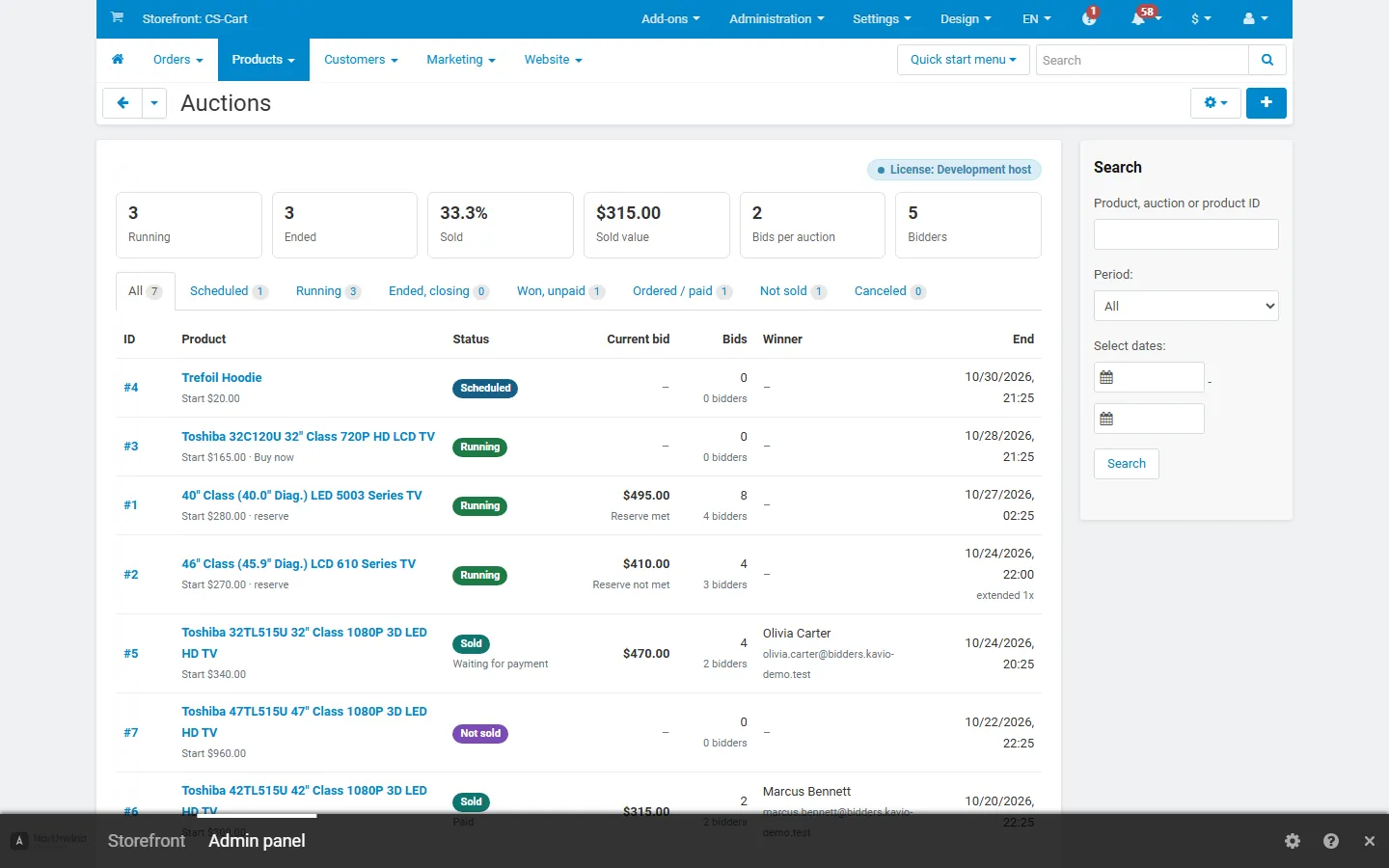
Section titled “Managing auctions”Products → Auctions: statistics (running, ended, sold, sold value, bids per auction, bidders), status tabs (scheduled, running, ended and closing, won and unpaid, ordered / paid, not sold, canceled), filters and Export CSV.
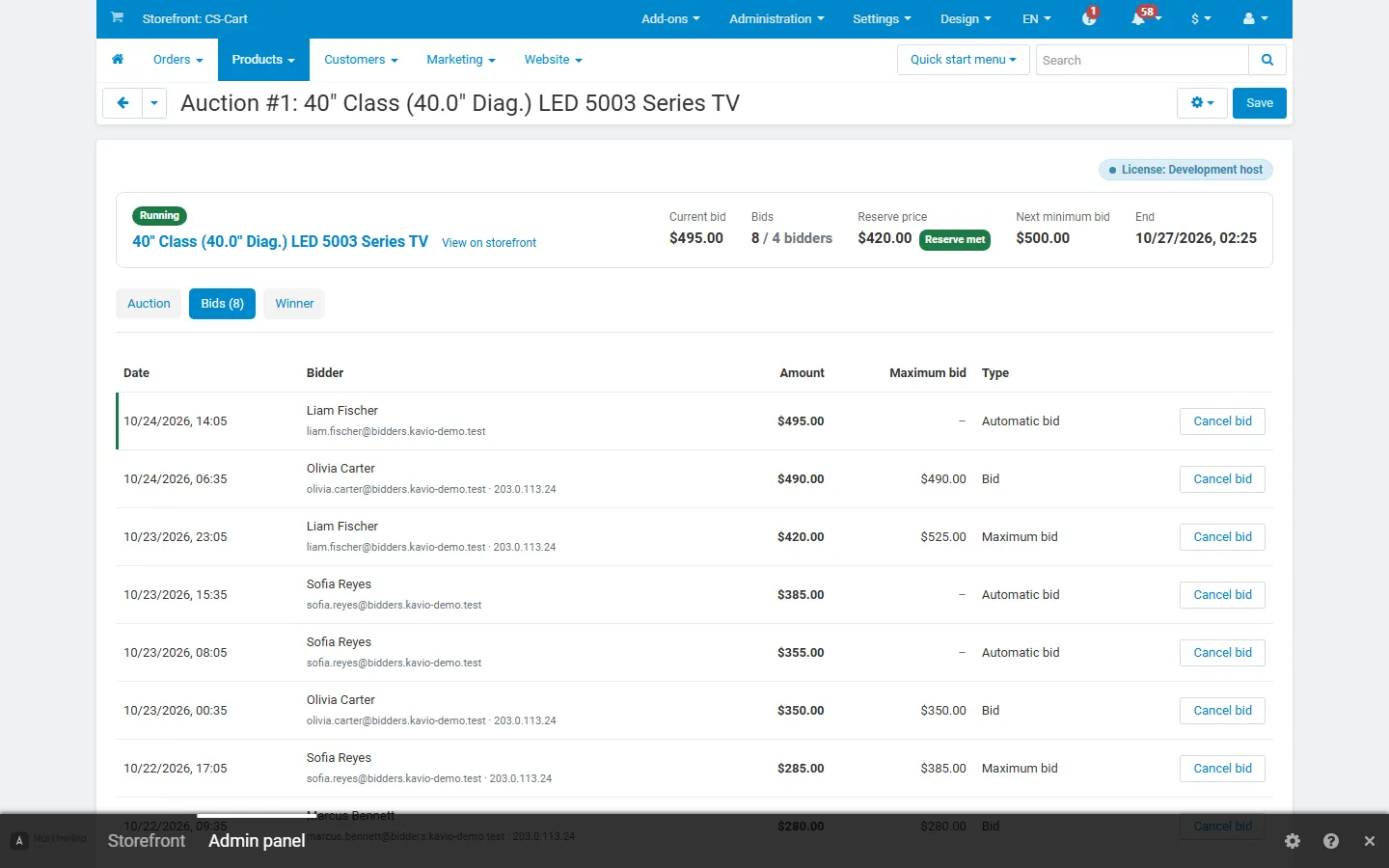
The auction page has three tabs:
- Auction: the summary and the parameters (locked after the first bid as described in Configuration), Cancel auction with a reason (all bidders are told), relisted auctions.
- Bids: the full bid log with bidder, e-mail, IP address, amount and maximum. Cancel bid (with a reason, optionally all bids of that bidder) recalculates the auction from the remaining bids; the bidder gets an e-mail. Export bids (CSV).
- Winner: the winner and second-chance offers with price, status, payment deadline and order.
Bidders lists the customers who bid or accepted the terms, with the time and IP address of the acceptance. Approve or block bidders here.
The gear menu offers Relist (unsold or unpaid auctions) and End auction mode (the product can be sold normally again).
Vendors (Multi-Vendor)
Section titled “Vendors (Multi-Vendor)”With Vendors manage auctions on, vendors find Products → Auctions in the vendor panel. They create auctions only for their own products, see only their own auctions, bids (bidder names masked, the winner in full) and winners, and receive the “auction ended” and “winner did not pay” e-mails. The marketplace administrator sees and manages every auction.