

Usage
Making a product bookable
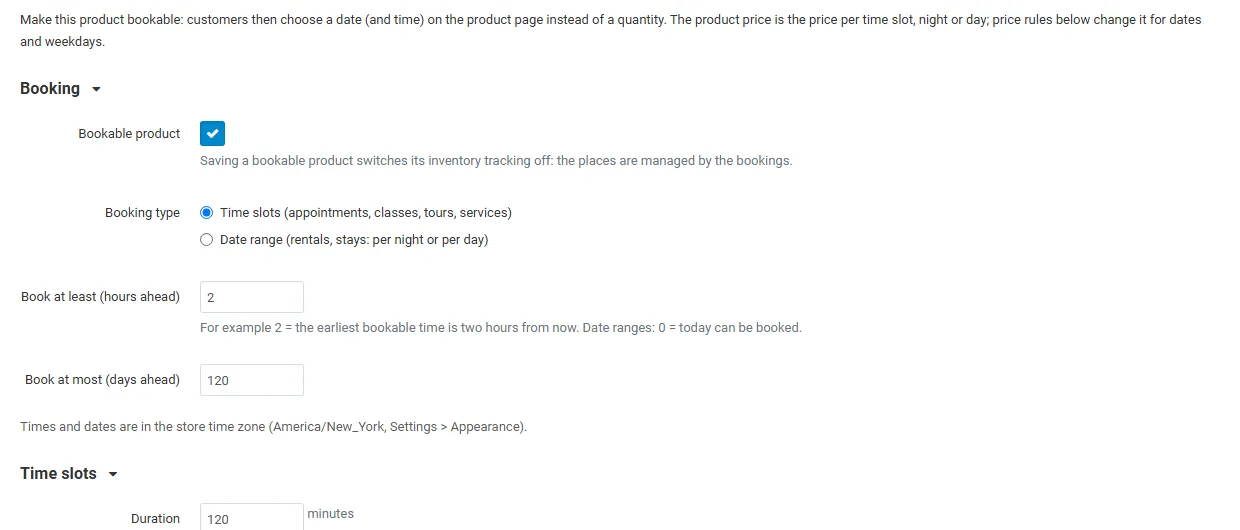
Section titled “Making a product bookable”Open the product in Products > Products and go to the Booking tab. Tick Bookable product, choose the booking type and save the product. Saving a bookable product switches its inventory tracking off: the places are managed by the bookings, not by stock. The product price is the price of one time slot, night or day.
Time slots (appointments, classes, tours, services)
Section titled “Time slots (appointments, classes, tours, services)”- Duration and Break after each booking (preparation or travel time). Slots start at the beginning of each opening period, every duration + break: with 09:00-12:00, 60 minutes and a 30-minute break the slots are 09:00, 10:30 (and 12:00 does not fit).
- Places per time slot: 1 for a private appointment, 12 for a class.
- Opening hours per weekday, for example
09:00-12:00, 13:00-17:30. Empty = closed. - Use resources: customers book a specific person, room, vehicle or piece of equipment. Each resource has its own capacity (usually 1) and is never booked twice at the same time, across all products that use it. Tick Customers choose the resource to show a “With” selector (with “Any available”); otherwise the first free resource is assigned. Manage resources in Orders > Bookings > Resources, including their days off.
Date ranges (rentals, stays)
Section titled “Date ranges (rentals, stays)”- Charged per night (check-in and check-out dates; the check-out day stays free for the next guest) or per day (first and last day are both booked).
- Units available per day: for example the number of identical rooms, bikes or cars.
- Open weekdays, Minimum and Maximum length, and the weekdays a stay or rental can start on and can end on (none selected = any day).
For both types
Section titled “For both types”- Book at least (hours ahead) and Book at most (days ahead).
- Price per person: customers choose adults and children; the price is multiplied by the guests, children count with the Child price share. Each booking takes one place per guest (classes, tours) or one place per booking (rooms, private sessions). Without it, customers can book several places at once, up to Places per booking at most.
- Price rules: the first matching rule from the top changes the price of a slot, night or day: by date range and/or weekdays, as a percentage, an amount or a fixed price. Example: weekends +20 %, a holiday week at a fixed 150.
- Exceptions: closed dates (holidays), special opening hours or a different number of places for some dates.
On the storefront
Section titled “On the storefront”The product page shows a date picker instead of the quantity box: a month calendar with the available days, then the times of the chosen day (or the check-out day for date ranges), the guests or places, and a summary with the total. Book now adds the booking to the cart; the places are then held for the time set in the settings. Days with few places left get a dot, full days are crossed out. The picker works with the keyboard (arrow keys, Page Up/Down for months) and screen readers, and fits phone screens.
In product lists and quick view, bookable products show Choose a date and time (or Choose your dates) instead of Add to cart, linking to the product page.
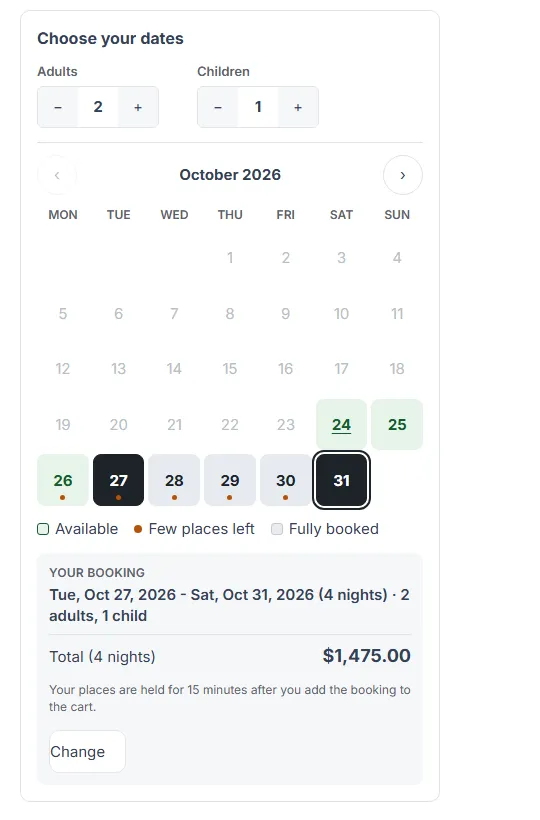
The cart, the checkout summary and the mini cart show the booking under the product; its quantity stays 1 (book again for another date or more places). When the order is placed, the availability is checked once more; if the places were taken meanwhile, the customer is asked to choose another time.
Order pages, order e-mails, invoices and packing slips show the booking as an option line of the product, for example Booking: Fri, Oct 30, 2026, 10:00 - 11:00 · 2 adults. Customer e-mails about the order carry an .ics file per upcoming booking.
My bookings
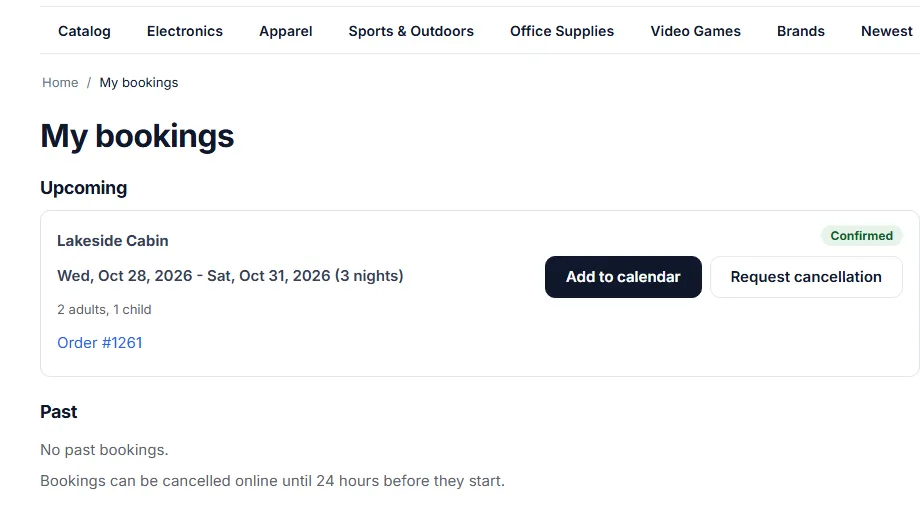
Section titled “My bookings”Logged-in customers find My bookings in the account menu: upcoming and past bookings with their status, Add to calendar and, within your cancellation window, Request cancellation or Cancel booking (see Configuration).
Bookings calendar and list
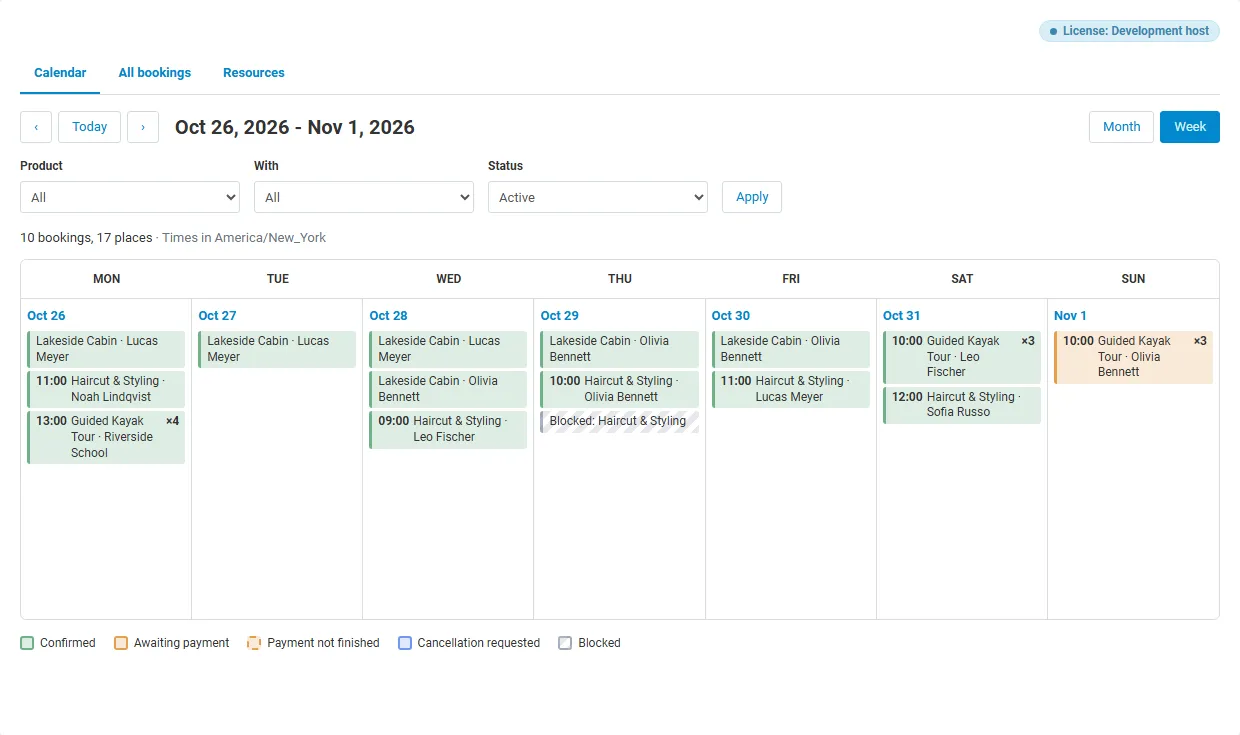
Section titled “Bookings calendar and list”Orders > Bookings opens the calendar: month or week view, filtered by product, resource and status, with the bookings of each day (time, product, customer, places) colored by status: confirmed, awaiting payment, payment not finished, cancellation requested and blocked times. + on a day adds a booking for that day.
All bookings lists the bookings with filters (dates, product, resource, status, search by customer, e-mail, order or booking ID) and exports them as CSV (gear menu). The status filter also shows Cancellation requests, Overbooked bookings (a late payment found its places taken) and Held in carts.
The booking page
Section titled “The booking page”Click a booking to see its details, the order, the customer and internal notes. From there you can:
- Move booking to another date, time or resource (the availability is checked; tick Allow overbooking to override). The price and the order do not change and the customer is not notified automatically.
- Cancel booking: frees the places (optionally with an e-mail to the customer). For bookings of orders, change the order status or refund the order separately if needed.
- Restore booking of a cancelled booking (availability checked).
- Approve cancellation or Decline request when the customer asked to cancel.
Manual bookings and blocked times
Section titled “Manual bookings and blocked times”Add booking (top right or + in the calendar) books places for phone or walk-in customers without an order: product, date and time, guests or places, customer name, e-mail and phone (the e-mail receives the reminder). Block time takes places away from the storefront for a time window or whole days, for example for maintenance or a private event; existing bookings stay valid.
Orders and statuses
Section titled “Orders and statuses”Bookings follow their order: the statuses in Free the places when the order status is (Canceled, Declined, Failed by default) free the places; moving the order back to another status takes them again. Deleting an order frees its places. Re-ordering an old order does not copy its bookings (the customer chooses a new date). Editing an order in the admin keeps its bookings; to change a date, move the booking on its booking page.
Vendor panel (Multi-Vendor)
Section titled “Vendor panel (Multi-Vendor)”Vendors use the same calendar, list, booking page, manual bookings, blocked times and resources for their own products, and the Booking tab of their products.