

Usage
Overview · Installation · Configuration · Developer notes · FAQ
Create a link
Section titled “Create a link”Open Orders → Payment links and click + (New payment link), or open an unpaid order and choose Create payment link in the order’s tools menu (gear icon). Choose the kind of link with the tabs at the top.
Existing order
Section titled “Existing order”Enter the order number and click Check order: the card below shows the order status, total and customer, or why the order cannot get a link:
- the order is already paid (its status is one of the paid statuses in the settings);
- the order total is zero;
- it is a combined marketplace order (Multi-Vendor): create the link for one of its vendor orders;
- the order already has an active link: send that link again, or cancel it first.
The customer pays the order total. If the chosen payment method has a payment fee, the fee replaces the order’s old fee, as on the core repay page. Paying through the link puts the order back to Open first (like core repay) and then starts the payment.
Custom amount
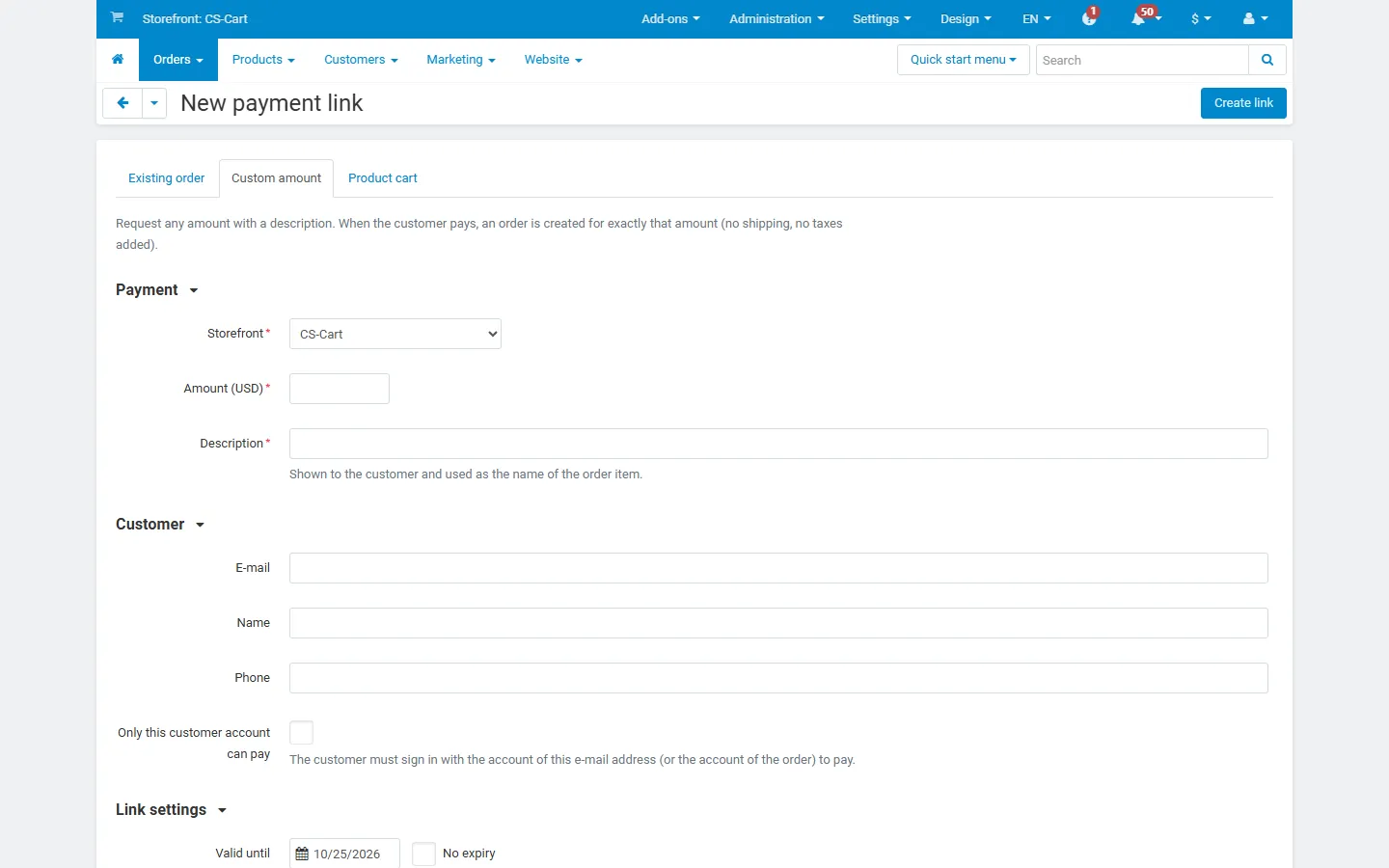
Section titled “Custom amount”Enter the amount (in your store’s primary currency) and a description. The description is shown to the customer and becomes the name of the order line. When the customer pays, an order for exactly that amount is created: no shipping, no taxes added, no promotions.
Product cart
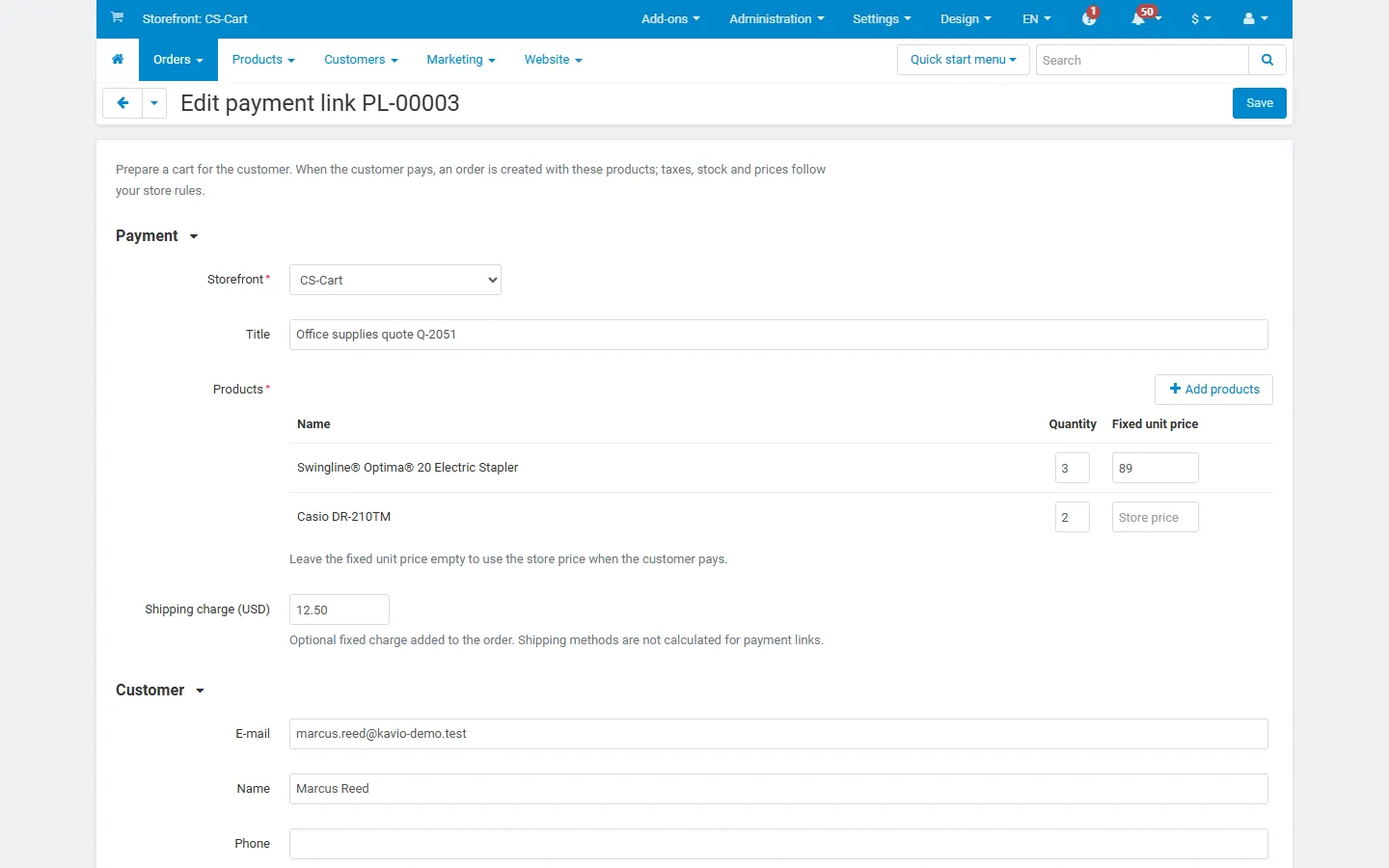
Section titled “Product cart”Choose the vendor (Multi-Vendor) or storefront (Ultimate, when you manage all storefronts), then Add products: quantities, and an optional Fixed unit price per product. Without a fixed price, the customer pays the store price at payment time, with catalog promotions. An optional Shipping charge is added to the order as its shipping cost; shipping methods are not calculated. The customer enters a billing and shipping address on the pay page; taxes are calculated from it by your tax settings. Products must be in stock when the customer pays. Product options use their default values.
Common fields
Section titled “Common fields”| Field | Description |
|---|---|
| E-mail, name, phone | Prefill the pay page and the e-mail. For order links they are taken from the order when empty. |
| Only this customer account can pay | The customer must sign in with the account of the e-mail address (or the order’s account) to see and pay the link. |
| Valid until / No expiry | After the end of this day the link shows expired. You can extend an expired link that was not used. |
| Payments | One payment (single use) or Several payments, up to N (empty = unlimited), for example for a deposit or an event fee you send to many people. A single-use link that failed or was cancelled at the payment provider re-uses its order on the next try instead of creating another one. |
| Payment methods | Tick the methods the customer may use. Nothing ticked = all active methods. Vendor-owned methods (Multi-Vendor direct payments) are offered only for that vendor’s links. |
| Message to the customer | Shown on the pay page and in the e-mail. |
| Internal note | Only for staff, searchable in the list. |
| E-mail the link to the customer after saving | Sends the link right away with the e-mail template. |
Share a link
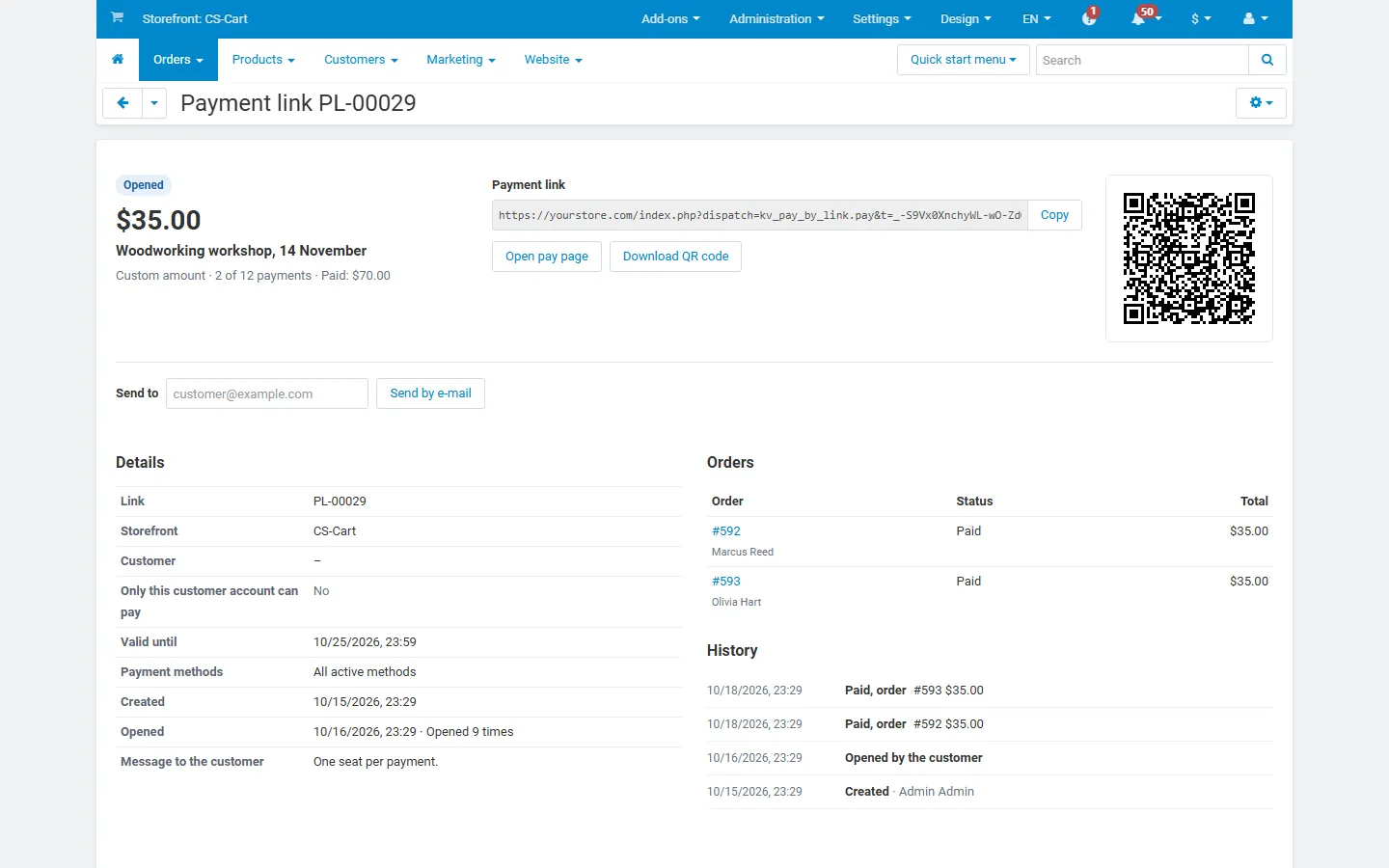
Section titled “Share a link”The link page shows the URL with a Copy button, Open pay page, Download QR code (SVG, prints sharp at any size) and Send by e-mail to the link’s address or another one. Send the URL by chat or SMS, print the QR code on an invoice, or show it at the counter.
The pay page
Section titled “The pay page”The customer sees the store name, the amount, the expiry date and your message, a summary (order items or cart lines with subtotal, shipping and taxes), the contact fields (custom amount and cart links; cart links also ask for the address) and your payment methods. Choosing a method updates the total when the method has a fee. Pay starts the payment: gateways redirect to their payment page, offline methods show their instructions. After the payment the customer comes back to the pay page and sees the result: paid, waiting for your payment (offline methods) or not completed with the form to try again.

Pages for links that cannot be paid say why: expired, cancelled, already used, not valid, or a product is out of stock. The pay page never changes what the visitor has in their own shopping cart.
Statuses
Section titled “Statuses”| Status | Meaning |
|---|---|
| Created | The link exists; the customer has not opened it yet. |
| Opened | The customer opened the pay page (the list shows how often). A multi-use link with payments stays Opened until its maximum is reached. |
| Paid | All allowed payments are done (single-use: the payment is done). The order reached a paid status from the settings. |
| Expired | The expiry date passed before the link was paid. |
| Cancelled | You cancelled the link, or the order of an order link was deleted. |
A payment counts when the order of the link enters a paid status, no matter how: the payment gateway, your own status change, or the customer paying the order from their account. The order page shows the order’s links in the sidebar.
List, search and export
Section titled “List, search and export”Orders → Payment links has tabs per status with counts, a search for link number (PL-00012 or 12), e-mail, name, description, internal note or order number, filters by status, kind and period, and sorting by number, status, expiry and amount. Export to CSV (gear menu) downloads the filtered list: number, status, kind, title, amount, currency, payments and maximum, paid total, order and created orders, customer, vendor or storefront, created, expiry, opened, opens, paid date and note.
Edit, cancel, delete
Section titled “Edit, cancel, delete”Links can be edited until the first payment (the token and URL stay the same). Cancel link stops further payments at once. Delete is possible only for links without orders; links with orders stay for your records.