

Configuration
Add-ons → Manage add-ons → Auctions & Bidding → Settings. On CS-Cart Ultimate, most settings can be set per storefront.
General
Section titled “General”| Setting | Default | Meaning |
|---|---|---|
| Enable auctions | On | Switches the storefront auction features on or off. When off, auction products are shown as normal products again and no bids are taken. |
Bidding
Section titled “Bidding”| Setting | Default | Meaning |
|---|---|---|
| Bidders accept terms | On | Customers tick a box with your bidder terms before their first bid. The time, IP address and the version of the text are stored; a changed text is asked again. |
| Bidder terms | (empty) | Your auction rules shown next to the bid form: binding bids, payment, delivery, returns, applicable law. Empty = a short neutral default text. Write your own terms; the add-on does not provide legal terms. |
| Approve bidders manually | Off | New bidders can only bid after you approve them on Products → Auctions → Bidders. |
| Bid increments (tiers) | 0=1, 50=2, 100=5, 500=10, 1000=25, 5000=50, 10000=100 |
One line per tier, “from price=step”. Used by auctions with tiered increments. |
| Buy Now available | Until the first bid | Until the first bid: Buy Now disappears when someone bids. Until the price reaches it: Buy Now stays while the current bid is below the Buy Now price. |
| Anti-sniping: last minutes | 2 | A bid in the last N minutes extends the auction (default for new auctions; 0 = off). |
| Anti-sniping: extend by | 2 | The end moves to N minutes after such a bid. |
| Anti-sniping: maximum extensions | 10 | How often one auction can be extended (0 = no limit). |
| Live update interval | 10 s | How often the auction panel asks for the latest bid; every 3 seconds in the last two minutes. |
Winner and payment
Section titled “Winner and payment”| Setting | Default | Meaning |
|---|---|---|
| Hours the winner has to pay | 48 | The winner adds the item to the cart at the winning bid and must place the order within this time. |
| When the winner does not pay | Second-chance offer | Nothing / second-chance offer to the next highest bidder at their maximum bid (once) / relist the auction. |
| Relist unsold auctions automatically | Off | Auctions without a winner (no bids, reserve not met) start again with the same settings and duration. |
| Automatic relists per auction | 1 | Limit for automatic relisting. |
| Vendors manage auctions (Multi-Vendor) | On | Vendors create and manage auctions for their own products. |
| Closing auctions | — | The cron command and URL for your store and the time of the last run. |
Auction settings (per auction)
Section titled “Auction settings (per auction)”Set when you create the auction (Products → Auctions → +, or Add auction in the product editor’s Auction section):
- Product. Each auction sells exactly one item. Use a product with stock 1 (or no stock tracking) and without required options; for items with options, use a product variation.
- Start / End in the store time zone (shown next to the fields). An empty or past start means now. Daylight saving time changes are handled; a time that does not exist on the spring-forward day moves to the next valid time.
- Starting price.
- Bid increment: the tiers from the settings, or a fixed amount.
- Reserve price (optional, hidden): the lowest price you accept. If the bids do not reach it, the auction ends without a winner. Bidders only see “Reserve met” or “Reserve not met”.
- Buy Now price (optional): must be higher than the starting price and not lower than the reserve.
- Anti-sniping values (defaults from the settings).
After the first bid, only changes in the bidders’ favour are accepted: a later end, a lower reserve and removing Buy Now.
Notifications
Section titled “Notifications”Administration → Notifications, group Auctions: outbid, won, lost, canceled, payment time passed and second-chance offer (customers); auction ended and winner did not pay (administrator, or the vendor for vendor auctions). The templates can be edited in Design → E-mail templates. Notification e-mails in the add-on settings sets who receives the staff e-mails (empty = the company “Orders department” address).
License
Section titled “License”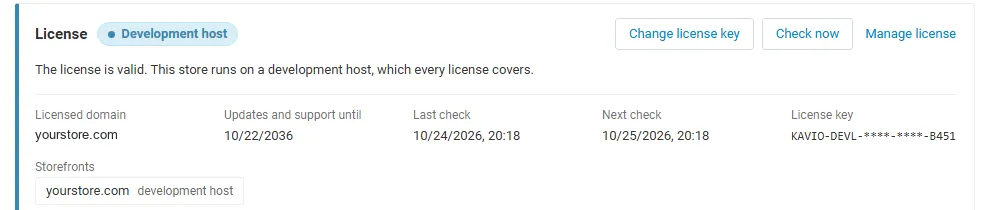
The License section shows the license status, the licensed domain and Check now. Enter your Kavio Labs license key there, or the CS-Cart Marketplace license number in Add-ons > Manage add-ons.
What switched off means: no new bids or Buy Now purchases are accepted and no new auctions can be created or started (auction pages show that bidding is paused). Auctions still close at their end time, winners can still pay for auctions they have won, and all auctions, bids and exports stay available.