

Configuration
Add-ons > Manage add-ons > Make an Offer > Settings. On CS-Cart Ultimate every storefront has its own values.
General
Section titled “General”| Setting | Default | What it does |
|---|---|---|
| Enable offers | On | Switches the storefront features on or off. While it is off, accepted offers in carts are sold at the normal price. |
| Offers on all products | On | On: every product with a price takes offers unless a rule switches it off. Off: only products, categories or vendors with the rule Offers on. |
| Guests can make offers | On | Guests enter their name and e-mail and accept the consent text. Off: guests are asked to sign in. |
| Maximum quantity per offer | 10 | The largest quantity one offer can be for (0 = no limit). Stock is always checked. |
Automatic answers
Section titled “Automatic answers”| Setting | Default | What it does |
|---|---|---|
| Auto-accept at (% of the price) | empty | Offers at or above this share of the current price are accepted at once, for example 90. Empty = you answer every offer. |
| Auto-decline below (% of the price) | 50 | Offers below this share are declined at once with a polite e-mail. 0 or empty = off. |
The current price is the price the shopper would pay in the cart for the selected options and quantity (quantity discounts, option modifiers and catalog promotions included). Shoppers never see these values.
Negotiation
Section titled “Negotiation”| Setting | Default | What it does |
|---|---|---|
| Counter-offers per offer | 3 | How many counter-offers you can send for one offer (0 = accept or decline only). The customer can answer each counter-offer with a new, higher offer while rounds are left. |
| Days to answer an offer | 7 | Pending offers expire after this many days (0 = never). |
| Days for the customer to answer a counter-offer | 3 | Counter-offers expire after this many days (0 = never). |
| Hours to buy at the accepted price | 48 | An accepted offer can be bought once within this time; then it expires. |
| Promotions with an accepted offer | Offer price only | See Promotions. |
Limits
Section titled “Limits”| Setting | Default | What it does |
|---|---|---|
| Open offers per customer | 5 | Offers one customer (account, or e-mail for guests) can have waiting at the same time (0 = no limit). |
| Offers per product in 30 days | 3 | Offers one customer can make for the same product within 30 days (0 = no limit). |
| Vendors answer offers on their products | On | Multi-Vendor: vendors answer in the vendor panel. Off: the marketplace administrator answers every offer. |
| Vendors can set offer rules | On | Multi-Vendor: vendors can use the product rule section and their vendor defaults. |
Every customer can have one open offer per product and option combination. Guests can send at most 10 offers per hour from the same connection.
Rules: where offers are allowed
Section titled “Rules: where offers are allowed”Each rule has four fields, and each field is resolved on its own: product → the nearest category of the product’s main category path → vendor → settings.
| Field | Values |
|---|---|
| Offers | Inherit, Offers on, Offers off |
| Hidden minimum price (products only) | A unit price; offers at or above it are accepted at once. Wins over the percentage. |
| Auto-accept at (%) | Empty = inherit |
| Auto-decline below (%) | Empty = inherit, 0 = never |
- Product: product editor, Add-ons tab, section Make an offer. The hint below shows whether customers can make offers for the product.
- Category: category editor, section Make an offer. Applies to products whose main category is this category or one of its subcategories, unless a deeper category or the product has its own rule.
- Vendor (Multi-Vendor): Orders > Offers > gear > Vendor offer rules. Vendors edit their own defaults there when allowed.
Products without a price, common products of the Common Products for Vendors add-on and bookable products of the Kavio Labs Bookings & Reservations add-on (an offer has no date or time slot) never show the button.
Promotions
Section titled “Promotions”| Option | Offer line | Cart promotions and coupons |
|---|---|---|
| Offer price only (default) | No catalog promotion | Not applied while an accepted offer is in the cart. Entered coupons stay and apply again once the offer item is gone. |
| Cart promotions and coupons | No catalog promotion | Applied to the whole cart as usual |
| All promotions | Catalog promotions apply on top of the offer price | Applied as usual |
The list price used for offers already includes the catalog promotions the shopper gets, so “Offer price only” never makes an offer more expensive than the promotional price.
Notifications
Section titled “Notifications”Notification e-mails: who receives new offers and customer answers (several addresses separated by commas). Empty = the company “Orders department” e-mail. Vendors receive offers on their own products at their company e-mail.
Each e-mail can be switched off in Administration > Notifications (group Offers), and its text edited in Design > Email templates:
| Event | Customer | Staff / vendor |
|---|---|---|
| New offer | Offer received | New offer (with the automatic decision, if any) |
| Accepted | Offer accepted, with Add to cart at offer price and the deadline | |
| Counter-offer | Counter-offer, with the reply deadline | |
| Declined | Offer declined | |
| Expired | Offer expired | |
| Customer answered | Counter-offer accepted or declined, new offer, withdrawn |
Links in customer e-mails are signed: they open the offer without an account. They stop working 30 days after the offer was closed.
License
Section titled “License”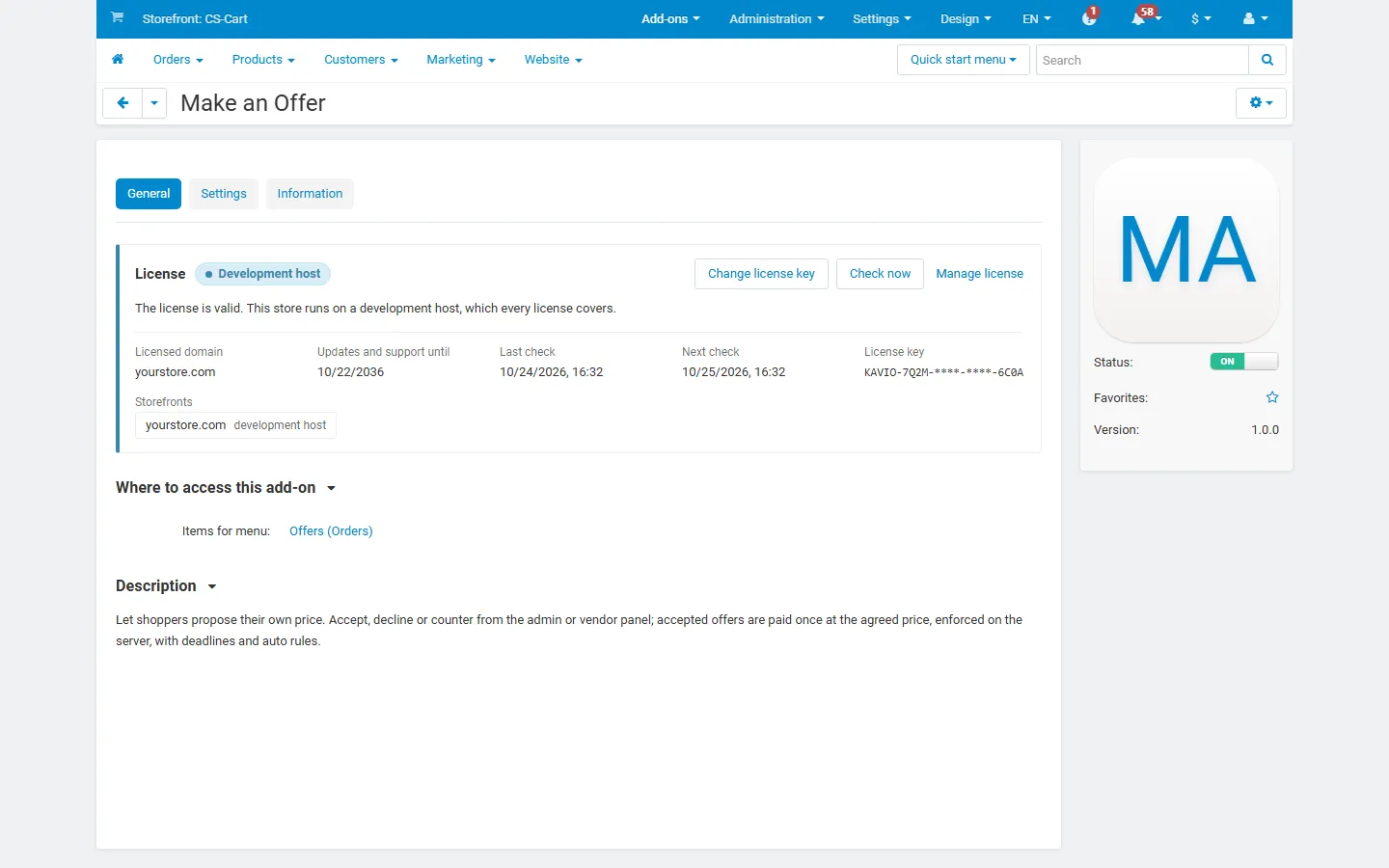
The License section shows the license status, the licensed domain and Check now. Enter your Kavio Labs license key there, or the CS-Cart Marketplace license number in Add-ons > Manage add-ons.
What switched off means: the Make an offer button is hidden and no new offers or counter-offers can be made; offers that were already accepted or countered can still be completed by the customer at the agreed price until they expire, and all offers stay viewable and exportable. You can still decline offers and see the history.