

Configuration
Open Add-ons → Manage add-ons → SEO Pro Suite (or Website → SEO Pro Suite → Settings). On CS-Cart Ultimate every storefront has its own values; choose the storefront at the top of the page.
General
Section titled “General”| Setting | Description |
|---|---|
| Enable the add-on on the storefront | Switches all storefront output of the add-on on or off. The admin tools keep working. |
Structured data
Section titled “Structured data”The core SEO add-on builds the Product item (name, SKU, brand, description, images, price, availability, ratings and reviews). This add-on completes that item; it never prints a second Product block.
| Setting | Default | Description |
|---|---|---|
| Add merchant-listing properties to the product markup | On | Adds @id, url and the offer properties below. |
| Item condition | New | itemCondition of every offer (New, Refurbished, Used, or not added). |
| Use the product code as GTIN when it is a valid barcode | On | Codes with 8, 12, 13 or 14 digits and a valid check digit become gtin. A product feature with the code GTIN or MPN always wins. |
| Use the product code as MPN | Off | Adds the product code as mpn when the product has none. |
| Brand when a product has none | None | Storefront name, or (Multi-Vendor) the vendor name. |
| Add the seller to offers | On | The vendor in Multi-Vendor, the storefront name otherwise. Not added to the offers of Multi-Vendor master products, which belong to several vendors. |
| Price valid until | Do not add | End of year adds priceValidUntil = 31 December. |
| Return window (days) | empty | Empty: no return policy. A number adds hasMerchantReturnPolicy with that window; 0 means returns are not accepted. |
| Return shipping | Free returns | Free returns or customer pays. |
| Return policy country | empty | Two-letter code; empty uses the country in Settings → Company. |
| Flat shipping rate | empty | Empty: no shipping details. A rate in the primary currency (0 = free) adds shippingDetails. |
| Shipping destination country | empty | Two-letter code; empty uses the store country. |
| Handling time / Transit time (days) | 0-1 / 2-5 | A number or a range. |
| Breadcrumb markup | On | BreadcrumbList from the page’s breadcrumbs. Printed only on versions before 4.21; from 4.21 the core prints it. |
| Organization markup on the home page | On | Before 4.21 the add-on builds the Organization item. From 4.21 the core builds it (Website → SEO → JSON-LD) and the add-on only adds what is missing. |
| Add the store address | On | PostalAddress from Settings → Company. |
| Customer service phone / e-mail | empty | Added as telephone, email and contactPoint when the core item has none. |
| Social profiles | empty | One URL per line, added as sameAs. |
| WebSite markup (site name) | On | WebSite item on the home page; Google uses it for the site name. |
| Alternative site name | empty | Optional alternateName. |
| BlogPosting markup on blog posts | On | Headline, description, image, publication date, author and publisher. |
| Store markup on vendor pages (Multi-Vendor) | On | OnlineStore item with name, logo, description and city/country of the vendor. |
| Setting | Default | Description |
|---|---|---|
| Show FAQs on the storefront | On | Shows the FAQs of products, categories and pages and adds FAQPage markup. Off hides both; the FAQs stay saved. |
| Open the first answer | Off | Opens the first question when the page loads. |
| Vendors can edit the FAQs of their products | On | Multi-Vendor: vendors get the SEO Pro tab (FAQ only) on their own products. |
Indexing
Section titled “Indexing”Robots rules apply to pages the core SEO add-on lets search engines index. The core already marks filtered listings, the cart, checkout, login and account pages as noindex; the add-on never prints a second robots tag there.
| Setting | Default | Description |
|---|---|---|
| Pages 2, 3, … of listings | Index | Google recommends keeping paginated pages indexable. |
| Sorted listings | Noindex, follow | Listings with sort_by / sort_order. |
| Search results | Noindex, follow | The core lets search engines index search result pages. |
| Out-of-stock products | Index | Only products that track inventory, have no stock and allow no back-orders. |
| Empty categories | Index | Categories without products and subcategories. |
| Vendor pages (Multi-Vendor) | Index | The vendor’s store and product list pages. |
| Allow large previews on indexable pages | On | max-snippet:-1, max-image-preview:large, max-video-preview:-1. |
| Remove canonical and prev/next links from noindex pages | On | Avoids mixed signals. |
| Add a canonical link to pages that have none | On | Information pages and vendor pages. |
Each product, category and page also has a Robots field on its SEO Pro tab: Default, Index (ignore the rules), Noindex, follow or Noindex, nofollow.
Hreflang
| Setting | Default | Description |
|---|---|---|
| Hreflang links | Core | Core: as printed by the SEO add-on. Custom: apply the codes below. Off: remove them. |
| Hreflang codes | empty | One line per language, language=code, for example en=en-US, fr=fr-CA. de=- leaves a language out. |
| x-default language | empty | Empty: the default language. A language code, or none to leave x-default out. |
Social cards
Section titled “Social cards”| Setting | Default | Description |
|---|---|---|
| Open Graph tags | On | og:type, og:site_name, og:title, og:description, og:url, og:image (+ alt); products add product:price:*, product:availability, product:condition, product:retailer_item_id; blog posts add article:published_time. |
| Twitter (X) card tags | On | summary_large_image when the page has an image. |
| Twitter (X) account | empty | twitter:site, for example @yourstore. |
| Default share image URL | empty | Used when a page has no image; empty uses the store logo. 1200 x 630 px recommended. |
| Replace the Open Graph tags of the Social buttons add-on | On | The Social buttons add-on prints a few og: tags on product pages; this prints one complete set instead. |
AI search
Section titled “AI search”| Setting | Default | Description |
|---|---|---|
| Generate /llms.txt | On | Serves https://yourstore.com/llms.txt. On 4.21, content you enter in the core llms.txt editor, or a physical llms.txt file, takes precedence. |
| Store summary | empty | One or two sentences; empty uses a short default. |
| Number of products | 50 | The most popular products (up to 500). |
| Include prices / categories / pages and blog posts | On | Sections of the file. |
| AI crawler policy | Do not change robots.txt | Allow all AI crawlers; Block AI training, allow AI search (GPTBot, ClaudeBot, Google-Extended, CCBot, … blocked; OAI-SearchBot, ChatGPT-User, PerplexityBot, Claude-SearchBot, … allowed); Block all AI crawlers. |
| Also block these user agents | empty | One user agent per line. |
| robots.txt | Shows whether the block is in robots.txt, with a link to the tools page where you write or remove it. |
The crawler rules are written only when you click Write to robots.txt on Website → SEO Pro Suite (see Usage).
License
Section titled “License”The license status is shown in a License card at the top of the add-on page, above the tabs, so you see it on every tab. The License tab holds the key itself. The key is stored once for the whole installation (not per storefront).
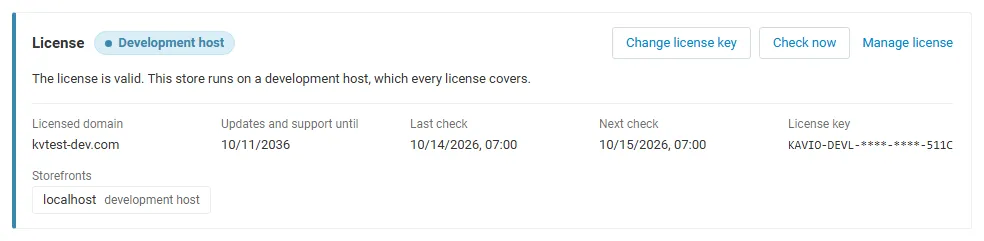
The License card shows:
- the status in color: green when valid, blue for a development host or the 14-day period before a key is required (with the days left), amber when the license server could not be reached (with the days left) or a Marketplace number is still being verified, red when the add-on is switched off;
- in plain words what the status means and, when the add-on is (or will be) switched off, what stops: the extra structured data, robots and canonical rules, hreflang changes, social cards, storefront FAQs and the generated llms.txt stop, and the AI crawler block can no longer be written; the core SEO add-on output stays unchanged;
- the licensed domain, every storefront with its result (covered, development host, not covered), the end of the updates and support period, the last and the next check, and the key in use (masked);
- the actions Enter license key / Change license key (opens the License tab), Check now (verifies at once and stays on the page), Manage license (your licenses on cs-cart.kaviolabs.com) and, without a valid license, Buy a license.
In Add-ons → Manage add-ons the add-on’s row shows a small license badge next to its name, for example License: Valid or License: Pending · 9 days left.
The add-on’s own admin page (Website → SEO Pro Suite) shows the license status in a bar at the top: a small green chip when the license is valid, or a banner with the status, what is switched off and the same actions as the card.
| Setting | Description |
|---|---|
| License key | Your Kavio Labs license key (KAVIO-XXXX-XXXX-XXXX-XXXX, from My licenses on cs-cart.kaviolabs.com) or your CS-Cart Marketplace license number. If you entered the Marketplace license number in Add-ons → Manage add-ons (the add-on’s license field), leave this empty: the add-on uses that number. |
| License status | Points to the License card and explains what the check sends. |
What the license covers. A license is bound to the base domain you entered at purchase (for example example.com) and covers every subdomain of it (www.example.com, shop.example.com, staging.example.com). Local development hosts are always allowed: localhost, 127.0.0.1 and other private IP addresses, and host names ending in .localhost, .test, .local, .example or .invalid. A store on a different base domain needs its own license. If you move your store to a new domain, contact support.
When the add-on checks. When you save the key, and then once a day. The check runs only in the admin panel (on a page you open) or from cron, never while customers browse the storefront, and takes a few seconds at most. A cron job keeps the license verified even when nobody opens the admin panel:
php /path/to/store/admin.php --dispatch=kv_seo_pro_suite_license.checkWhat is sent. The check sends this to https://cs-cart.kaviolabs.com and nothing else: the license key, the add-on ID and version, the host names of your storefronts, your CS-Cart version and edition, and a random one-time value. No customer, order or personal data is sent. The server answers with a digitally signed result, so a forged answer is ignored.
Statuses.
| Status (card) | Color | What happens |
|---|---|---|
| Valid | Green | The license is valid for this domain. Everything works. |
| Development host | Blue | The store runs on a local development host, which every license covers. Everything works. |
| Pending verification | Amber | A CS-Cart Marketplace license number was accepted, but the Marketplace has not confirmed it yet. Everything works. |
| Pending · N days left | Blue | No verified key yet (a new installation). Everything works for 14 days. |
| Grace period · N days left | Amber | The last checks failed (for example a network problem). The add-on keeps working for 14 days after the first failed check. |
| Partly valid | Amber | (CS-Cart with several storefronts) Some storefronts run on another base domain. The storefront features are off on those storefronts only. |
| Not activated, Invalid key, Revoked, Domain mismatch, Not verified | Red | The extra structured data, robots and canonical rules, hreflang changes, social cards, storefront FAQs and the generated llms.txt stop, and the AI crawler block can no longer be written (removing it still works). The core SEO add-on keeps printing its own canonical links, robots tags and structured data. Your settings and FAQs are kept, the admin tools keep working, and checkout and the rest of your store are not affected. Domain mismatch shows the licensed domain next to the domain your store runs on. |
When your updates and support period ends, the add-on keeps working. Only updates and support stop.
License information appears in the admin panel only, and only for administrators who may manage add-ons; vendors (Multi-Vendor) and customers never see it. When the add-on is switched off, other admin pages also show a notice once per session with a link to the add-on page; the add-on page and the add-on’s own page show the card or the status bar instead.