

Usage
Make a product a pre-order
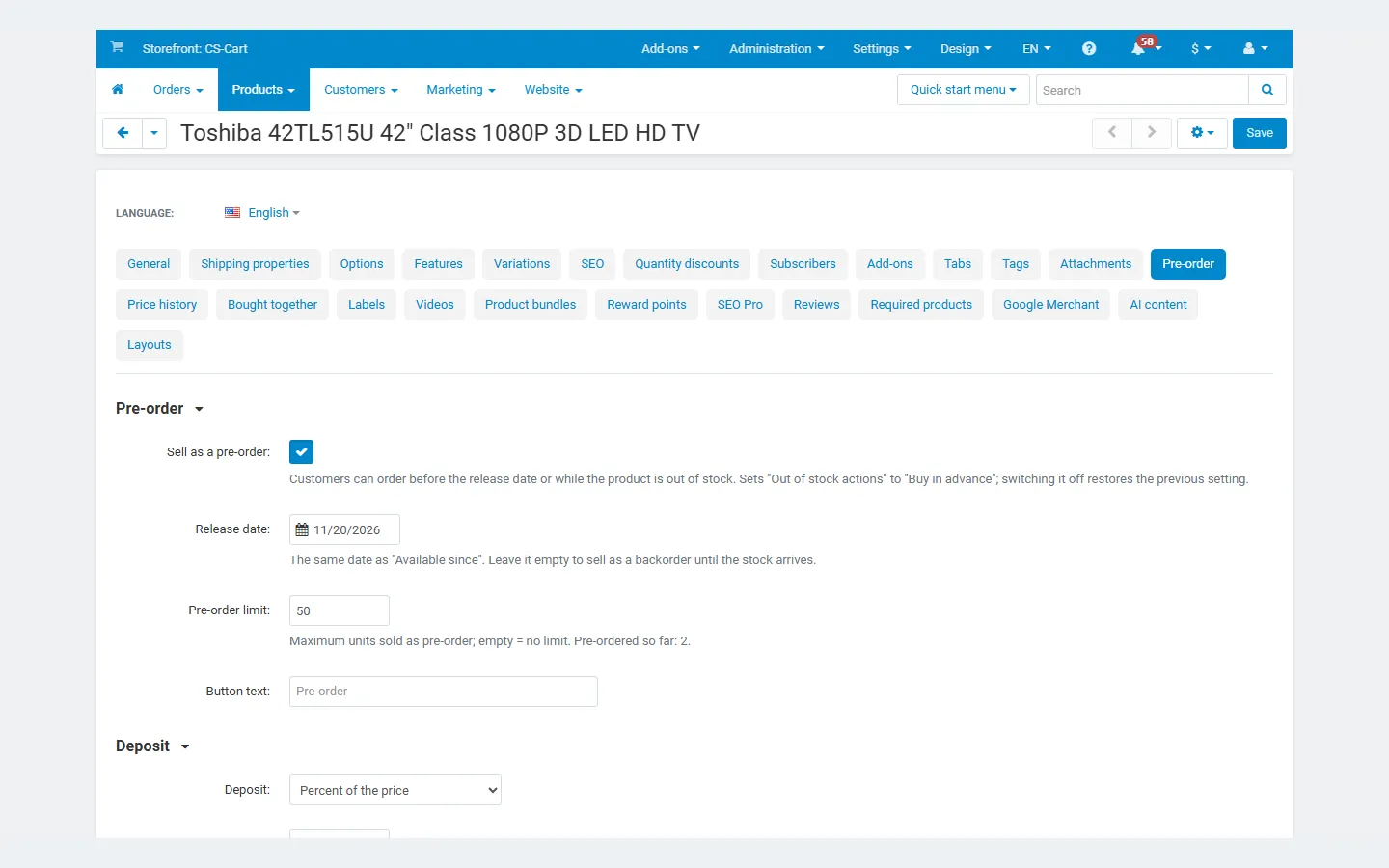
Section titled “Make a product a pre-order”- Open the product in Products → Products and switch to the Pre-order tab.
- Tick Sell as a pre-order. The add-on sets the core out-of-stock action to Buy in advance (and gives the previous action back when you untick it).
- Set the Release date. It is the core Available since date, so it also appears in the core field, in product feeds and in exports. Leave it empty to sell the product as a backorder that “ships when back in stock”.
- Optional: a Pre-order limit (maximum units sold as pre-orders; the field shows how many are already pre-ordered) and a Button text (default “Pre-order”).
- Choose the Deposit: the store default, full payment, a percent of the price, or a fixed amount per item.
- Save.
A product is a pre-order while its release date is in the future, or, without a date, while its tracked stock is zero or below. After that it sells as a normal product; orders placed as pre-orders keep their pre-order data.
Variations are products in CS-Cart, so each variation has its own Pre-order tab: one color can be a pre-order while the others are in stock.
Made-to-order products: leave “Sell as a pre-order” off and choose a percent or fixed deposit. The product sells with a deposit at any time; there is no label and no release date.
What customers see
Section titled “What customers see”- Product lists and product page: the “Pre-order” label on the image, the button text (“Pre-order” or yours), and on the product page a box with “Ships on 11/20/2026” (or “Ships when back in stock”) and the deposit: “Pay a 20% deposit now and the rest when it ships.”
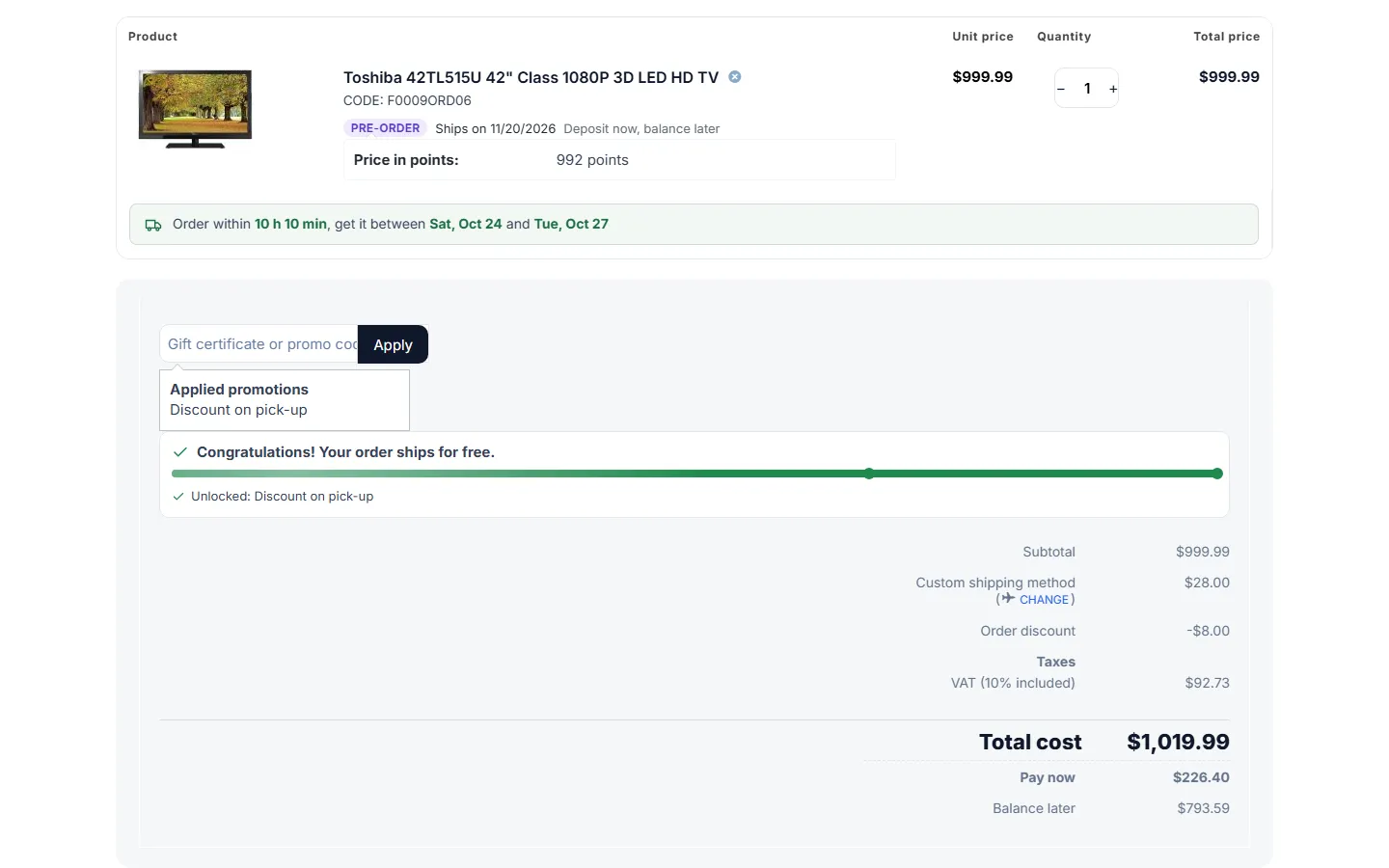
- Cart and checkout: a note under each pre-order item (ship date, “Deposit now, balance later”) and two lines under the total: Pay now and Balance later. With “Allow with a note”, a note says the order ships when all items are available.
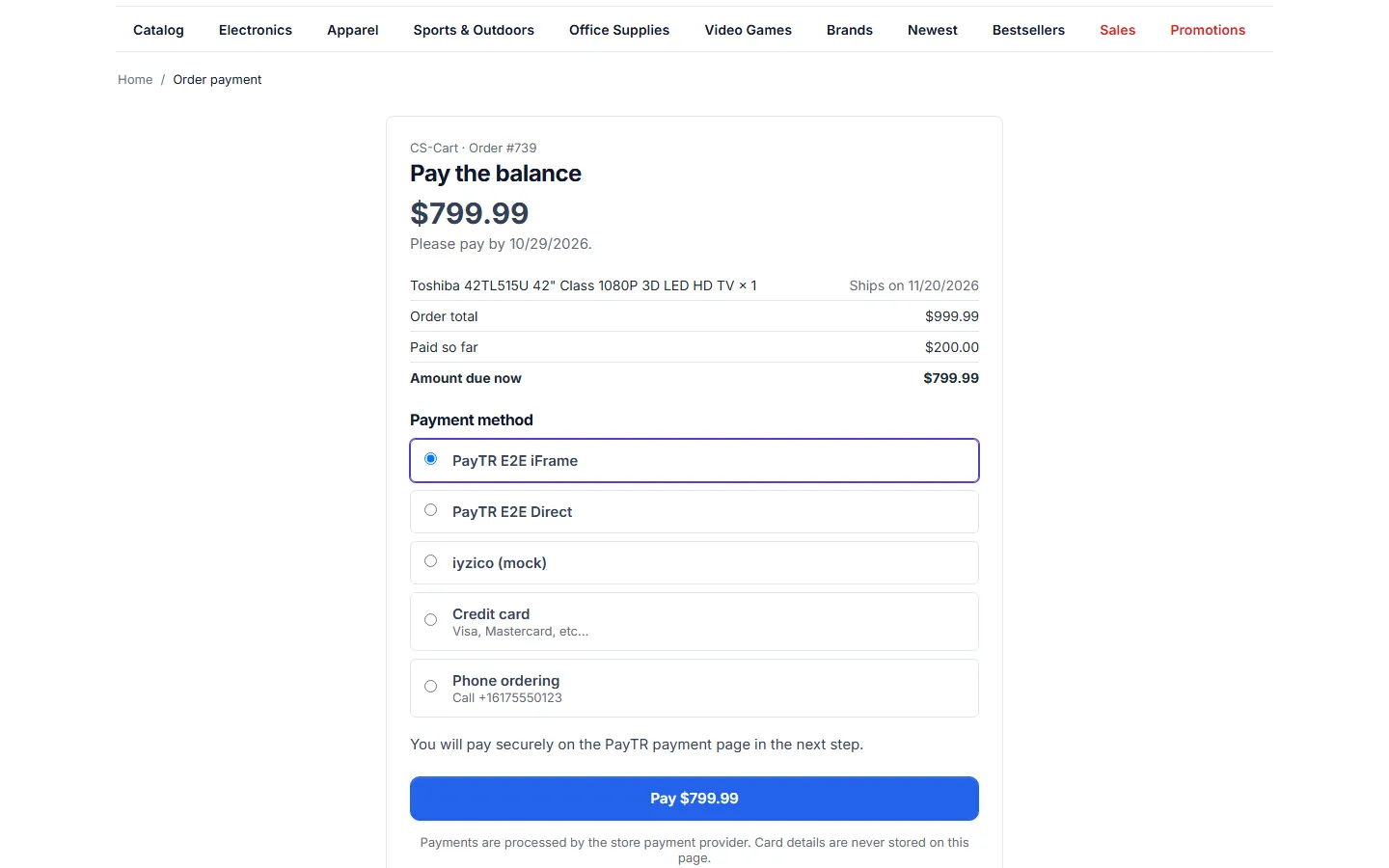
- Payment: the customer chooses any payment method. A gateway charges the amount due now; an offline method (bank transfer, phone ordering) leaves the order open until you confirm the payment.
- E-mails: the core order e-mail, plus the pre-order confirmation with the ship dates and the payment plan.
- Order page (customer account): paid so far, balance due, the ship date and a Pay the balance button once the balance has been requested.
The order flow
Section titled “The order flow”| Stage | Order status | What happens |
|---|---|---|
| Order placed | Open (offline method) or the gateway’s result | The deposit record is created: pay now, balance later, release date. |
| Deposit received | Deposit paid | By a gateway payment, by Deposit received on the order page, or by changing the status to Deposit paid yourself. Stock stays reserved. |
| Balance requested | Deposit paid | On the release date (or N days before, or after N days for made-to-order). The customer gets an e-mail with the payment link; the due date starts. |
| Reminders | Deposit paid | Every N days until the due date, up to the maximum. |
| Balance paid | Paid | By the payment link (any gateway), by Mark as paid in full, or by changing the status to Paid yourself. |
| Overdue | Deposit paid, or the cancel status | After the due date and the grace period: an overdue e-mail, or the order is cancelled (by the core status change, which returns the stock). |
A failed balance payment keeps the order in Deposit paid: the order is not failed, the stock is not returned, and the customer can try again with the same link.
Pre-orders paid in full at checkout (no deposit) are tracked too: they count for the limit and get the “now available” e-mail when released.
The balance payment link
Section titled “The balance payment link”Every deposit order has a secret link. It opens a payment page with the order summary, the amount due and the store’s payment methods; no login is needed. The page is never cached, is hidden from search engines and limits the number of attempts. The link is in the balance e-mails, on the customer’s order page and in the panel of the admin order page (to copy into a chat or a text message).
Order page tools
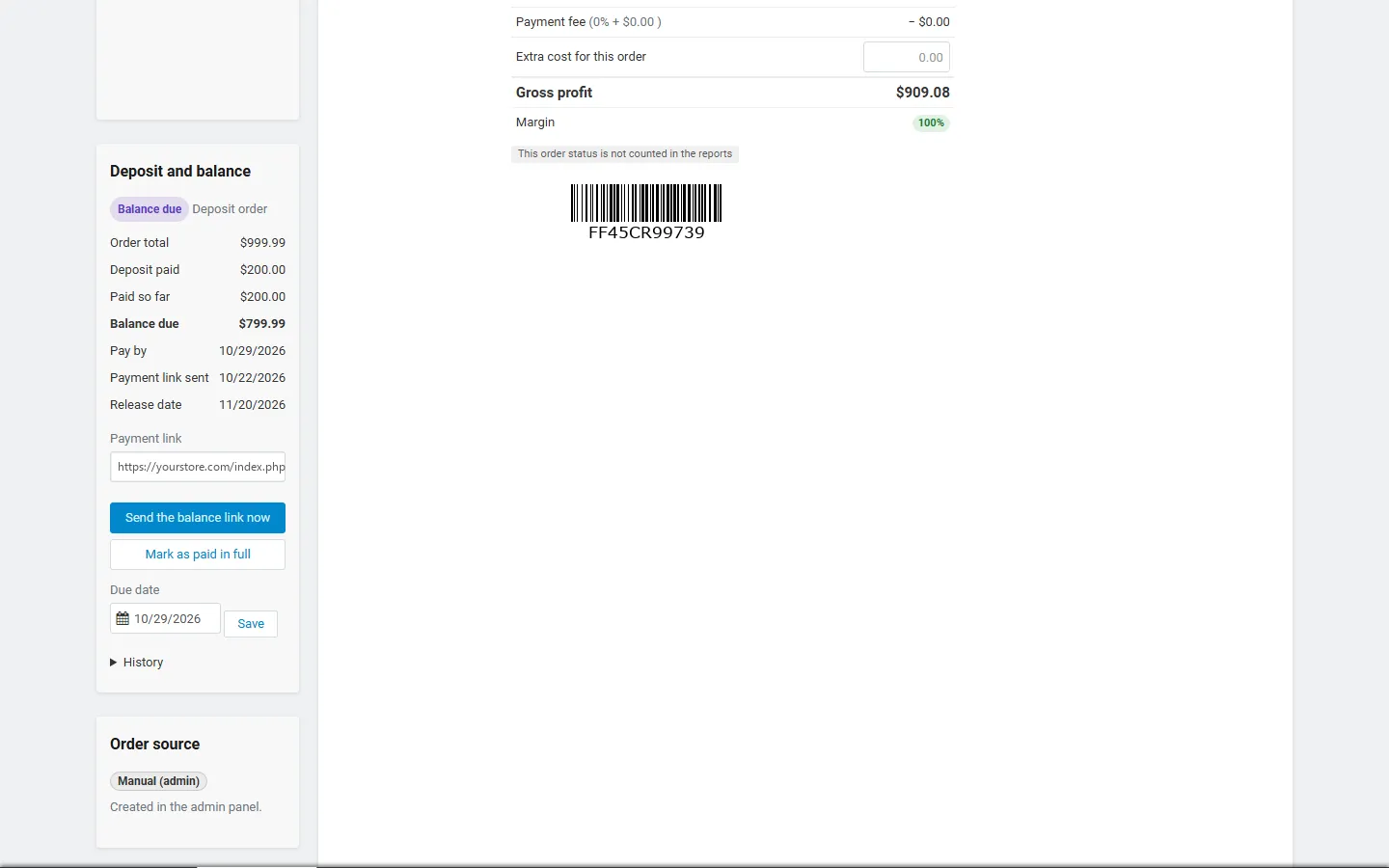
Section titled “Order page tools”The Deposit and balance panel on the order page (admin and vendor panel) shows the payment plan, the due date, when the link was sent, the reminders and the history, and offers:
- Send the balance link now: sends the request at once (for example when goods are ready early); the due date starts now.
- Deposit received: for offline payments; sets the deposit status and records the deposit.
- Mark as paid in full: records the rest and sets the order to Paid.
- Due date: move the deadline; the overdue rule follows it.
- Mark the deposit as refunded: for cancelled orders, after you refunded the deposit in your payment provider (the add-on never refunds by itself).
Reports
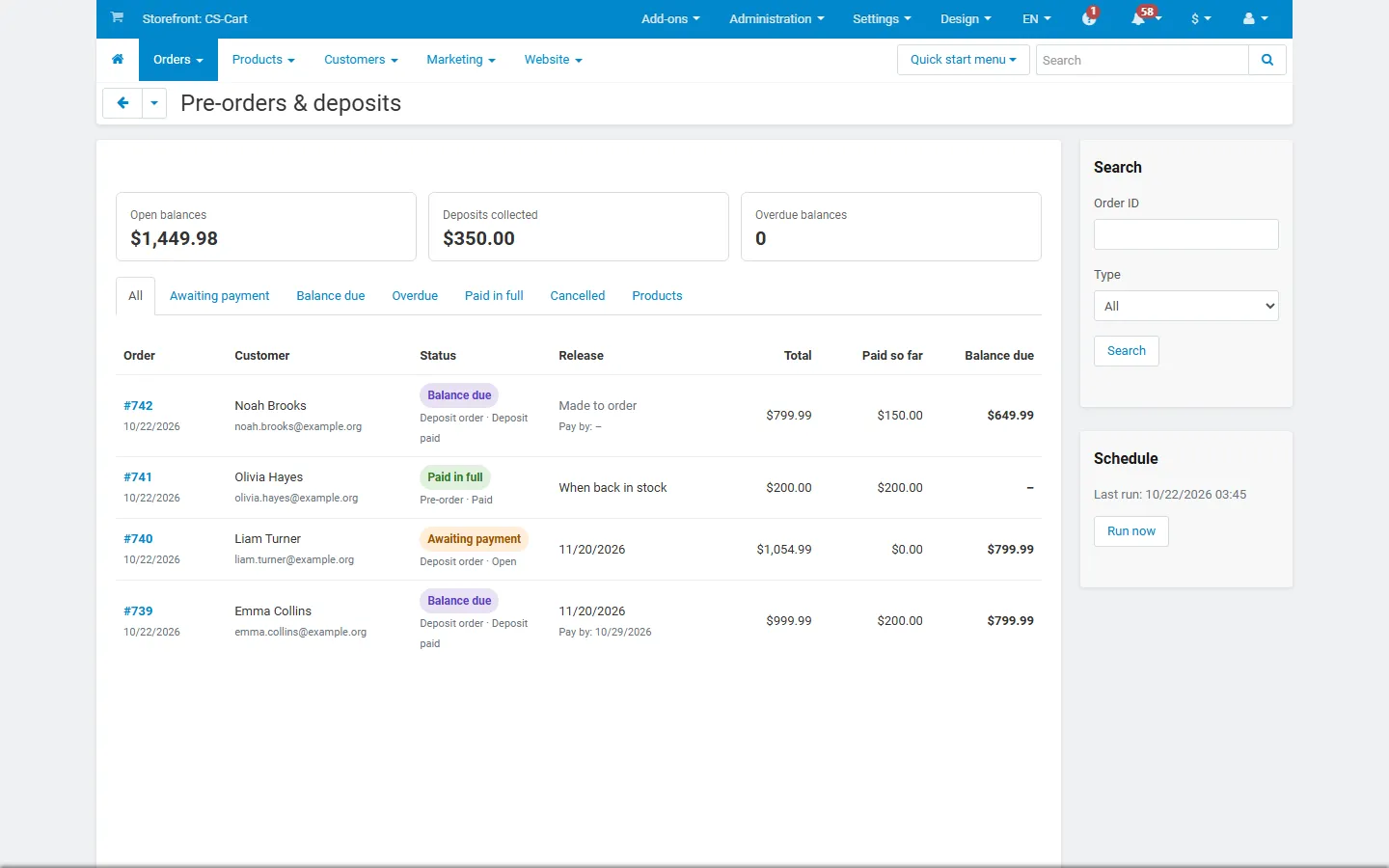
Section titled “Reports”Orders → Pre-orders & deposits lists every pre-order and deposit order with its state (awaiting payment, balance due, overdue, paid in full, cancelled), the release date and due date, the total, the amount paid and the balance. The tiles show the open balances, the deposits collected and the overdue balances. Products lists the pre-order and deposit products with release date, units pre-ordered, limit, stock and deposit.
Changing an order
Section titled “Changing an order”If you edit an order after the deposit was paid (items, prices, shipping), the balance becomes the new total minus what was paid. Before the deposit, the payment plan is recalculated.
Multi-Vendor
Section titled “Multi-Vendor”- Vendors use the Pre-order tab for their products and see Orders → Pre-orders & deposits for their own orders only; they can use the order page tools for their orders.
- A customer’s cart with items of several vendors becomes one order per vendor as usual. Each vendor order has its own deposit and balance; the first payment covers the deposits of the pre-order vendor orders and the full amount of the others.
- Vendor payouts: the Deposit paid status does not count for payouts, so a vendor order enters the vendor balance once it is paid in full. With Direct Customer-to-Vendor Payments each vendor order is paid with the vendor’s own payment methods, deposit and balance alike.