

Usage
Overview · Installation · Configuration · Developer notes · FAQ
All pages are managed in Website → SEO filter landing pages (administrators with the “SEO” privileges; vendors have no access). Use the Language selector at the top to edit the texts of another language.
Add a page
Section titled “Add a page”- Click Add landing page.
- Choose the Category. The Filters box lists the filters of that category with the values its products have.
- Check the values (for example Brand: Samsung) or enter a range (Price from 100 to 500). Several values of one filter mean “any of them”, like on the storefront. Alternatively open the category on the storefront, choose the filters, copy the address and paste it into Or paste a filtered URL.
- Enter the H1 heading (“Samsung Camcorders”). The URL name is made from it (
samsung-camcorders); change it if you like. The page URL is the category URL plus the URL name. - Optional: Link text for the “Popular searches” block, Position in that block.
- On the Content tab add the intro text (above the products), the bottom text (below the products) and a banner image with an optional link. Both texts are shown on the first page of the landing page only.
- On the Meta data tab set the meta title, description and keywords (empty fields use the templates of the settings), Search engines (index or noindex) and Include in the sitemap.
- Click Save. The page URL is shown at the top of the editor.
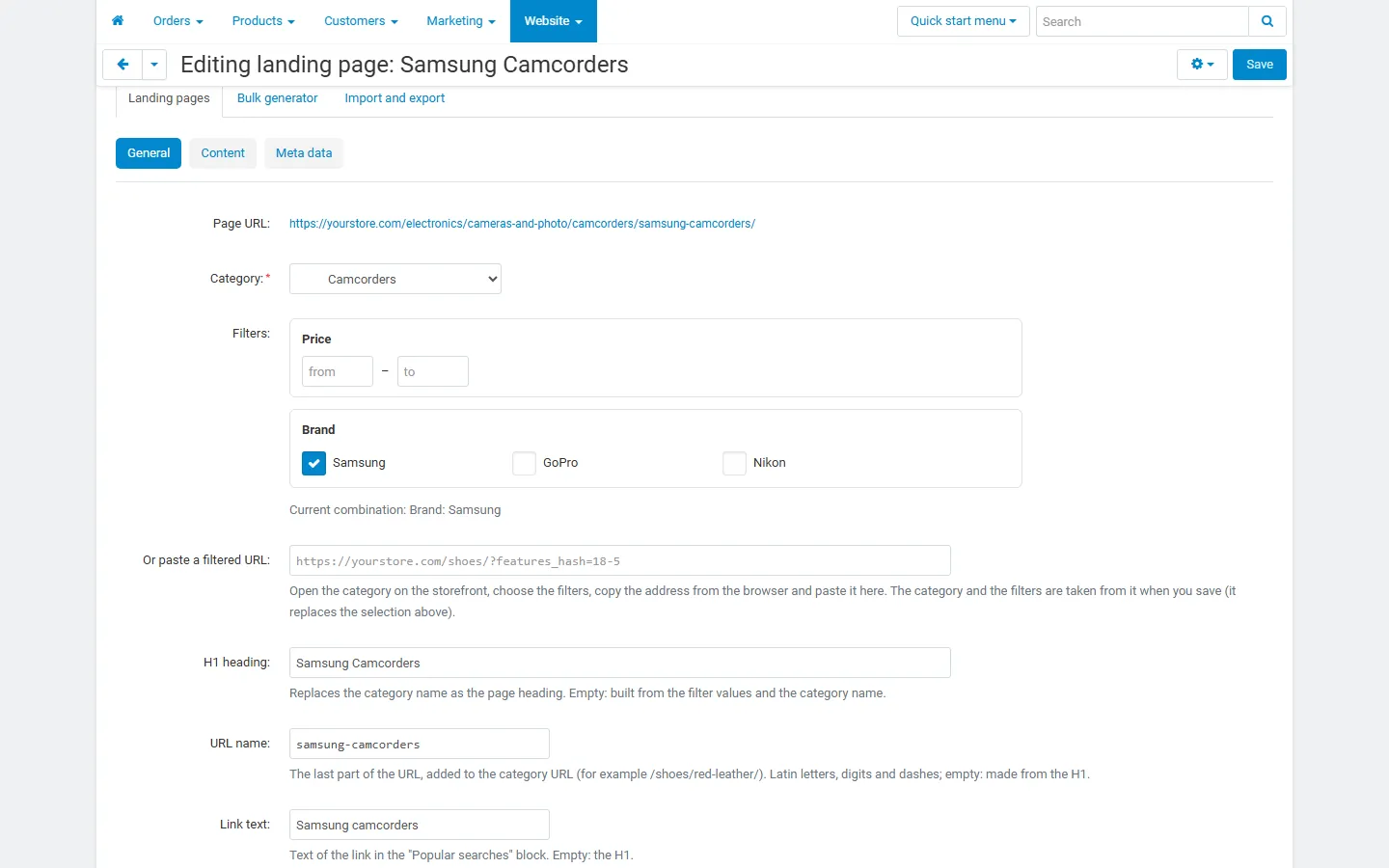
A combination can have only one page per category. If the URL name is already used in the category, or a subcategory has the same name, -2 is added and you see a notice.
Create many pages at once
Section titled “Create many pages at once”Bulk generator creates one page per value of a filter, or per combination of two filters:
- Select one or more categories.
- Choose the Filter (for example Brand). Its values that the selected categories have are listed; leave them all unchecked to use every value.
- Optional: Combine with a second filter (every brand in every color).
- Set Minimum products per page (combinations with fewer products are skipped), what to do with combinations that already have a page, and the status of new pages.
- Edit the templates. Variables:
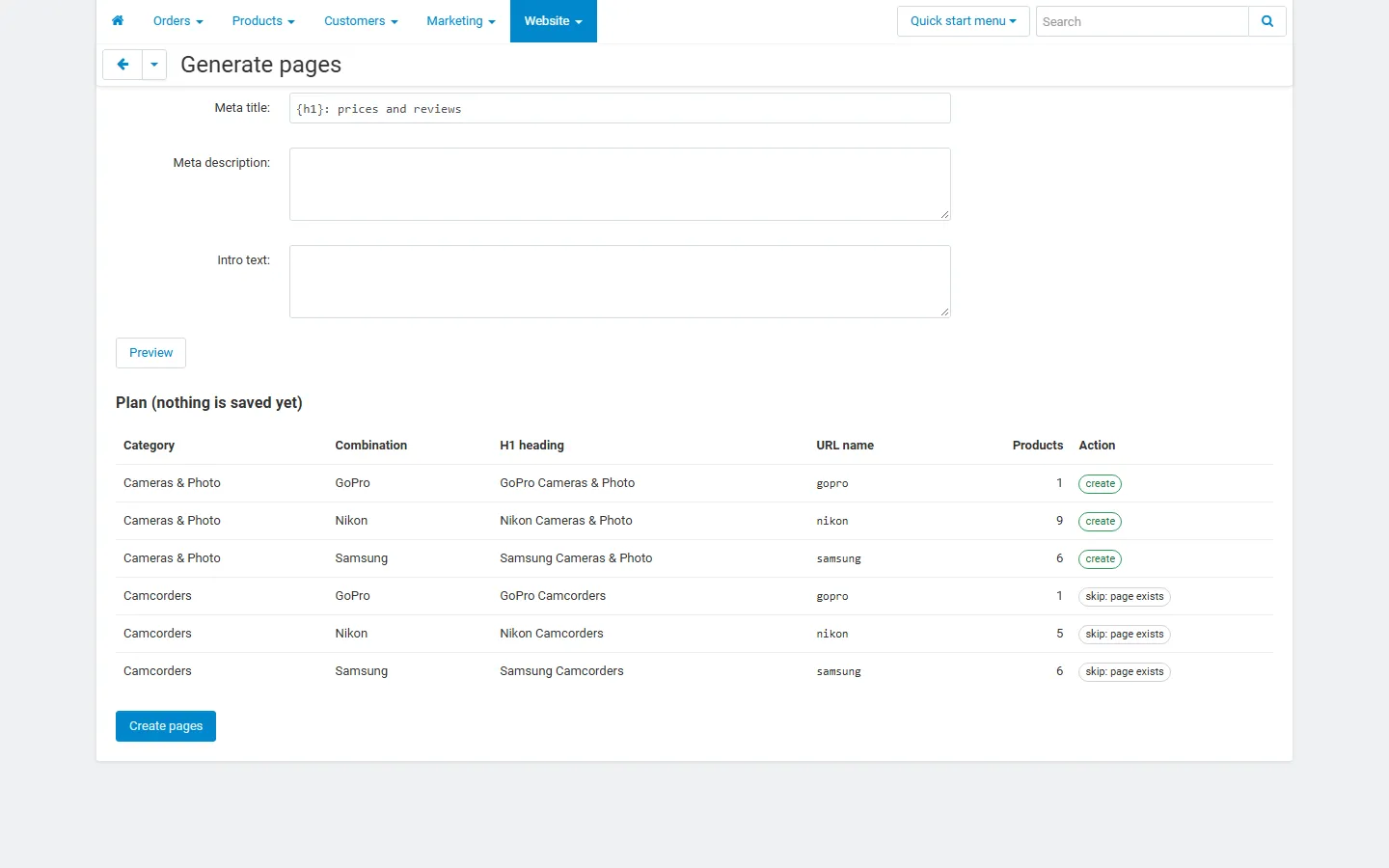
{values}(all values of the combination),{value1},{value2},{filter1},{filter2},{category},{store},{count},{h1}and{feature:Color}. - Click Preview: the plan lists every combination with its H1, URL name, product count and action. Nothing is saved yet.
- Click Create pages.
Up to 500 combinations are processed per run; run it again for the rest (existing pages are skipped).
The list
Section titled “The list”The list shows each page with its URL, category, filters, product count and status, and warns about problems: a filter or value that no longer exists, no products, no URL name in the current language, or a subcategory with the same URL name. Use the checkboxes and the gear menu to activate, disable, delete or Update product counts (the counts are stored when a page is saved).
On the storefront
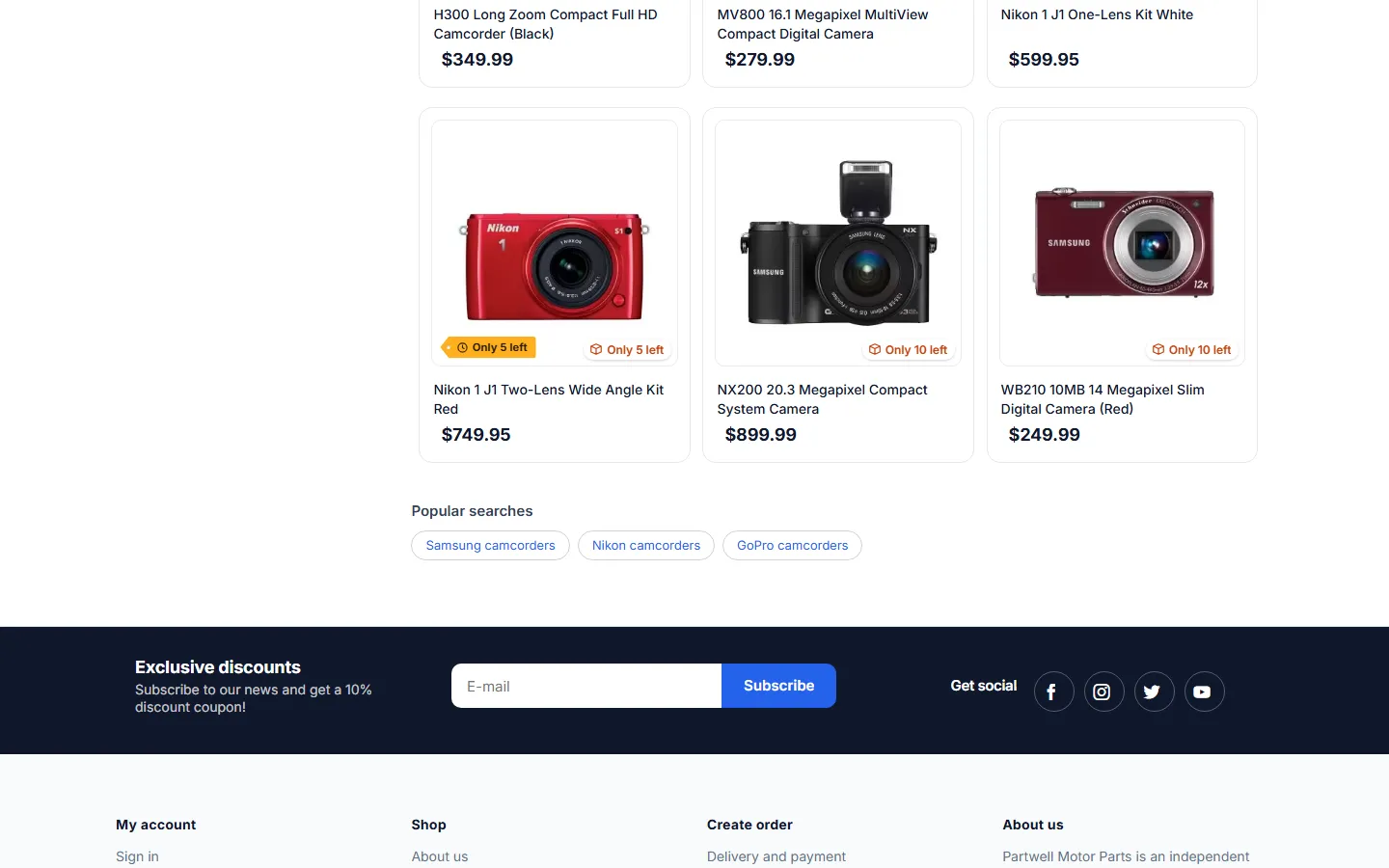
Section titled “On the storefront”- The landing page shows the category with the filters already applied, the H1, banner, intro and bottom text, the breadcrumb and the other landing pages of the category in “Popular searches”.
- Shoppers can still change the filters: the list reloads like on any category page. When their selection leaves the landing page, the bottom text is hidden and the address changes to the filtered category URL.
- Category pages show the “Popular searches” block with links to their landing pages.
Import and export
Section titled “Import and export”Import and export → Export writes a CSV file with one row per page and language (current language or all languages). Columns: page_id, lang_code, category_id, features_hash, status, robots, in_sitemap, show_in_links, position, banner_url, slug, h1, meta_title, meta_description, meta_keywords, link_text, intro, bottom_text, plus category, filters and url for information.
Import the edited file on the same tab. Rows with a page_id update that page; rows without one are matched by category_id + features_hash, otherwise a new page is created. Comma, semicolon and tab separated files and multi-line cells are supported.
Disabling a page
Section titled “Disabling a page”A disabled page is removed from the links block and the sitemap, and its URL redirects (301) to the filtered category page, so existing links keep working.