

Configuration
Overview · Installation · Usage · Developer notes · FAQ
Settings: Add-ons → Manage add-ons → Orders Admin Pro → Settings. The settings apply to the whole installation (all storefronts).
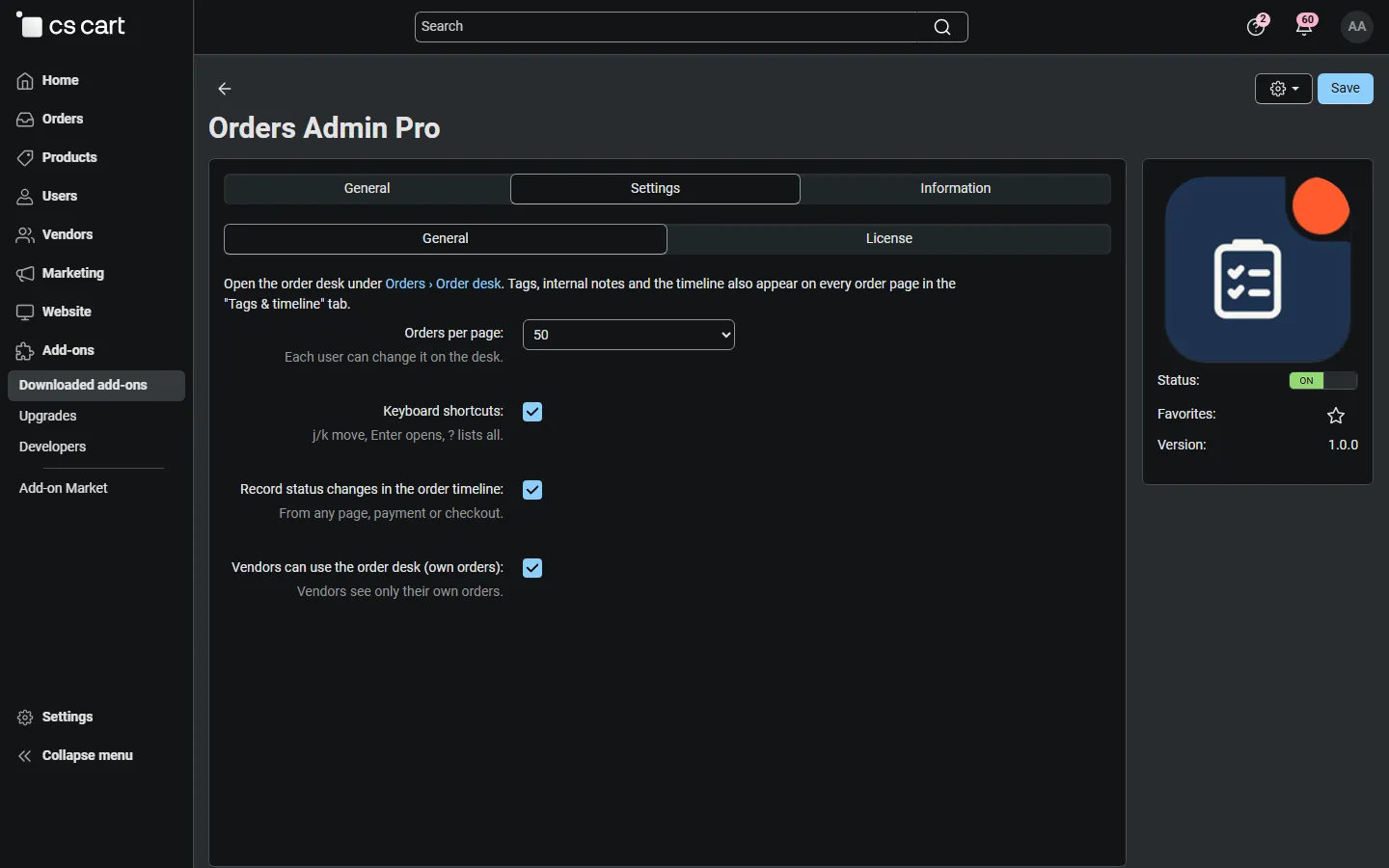
General
Section titled “General”| Setting | Default | Description |
|---|---|---|
| Orders per page | 50 | The page size the desk starts with: 25, 50, 100 or 200. Each person can change it on the page; the choice is remembered per user, together with the columns and sorting. |
| Keyboard shortcuts | On | j/k move between orders, Enter opens the quick view, x selects, / searches, ? shows all shortcuts. Switch off if the shortcuts get in the way of browser extensions. |
| Record status changes in the order timeline | On | Adds an entry to the order timeline whenever an order status changes: on the desk, on the core orders list and order page, through payment callbacks or at checkout. Entries show the old and new status, who changed it and who was notified. |
| Vendors can use the order desk (own orders) | On | Multi-Vendor only. Vendors see Orders → Order desk in the vendor panel and the Tags & timeline tab on their order pages, and work only with their own orders, tags, notes and message templates. |
Privileges
Section titled “Privileges”The desk follows the core order privileges (Customers → User groups → Privileges):
| Privilege | What it allows on the desk |
|---|---|
| View orders | Open the desk, search, filters, views, the quick view, print invoices and packing slips, the pick list |
| Change order status | Change the status in the quick view and with the bulk action |
| Edit order details (update_order_details) | Tags (create, assign, remove), internal notes, message templates and the templated e-mail |
| Export data (exim_access) | CSV export |
| Edit order / Create order | The Edit order and Duplicate / reorder buttons (core order editor) |
Administrators without a user group (and root administrators) have every privilege. With the core Vendor privileges add-on, vendor administrators need the same privileges. Vendors never get the core order editor buttons, because the core vendor panel does not allow the order editor.
Which orders a user sees
Section titled “Which orders a user sees”The desk shows exactly the orders the core orders list shows the same user: vendors see their own orders, an Ultimate administrator with a storefront selected sees that storefront’s orders, 4.21 administrators limited to some storefronts see only those, and parent orders of split Multi-Vendor orders are hidden (the vendor orders are listed). Every action checks this again for every order.
Tags and message templates
Section titled “Tags and message templates”- Tags are created on the desk (Filters → Manage tags or in the quick view). Store administrators share one set of tags; on Multi-Vendor every vendor has their own set. Up to 100 tags per set.
- Message templates are created in the Send e-mail bulk action. Placeholders:
{order_id},{customer_name},{firstname},{status},{total},{order_date},{store_name},{order_url}. - The e-mail itself uses the template Orders Admin Pro: message to the customer in Design → E-mail templates (header, footer and layout of your store). It is sent from the orders department address of the store (or the vendor’s, on Multi-Vendor).
License
Section titled “License”The license status is shown in a License card at the top of the add-on page, above the tabs, so you see it on every tab. The License tab holds the key itself. The key is stored once for the whole installation.
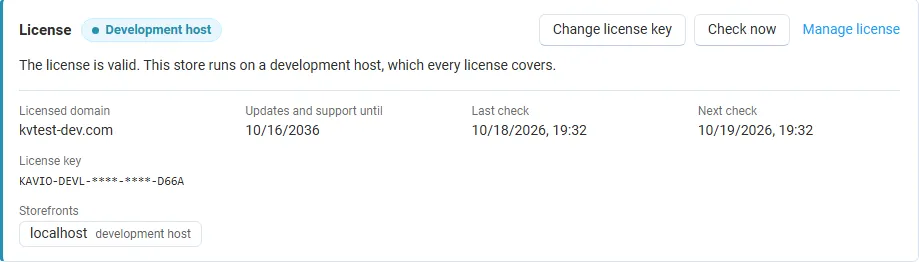
The License card shows:
- the status in color: green when valid, blue for a development host or the 14-day period before a key is required (with the days left), amber when the license server could not be reached (with the days left) or a Marketplace number is still being verified, red when the add-on is switched off;
- in plain words what the status means and, when the add-on is (or will be) switched off, what stops: bulk actions, templated e-mails, CSV export and the pick list are switched off; the order desk, quick view, tags, notes and the timeline keep working;
- the licensed domain, every storefront with its result (covered, development host, not covered), the end of the updates and support period, the last and the next check, and the key in use (masked);
- the actions Enter license key / Change license key (opens the License tab), Check now (verifies at once and stays on the page), Manage license (your licenses on cs-cart.kaviolabs.com) and, without a valid license, Buy a license.
In Add-ons → Manage add-ons the add-on’s row shows a small license badge next to its name, for example License: Valid or License: Pending · 9 days left.
The order desk shows the license status in a bar at the top: a small green chip when the license is valid, or a banner with the status, what is switched off and the same actions as the card. Vendors never see license information.
| Setting | Description |
|---|---|
| License key | Your Kavio Labs license key (KAVIO-XXXX-XXXX-XXXX-XXXX, from My licenses on cs-cart.kaviolabs.com) or your CS-Cart Marketplace license number. If you entered the Marketplace license number in Add-ons → Manage add-ons (the add-on’s license field), leave this empty: the add-on uses that number. |
| License status | Points to the License card and explains what the check sends. |
What the license covers. A license is bound to the base domain you entered at purchase (for example example.com) and covers every subdomain of it (www.example.com, shop.example.com, staging.example.com). Local development hosts are always allowed: localhost, 127.0.0.1 and other private IP addresses, and host names ending in .localhost, .test, .local, .example or .invalid. A store on a different base domain needs its own license. If you move your store to a new domain, contact support.
When the add-on checks. When you save the key, and then once a day. The check runs only in the admin panel (on a page you open) or from cron, never while customers browse the storefront or place orders, and takes a few seconds at most. A cron job keeps the license verified even when nobody opens the admin panel:
php /path/to/store/admin.php --dispatch=kv_order_admin_pro_license.checkWhat is sent. The check sends this to https://cs-cart.kaviolabs.com and nothing else: the license key, the add-on ID and version, the host names of your storefronts, your CS-Cart version and edition, and a random one-time value. No customer, vendor, order, product or personal data is sent. The server answers with a digitally signed result, so a forged answer is ignored.
Statuses.
| Status (card) | Color | What happens |
|---|---|---|
| Valid | Green | The license is valid for this domain. Everything works. |
| Development host | Blue | The store runs on a local development host, which every license covers. Everything works. |
| Pending verification | Amber | A CS-Cart Marketplace license number was accepted, but the Marketplace has not confirmed it yet. Everything works. |
| Pending · N days left | Blue | No verified key yet (a new installation). Everything works for 14 days. |
| Grace period · N days left | Amber | The last checks failed (for example a network problem). The add-on keeps working for 14 days after the first failed check. |
| Not activated, Invalid key, Revoked, Domain mismatch, Not verified | Red | Bulk actions, templated e-mails, CSV export and the pick list are switched off. The order desk, search, filters, views, the quick view, single status changes, tags, notes and the timeline keep working, and a bulk action that was already running is finished. Your orders and the store are not affected. Domain mismatch shows the licensed domain next to the domain your store runs on. |
When your updates and support period ends, the add-on keeps working. Only updates and support stop.
License information appears in the admin panel only, and only for administrators who may manage add-ons; vendors and customers never see it. When the add-on is switched off, other admin pages also show a notice once per session with a link to the add-on page; the add-on page and the order desk show the card or the status bar instead.