

Usage
Overview · Installation · Configuration · Developer notes · FAQ
Cost prices
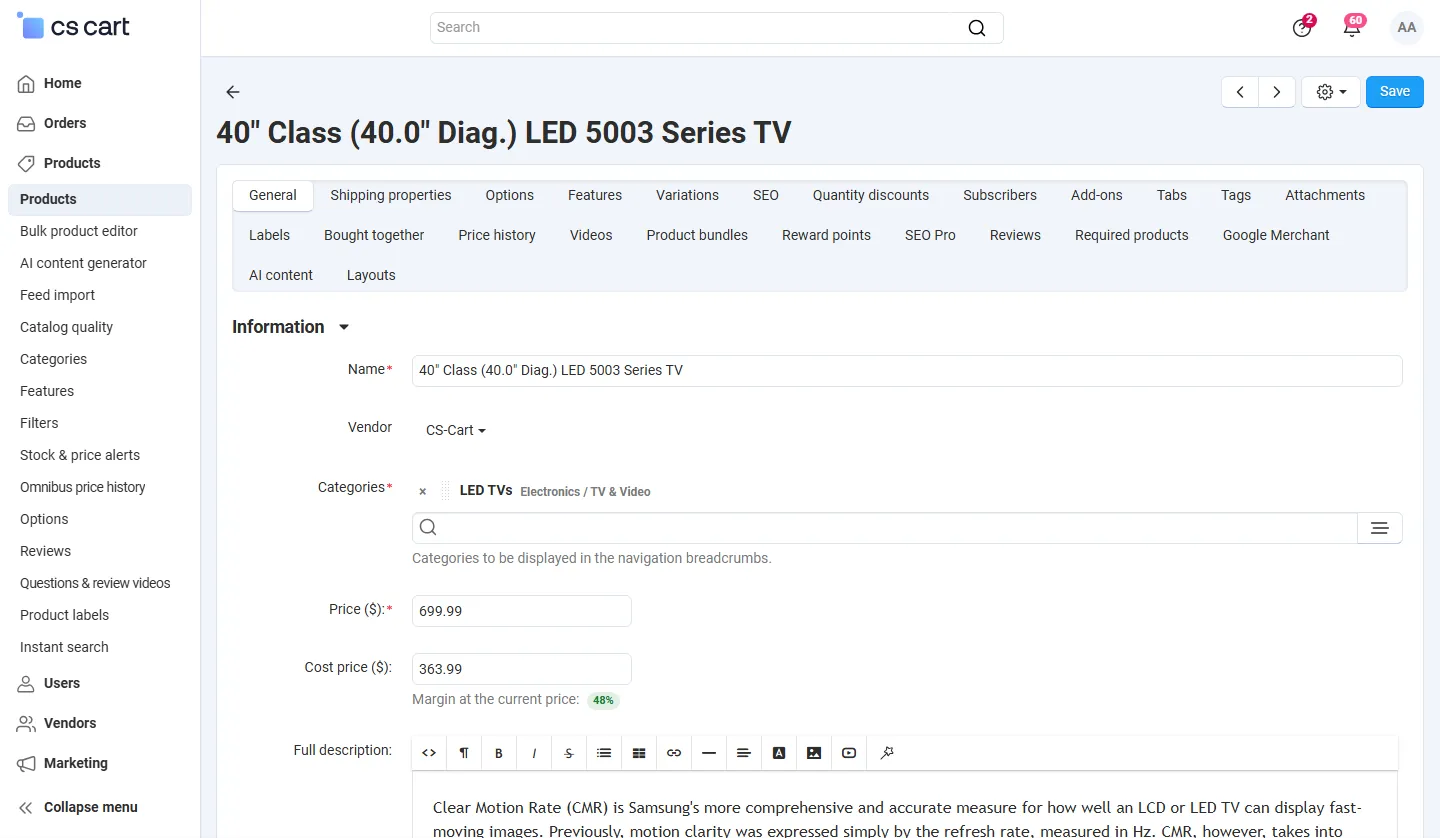
Section titled “Cost prices”The cost price is what a product costs you, in the primary currency of the store. A product without a cost price counts as having no cost (0) and is flagged in the reports. Ways to enter it:
- Product page: the Cost price field below the price. Under it, Margin at the current price shows the margin as a badge. Clear the field to remove the cost price.
- Product list: Products → Products has a Cost column with an input and the margin badge. Edit one or many rows and click Save. Margins below the low-margin threshold are red.
- Bulk edit: select products, open the bulk edit and use the Cost price input in the price panel.
- Import and export: the product export has a Cost price column, and the product import and the Advanced import accept it. An empty cell leaves the cost unchanged when you import into existing products; to remove a cost, clear the field on the product.
- Variations: every product variation is a product of its own and has its own cost price. Cloning a product copies its cost.
- Fill cost prices tool: see Tools.
Order cost snapshot
Section titled “Order cost snapshot”When an order is placed, the add-on stores the cost of every item, the payment fee, the fixed cost per order and the marketplace commission with the order. This snapshot is why changing a cost price later does not change the profit of past orders. When you edit an order in the admin panel, existing items keep their cost and new items take the current cost. Deleting an order or a product removes its snapshot rows or cost.
Order profit
Section titled “Order profit”Open an order: the Profit panel under the order notes shows
| Line | Meaning |
|---|---|
| Items, Order discount, Included tax | Item prices x quantity, minus the discount of the whole order and the tax already included in the prices (when the setting is on). |
| Revenue | Items minus discount and included tax, minus accepted returns (when RMA is used). |
| Cost of goods | Cost price x quantity of every item, as stored in the snapshot. |
| Shipping charged | What the customer paid for shipping (without included tax). |
| Actual shipping cost | What shipping really cost you. Empty = the same as charged (shipping result 0). |
| Payment fee | Percent and fixed fee from the settings at the time of the order. |
| Fixed cost per order | From the settings at the time of the order. |
| Extra cost for this order | A one-off cost you enter for this order. |
| Commission | Multi-Vendor: the marketplace commission is subtracted from the profit (the vendor payout of the order). |
| Gross profit, Margin | Revenue - cost of goods + shipping result - fees and costs - commission, and the profit as a percentage of revenue plus shipping charged plus payment surcharge. |
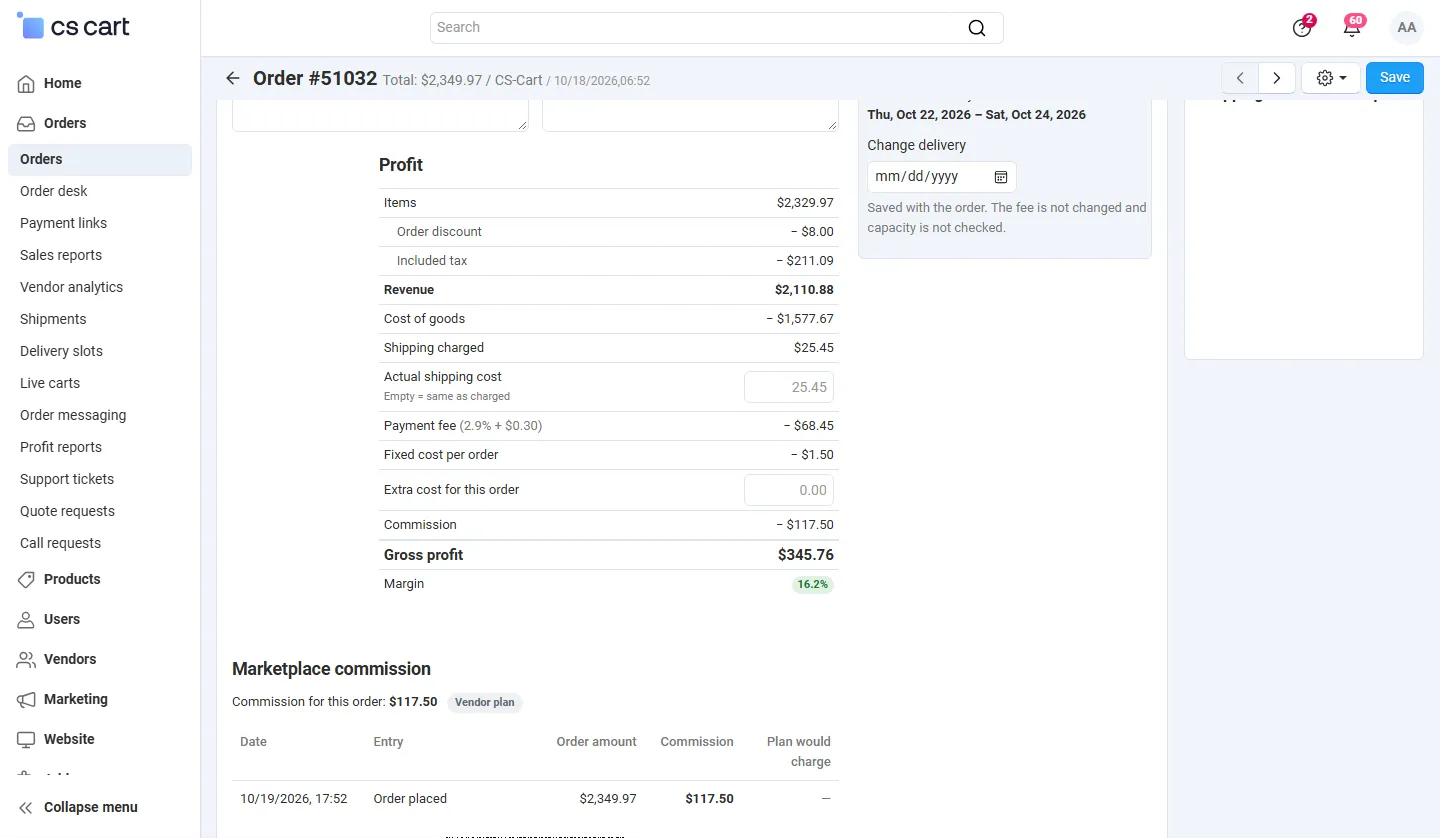
Enter the actual shipping cost and the extra cost and click Save of the order. Notes under the panel tell you when the snapshot is estimated or when items have no cost price. The orders list has a Gross profit column with the margin.
Reports
Section titled “Reports”Open Orders → Profit reports. Set From, To and, on the period tab, Group by (day, week or month) and click Apply. The tiles show revenue, cost of goods, gross profit, margin and orders (units on the product tab) for the counted order statuses.
| Tab | Rows |
|---|---|
| By period | One row per day, week or month: orders, revenue, cost of goods, shipping result, payment result, other costs, commission, gross profit and margin. |
| By product | Units, revenue, cost of goods, gross profit and margin per product (with the product code). Order-level costs are not allocated to products. |
| By category | The same by main category. |
| Vendor (Multi-Vendor) or Storefront (Ultimate) | Everything of the period tab per vendor or storefront. Names link to the filtered report. |
| Tools | See below. |
Export CSV (top right) downloads the current tab as a CSV file for the selected dates. Estimated orders are counted in the tiles and listed in the note under them.
On the Tools tab:
- Create missing cost snapshots: creates a snapshot, with today’s cost prices and marked estimated, for orders in the date range that have none (up to 500 per click). Use it once after installing.
- Fill missing cost prices: sets the cost price of products without one to a percentage of the price (for example 60 %). Tick Also replace existing cost prices to overwrite all. It is a starting point; refine the costs afterwards.
Returns
Section titled “Returns”With the core RMA add-on installed, accepted returned quantities of returns in the configured statuses reduce the revenue and the cost of goods of their items, attributed to the date of the original order.
Multi-Vendor
Section titled “Multi-Vendor”- Vendors open Orders → Profit reports in the vendor panel, see the cost field and margin column for their own products and the profit panel of their own orders, and only their own figures. The Tools tab and the vendor tab are administrator-only.
- Vendor access to costs and profit decides whether vendors can edit costs, only view, or see nothing. Vendors cannot edit the real shipping cost and the extra cost of an order.
- The commission is read from the marketplace data of each vendor order and subtracted. Parent orders are not counted, the vendor orders are.
Ultimate
Section titled “Ultimate”The storefront tab shows the profit per storefront. With a storefront selected in the admin panel, reports show that storefront only. A product has one cost price for all storefronts.
License
Section titled “License”The reports, the order profit panel and the margin columns need an active license, see License. Cost prices stay editable and orders keep receiving their snapshot without a license.