

Configuration
Overview · Installation · Usage · Developer notes · FAQ
Open Add-ons → Manage add-ons → Pay by Link & Pay After Confirmation (or click the add-on name). On CS-Cart Ultimate the settings can differ per storefront.
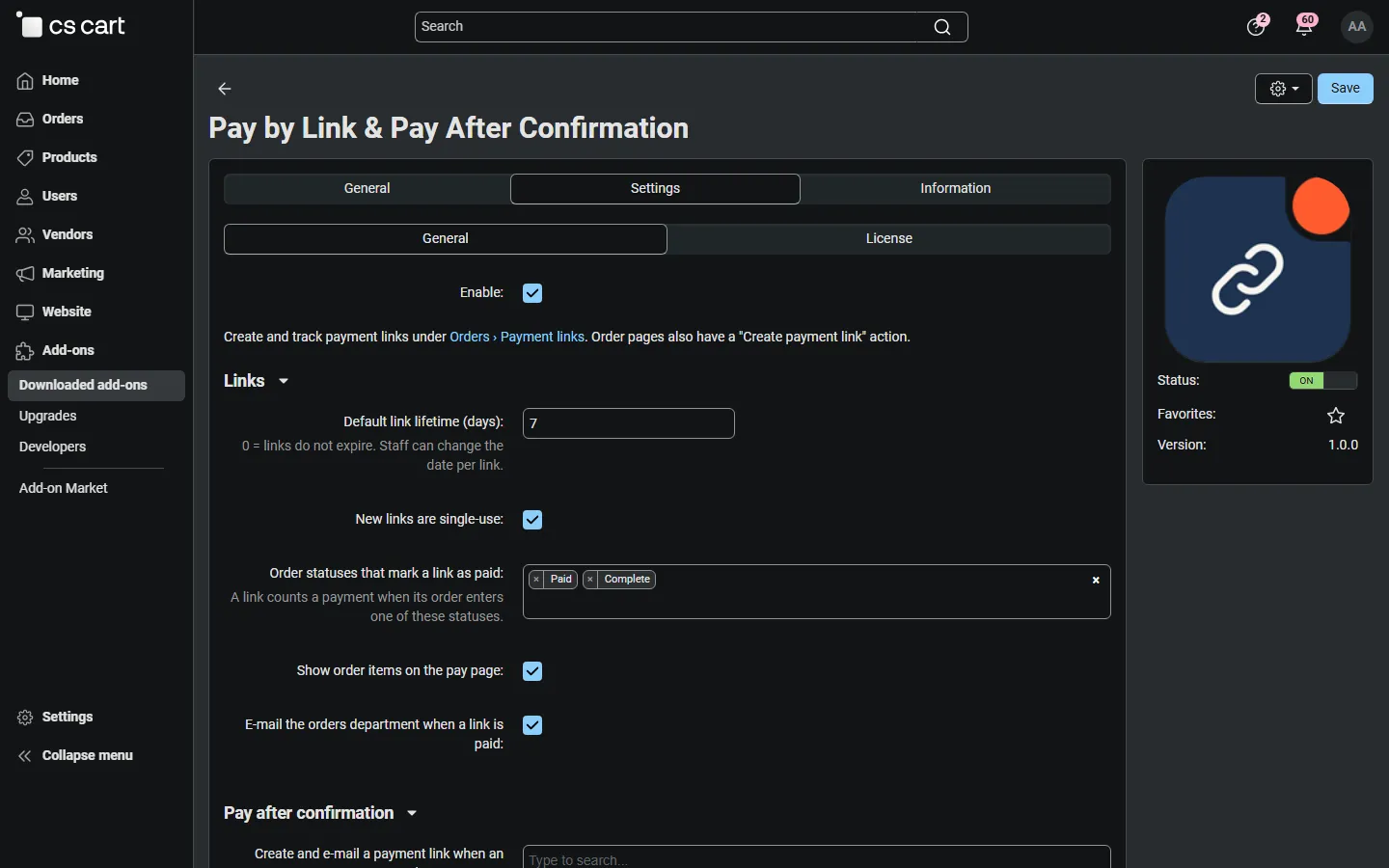
Settings
Section titled “Settings”| Setting | Default | Description |
|---|---|---|
| Enable | On | Switches the pay page and the admin pages on or off without uninstalling. |
| Default link lifetime (days) | 7 | Expiry date suggested for new links (end of that day). 0 = new links do not expire. You can change the date for every link. |
| New links are single-use | On | Suggests One payment for new links. You can choose Several payments per link. Order links are always single-use. |
| Order statuses that mark a link as paid | Processed, Complete | When the order of a link enters one of these statuses, the payment is counted on the link. Payment gateways set these statuses after a successful payment; for offline methods you set them yourself when the money arrives. |
| Show order items on the pay page | On | Lists the products of an order link on the pay page. Off: only the total. |
| E-mail the orders department when a link is paid | On | Sends Pay by Link: link paid to the orders department e-mail of the storefront (Multi-Vendor: of the vendor). |
| Pay after confirmation: Create and e-mail a payment link when an order gets status | none | Choose one or more order statuses, for example a custom status Awaiting payment. When an unpaid order enters such a status, an order link is created and e-mailed to the customer, once per order. The link is bound to the customer account of the order when there is one. |
| Multi-Vendor: Vendors can create payment links | On | Vendors see Orders → Payment links in the vendor panel and can create links for their own orders and products. Off: the menu, the pages and the order page action are hidden from vendors. |
Pay after confirmation, step by step
Section titled “Pay after confirmation, step by step”- Create an order status for orders that wait for payment (Administration → Order statuses, for example Awaiting payment). It should not be a status that counts as paid.
- Offer an offline payment method at checkout, for example Pay after confirmation (Administration → Payment methods, no processor), so customers can order without paying.
- Choose your new status in Create and e-mail a payment link when an order gets status.
- When you have confirmed stock and price, change the order to Awaiting payment. The customer gets the link by e-mail and pays with any online method you allow.
Privileges
Section titled “Privileges”Administrators need the core order privileges: View orders to see links, Edit orders to create, edit, send, cancel or delete them. Vendor administrators need the same privileges plus the setting above.
E-mail templates
Section titled “E-mail templates”Design → E-mail templates has two templates you can edit (subject and body, Twig):
| Template | Sent to | Variables |
|---|---|---|
| Pay by Link: payment link to the customer | the customer | customer_name, store_name, title, amount_text, expires_text, message, pay_url, link_number |
| Pay by Link: link paid (orders department) | orders department | link_number, order_id, amount_text, title, customer, payment, order_url, link_url |
The customer e-mail is sent in the language of the order (order links) or the current language. Order status e-mails (order placed, processed, failed) are the core order notifications and follow your order status settings.
License
Section titled “License”The license status is shown in a License card at the top of the add-on page, above the tabs, so you see it on every tab. The License tab holds the key itself. The key is stored once for the whole installation.
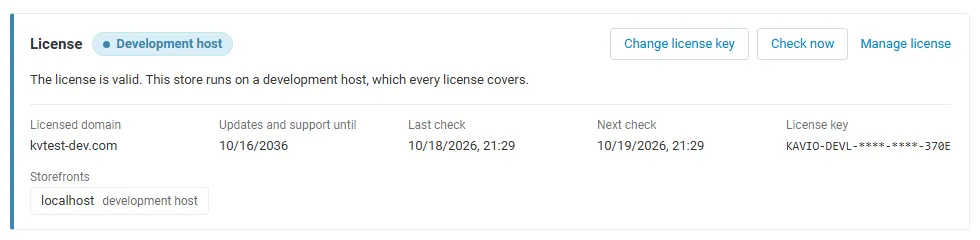
The License card shows:
- the status in color: green when valid, blue for a development host or the 14-day period before a key is required (with the days left), amber when the license server could not be reached (with the days left) or a Marketplace number is still being verified, red when the add-on is switched off;
- in plain words what the status means and, when the add-on is (or will be) switched off, what stops: new payment links cannot be created or sent and no automatic links are created; links you already sent keep working, and payments in progress complete normally;
- the licensed domain, every storefront with its result (covered, development host, not covered), the end of the updates and support period, the last and the next check, and the key in use (masked);
- the actions Enter license key / Change license key (opens the License tab), Check now (verifies at once and stays on the page), Manage license (your licenses on cs-cart.kaviolabs.com) and, without a valid license, Buy a license.
In Add-ons → Manage add-ons the add-on’s row shows a small license badge next to its name, for example License: Valid or License: Pending · 9 days left.
The Payment links pages show the license status in a bar at the top. Customers and vendors never see license information.
| Setting | Description |
|---|---|
| License key | Your Kavio Labs license key (KAVIO-XXXX-XXXX-XXXX-XXXX, from My licenses on cs-cart.kaviolabs.com) or your CS-Cart Marketplace license number. If you entered the Marketplace license number in Add-ons → Manage add-ons (the add-on’s license field), leave this empty: the add-on uses that number. |
| License status | Points to the License card and explains what the check sends. |
What the license covers. A license is bound to the base domain you entered at purchase (for example example.com) and covers every subdomain of it (www.example.com, shop.example.com, staging.example.com). Local development hosts are always allowed: localhost, 127.0.0.1 and other private IP addresses, and host names ending in .localhost, .test, .local, .example or .invalid. A store on a different base domain needs its own license. If you move your store to a new domain, contact support.
When the add-on checks. When you save the key, and then once a day. The check runs only in the admin panel (on a page you open) or from cron, never while customers browse the storefront or pay, and takes a few seconds at most. A cron job keeps the license verified even when nobody opens the admin panel:
php /home/yourstore/public_html/admin.php --dispatch=kv_pay_by_link_license.checkWhat it sends. The license key, the add-on ID and version, your storefront host names, the CS-Cart version and edition, and a random number. Nothing about your customers, orders or links.