

Usage
Overview · Installation · Configuration · Developer notes · FAQ
Methods
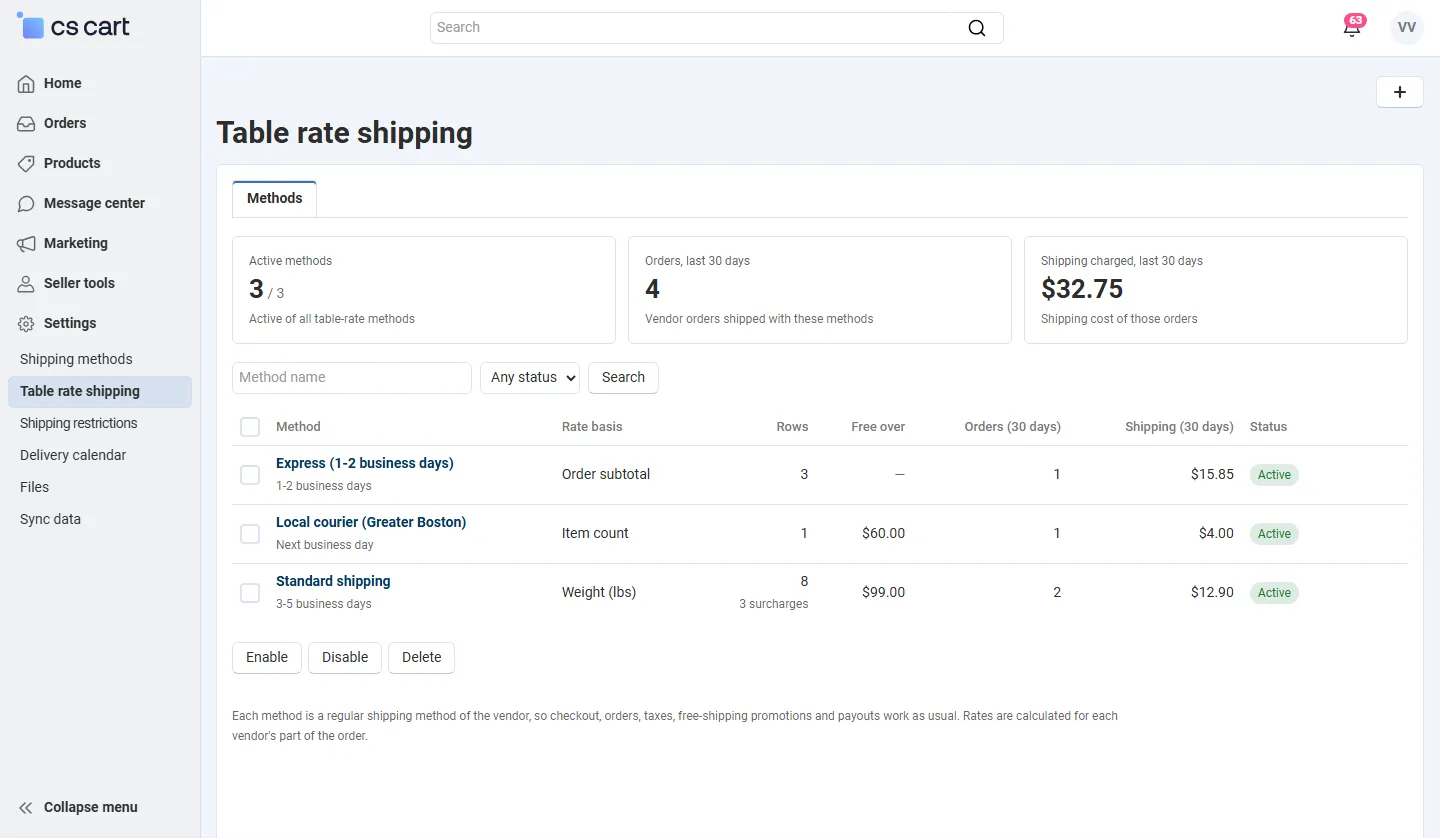
Section titled “Methods”Settings → Table rate shipping (vendor panel: Settings → Table rate shipping) lists the table-rate methods: the vendor (administrators), the rate basis, the number of rows and surcharges, the free shipping amount, the orders and the shipping charged in the last 30 days, and the status. Tiles at the top sum up the active methods, the vendors using table rates, the orders and the shipping charged. Administrators filter by vendor, status and lock; bulk actions enable, disable, lock, unlock or delete methods.
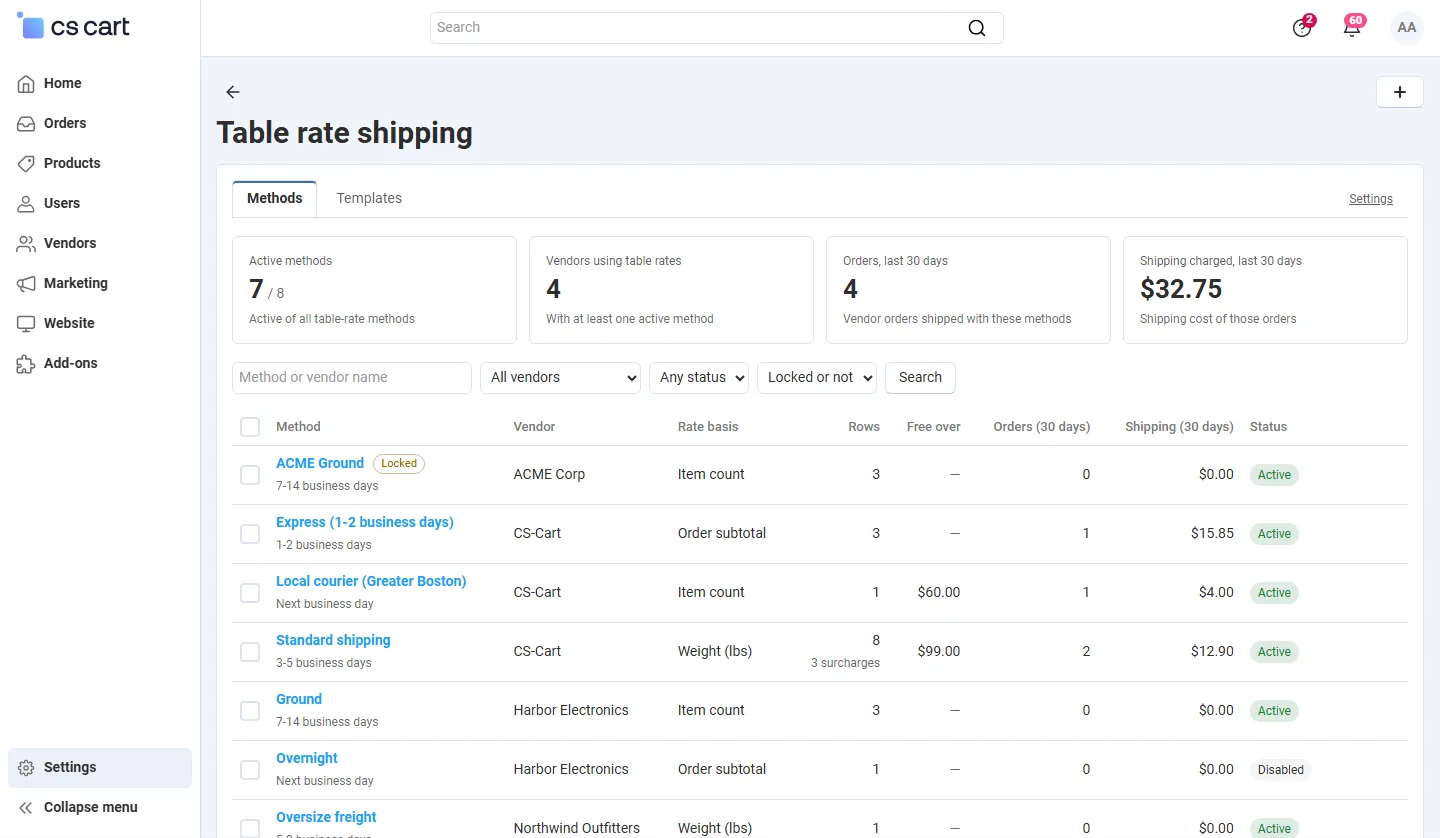
Click + to create a method: enter the name customers see (for example Standard shipping or Express (1-2 business days)) and start with an empty table or a template. Administrators also choose the vendor. A vendor can have several methods; the customer chooses one per vendor at checkout.
The rate table
Section titled “The rate table”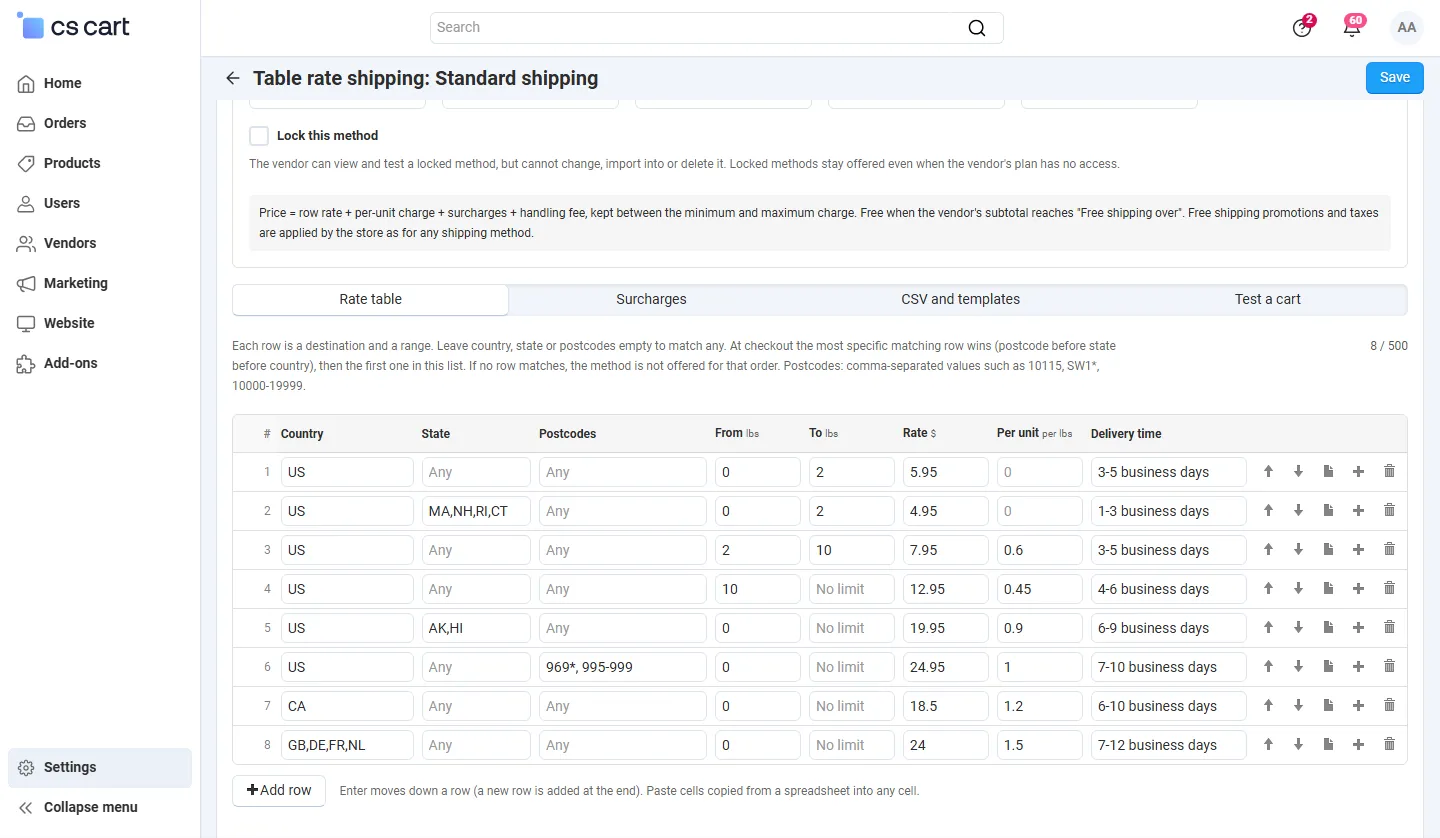
Every row has:
| Column | Meaning |
|---|---|
| Country | Two-letter codes, one or several (US, GB,DE,FR). Empty = any country. |
| State | State codes of that country (MA,NH). Empty = any state. |
| Postcodes | Comma-separated: exact (10115), prefix with * (SW1*, 021*), range (10000-19999, AB10-AB16). Spaces and case are ignored; 02108 also matches 02108-1234. Empty = any postcode. |
| From / To | The range of the rate basis (weight, subtotal or item count). Both ends count; To empty = no upper limit. |
| Rate | The price of the row. |
| Per unit | Added per weight unit or per item for the whole package, or a percentage of the subtotal (subtotal basis). |
| Delivery time | Shown at checkout for this row; empty = the method’s delivery time. |
Which row is used. Rows that match the destination and contain the package value are candidates. The most specific one wins: a row with postcodes beats a row with a state, which beats a row with only a country, which beats a row for any destination. Between equally specific rows, the first one in the table wins. If no row matches, the method is not offered for that vendor’s part of the order (the customer sees the vendor’s other methods).
The price is: row rate + per-unit charge + surcharges + handling fee, raised to the minimum or capped at the maximum charge, and 0 when the vendor’s subtotal reaches Free shipping over. The store then applies free-shipping promotions, the “Free shipping” product flag, product shipping freight and taxes as for any shipping method.
Editing. Use Add row (a new row continues the range of the last one), the row tools (move up, move down, duplicate, insert below, remove) and the keyboard: Enter moves to the same column of the next row and adds a row at the end; Shift+Enter moves up. Paste cells copied from a spreadsheet into any cell: they fill the row and the rows below. Click Save: invalid rows are reported with their row number and nothing is saved until they are fixed (your input is kept).
Surcharges
Section titled “Surcharges”Extra charges for bulky or fragile products: Product (by product code of the vendor’s own products) or Category, an amount, and Per item (times the quantity) or Once per order. A product’s own surcharge wins; otherwise the highest surcharge of its categories applies. Templates hold category surcharges only.
CSV and templates
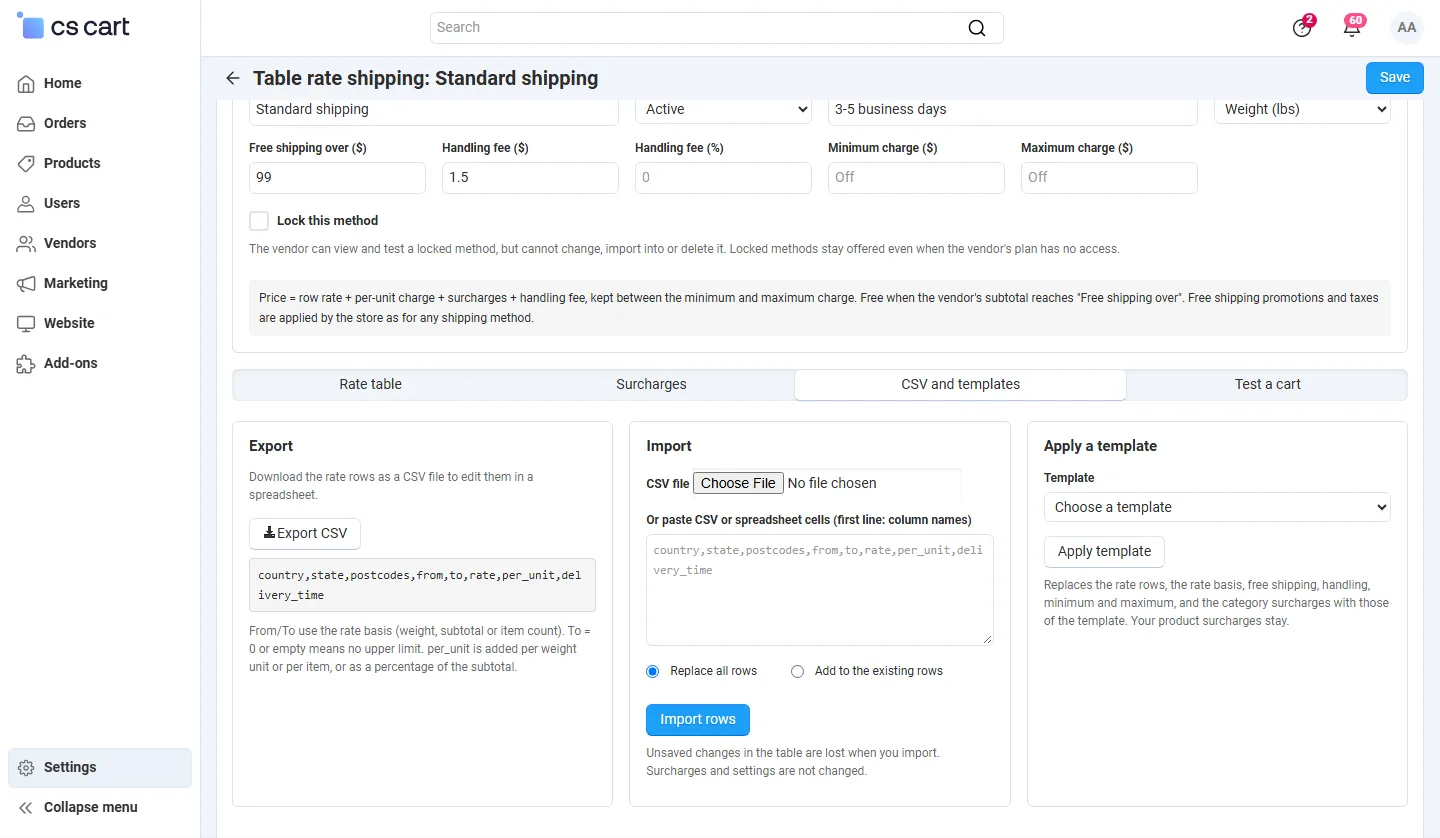
Section titled “CSV and templates”- Export CSV downloads the rows:
country,state,postcodes,from,to,rate,per_unit,delivery_time. - Import a CSV file or paste CSV/spreadsheet cells (comma, semicolon or tab separated; first line = column names in any order; only
rateis required). Replace all rows or Add to the existing rows. Errors are reported per line and the table stays unchanged. - Apply a template replaces the rows, the rate basis, free shipping, handling, minimum, maximum and the category surcharges with those of a template. Product surcharges stay.
Test a cart
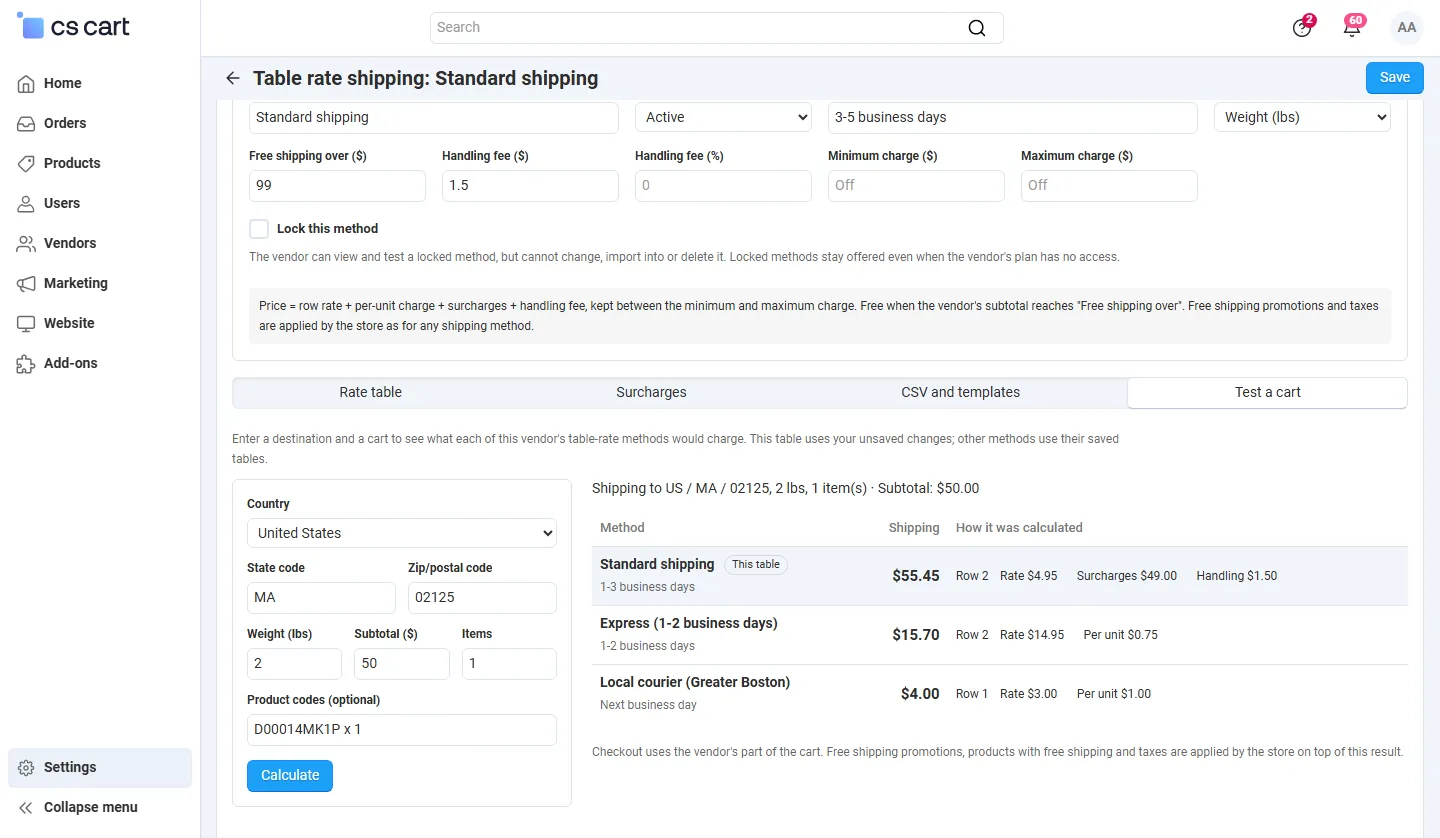
Section titled “Test a cart”Enter a country, state code, postcode, weight, subtotal, number of items and optionally product codes (SKU-1 x 2, SKU-7) and click Calculate. You see the price of every method of the vendor, the matched row and how the price was built (rate, per unit, surcharges, handling, minimum or maximum, free shipping). The table you are editing is tested with your unsaved changes.
Templates (administrators)
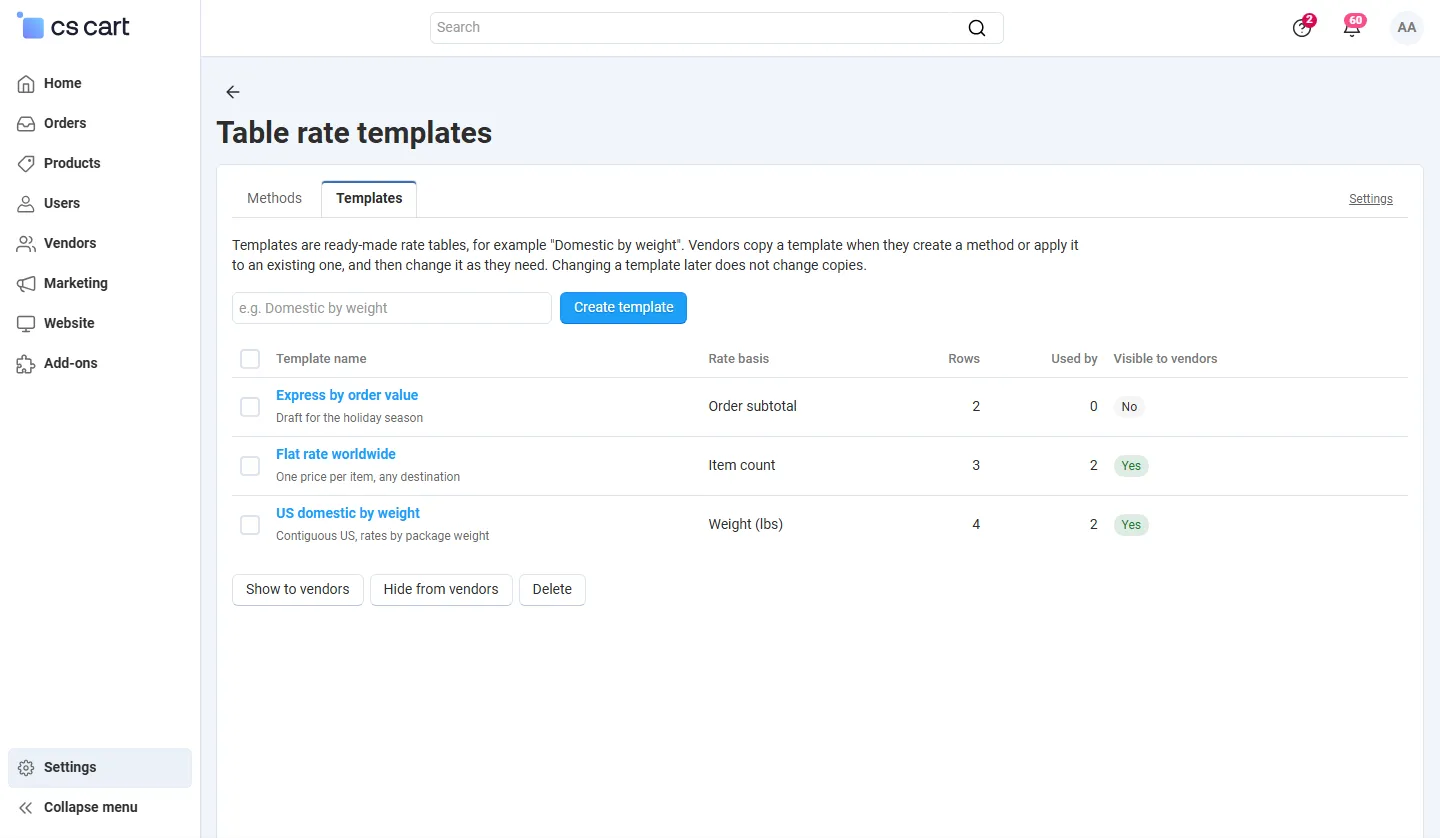
Section titled “Templates (administrators)”Templates lists the template tables with their rate basis, rows, how many methods were created from them and whether vendors see them. Create a template, fill it like a method and set Visible to vendors to Yes. Changing a template later does not change methods that were copied from it.
Locks and access (administrators)
Section titled “Locks and access (administrators)”Open any vendor’s method to change it. Lock this method (or Lock in the list) makes it read-only for the vendor. Use the Who may manage table rates setting to allow table rates for all vendors, selected vendor plans or administrators only (see Configuration).
Vendor panel
Section titled “Vendor panel”Vendors see only their own methods and the templates that are visible to them. They create, edit, import, export, test and delete their methods within the limits you set.
Checkout
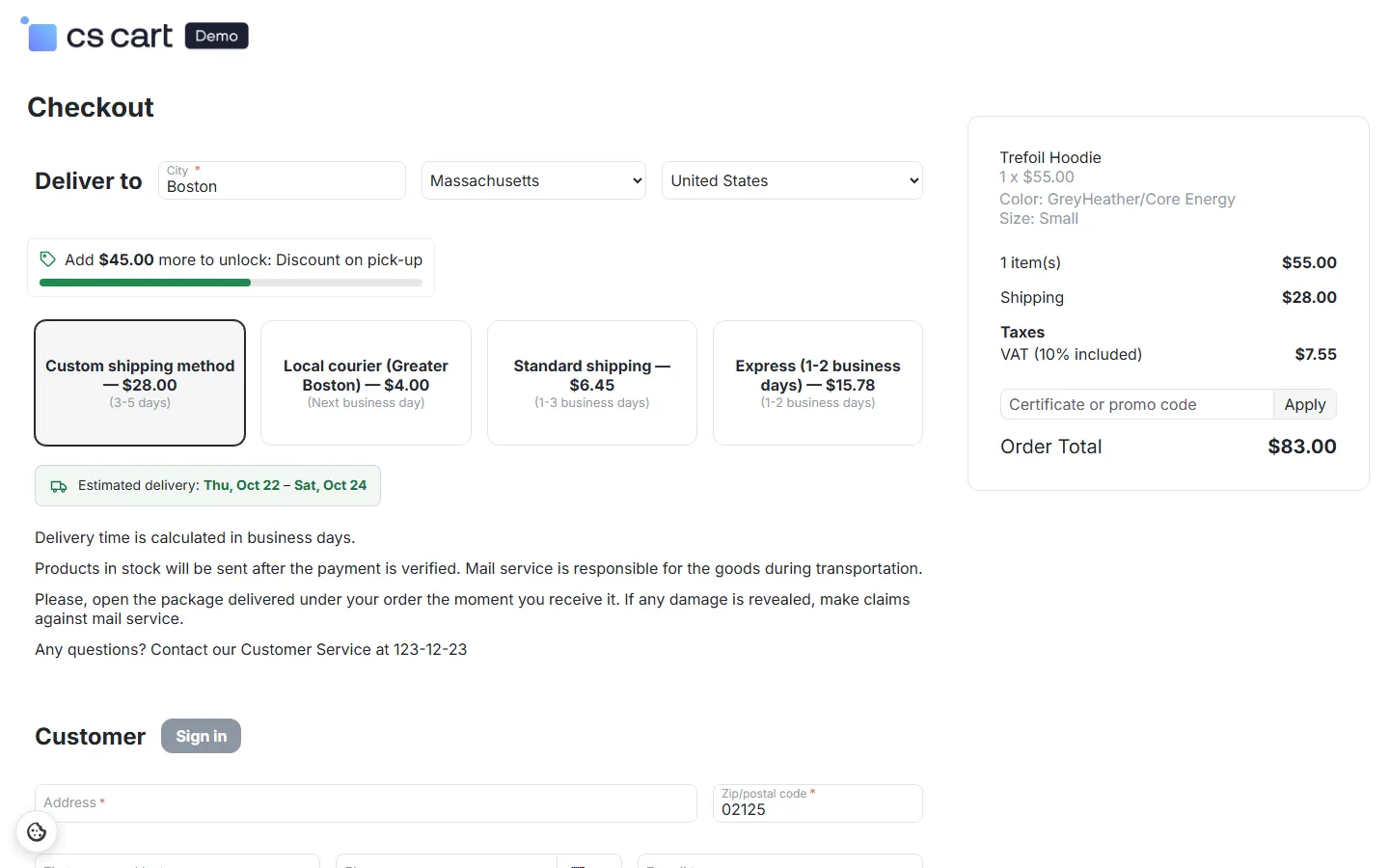
Section titled “Checkout”Each vendor’s part of the cart is calculated separately: the customer sees the vendor’s table-rate methods with their price and delivery time next to the vendor’s other methods. The chosen method, its price and taxes are stored in the order like any shipping method, so invoices, vendor payouts, shipments and order editing in the admin panel work as usual.
The core shipping method page of a table-rate method shows Table rates as the shipping service; its Configure tab links to the rate table. You can also create a method there by choosing the Table rates service: its table is created automatically.