

Usage
Open Orders > Sales Reports Pro. The tabs at the top lead to the reports: Overview, Products, Customers, Cohorts, Lifetime value, Channels and (for administrators) E-mail digests.
Filters and comparisons
Section titled “Filters and comparisons”Every report has the same filter bar:
- Period: today, yesterday, the last 7, 30, 90 or 365 days, month to date, last month, quarter to date, last quarter, year to date, last year, or a custom range (up to 10 years).
- Compare with: the previous period of the same length (whole months compare with the same number of months before), the same period last year, or no comparison.
- Group by (Overview): automatic (days up to 45 days, weeks up to 190 days, months above), day, week or month.
- Storefront: with several storefronts.
- Vendor (Multi-Vendor administrators): one vendor’s orders.
The line under the filters shows the period, the comparison period and when the data was last updated. All amounts are in the store’s primary currency.
Overview
Section titled “Overview”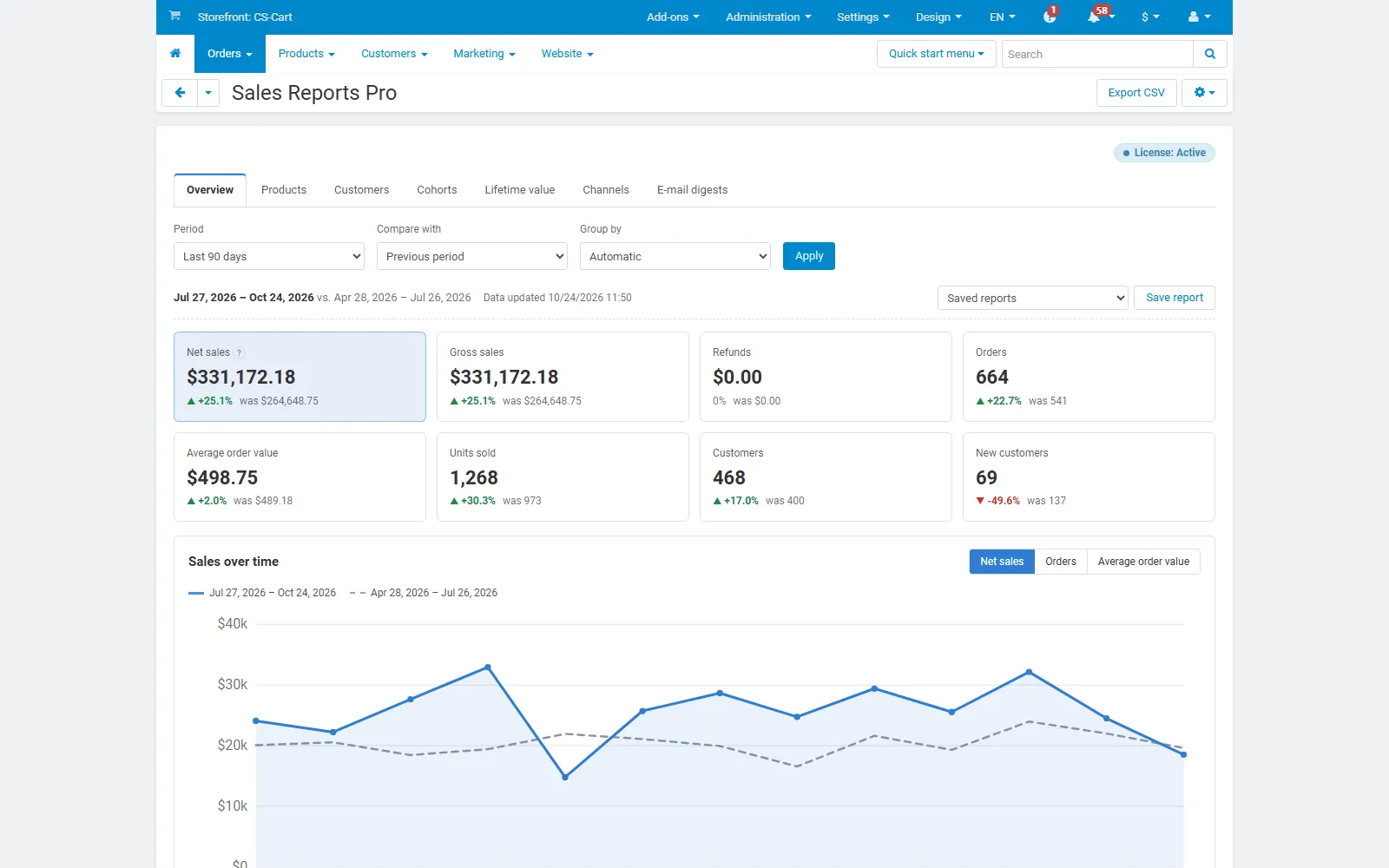
- Tiles: net sales, gross sales, refunds, orders, average order value, units sold, customers and new customers, with the change against the comparison period. Refunds turn green when they go down.
- Sales over time: net sales, orders or average order value per day, week or month; the comparison period is the dashed line. Hover a point for the exact values. Show as table lists the same figures.
- Breakdown: gross sales, of which shipping and taxes, order discounts, refunds, net sales, units per order and returned units.
- Orders by status: every status in the period; the counted ones are ticked.
What the figures mean:
| Figure | Definition |
|---|---|
| Orders | Checkouts in the counted statuses. A Multi-Vendor checkout split into several vendor orders counts once. With a vendor filter: that vendor’s orders. |
| Gross sales | Order totals (products, shipping, taxes and surcharges, minus discounts), plus items an RMA return already took out of an order. |
| Refunds | Accepted returned items (RMA) in the return statuses, plus the whole total of orders in a refunded status. |
| Net sales | Gross sales minus refunds. |
| Average order value | Gross sales / orders. |
| New customers | Customers whose first counted order ever is in the period. Guests are recognized by their e-mail address. |
Products
Section titled “Products”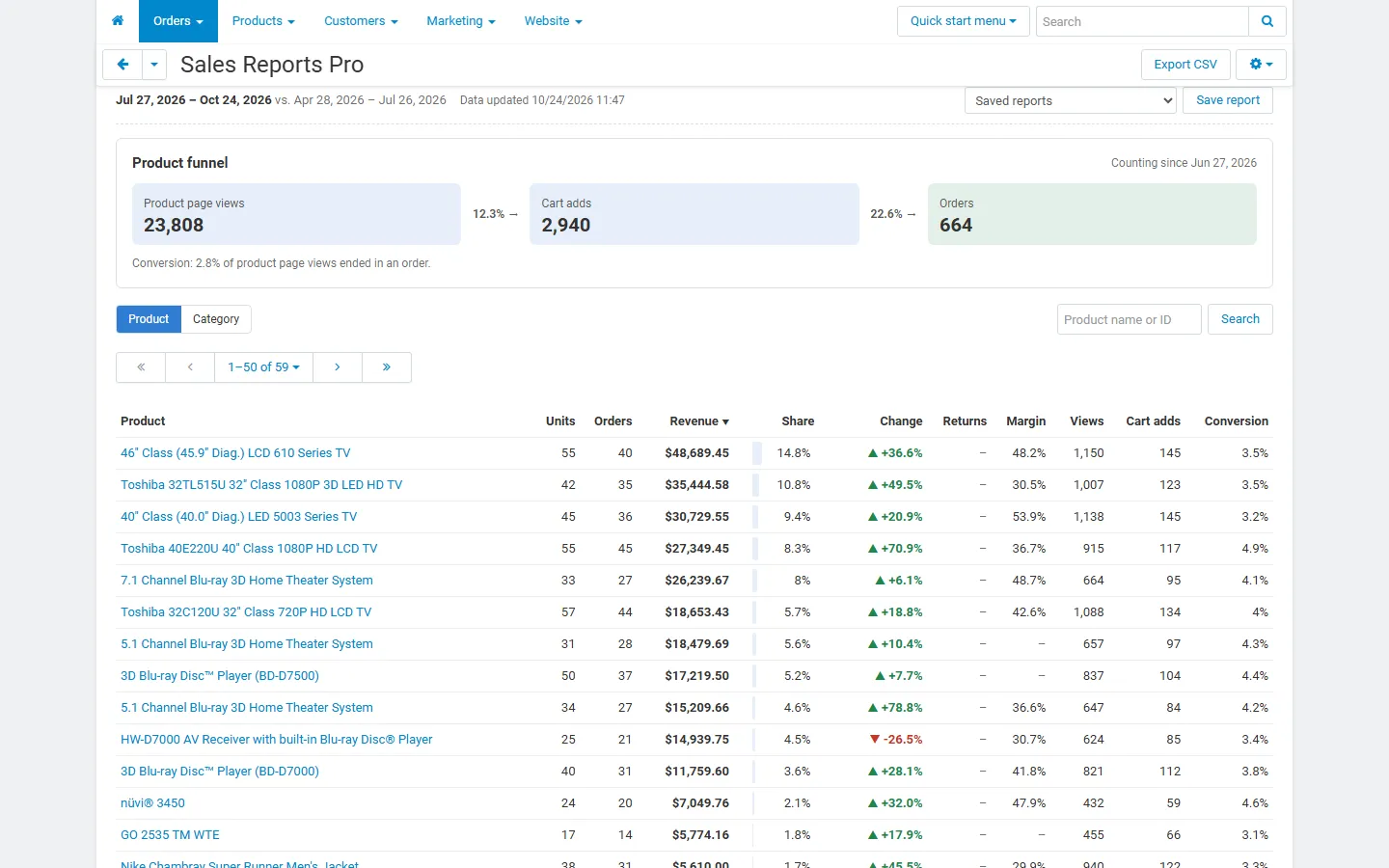
- Product funnel: product page views, cart adds and orders in the period, with the rate between the steps. Before the add-on counted any views, the all-time counters of the store are shown instead.
- Table: per product, category (main category) or vendor: units, orders, revenue, share, change against the comparison period, returns (rate and units), margin (with Product Cost & Profit), views, cart adds and conversion (orders per 100 views). Click a column title to sort; search by name or ID; page through long lists.
- Revenue here is item price x quantity minus the item’s share of the order discount. Shipping is not included, so the product total is lower than gross sales.
Customers
Section titled “Customers”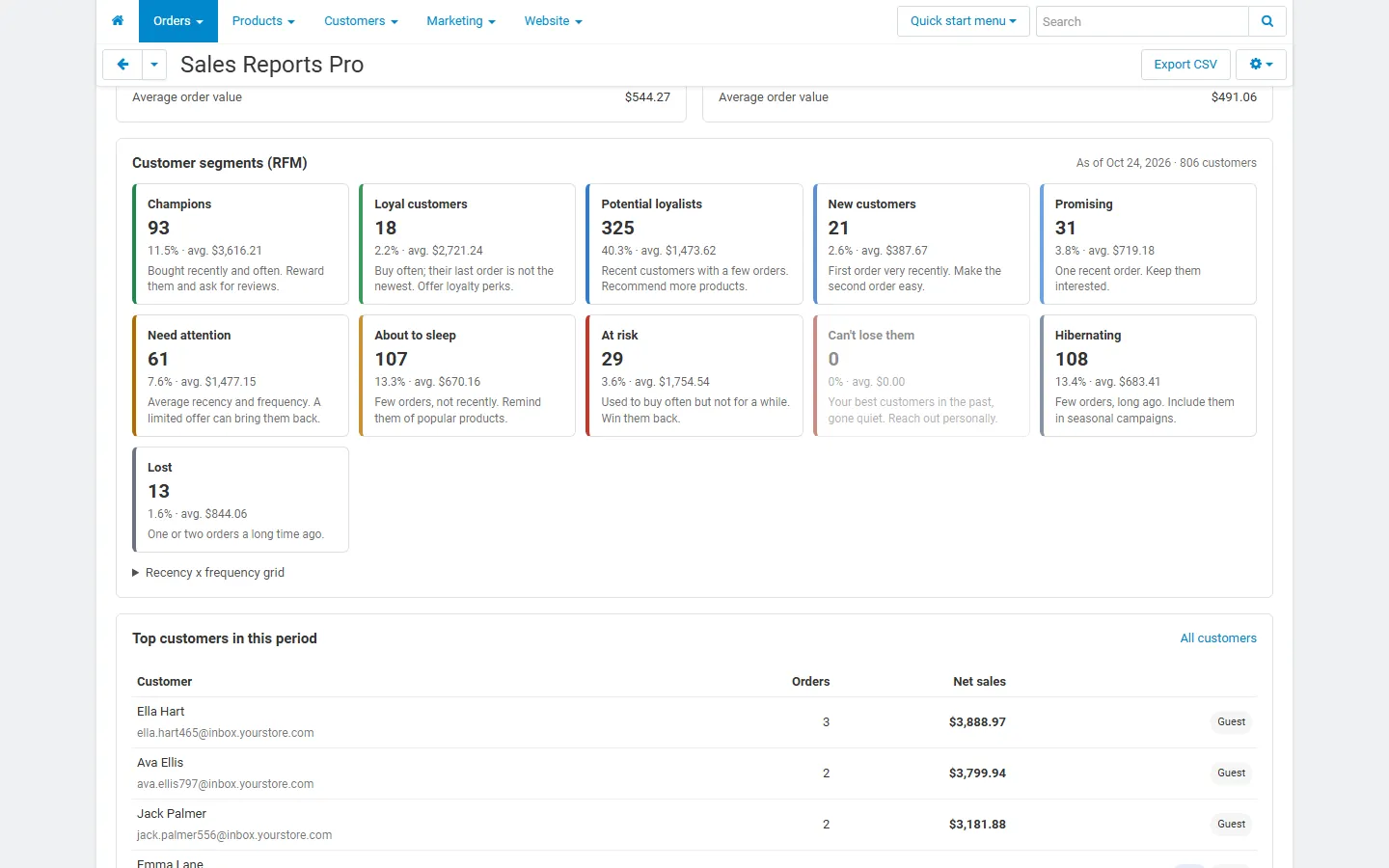
- New and returning customers of the period with their net sales, orders and average order value.
- Customer segments (RFM) as of the end of the period: Champions, Loyal customers, Potential loyalists, New customers, Promising, Need attention, About to sleep, At risk, Can’t lose them, Hibernating and Lost. Each card shows the customers, their share, the average value and what to do. Recency x frequency grid shows the underlying score grid.
- Top customers in this period.
Click a segment to list its customers with their R, F and M scores, orders, net sales, days since the last order and the first and last order dates. From the list you can:
- Export CSV of the whole segment;
- Add registered customers to a user group (administrators): for example a “Win-back” group used by a promotion or a usergroup price. Guests have no account and are skipped. The customers get no e-mail.
Cohorts
Section titled “Cohorts”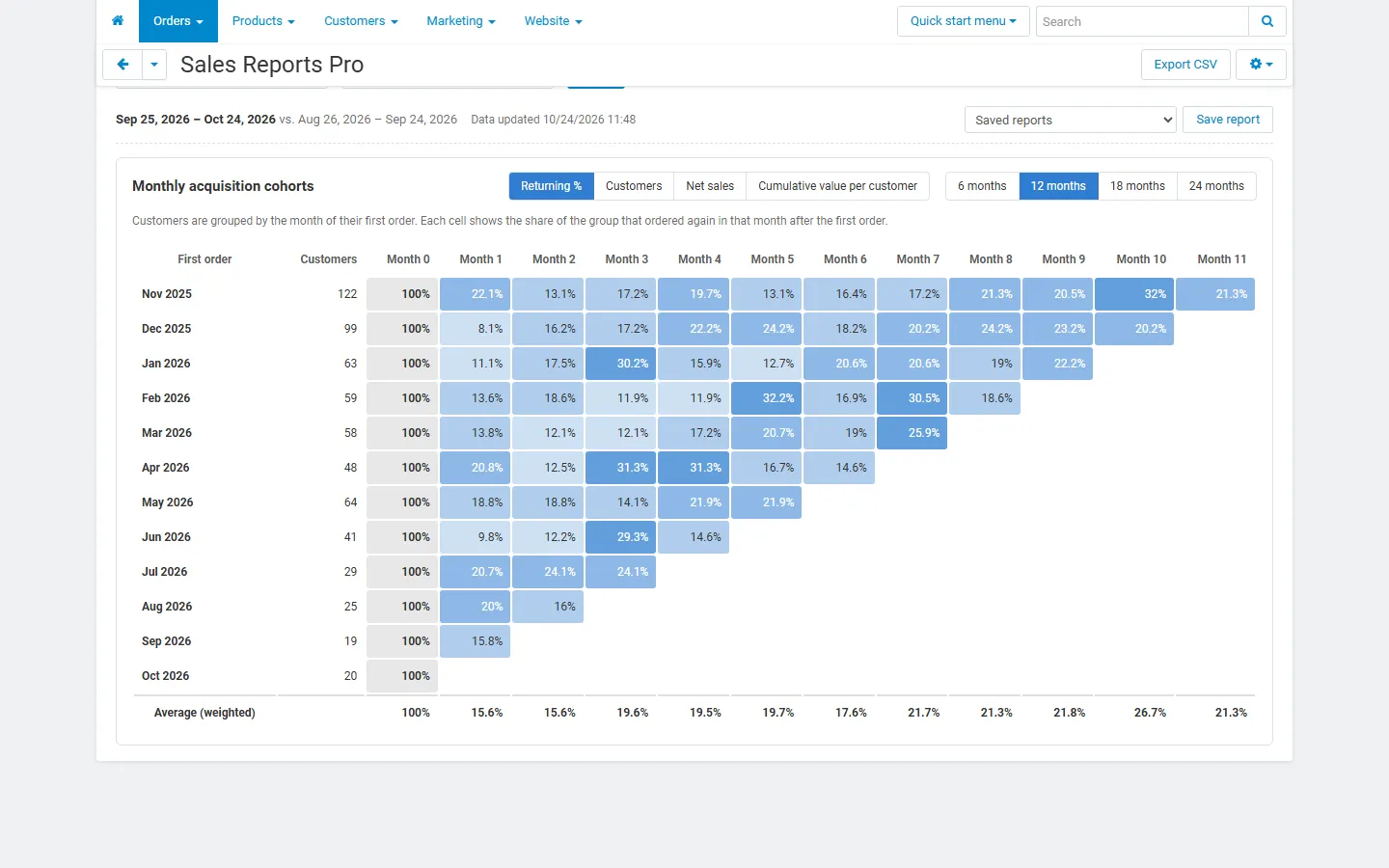
Customers are grouped by the month of their first order. Each row is a cohort, each column a month after the first order. Choose the metric (returning %, customers, net sales, cumulative value per customer) and the number of cohorts (6, 12, 18 or 24). The last row shows the weighted average of the returning share.
Lifetime value
Section titled “Lifetime value”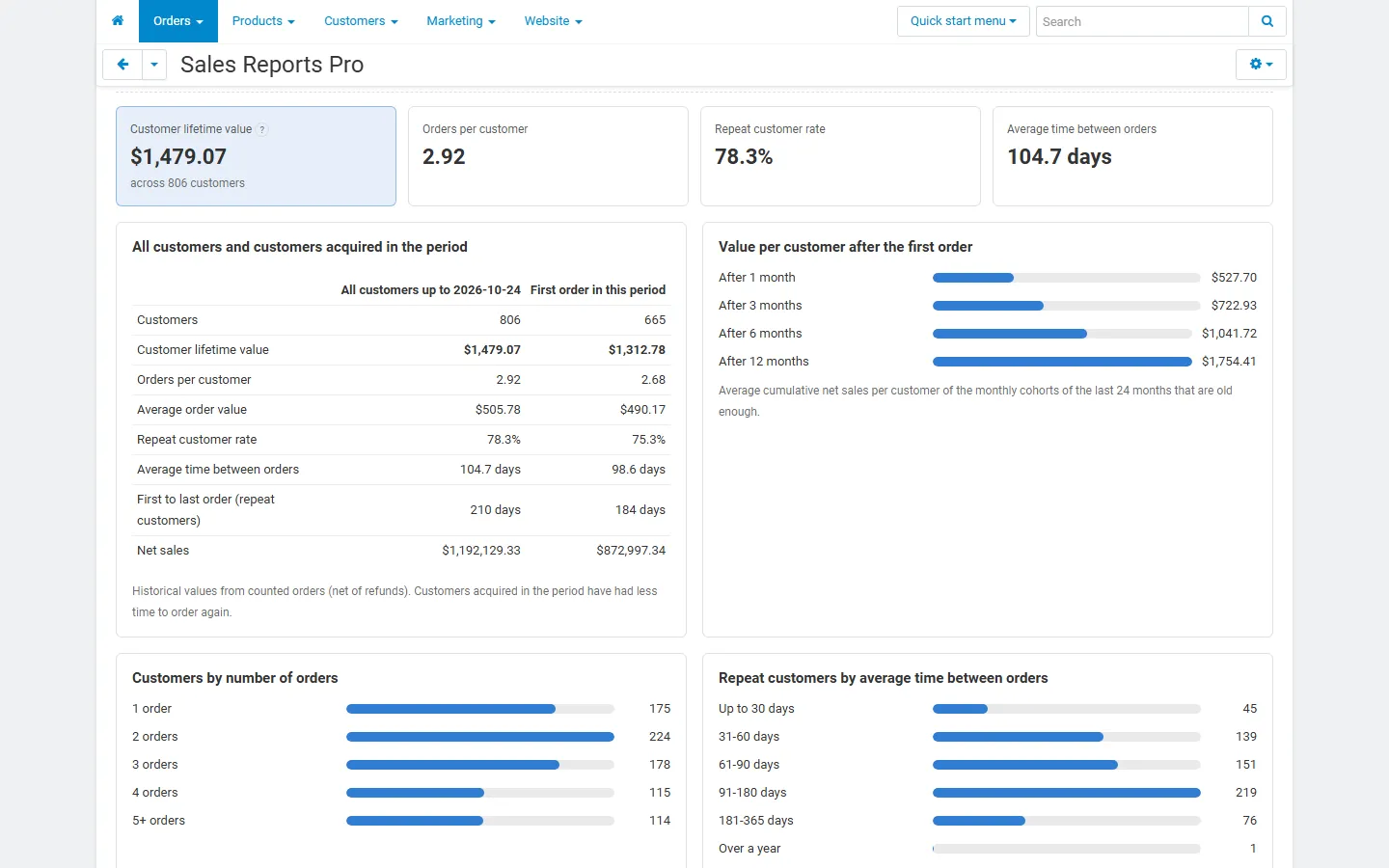
- Customer lifetime value (average net sales per customer over all their orders), orders per customer, repeat customer rate and average time between orders.
- The same figures for all customers and for customers acquired in the period.
- Value per customer after 1, 3, 6 and 12 months from the cohorts of the last 24 months.
- Customers by number of orders and repeat customers by time between orders.
The values are historical: they describe what customers have spent so far, not a forecast.
Channels
Section titled “Channels”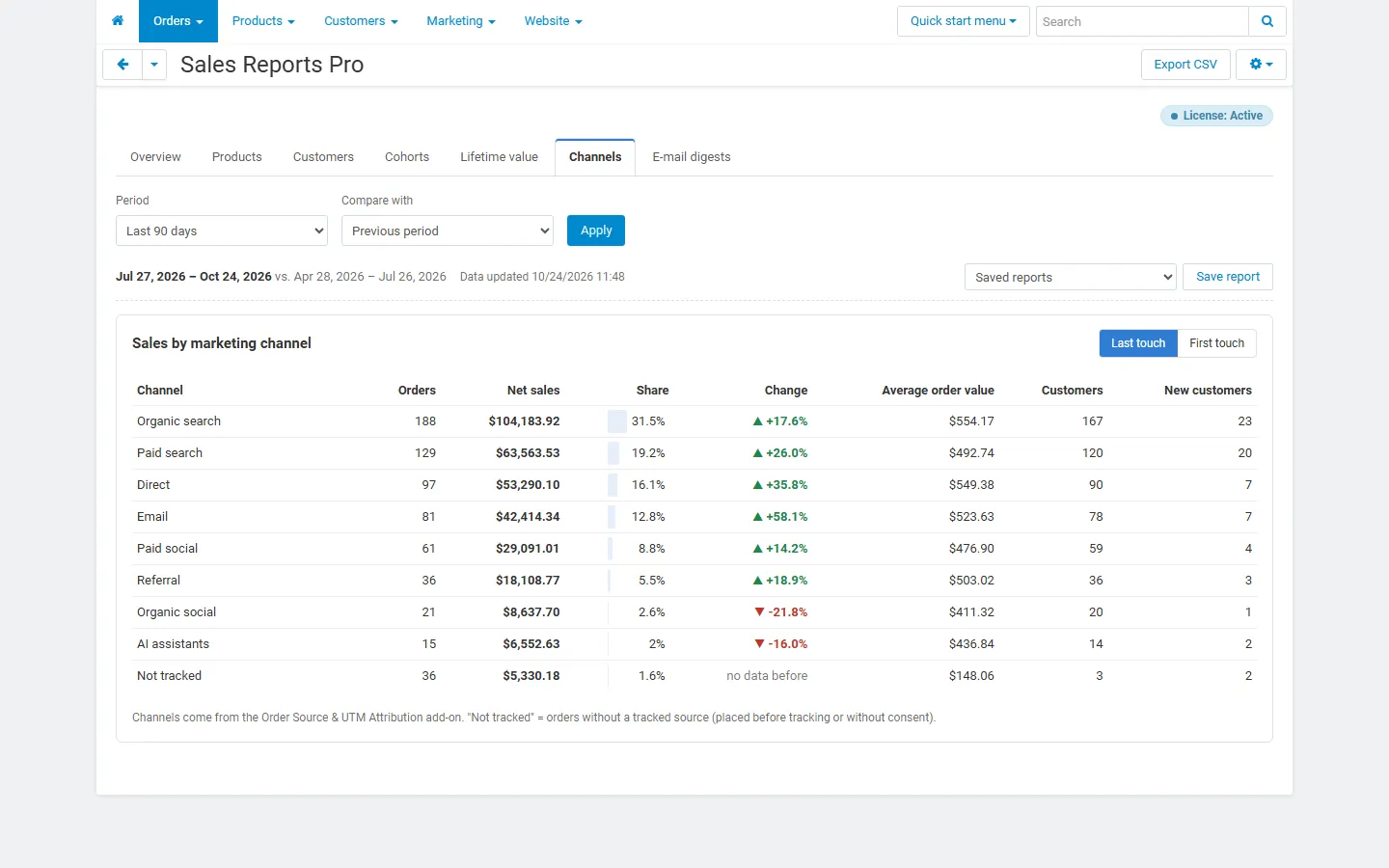
With the Order Source & UTM Attribution add-on, every order has a marketing channel (organic search, paid search, e-mail, social, referral, direct, AI assistants…). This report shows orders, net sales, share, change, average order value, customers and new customers per channel, for the last or the first touch. Without that add-on the tab explains what it needs.
CSV export
Section titled “CSV export”Export CSV (top right) downloads the table of the current report with the current filters: the period table of the overview, products (all pages), the customers of a segment, the cohort grid, channels. Files are UTF-8 with BOM, so spreadsheets open them correctly; cells that could be read as formulas are neutralized.
Saved reports
Section titled “Saved reports”Click Save report, enter a name and save. The report is saved with its period, comparison, grouping and filters. Relative periods (for example “Last 30 days”) move with the calendar. Visible to all administrators shares it; otherwise only you see it. Open saved reports from the Saved reports list; delete your own with Delete saved report.
E-mail digests
Section titled “E-mail digests”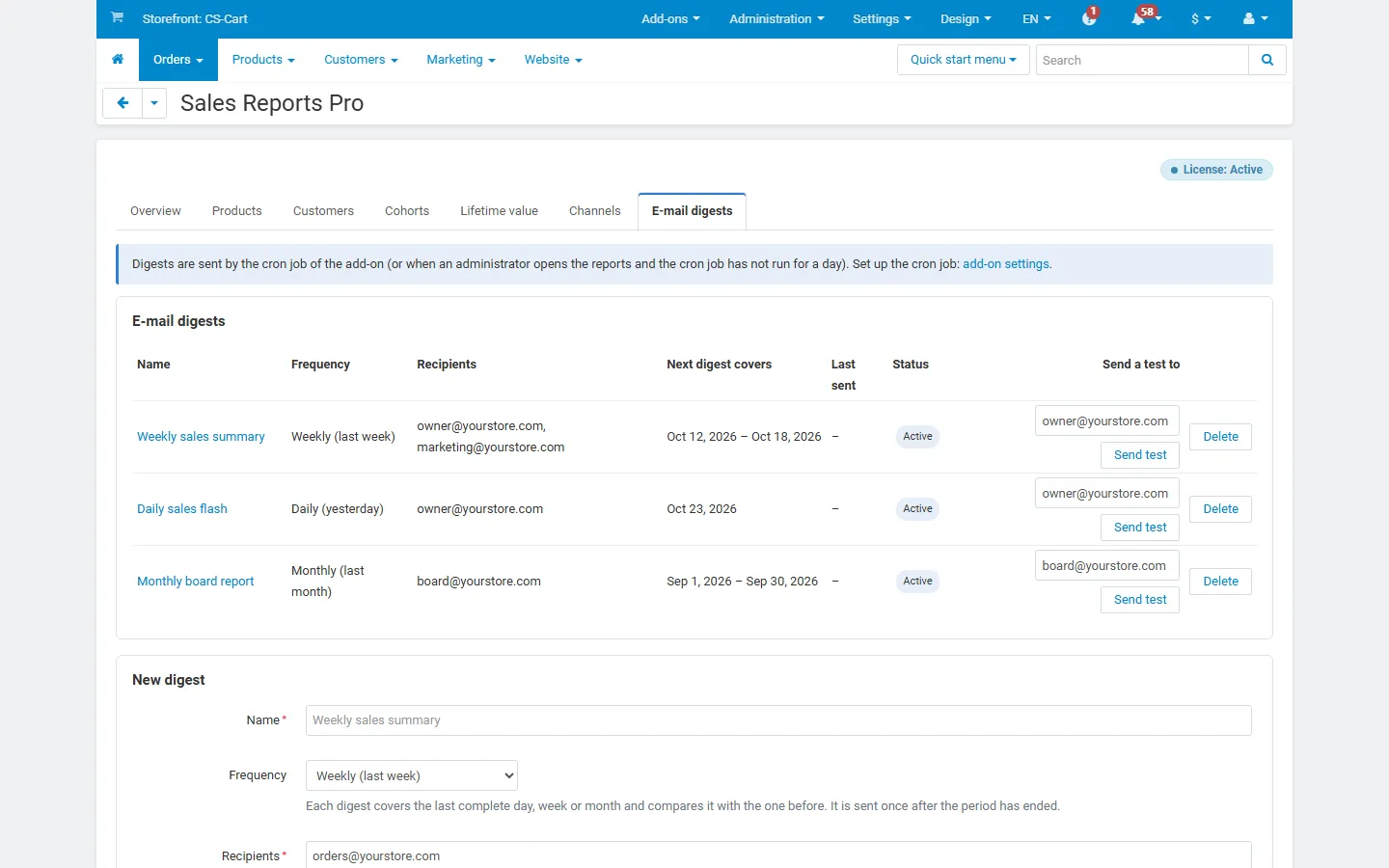
Administrators can schedule summaries by e-mail under E-mail digests:
- Frequency: daily (yesterday), weekly (last week) or monthly (last month), always compared with the period before.
- Recipients: one or more addresses.
- Vendor / storefront: a digest for one vendor (Multi-Vendor) or storefront.
- Content: key figures with change, top 5 products, customer segments.
A new digest starts with the next complete period. Use Send test to see it at once. The e-mail template Sales Reports Pro: e-mail digest can be edited in Design > Email templates.
Vendor panel (Multi-Vendor)
Section titled “Vendor panel (Multi-Vendor)”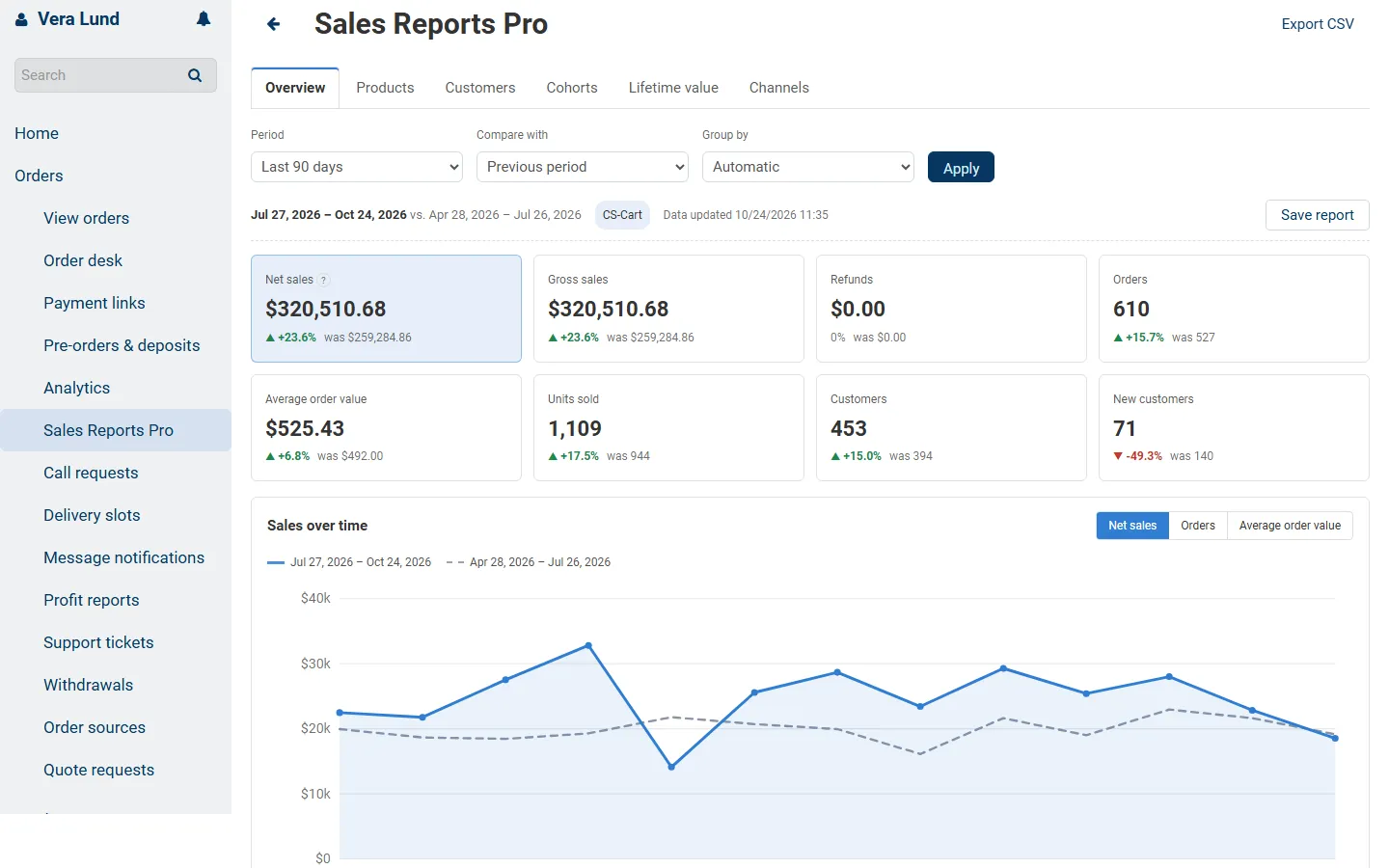
With Vendors see the reports of their company on, vendors find Orders > Sales Reports Pro in the vendor panel: overview, products, customers, cohorts, lifetime value and channels of their own orders. Their company is always applied, whatever the request says; customer e-mail addresses are hidden.
Updating and rebuilding the data
Section titled “Updating and rebuilding the data”The data is updated in the background (cron) and whenever a report is opened. Gear icon > Update data now processes waiting changes at once. Rebuild report data recalculates everything from the orders; use it after importing orders directly into the database.