

Usage
Give customers net terms
Section titled “Give customers net terms”There are three ways:
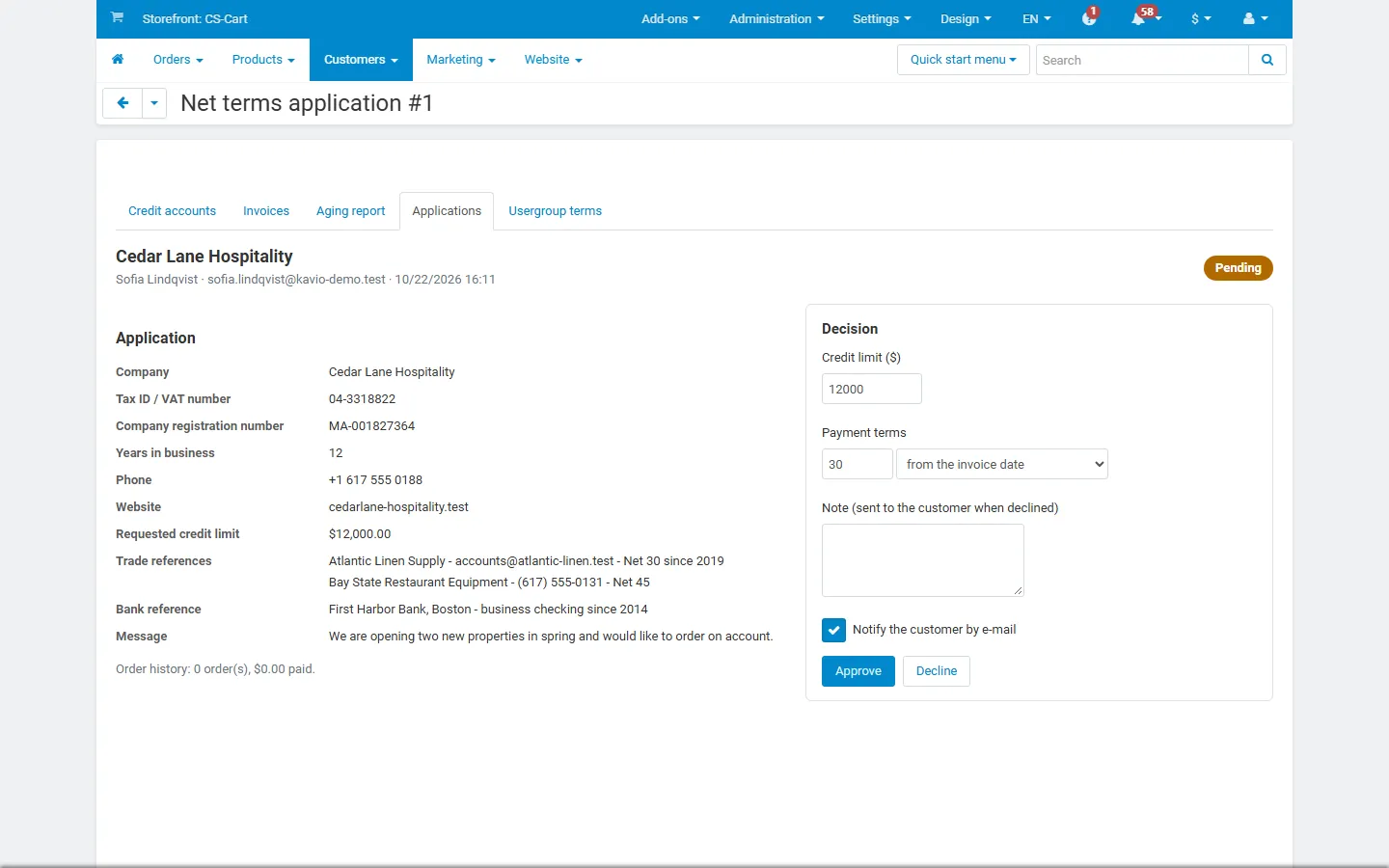
- Applications. Signed-in customers open My account → Invoices & credit → Apply for net terms and send their company name, tax ID / VAT number, registration number, phone, website, years in business, the credit limit they would like, trade and bank references and a message. The form is prefilled from the profile (and from our EU VAT Number Validation and B2B Registration add-ons when they are installed). You get an e-mail and the application appears in Customers → Net terms & credit → Applications. Open it to see the details and the customer’s order history, then Approve with a credit limit and terms, or Decline with a reason (sent to the customer).
- Accounts. Customers → Net terms & credit → Add credit account: enter the customer’s e-mail, the credit limit and the terms.
- Usergroup terms. Customers → Net terms & credit → Usergroup terms: switch net terms on for a usergroup with a limit and terms. All customers of the group can pay on terms at once.
The credit account
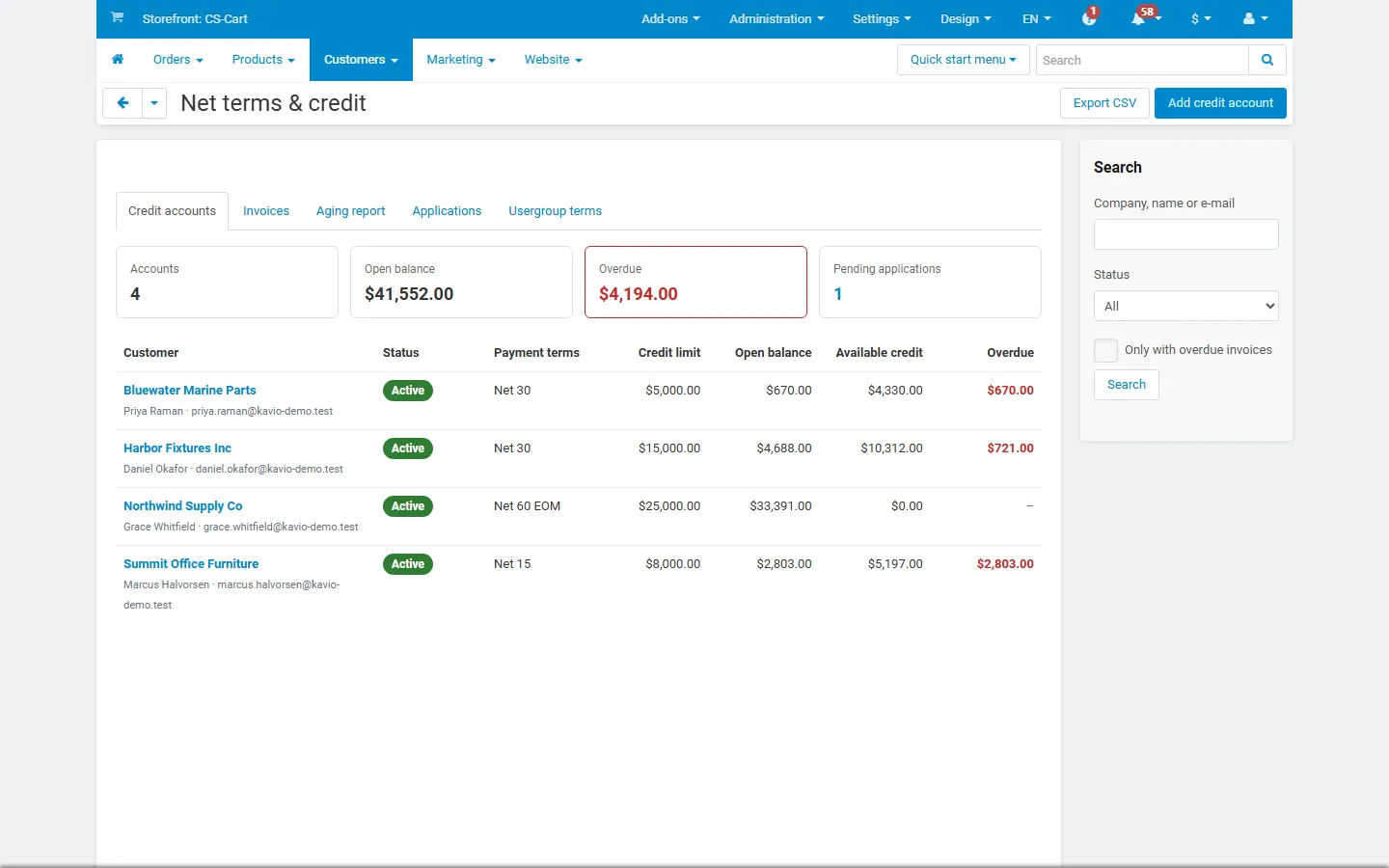
Section titled “The credit account”Customers → Net terms & credit lists all accounts with their status, terms, credit limit, open balance, available credit and overdue amount, with totals, a search, an “only overdue” filter and a CSV export.
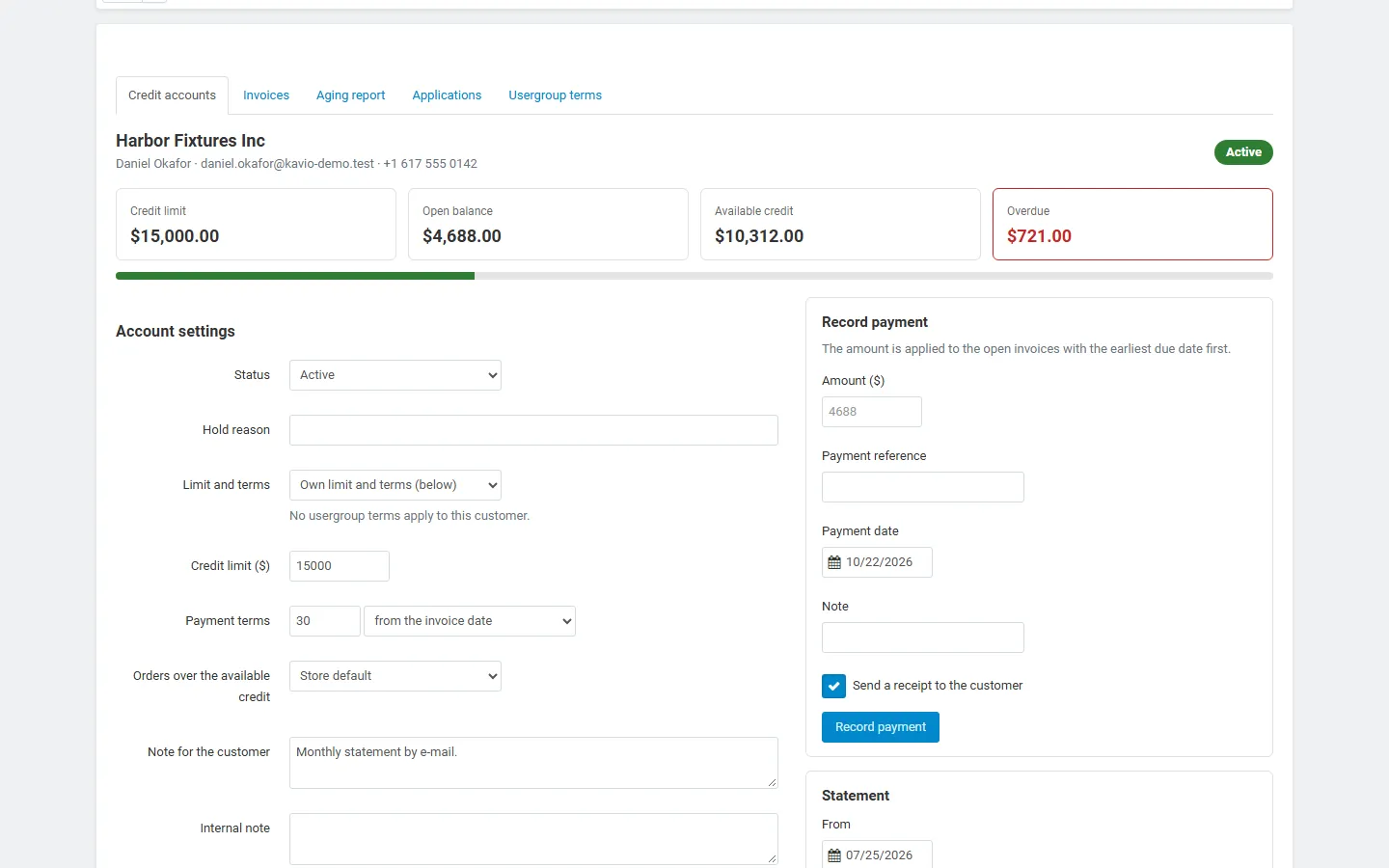
The account page shows the limit, the open balance, the available credit, the overdue amount and a credit meter, and lets you change:
- Status: Active, On hold (no new net-terms orders, set by you, with a reason), On hold (overdue) (set by the automatic hold), Closed. Open invoices stay payable in every status.
- Limit and terms: own limit and terms, or “Follow the usergroup terms”.
- Credit limit and payment terms (days, from the invoice date or after the end of the month).
- Orders over the available credit: store default, block, or credit review.
- A note for the customer and an internal note. Tick “Notify the customer by e-mail” to tell the customer about a status change.
On the right you record an account payment, open a statement and see the application. Below are all invoices of the customer and the account history (every invoice, payment, reminder, status and limit change, with the staff member who made it).
Checkout
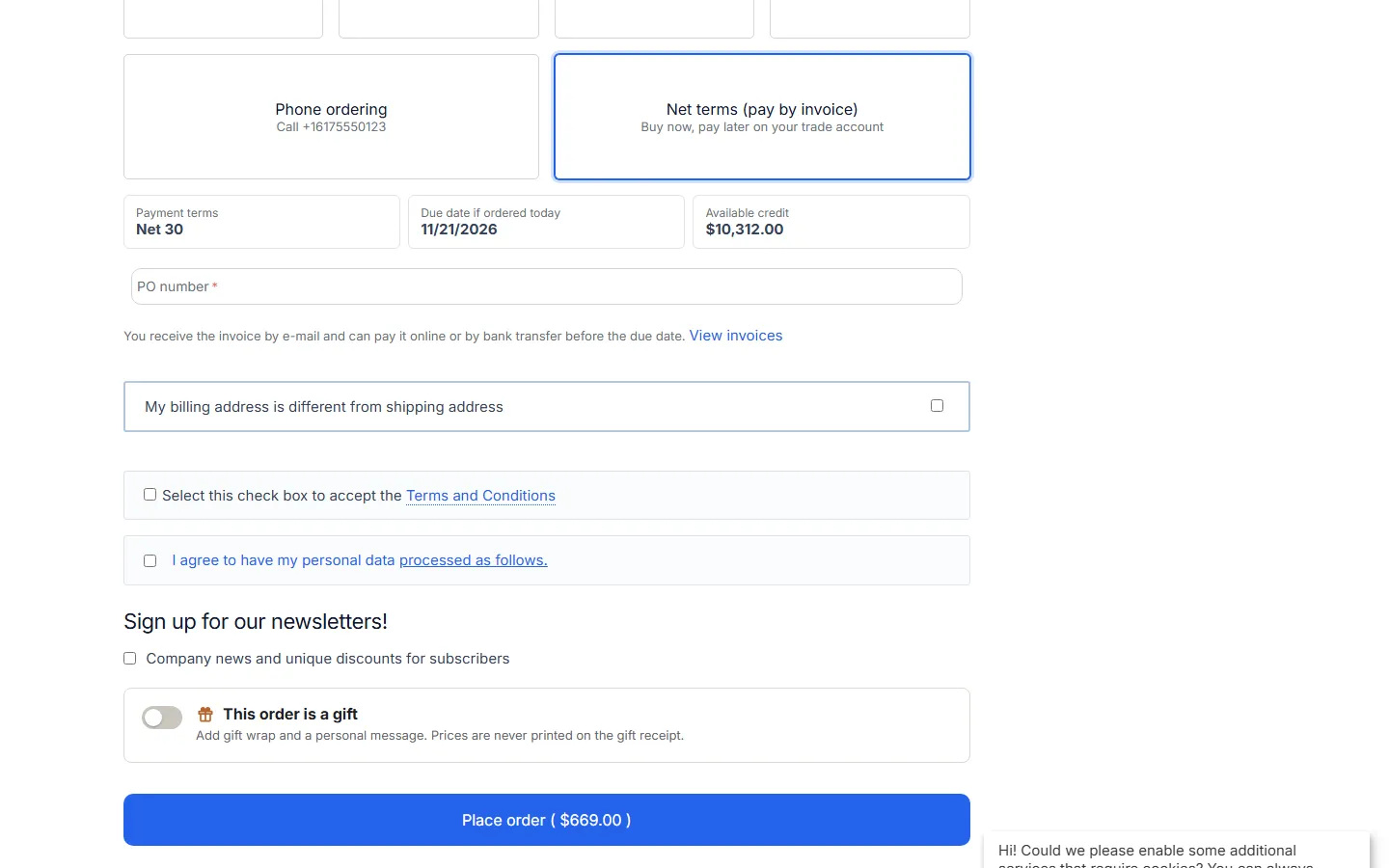
Section titled “Checkout”Customers with an active account and a credit limit see Net terms (pay by invoice) among the payment methods. The form shows the payment terms, the due date if they order today and the available credit, and asks for their PO number.
When the order total is larger than the available credit, the form says so. Depending on the settings the order is blocked (the customer chooses another payment method) or placed for a credit review. Each check runs on the server right before the order is placed, one order per customer at a time, so two orders placed at the same moment cannot use the same credit twice.
The order gets the status Awaiting payment (net terms) (or Credit review), the customer receives the invoice e-mail with the due date and a payment link, and the stock stays reserved. Orders you create in the admin panel (Orders → Add new order) with the Net terms payment method also get an invoice; the credit limit is shown as a warning but not enforced for staff.
Invoices
Section titled “Invoices”Every net-terms order is an invoice. In Multi-Vendor, every vendor sub-order of a checkout is its own invoice with its own total, due date and payment link.
| State | Meaning |
|---|---|
| Credit review | Placed over the available credit; waiting for your decision. Counts toward the open balance. |
| Open | Awaiting payment; due on the due date. Shown as Overdue after the due date. |
| Paid | Fully paid. |
| Cancelled | The order was cancelled, declined or failed; it no longer counts toward the open balance. Changing the order back to an active status reopens the invoice. |
Customers → Net terms & credit → Invoices lists the invoices with filters (open, overdue, credit review, paid, cancelled, all), totals, a search by order number, PO number or customer, and a CSV export.
The order page
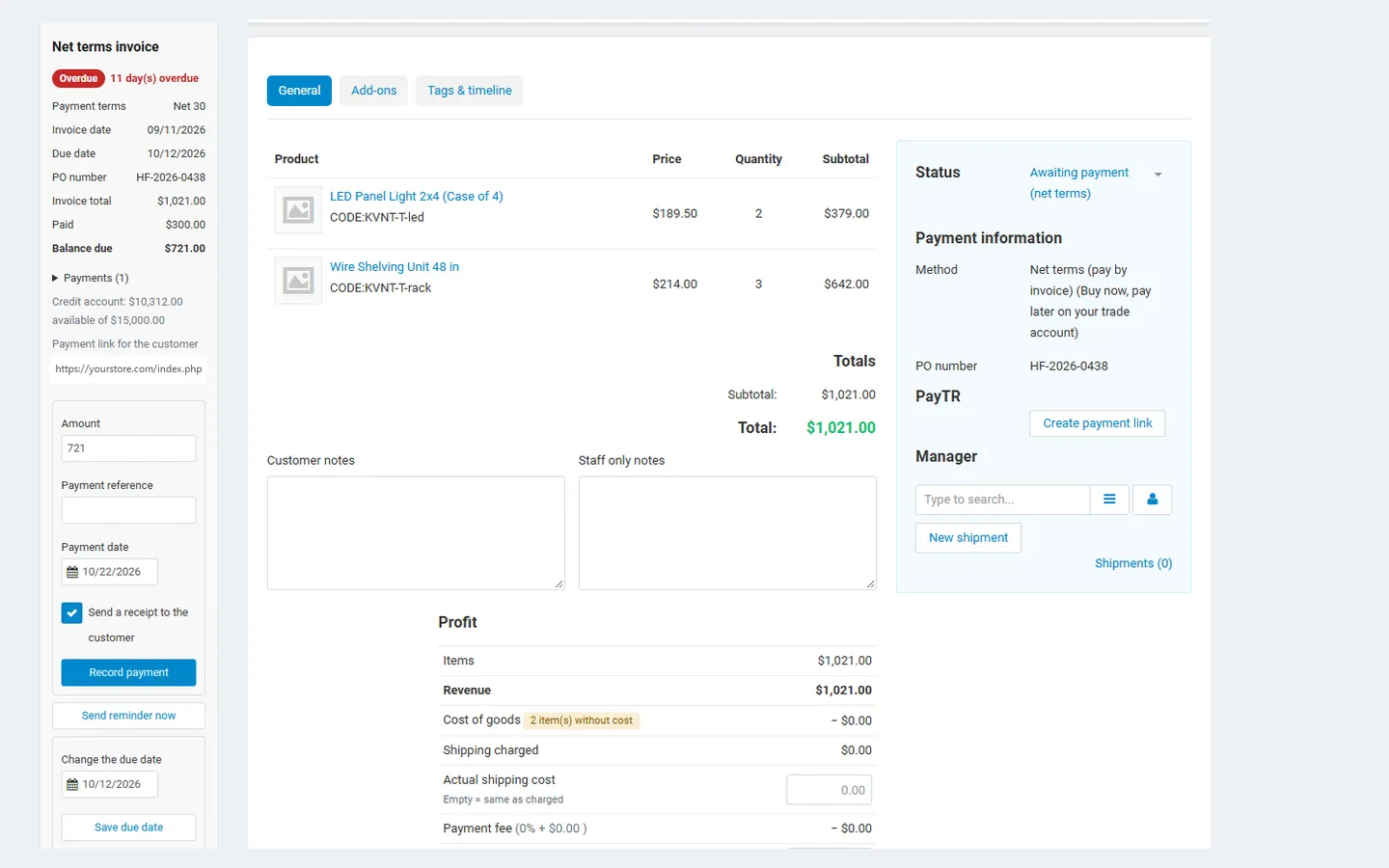
Section titled “The order page”The order page in the admin panel has a Net terms invoice panel in the sidebar: state, terms, invoice and due date, PO number, total, paid and balance, the payments, the customer’s available credit and the payment link to send to the customer. The actions:
- Approve credit / Reject order for orders in credit review (approval starts the terms today and sends the invoice e-mail);
- Record payment with amount (prefilled with the balance), reference, date and an optional receipt e-mail;
- Send reminder now;
- Change the due date (resets the reminders).
Changing the order status yourself also works: a paid status (Processed, Complete) records the rest of the balance as paid; Canceled, Declined or Failed cancels the invoice.
The CS-Cart invoice (Print invoice) shows the payment terms, the due date, the PO number and, for partly paid invoices, the balance due.
Payments
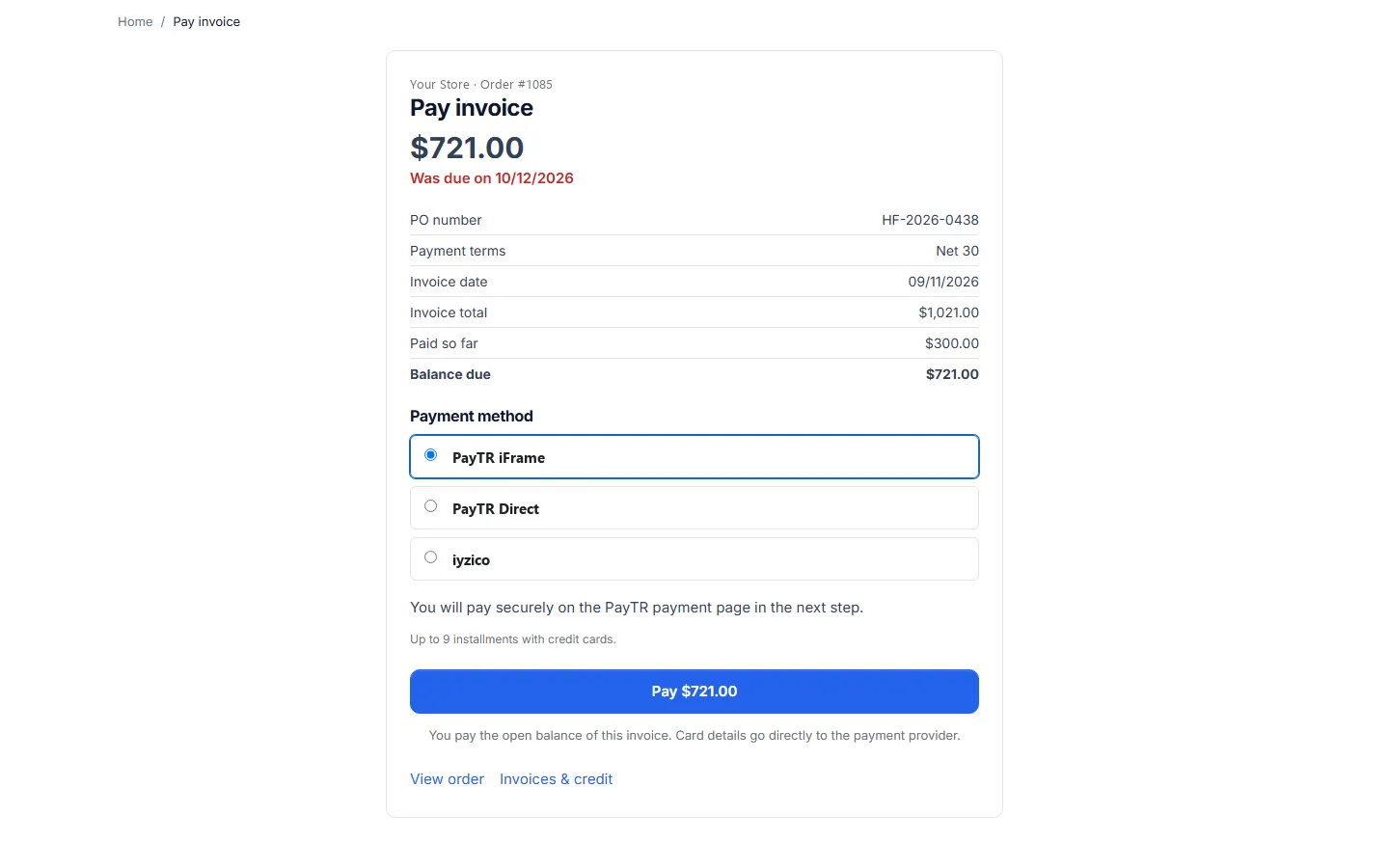
Section titled “Payments”- Online: the customer opens the payment link (from the invoice e-mail, a reminder, the order page or Invoices & credit), chooses one of your online payment methods and pays the open balance of the same order. On success the invoice is paid and the order moves to the paid status; if the payment fails, the order stays Awaiting payment with the Net terms method and nothing is cancelled or restocked.
- Recorded by staff (partial or full): on the order page or, for several invoices at once, on the account page. An account payment is applied to the open invoices with the earliest due date first, and the notice lists how it was split. An amount larger than the open balance is refused.
- By status: setting the order to a paid status records the rest.
Each payment is stored with amount, date, method, reference and note, and every customer gets a receipt (unless you untick it).
Reminders and overdue invoices
Section titled “Reminders and overdue invoices”The schedule (cron job or admin activity, see Configuration):
- sends one reminder a few days before the due date;
- marks invoices overdue the day after the due date, sends the store one summary e-mail and the customer an overdue reminder, then a reminder every N days up to the maximum;
- with the automatic hold on, puts accounts with invoices more than N days overdue on hold and releases them as soon as nothing is overdue that long any more.
Customer account
Section titled “Customer account”My account → Invoices & credit shows the available credit, the limit, the open balance, the overdue amount and a credit meter; the open invoices with due dates, balances and a Pay button; the paid and cancelled invoices; a statement for any period (view, print or save as PDF, CSV) and your payment instructions. Customers without an account see the application form link instead.
The customer’s order page shows the invoice state, terms, due date, PO number, balance and a Pay invoice online button.
Statements
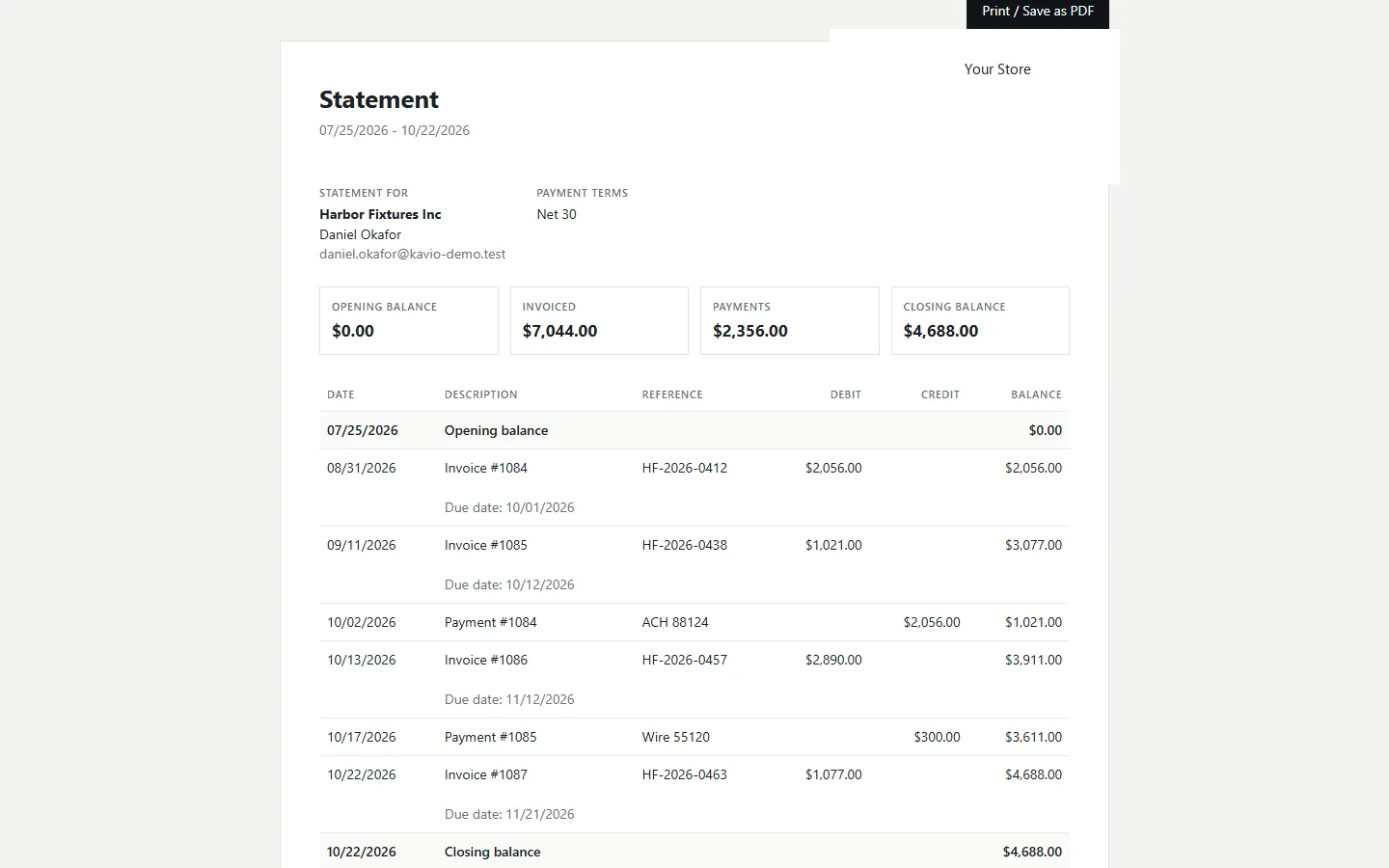
Section titled “Statements”A statement lists, for a period, the opening balance, every invoice (debit) and payment (credit) with a running balance, and the closing balance. Open it from the account page (admin) or from Invoices & credit (customer) and use Print / Save as PDF in the browser, or download the CSV.
Aging report
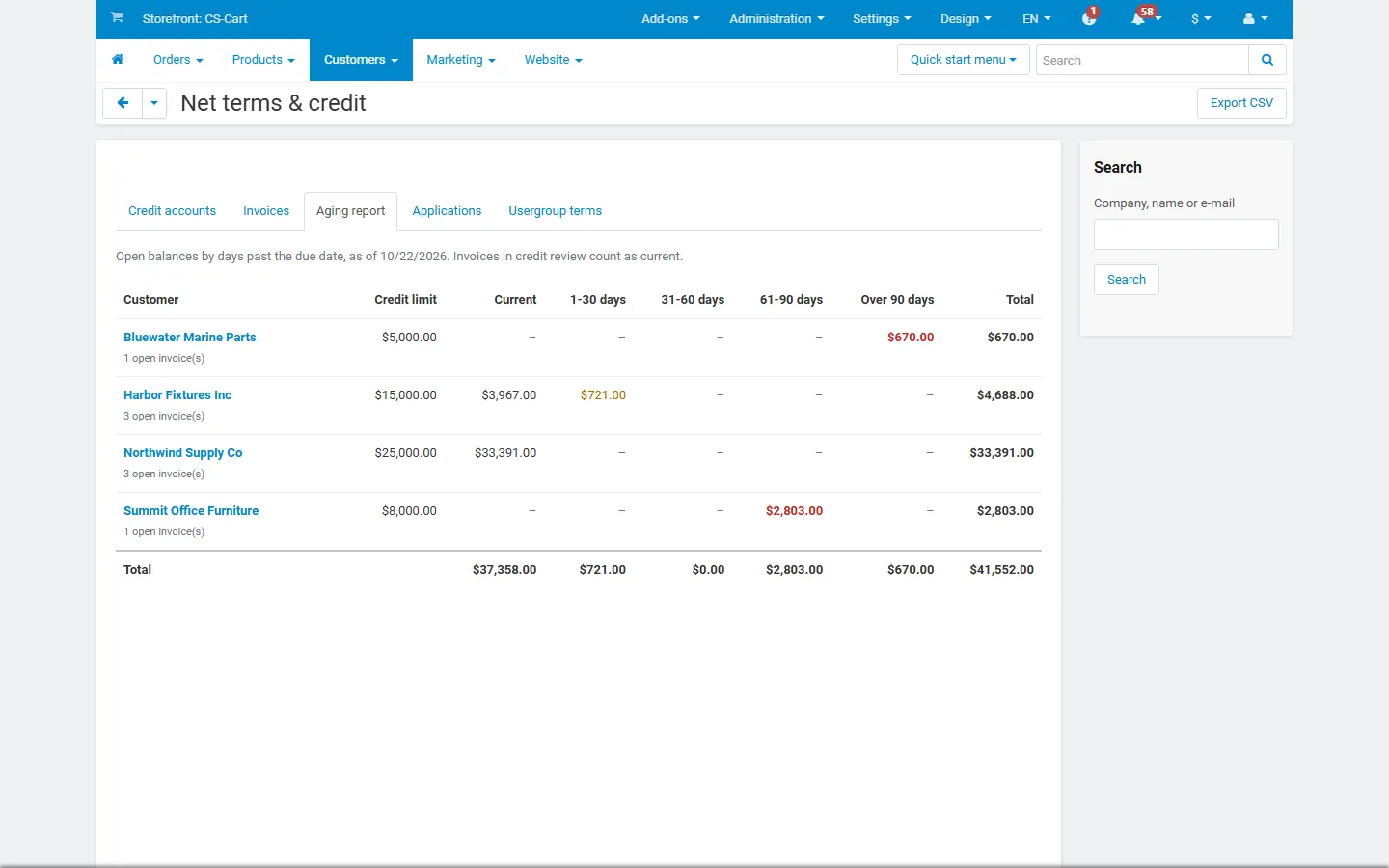
Section titled “Aging report”Customers → Net terms & credit → Aging report splits every customer’s open balance by days past the due date: current (not due yet, or in credit review), 1–30, 31–60, 61–90 and over 90 days, with the credit limit, totals and a CSV export.
Multi-Vendor
Section titled “Multi-Vendor”- The marketplace grants the credit and carries the risk; vendors do not manage credit accounts.
- Each vendor sub-order is its own invoice. The Awaiting payment (net terms) status does not count for vendor payouts, so a vendor’s earnings from a sub-order enter the vendor balance once that invoice is paid (its status changes to Processed).
- Vendors see a read-only invoice panel (state, terms, due date, PO, paid and balance) on their order pages.
- With Direct Customer-to-Vendor Payments, use net terms only if the marketplace collects the invoices (the Net terms method belongs to the marketplace).
CS-Cart (Ultimate) storefronts
Section titled “CS-Cart (Ultimate) storefronts”Credit accounts belong to customers, and customers belong to a storefront (unless customers are shared). When you select a storefront in the admin panel, the lists show that storefront’s customers. Settings can differ per storefront.