

Usage
Overview · Installation · Configuration · Developer notes · FAQ
Signing in
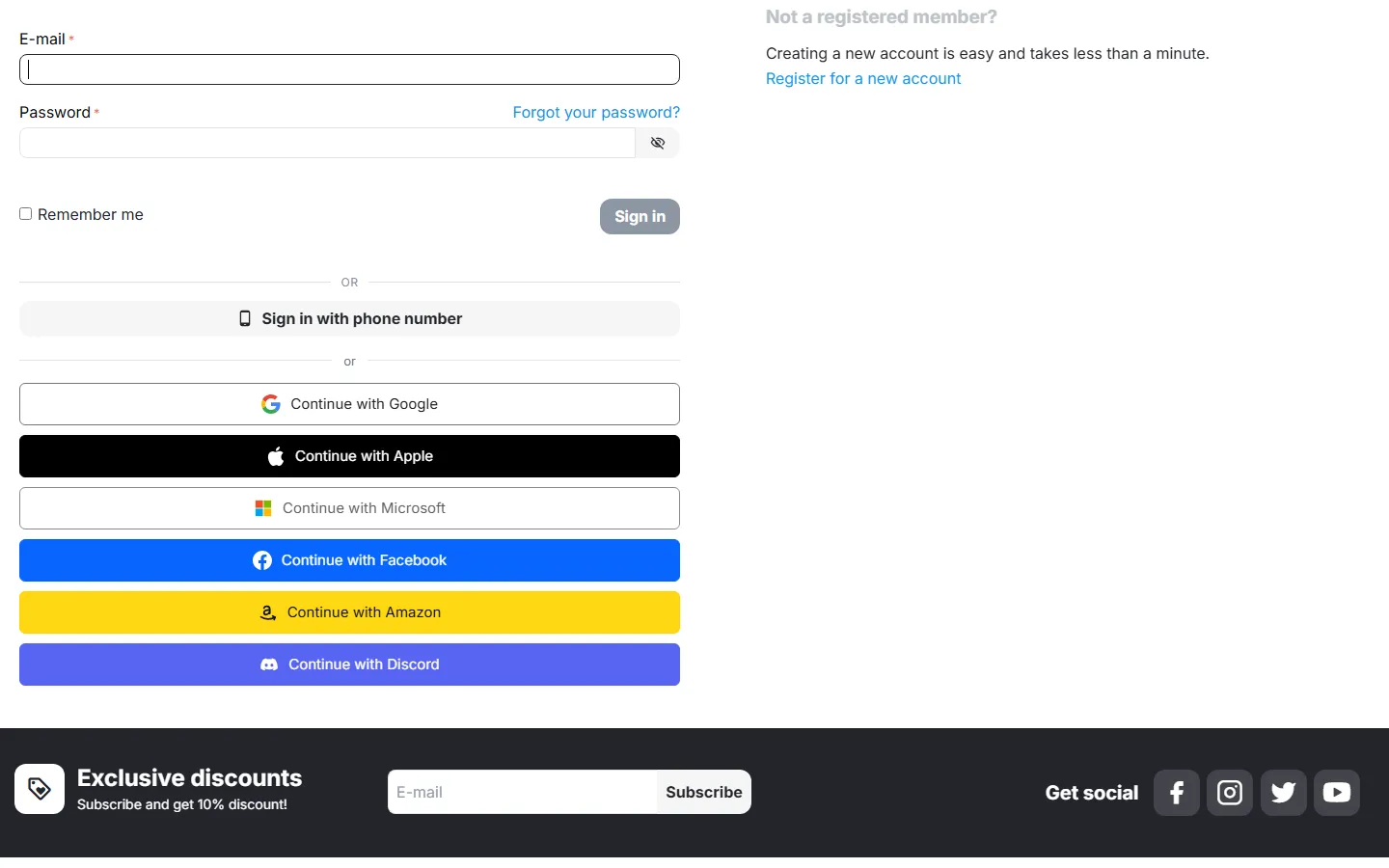
Section titled “Signing in”Every CS-Cart sign-in form gets an or divider and a Continue with … button for each active provider: the sign-in pop-up in the header, the Sign in page and the sign-in at checkout. The registration page shows a Sign up faster with row. A click opens the provider’s own page; after the customer agrees, they are back in your store, signed in, on the page they came from (for example the cart). A guest cart is kept, and orders placed as a guest in the same visit are added to the account, exactly as with a password sign-in.
What happens after the provider confirms the customer:
| Situation | Result |
|---|---|
| The provider account is already connected to a customer | Signed in. |
| The provider confirms an e-mail that belongs to a customer | Connected to that account and signed in. With Ask for the account password once, the customer enters the account password once; after that the provider signs in directly. |
| The provider does not confirm the e-mail (for example Discord without a verified address, or a Microsoft work account), and the e-mail belongs to a customer | The customer enters the account password once (page Connect your account). |
| New customer with a confirmed e-mail | An account is created with the name and e-mail from the provider, and the customer is signed in. |
| New customer without a confirmed e-mail | Page Complete your sign-up: the customer enters the e-mail (and can correct the name), then the account is created. |
| Create accounts for new customers is off | The customer is asked to register first. |
| Your store approves new accounts (Settings → Customers) | The account is created and waits for approval; the customer sees a message. |
Sign in with Apple lets customers hide their e-mail: the store then gets an address at privaterelay.appleid.com that forwards to the customer. Order e-mails reach the customer as long as the e-mail domain of your store is registered in your Apple developer account (Services ID → Sign in with Apple for Email Communication).
Google One Tap
Section titled “Google One Tap”With One Tap on, guests who are signed in to Google in their browser see Google’s prompt in the corner of the page: one click signs them in or creates the account. With Sign returning customers in automatically, a customer who used One Tap before is signed in without a click. Google decides when to show the prompt; after a visitor closes it, Google pauses it for a while. One Tap is not shown at checkout unless you allow it.
Connected accounts
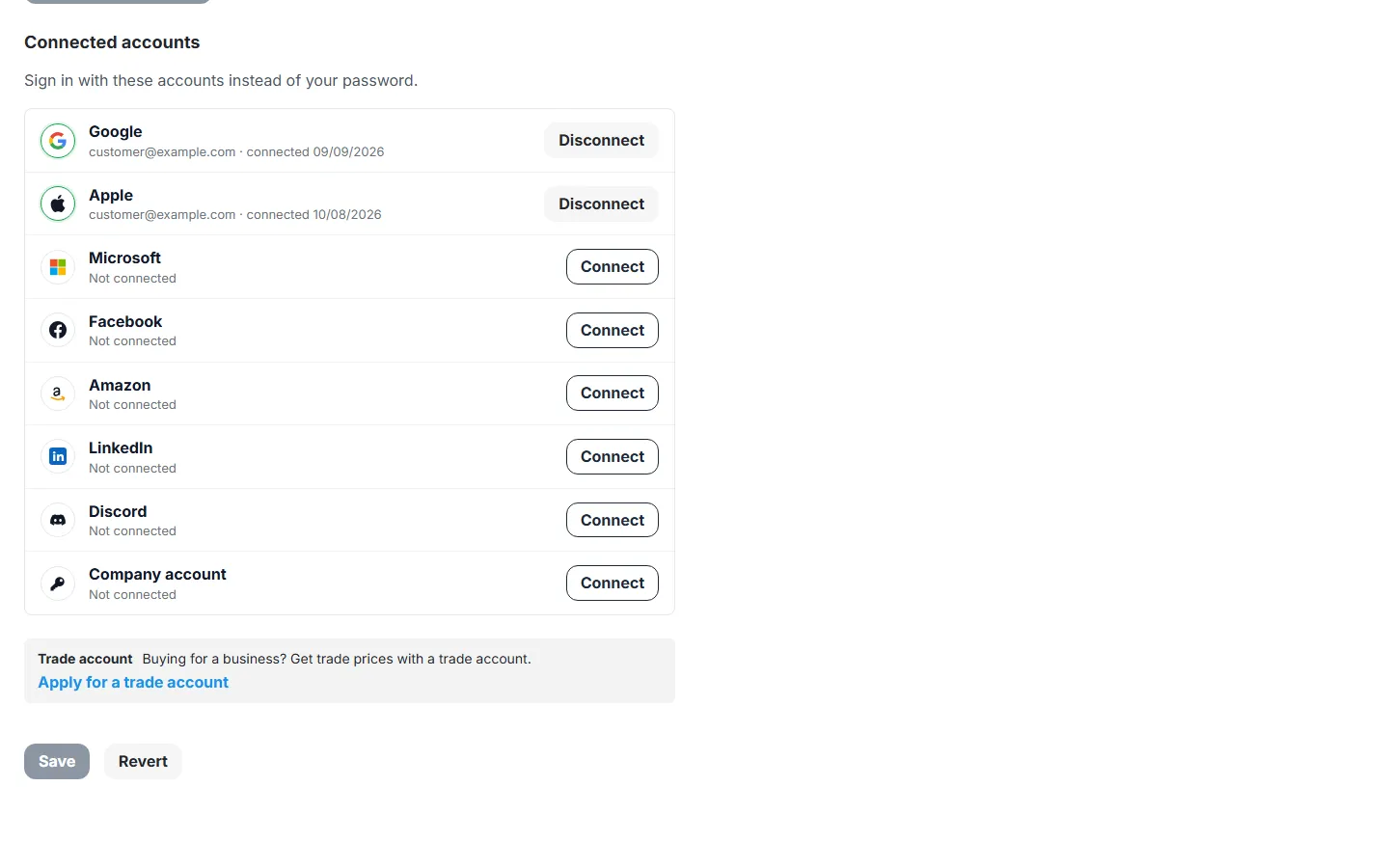
Section titled “Connected accounts”Signed-in customers find Connected accounts on their profile page: every active provider with its state, the connected e-mail and the date. Connect adds a provider; Disconnect removes one after a confirmation. An account that was created through a provider and never got a password can’t remove its last provider: the panel asks the customer to set a password first (in the same profile form).
Vendors (Multi-Vendor)
Section titled “Vendors (Multi-Vendor)”With Social sign-in for vendors on, the vendor panel sign-in page shows the provider buttons. A vendor administrator is signed in when the provider account is connected to their user, or (with Match vendors by confirmed e-mail) when the provider confirms the administrator’s e-mail. Vendors connect and disconnect providers in their profile (Add-ons tab of the profile page in the vendor panel). Vendors never see the provider settings or the statistics. Administrators of the marketplace are never signed in through a provider.
Statistics
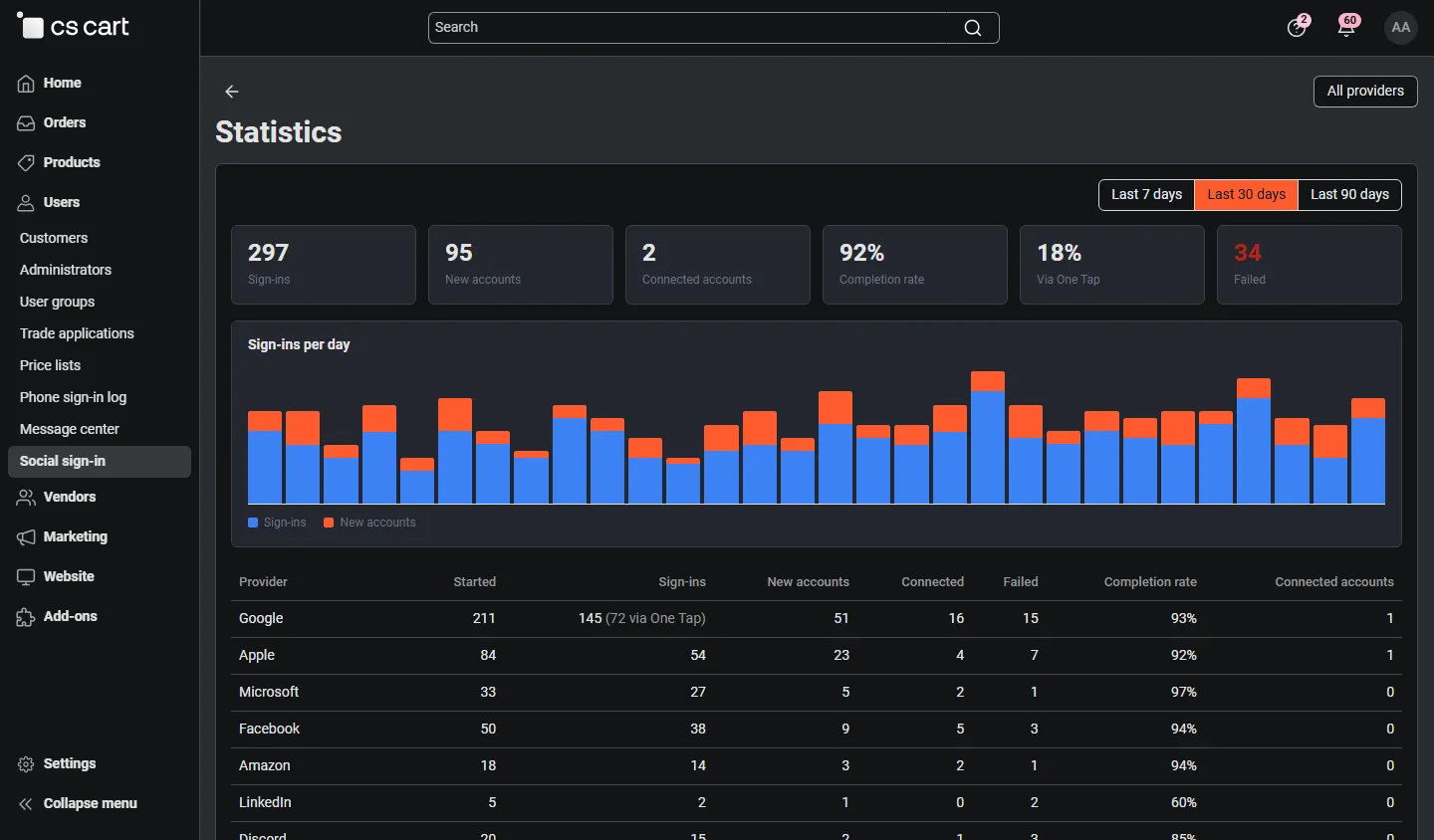
Section titled “Statistics”Customers → Social sign-in → Statistics (in 4.21 the menu is called Users) shows, for the last 7, 30 or 90 days: sign-ins, new accounts, connected accounts, the completion rate (finished sign-ins out of started ones), the share of One Tap and the failed sign-ins; a chart per day; a table per provider; the latest events with the customer; and why sign-ins failed (for example Cancelled by the customer, Other browser or Token for another app). The statistics store no tokens or e-mail addresses, only the event, provider, customer and reason.
Ultimate and Multi-Vendor
Section titled “Ultimate and Multi-Vendor”- CS-Cart Ultimate: buttons, account settings and providers can be set per storefront. When customers are not shared between storefronts, a provider account is connected per storefront too.
- Multi-Vendor: customers sign in on the marketplace storefront as usual; the vendor panel sign-in is optional (see above).
Moving from the built-in Social login
Section titled “Moving from the built-in Social login”Import from Social login on the providers page copies the Google and Facebook keys into providers that have no keys yet (they stay hidden until you show them) and connects the customers who used those buttons, so they can sign in with Social Login Pro right away. The built-in add-on’s data is only read. Show the new buttons, then switch off the built-in providers. X (Twitter) and Telegram stay with the built-in add-on.