

Usage
Size charts
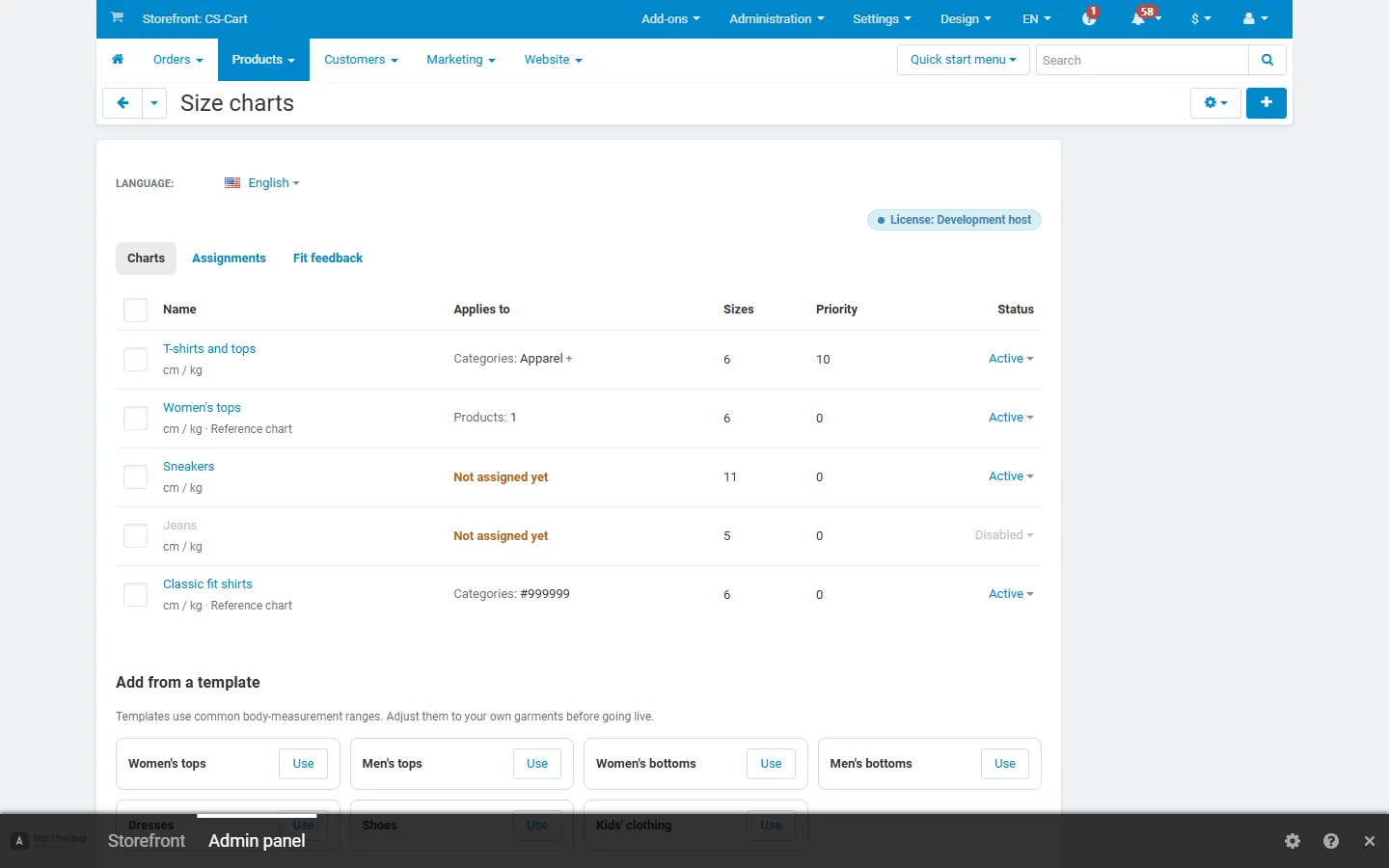
Section titled “Size charts”Go to Products > Size charts. The list shows every chart with what it applies to, the number of sizes, the priority and the status. The sub-navigation leads to Assignments and Fit feedback.
Start from a template
Section titled “Start from a template”Under Add from a template, click Use next to women’s tops, men’s tops, women’s bottoms, men’s bottoms, dresses, shoes or kids’ clothing. The chart opens on its Assignments tab. The templates use common body-measurement ranges: adjust them to your own garments before you go live.
Edit a chart
Section titled “Edit a chart”- General: name (the window title), units of the values (cm/kg or in/lb), Find my size on or off, Reference chart (offer it in “A size I know”) and status.
- Table: one line per size, from the smallest to the largest. Choose a measurement for each column (chest, bust, underbust, waist, hips, height, weight, inseam, neck, sleeve, foot length, head) or Custom (text) for columns such as EU, US or UK sizes. Measurement cells take a number (
38) or a range (86-90; decimals with a dot or comma). Aliases are other names of a size (38,Medium): they connect the chart with your option or variation values. Use the arrows to reorder sizes and columns. - Paste a table: paste lines copied from a spreadsheet (comma, semicolon or tab separated) with a header line such as
Size,Chest [chest],Waist [waist],EU [eu]. Saving replaces the table. - How to measure: a text (with formatting) and an optional illustration. Without an image, a simple figure with the chart’s measurements is shown. Measuring tips for each measurement column are added automatically.
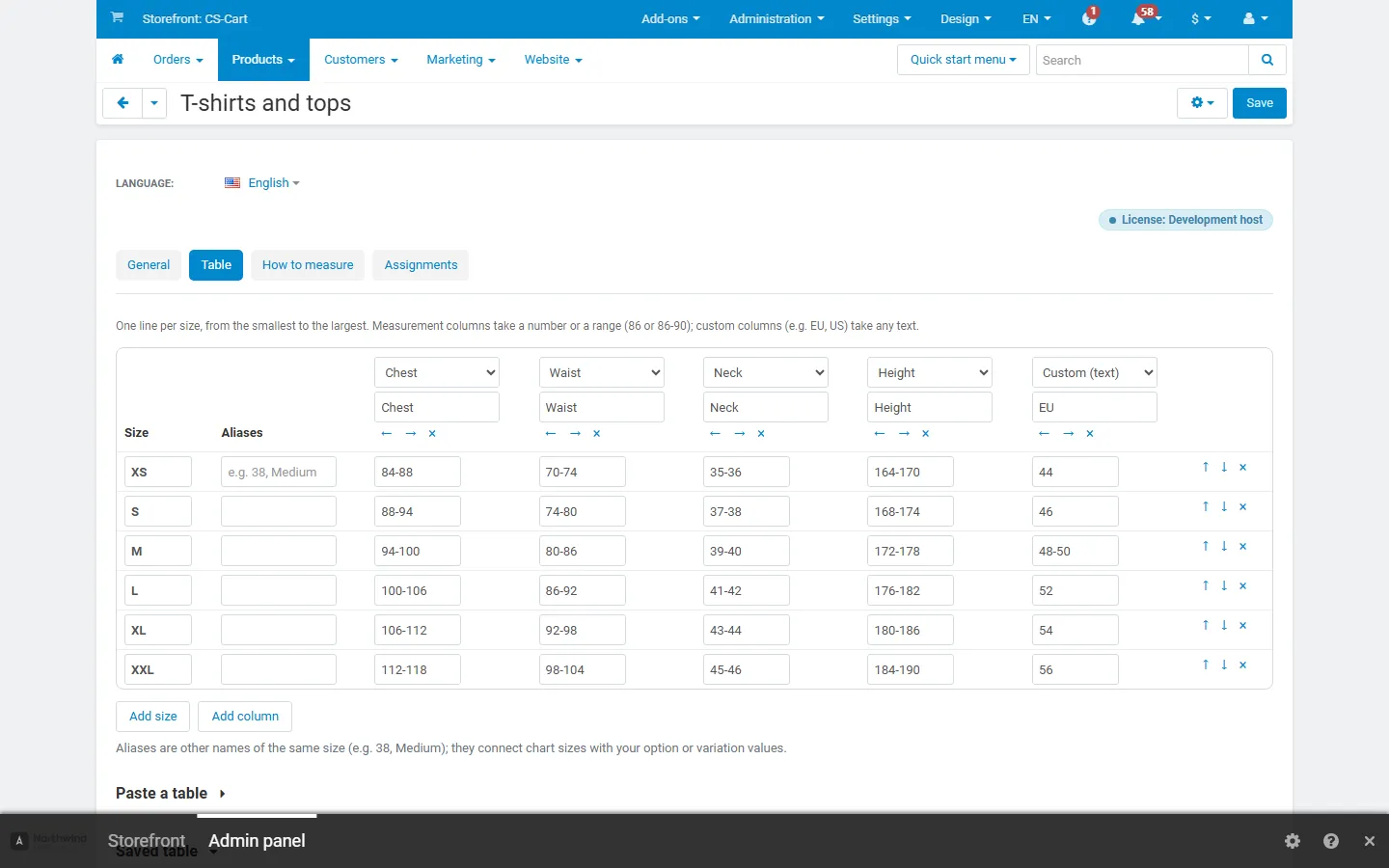
Values that are not a number or a range are skipped with a warning, so you can fix them.
Assignments
Section titled “Assignments”On a chart’s Assignments tab:
- Categories (with or without subcategories), Brands and, for the marketplace administrator, Vendors. A chart applies to a product when every condition you fill in matches: categories AND brands AND vendors. Within one condition, any of the selected values is enough.
- Products: these products always use this chart.
- Priority: when several charts match a product, the highest priority wins. On equal priority, the chart with more matching conditions wins, then the one with the deeper category.
On a product’s Size guide tab (product editor) choose Automatic (the rules decide; the tab shows which chart they pick), a specific chart, or No size guide.
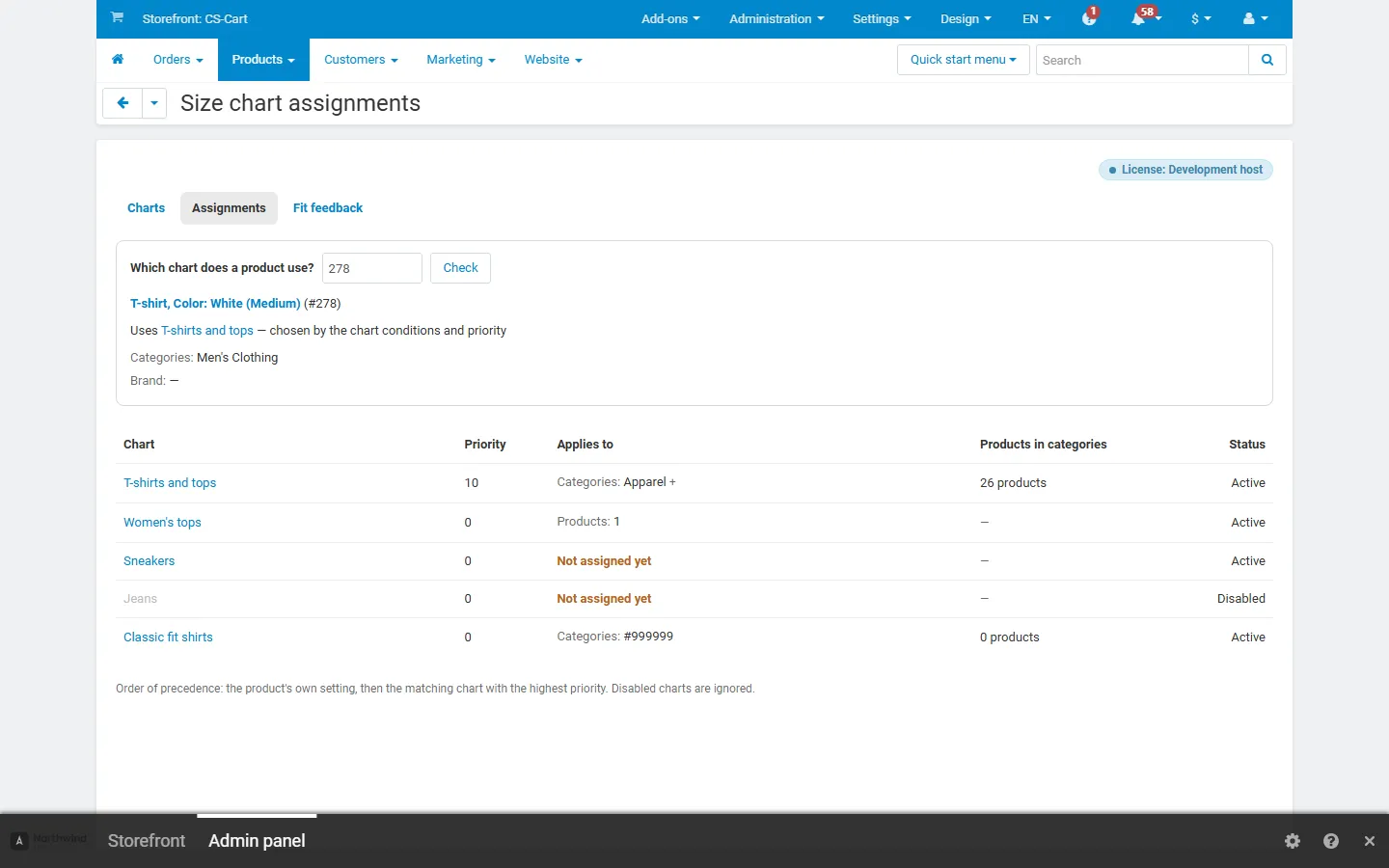
Products > Size charts > Assignments lists every chart with its conditions and the number of products in its categories. Enter a product ID under Which chart does a product use? to see the chart and the reason.
On the storefront
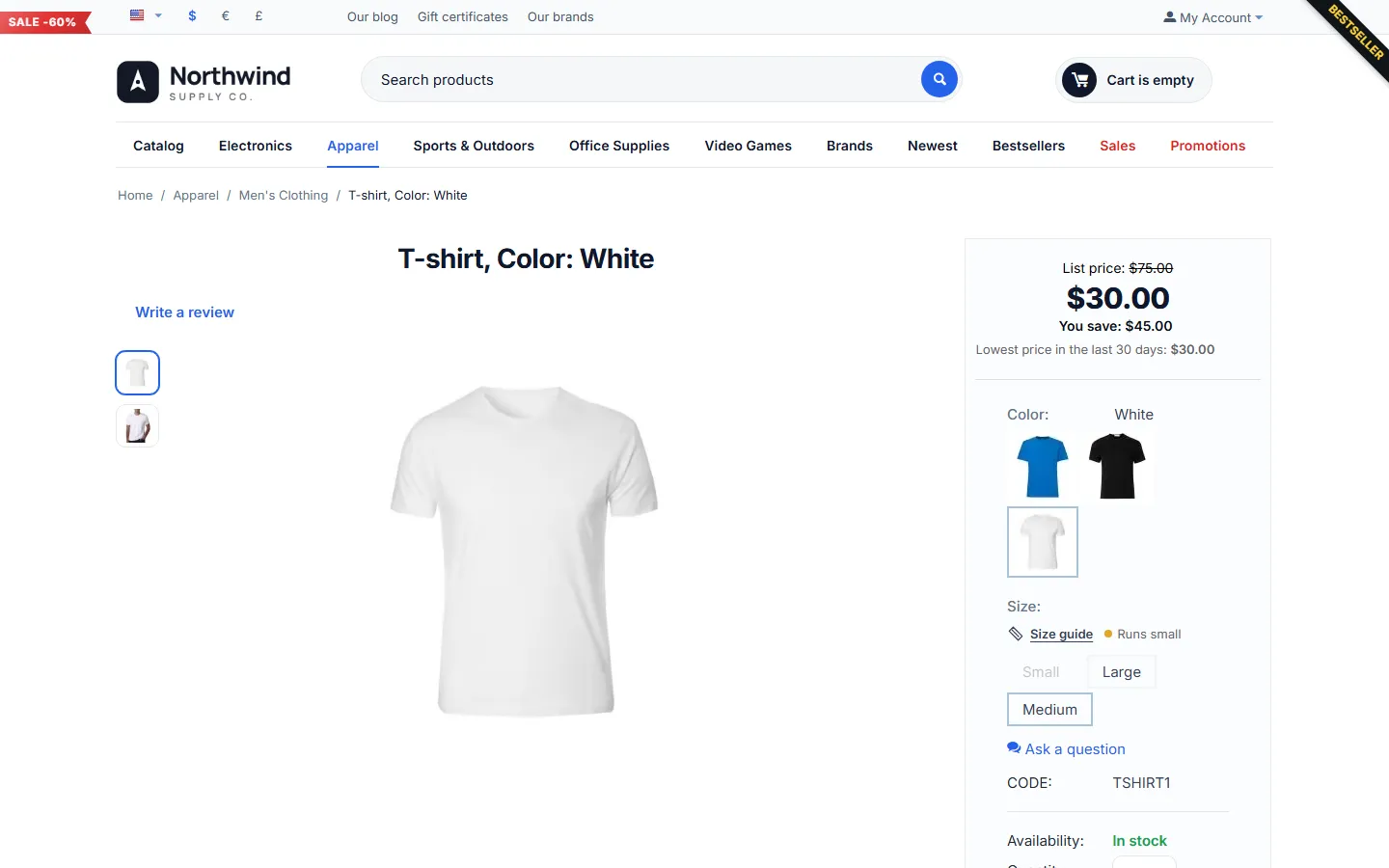
Section titled “On the storefront”On the product page and in quick view, a Size guide link appears next to the size selector (the option or variation feature named in Size option names). A fit hint (“Runs small”) is shown beside it when the product has enough approved feedback.
The link opens a window with three tabs:
- Size chart: the table with a cm/in switch. The recommended size is highlighted.
- How to measure: your guide, the illustration and measuring tips.
- Find my size: see below.
On phones the window opens full-screen. It can be used with the keyboard (Tab, arrow keys between tabs, Esc to close) and screen readers.
Find my size
Section titled “Find my size”Shoppers enter the measurements the chart contains (in cm/kg or in/lb) and click Find my size, or switch to A size I know and pick the size they wear in a reference chart (another brand or fit). The answer shows:
- the recommended size and a confidence badge: Great match (every measurement within that size), Good match (close, or between two neighbouring sizes) or Rough estimate (far from the chart or outside its range);
- short advice: between two sizes the larger one is suggested for a relaxed fit (the smaller one when buyers say the item runs large); near the top of a size, items that run small get a “consider one size up” note;
- a Select size button that picks that size in the product’s selector.
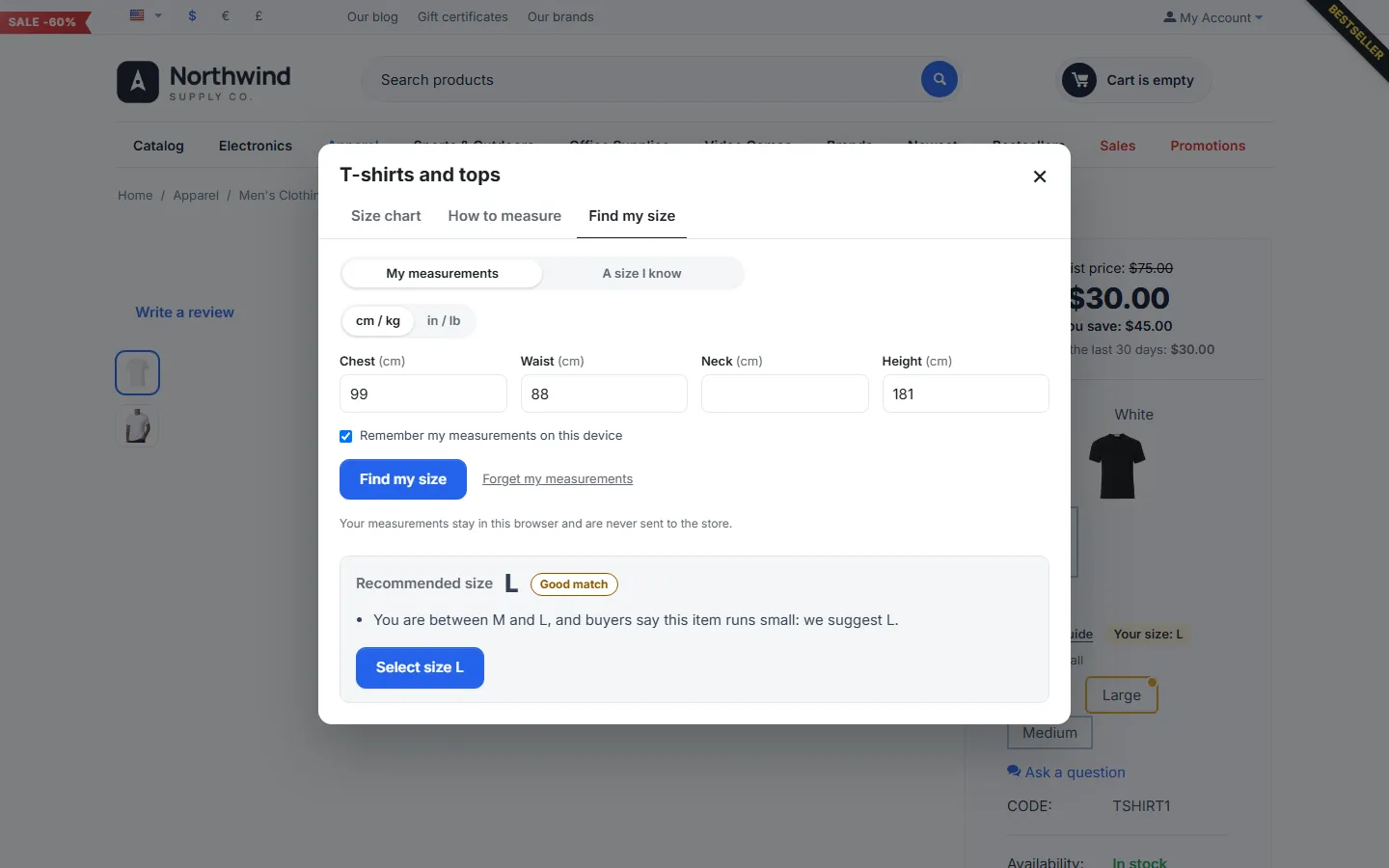
With Remember my measurements on this device checked, the values are saved in the shopper’s browser only. On the next product page the recommended size is shown as “Your size: M” next to the link and highlighted in the selector. Forget my measurements deletes them.
Fit feedback
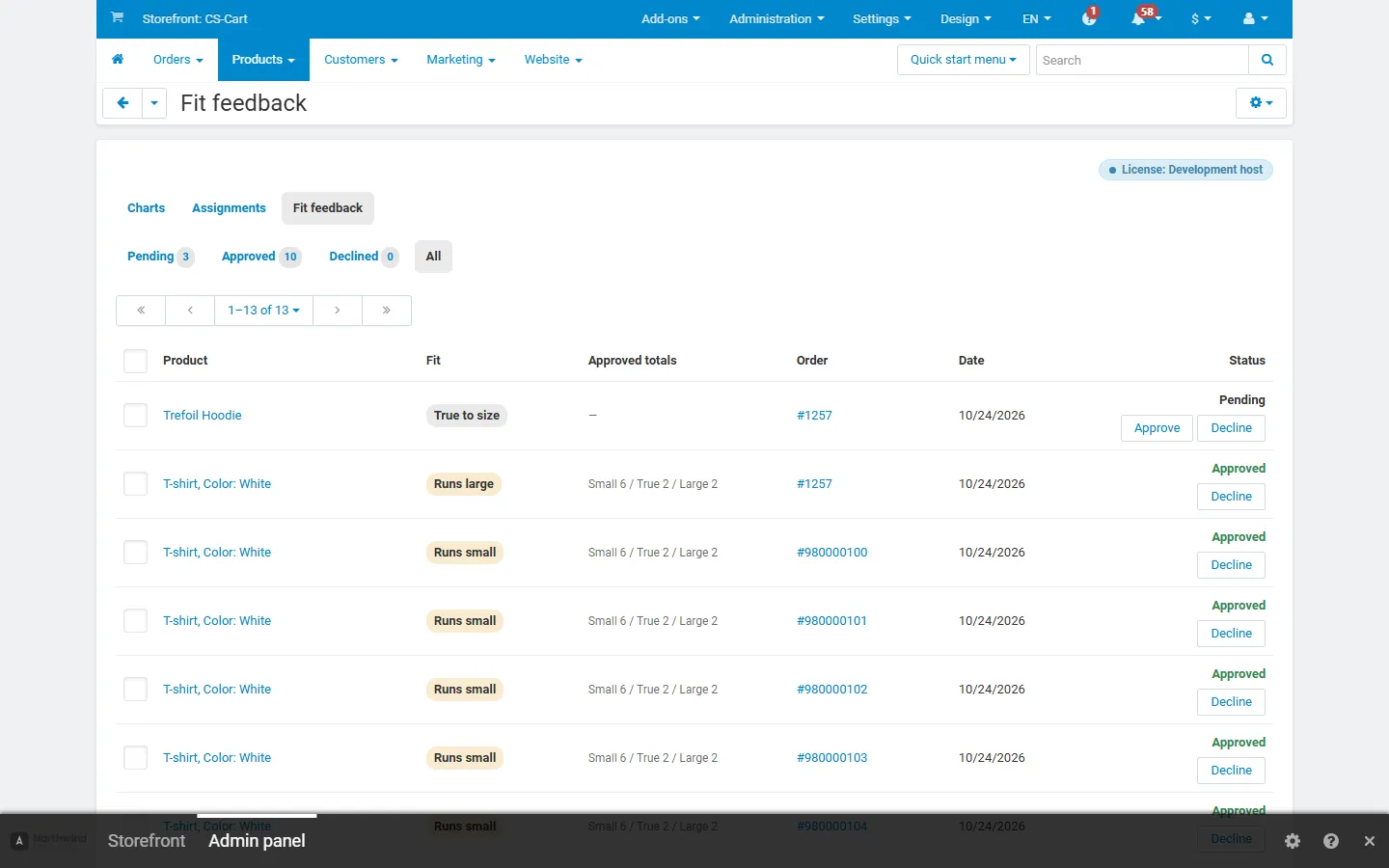
Section titled “Fit feedback”Customers see How did it fit? with Runs small / True to size / Runs large below each product with a size guide on their order page (for the order statuses and period set in the settings). While an answer is pending they can change it.
Moderate the answers under Products > Size charts > Fit feedback: filter by status, approve or decline one by one or in bulk. The Approved totals column shows the totals the product page uses.
CSV import and export
Section titled “CSV import and export”- Export: gear menu > Export all charts (CSV), or Export CSV in a chart’s menu.
- Import: Import charts from CSV at the bottom of the chart list. One line per size with the columns
Chart,Unit(metric or imperial),Size,Aliasesand one column per measurement, written asLabel [key](for exampleChest [chest],EU [eu]). Charts are matched by name: an existing chart gets the new table, unit and column labels; a new chart is created without assignments.
Vendor panel (Multi-Vendor)
Section titled “Vendor panel (Multi-Vendor)”When vendors may manage charts, they see Products > Size charts with their own charts only, the templates, CSV import and export, and the Assignments overview for their products. Their products’ Size guide tab lists their charts.