

Usage
Overview · Installation · Configuration · Developer notes · FAQ
Everything is in Products → Catalog quality, on three tabs: Dashboard, Issues and Rules (administrators only).
Click Scan now on the dashboard. The catalog is checked in batches (200 products per step by default) with a progress bar; on a large catalog you can leave the page, and the next Scan now or the cron continues the same scan. Cancel stops it; the results checked so far are kept. At the end the add-on compares names, codes and descriptions across the catalog (duplicates), recalculates the scores and adds a point to the score trend.
Between full scans the results stay current on their own:
- a product saved in the admin panel or the vendor panel (also by imports and bulk editing) is re-checked when the page has been saved; when many products are saved at once, the first 25 are re-checked at once and the rest by the next cron call;
- a status changed in the product list is re-checked the same way;
- products whose stock changes (orders, stock updates) are re-checked by the next cron call, so checkout never waits;
- a deleted product leaves the results at once.
Only products in the audited statuses (Active and Hidden by default) are checked; others leave the results with the next check.
Dashboard
Section titled “Dashboard”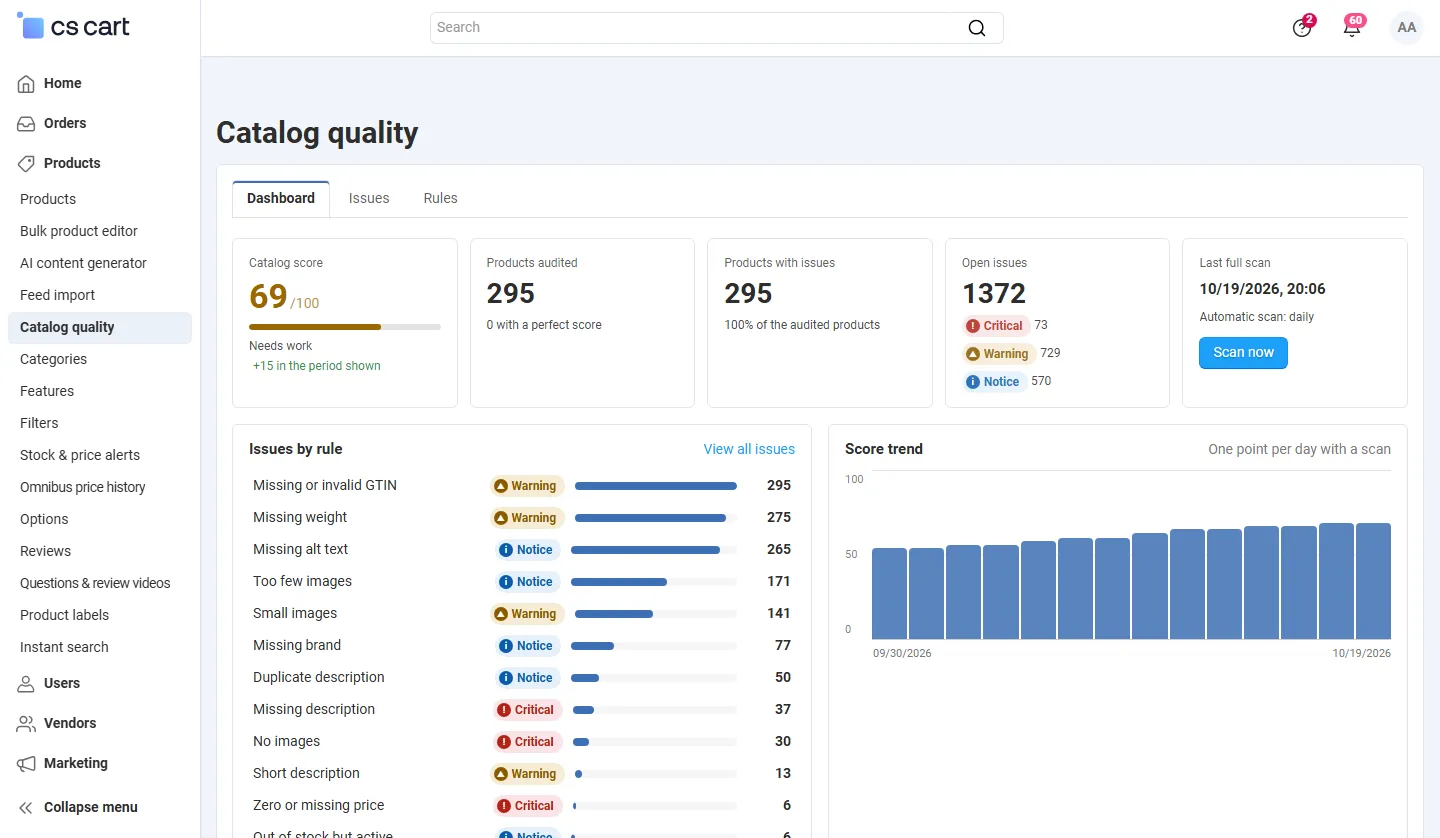
- Catalog score: the average product score with Good (80 and more), Needs work (50 – 79) or Poor, and the change in the period of the trend.
- Products audited and how many have a perfect score, Products with issues and their share.
- Open issues by severity; each severity links to the filtered issue list.
- Last full scan, the automatic scan interval, products waiting for a re-check, and Scan now.
- Issues by rule: how many products break each rule, with the severity. Click a rule for its issues.
- Score trend: one point per day with a scan (hover a bar for the date, score and counts).
- Categories that need attention: the ten main categories with the most open issues, with their score.
- Vendors by score (Multi-Vendor) or Storefronts by score (Ultimate with several storefronts): lowest first.
Issue list
Section titled “Issue list”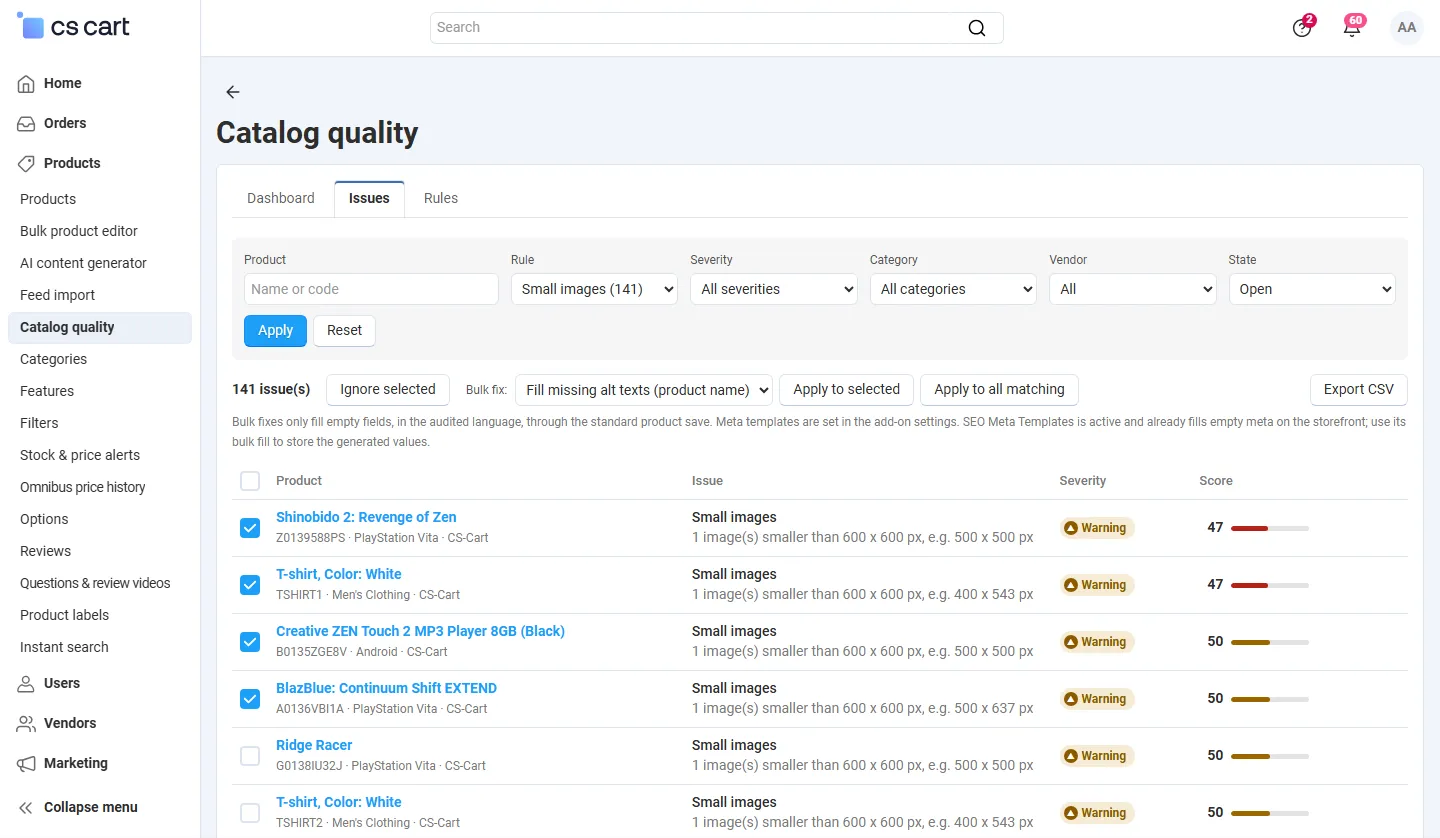
The list shows one row per product and rule, critical issues and low scores first: the product (linked to its edit page) with code, category and vendor, the rule with details (for example 1 image(s) smaller than 600 x 600 px, e.g. 450 x 450 px or 3 products share this code), the severity and the product score.
- Filters: product name or code, rule (with counts), severity, category, vendor or storefront, and state (Open, Ignored, All).
- Ignore: an issue you accept (for example a product that really has no brand) can be ignored from the row menu, or for many rows with Ignore selected. Ignored issues no longer count in the score and stay ignored after later scans. Show them with the state Ignored and bring them back with Restore.
- All issues of this product (row menu) lists every issue of one product.
Bulk fixes
Section titled “Bulk fixes”Choose a fix in Bulk fix, then Apply to selected (the ticked rows) or Apply to all matching (all products matching the filters that have the issue, 200 per click):
| Fix | What it does |
|---|---|
| Fill empty meta titles | Fills the empty page title from the meta title template (default [product] | [store]). |
| Fill empty meta descriptions | Fills the empty meta description from the meta description template (default: the short or full description as plain text, cut to 160 characters). |
| Generate missing SEO names | Creates the SEO name from the product name, as the core SEO add-on does when a product is saved. |
| Fill missing alt texts (product name) | Sets the product name as alt text of images without one (numbered when there are several). |
Fixes write only empty fields, in the audited language, and use the standard product save, so other add-ons (and, for vendors, premoderation) see the change as a normal edit. The products are re-checked right after. Other issues have no automatic fix: open the product from the list.
When the SEO Meta Templates add-on is active, it already fills empty meta on the storefront; the meta rules are skipped by default and its own bulk fill stores the generated values.
CSV export
Section titled “CSV export”Export CSV downloads the issue list with the current filters: product ID, code, name, rule, severity, details, score, category, vendor or storefront, state and the edit URL. The file opens in Excel and other spreadsheet programs (UTF-8 with BOM; values that look like formulas are prefixed with an apostrophe).
Weekly digest
Section titled “Weekly digest”With Send the weekly digest on, the cron e-mails the score, the change since last week, products with issues, critical issues and the five most common issues on the chosen weekday. Use Send a test digest to me in the dashboard’s gear menu to see it. In Multi-Vendor, vendors can receive their own digest.
Multi-Vendor
Section titled “Multi-Vendor”- Vendors see Products → Catalog quality with the dashboard and the issue list of their own products only, can scan their products, ignore issues and use the bulk fixes on their products. The rules and the settings are for administrators.
- Minimum score to activate a product: when set, a vendor cannot activate a product with a lower score. The product stays Disabled and the vendor sees The product was saved as Disabled: its quality score is 46, the marketplace requires at least 70 to activate a product with a link to its issues.
- Administrator access follows the privileges: viewing needs View catalog, changes need Manage catalog. With the Vendor privileges add-on, vendor usergroups follow the same privileges.
Ultimate (several storefronts)
Section titled “Ultimate (several storefronts)”Products belong to the storefront that owns them. With a storefront selected, the pages show that storefront’s products; with All storefronts, all products and a table of storefronts by score. Duplicates are compared within a storefront.
License
Section titled “License”Without a valid license, scans, automatic re-checks, bulk fixes, the weekly digest and the minimum score for vendors stop. The dashboard, the issue list, ignoring issues and the CSV export keep showing the last results. See License.