

Usage
Overview · Installation · Configuration · Developer notes · FAQ
Applying for a trade account
Section titled “Applying for a trade account”Buyers reach the form from the Trade account link in the account menu, the note on the registration page, the panel on the profile page, the optional Trade account call to action block or any link to index.php?dispatch=kv_b2b_registration.apply.
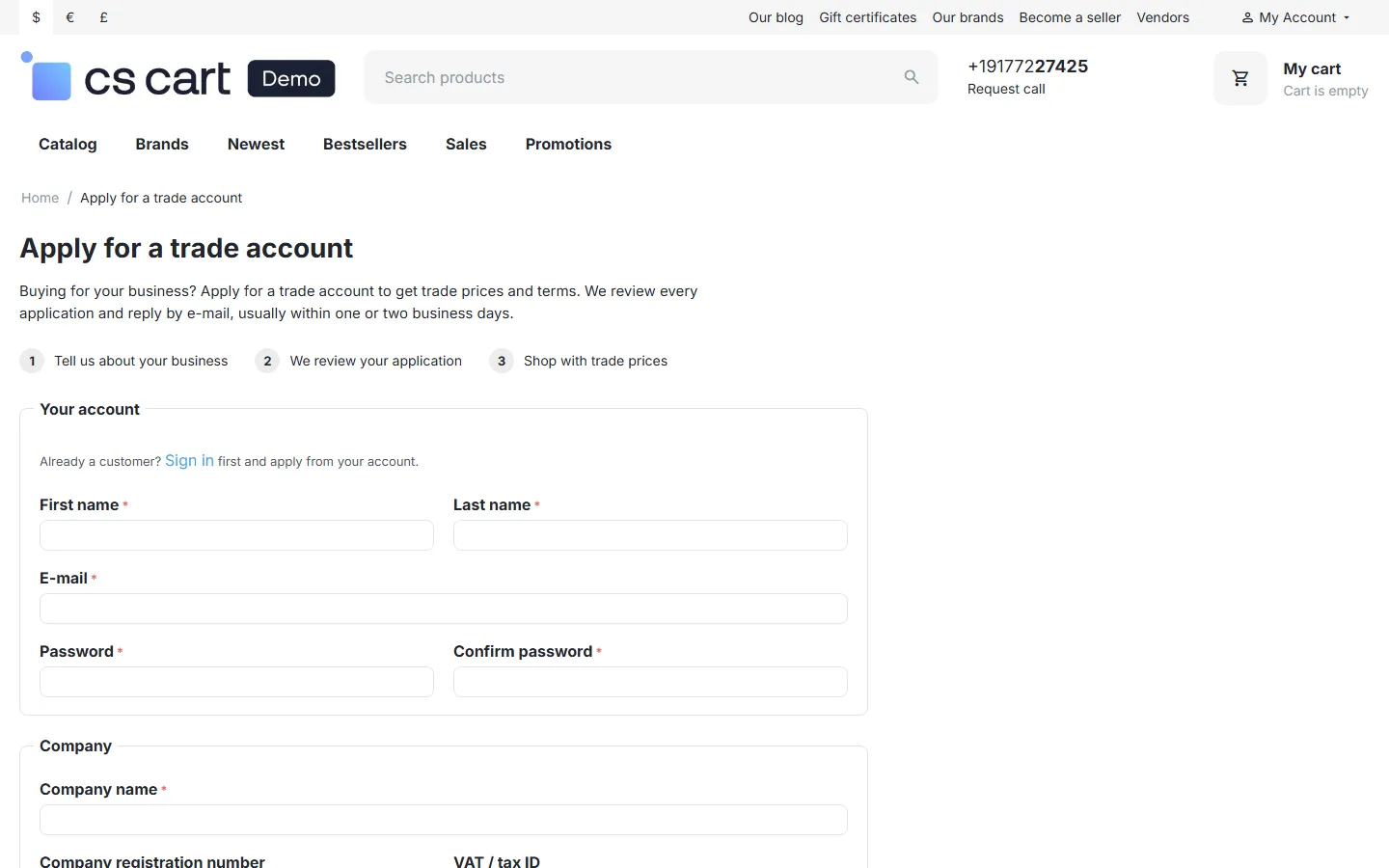
- New visitors fill in their account details (name, e-mail, password) together with the company details. The customer account is created and signed in at once (or activated on approval, if your store approves new accounts).
- Signed-in customers see the form prefilled with the company, phone, website and billing address of their profile.
- The VAT / tax ID is checked with VIES as soon as it is typed; the result appears under the field. The final check runs when the form is sent.
- Documents: choose the document type and the file; + Add another document adds more rows up to the limit.
- If something is wrong (a required field, a file type, an invalid VAT number in strict mode), the form shows the message and keeps everything typed except the password.
After sending, the applicant gets a confirmation e-mail and lands on the Trade account page, which shows the status.
Reviewing applications
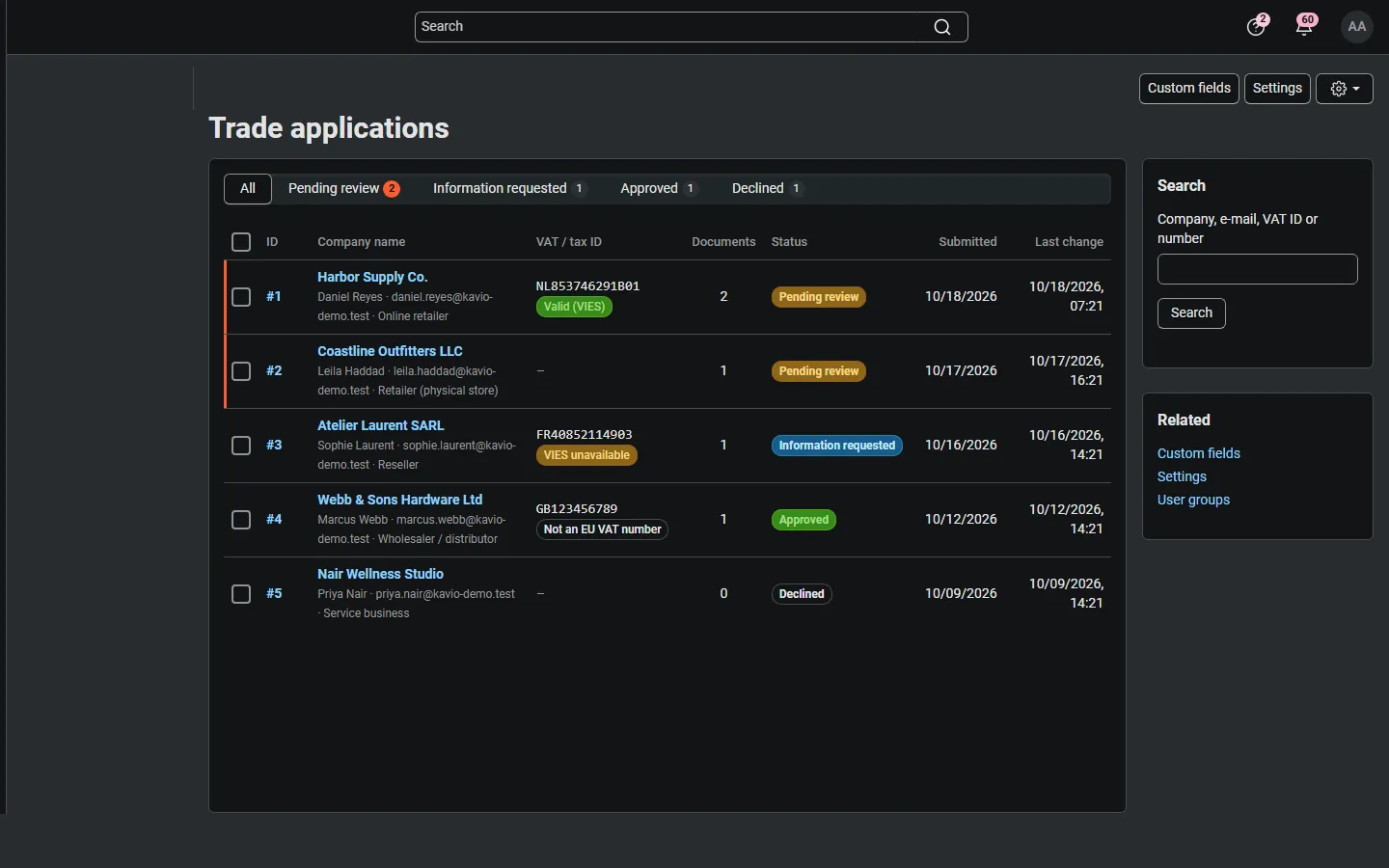
Section titled “Reviewing applications”Customers → Trade applications lists every application with company, applicant, VAT number and VIES result, number of documents and status. Tabs filter by status (pending applications are counted in orange); search finds company names, e-mail addresses, VAT and registration numbers or the application number.
The application page shows the applicant (with a link to the customer profile), all company details and custom answers, the VIES result with the registered name and address (Check again with VIES re-checks the number), the documents (download or delete), the history of every step and internal notes that the applicant never sees.
Decisions
Section titled “Decisions”- Approve: tick the user groups (the groups from the settings are preselected), optionally Make the customer tax exempt, add a message for the welcome e-mail and click Approve. The customer becomes an active member of the groups and gets the approval e-mail. With the default settings the company data is copied into empty profile fields and an inactive new account is activated.
- Request more information: describe what you need. The applicant gets an e-mail, sees your request on the Trade account page and can edit the application and upload more documents; it then returns to Pending review and your team is notified.
- Decline: a reason is required; it is sent to the applicant and shown on the Trade account page. If Declined applicants can apply again is on, the customer can send a new application.
- Revoke trade access: on an approved application, Revoke removes the user groups this approval assigned (and the tax exemption it set) and informs the customer.
Prices for the trade groups come from CS-Cart itself: give a product a price for the group on its Pricing tab (or in your import), make payment methods available only to the group, or show products and categories only to it.
Custom fields
Section titled “Custom fields”Customers → Trade applications → Custom fields (gear menu) lists your own questions. Add field asks for the label, type (text, text area, select box, checkbox, file), options for select boxes (one per line), a help text, position, whether the field is required and its status. A new field gets the same label in every store language; switch the language at the top of the field page to translate it. File fields are saved with the documents, using the field label as the document type.
Hidden prices and “sign in to see trade prices”
Section titled “Hidden prices and “sign in to see trade prices””The add-on does not hide prices itself. Use our B2B Request a Quote add-on: set Hide prices from to Guest and Registered. Guests and ordinary customers then see “Request a quote” instead of prices, while the trade group you assign on approval sees its prices and can order. The Hidden prices and other features section of the settings shows the current setup.
Multi-Vendor
Section titled “Multi-Vendor”Trade accounts are marketplace-level: the marketplace administrator reviews all applications and assigns marketplace user groups. Vendors have no access to the applications or documents. Trade group prices work for every vendor’s products.
CS-Cart Ultimate
Section titled “CS-Cart Ultimate”Settings and applications are per storefront: an application belongs to the storefront where it was sent, and administrators of a storefront see only its applications. Custom fields are shared by all storefronts.