

Usage
How an order is checked
Section titled “How an order is checked”- At checkout (payment step) the add-on scores the customer from what is known: e-mail, phones, addresses, account, IP address and cart total. From the prepayment threshold, or when a block-list entry says “Require prepayment”, cash-on-delivery methods disappear and the customer sees a short note: “Cash on delivery is not available for this order. Please choose one of the payment methods below.”
- When the order is placed the score is calculated again and stored with the order. Depending on the result:
- Refused: a block-list entry “Refuse checkout” (or the refuse threshold) stops the checkout with “We could not complete your order. Please contact us for help.” Nothing tells the customer why. The attempt is listed under Recently refused checkouts.
- Held for review: high risk with an offline payment method (cash on delivery, bank transfer, cheque…) → status Risk review.
- Awaiting confirmation: a cash-on-delivery order that needs the buyer’s confirmation → status Awaiting confirmation and a confirmation e-mail.
- Flagged: medium risk, a block-list match or a risky prepaid order → normal status, the risk shows in the order list and the staff notes.
- Allow-listed customers skip everything: score 0, no confirmation.
Orders created or edited in the admin panel are never scored automatically; use Score this order on the order page.
Block list and allow list
Section titled “Block list and allow list”Open Orders → Risk Guard.
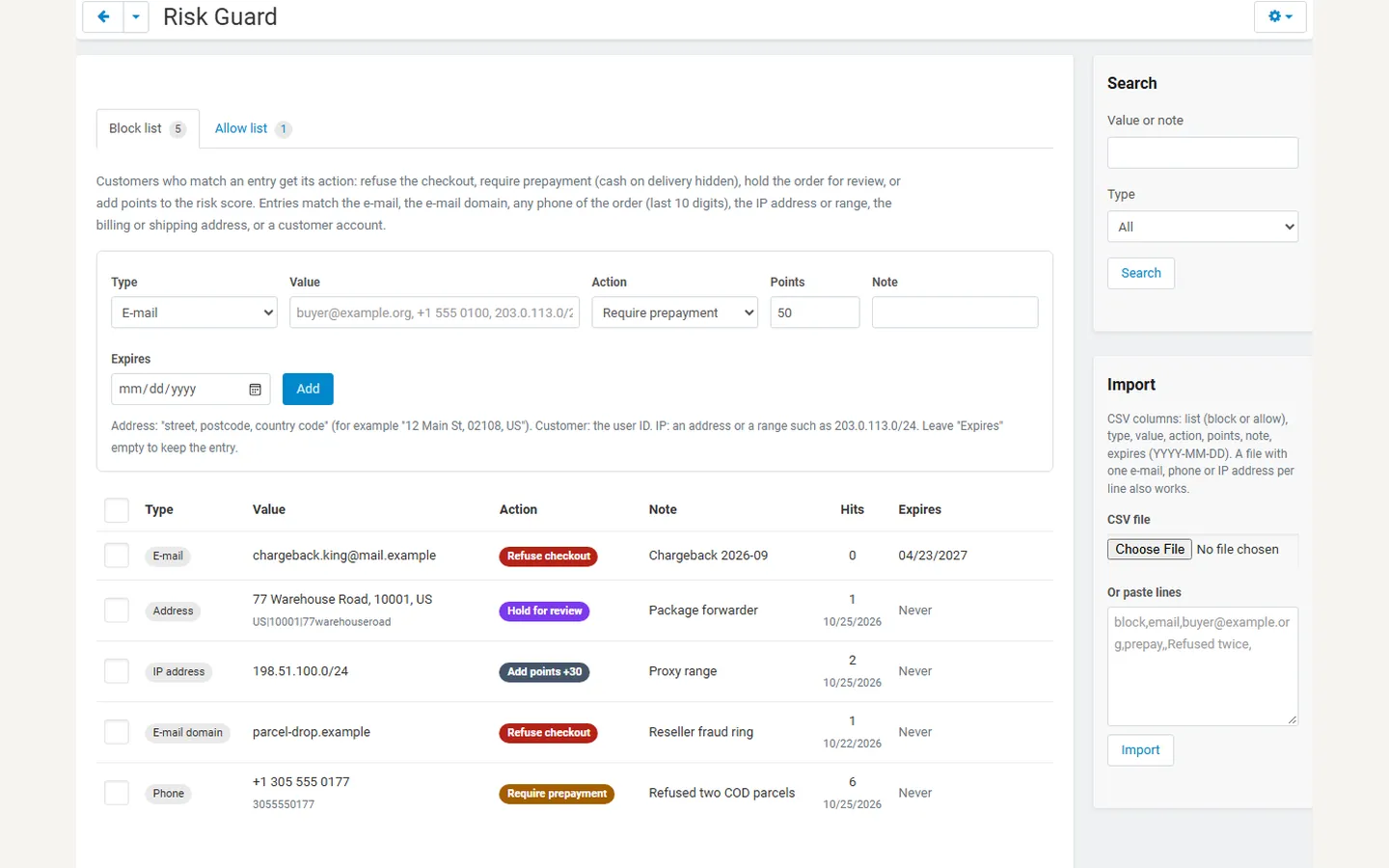
Add an entry with Type, Value, Action, an optional Note and an optional Expires date.
| Type | Value | Matches |
|---|---|---|
[email protected] |
The order e-mail (not case-sensitive). | |
| E-mail domain | example.org or @example.org |
The domain and its subdomains (mail.example.org). |
| Phone | any format | Any phone of the order (contact, billing, shipping), compared on the last 10 digits, so +1 (305) 555-0177 and 305 555 0177 match. |
| IP address | 203.0.113.7 or 203.0.113.0/24 |
The IP address the order was placed from; IPv4 and IPv6, ranges in CIDR notation. |
| Address | 77 Warehouse Road, 10001, US |
Billing or shipping street, postcode and country, ignoring spaces, case and punctuation. |
| Customer | user ID | The customer account. |
| Action (block list) | Effect |
|---|---|
| Refuse checkout | The order cannot be placed. |
| Require prepayment | Cash on delivery is hidden; any other payment works. |
| Hold for review | Offline-paid orders get the “Risk review” status. |
| Add points | Adds 1 – 100 points to the score. |
The Hits column counts how often an entry matched a placed order or a refused checkout. Expired entries are shown faded and no longer match.
Import and export
Section titled “Import and export”- Export this list / Export both lists (Tools menu) downloads a CSV file.
- Import (sidebar): upload a CSV file or paste lines. Columns:
list(block or allow),type,value,action,points,note,expires(YYYY-MM-DD). A plain list with one e-mail, phone or IP address per line also works (block list, “Add points”, 50 points). Existing entries are updated, not duplicated; invalid lines are skipped and reported with their line numbers.
list,type,value,action,points,note,expiresblock,phone,+1 305 555 0177,prepay,,Refused two parcels,block,domain,parcel-drop.example,block,,,2027-06-30allow,email,[email protected],,,,The risk panel on the order page
Section titled “The risk panel on the order page”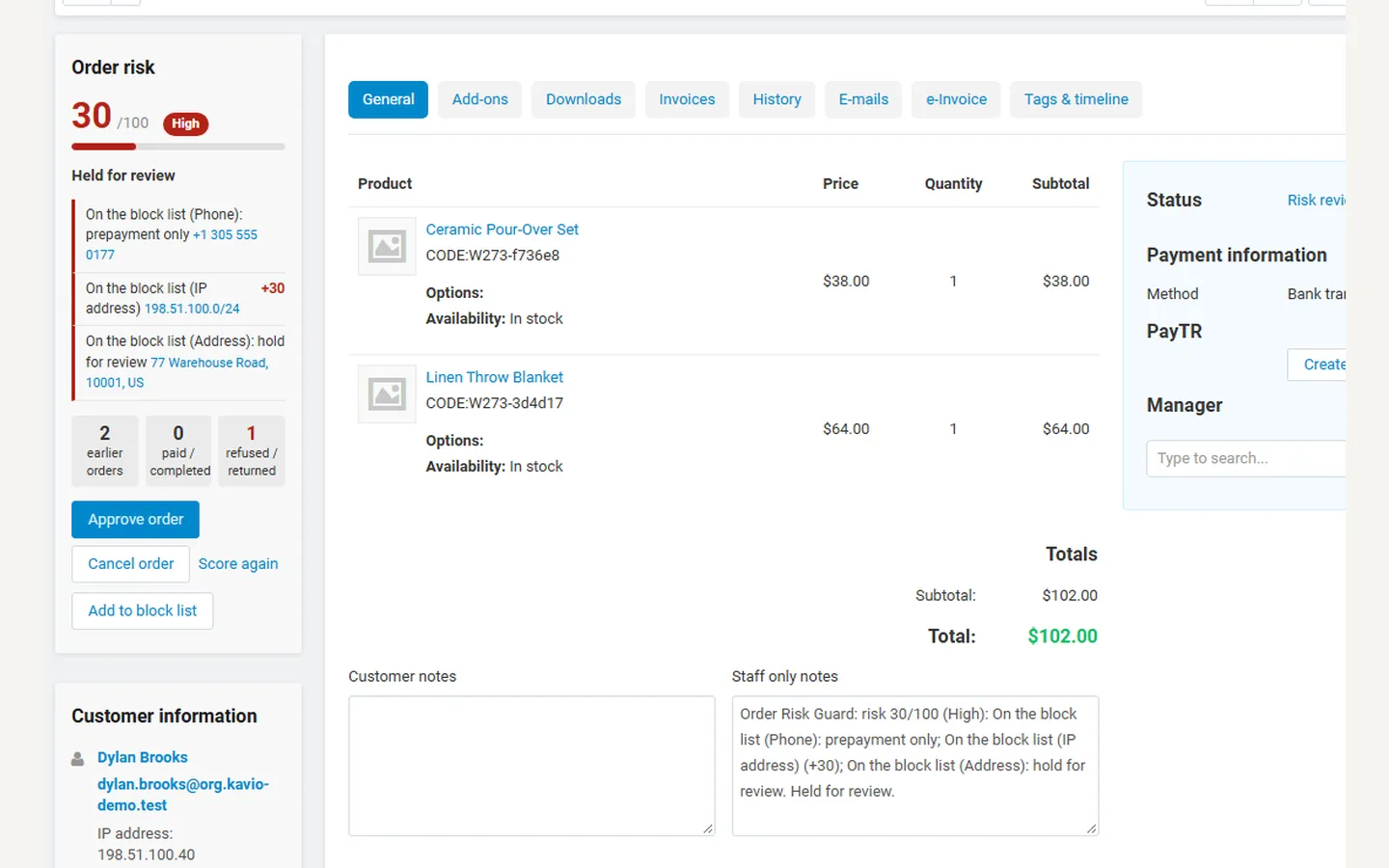
The sidebar of every order shows:
- the score (0 – 100) with its level (low, medium, high) and what the add-on did (held, waiting for confirmation, flagged, allow list);
- the confirmation state: pending (sent n times, cancelled automatically on…), confirmed by the buyer (link or code), cancelled by the buyer, not confirmed in time;
- every reason with its points; administrators see which block-list entry matched (click it to open the list);
- the customer’s history: earlier orders, paid or completed orders, refused or returned orders.
Buttons (administrators):
| Button | When | Effect |
|---|---|---|
| Approve order | Held | Moves the order to the “status after approval” (customer notified). |
| Mark as confirmed | Awaiting confirmation | Confirms on the buyer’s behalf, for example after a phone call. |
| Cancel order | Held or awaiting confirmation | Moves the order to the “cancelled” status (customer notified). |
| Send the confirmation again | Awaiting confirmation | New link and code; the old ones stop working. |
| Score this order / Score again | Always | Scores with the current lists and settings; nothing else changes. Useful for orders placed before the installation. |
| Add to block list | Always | Tick the e-mail, domain, phone, IP address, address or account and choose the action. |
You can also change the status in the usual way; the add-on does not block status changes.
Cash-on-delivery confirmation
Section titled “Cash-on-delivery confirmation”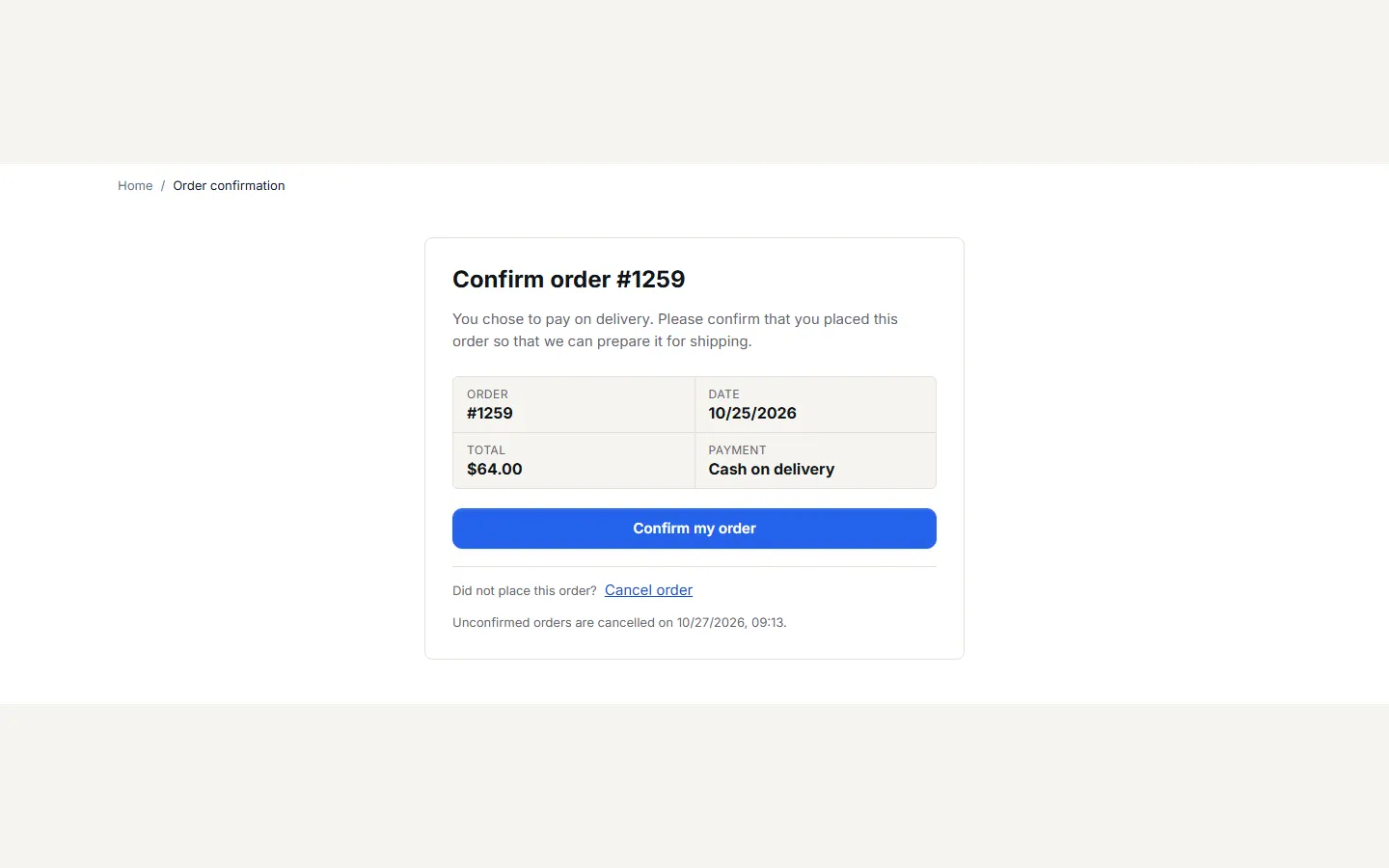
The buyer receives “Please confirm your order #123” with a Confirm my order button and a 6-digit code. Then:
- Link: opens a page with the order number, date, total and payment method and a Confirm my order button. E-mail security scanners that open links cannot confirm the order: confirming needs the button.
- Code: the order-placed page and the order page in the customer account show a box where the buyer types the code. After five wrong codes the box locks; the link still works.
- Did not place this order? The page offers Cancel order.
- Send again: up to three e-mails in total, at least one minute apart.
- No answer: the order is cancelled after the configured hours.
On Multi-Vendor, one checkout creates one confirmation for the order number the buyer sees; confirming it confirms the orders of every vendor.
The order list
Section titled “The order list”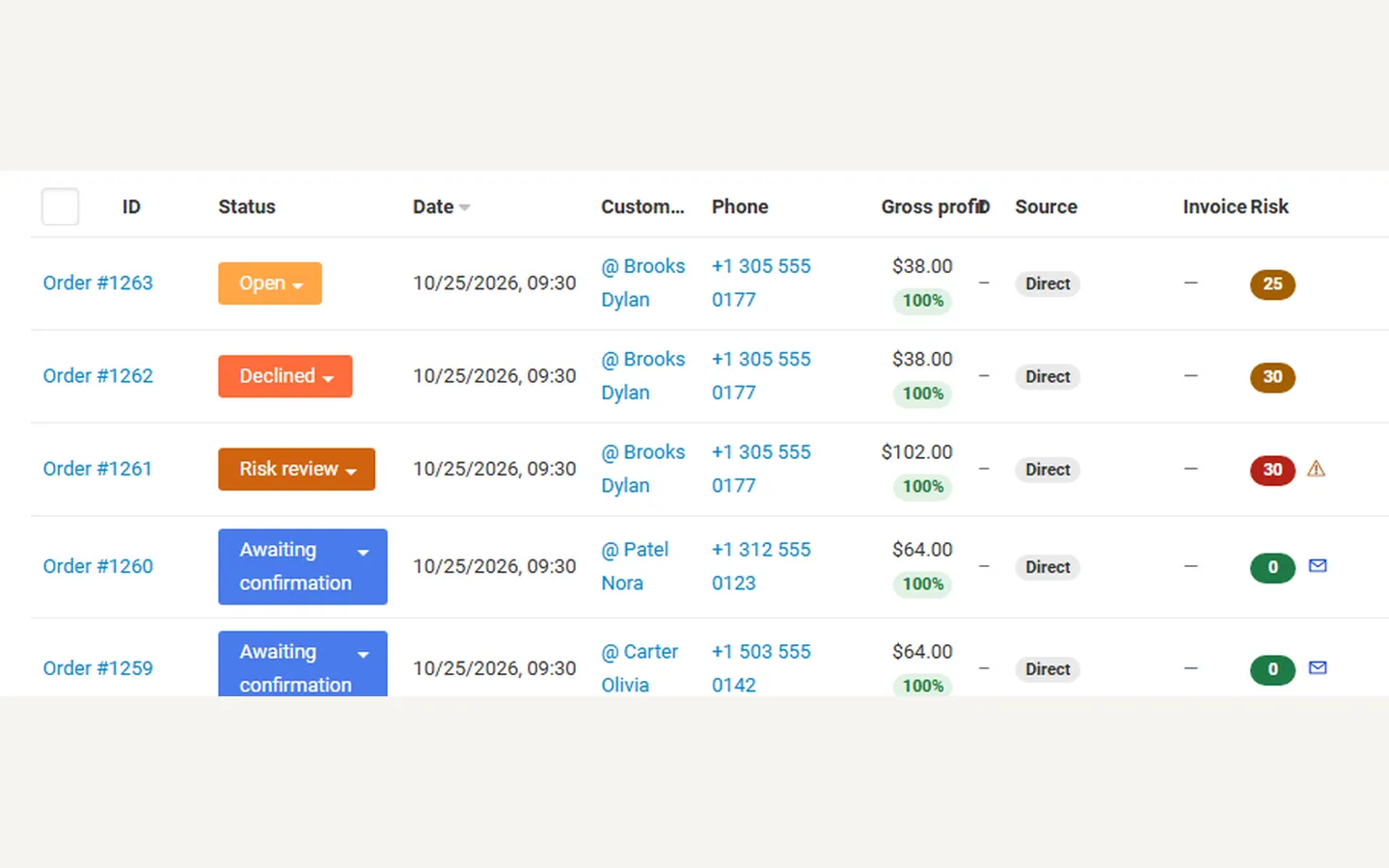
The Risk column shows the score in the level colour; ⚠ marks held orders and ✉ orders waiting for the buyer. In the advanced search, Risk filters by low, medium or high risk, held, awaiting confirmation or not scored.
Multi-Vendor
Section titled “Multi-Vendor”- The marketplace administrator manages the lists, settings, holds and confirmations.
- Vendors see the Risk column and the risk panel of their own orders with the score, the level and the reasons, but no e-mail, phone, IP or address from the lists and no buttons. They cannot open or export the lists.
- Problem orders and velocity are counted across the whole marketplace.
CS-Cart Ultimate
Section titled “CS-Cart Ultimate”The lists and settings apply to all storefronts. The confirmation e-mail and page use the storefront of the order.