

Configuration
Open Add-ons → Manage add-ons → Folio theme → Settings.
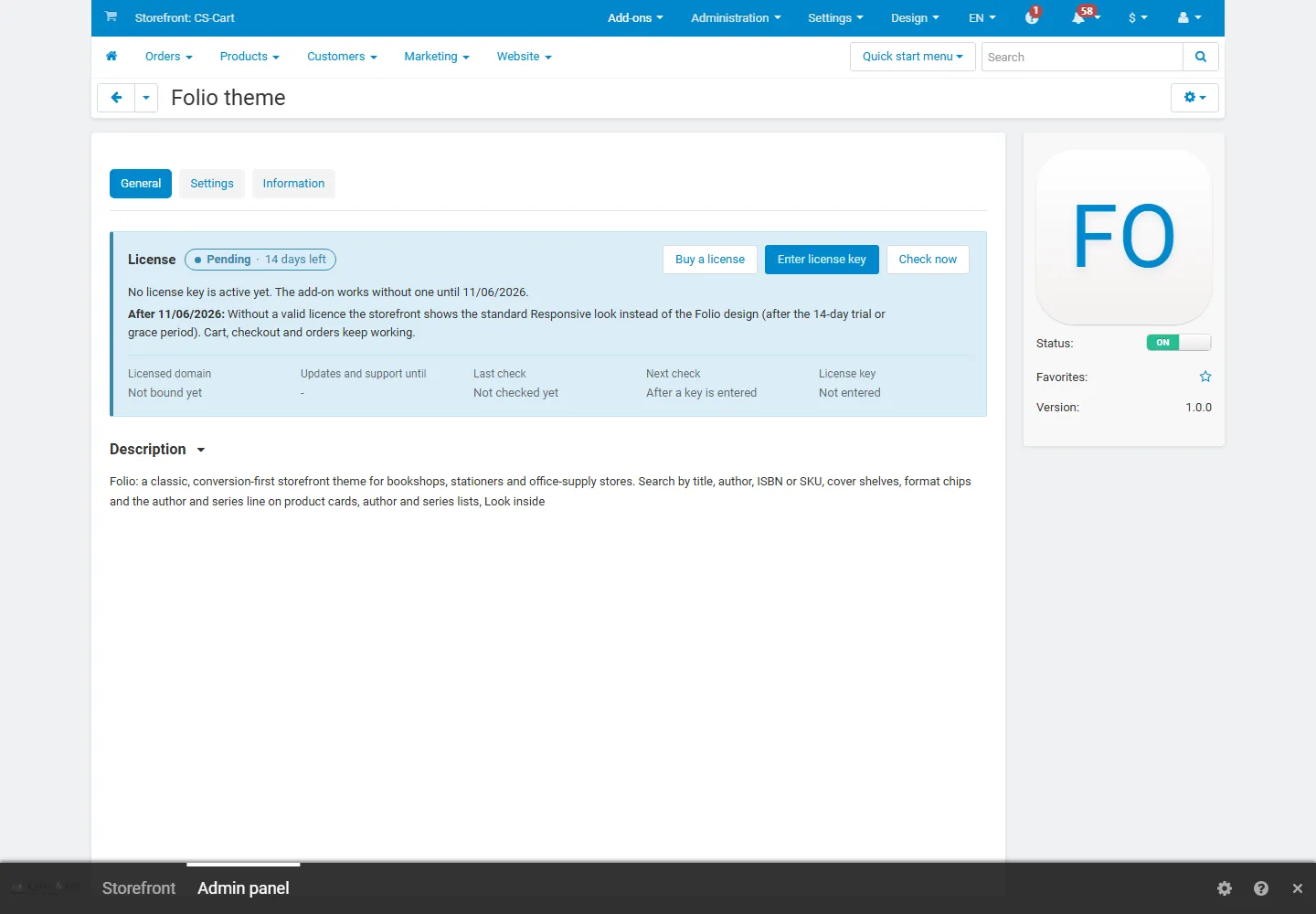
| Setting | Default | Description |
|---|---|---|
| Sticky header | On | Keeps the header at the top while shoppers scroll; on phones only the logo, search and basket stay. |
| Mobile bottom bar | On | Home, Shop, Search, Account and Basket at the bottom of the screen on phones. |
| “More” menu for long top menus | On | Categories that do not fit into the menu band move into a “More” dropdown, so the band never wraps. |
| Product card style | Theme default | Theme default (the cover cards on the shelf of the active style) or Outlined, Plate, Minimal. |
| Show the second image on hover | On | Product cards show the next product image (in the demo: the title page) when the pointer is over a card. |
| Product page layout | Classic | Classic = gallery and details side by side; Large gallery = wide images with the details column following on scroll. |
| Subtle animations | On | Sections fade in, covers lift off the shelf and spines slide out on hover, the hero slides fade. Visitors who prefer reduced motion never see animations, and the hero does not advance on its own for them. |
| Install the demo content when the theme is activated | On | When a storefront switches to this theme, the next admin page adds the Quire & Co. Books & Paper demo store and points the homepage blocks of the theme layout at it. Runs once per storefront (re-activating or upgrading adds nothing). Your own products, categories and pages are never changed. Turn it off before activating the theme to start with an empty design. |
| Setting | Default | Description |
|---|---|---|
| Search by author, ISBN and SKU | On | The storefront product search also finds author, publisher and series names, the ISBN and the product code with or without hyphens, and the header search and “Ask the catalogue” get the scope select All / Title / Author / ISBN or SKU (see Usage). |
| Look inside | On | Books with more than one image get a “Look inside · N pages” bookmark on the cover that opens the standard image viewer on the first inside page (see Usage). |
| Staff picks and shelf-talker notes | On | The “Staff pick” ribbon on covers with a staff pick note and the note card under covers in shelves with “Shelf-talker notes” and in the Book of the month block (see Usage). |
Block settings (Website → Themes → Layouts, the block’s gear button):
| Block | Setting | Description |
|---|---|---|
| Hero slider (Folio theme) | Seconds per slide | How long each slide stays before the next one (only for visitors who allow animations). |
| Cover shelf (Folio theme) | Columns, “View all” link, Shelf-talker notes | 4, 5 or 6 covers per row on computers (a swipe row on phones), an optional link next to the title, and the staff pick note under each cover. |
| Chart (Folio theme) | “View all” link | Numbered rows of the block’s products (up to 10, in the block’s order or filling). |
| Book of the month (Folio theme) | (products block) | The first product of the block as a large card; the block name is the eyebrow. |
| Spine rail (Folio theme) | (categories block) | One spine per category of the filling, with the number of products. |
| Ask the catalogue, Office band, Format bar (Folio theme) | (none) | “Template” blocks; place them on any page. The block name is the title. |
Colours and fonts: Website → Themes → Theme editor (per style).
License
Section titled “License”The licence status is shown in a License card at the top of the add-on page, above the tabs. The License tab holds the key itself. The key is stored once for the whole installation.
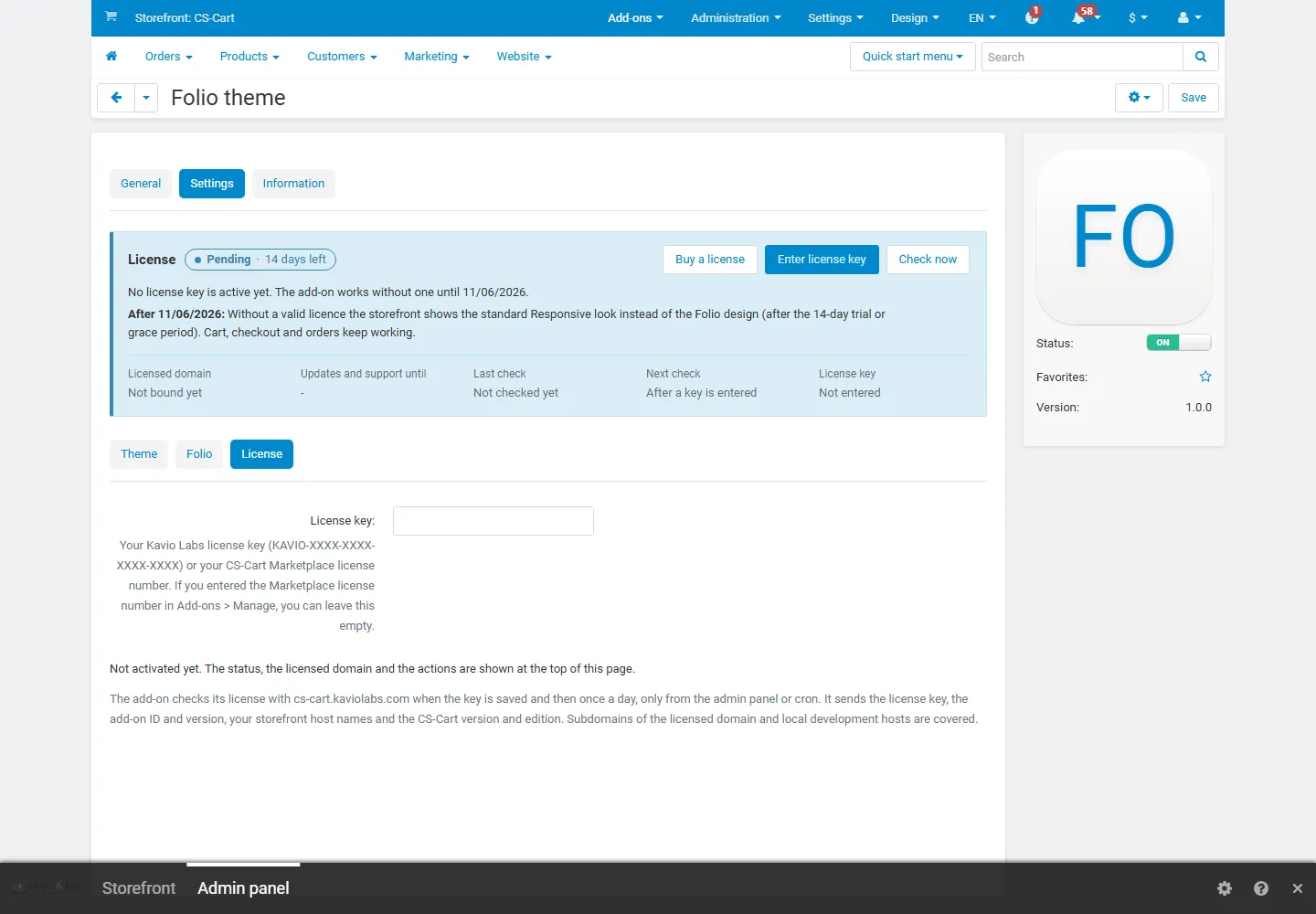
| Setting | Description |
|---|---|
| License key | Your Kavio Labs licence key (KAVIO-XXXX-XXXX-XXXX-XXXX, from My licenses on cs-cart.kaviolabs.com) or your CS-Cart Marketplace license number. If you entered the Marketplace number in Add-ons → Manage add-ons, leave this empty. |
| License status | Points to the License card and explains what the check sends. |
What the licence covers. The base domain you entered at purchase and every subdomain of it. Local development
hosts (localhost, private IP addresses, *.localhost, *.test, *.local, *.invalid) are always allowed. A store
on a different base domain needs its own licence.
When it checks. When you save the key and then once a day, only in the admin panel or from cron, never while customers browse the storefront:
php /path/to/store/admin.php --dispatch=kv_theme_folio_license.checkWhat is sent. Only this, to https://cs-cart.kaviolabs.com: the licence key, the add-on ID and version, the host
names of your storefronts, your CS-Cart version and edition, and a random one-time value. No customer, order or
personal data. The answer is digitally signed.
What happens without a valid licence. A new installation works for 14 days without a key. If the licence server cannot be reached, the theme keeps working for 14 days after the first failed check. After that, or with an invalid, revoked or other-domain licence, the Folio design is switched off: the storefront shows the standard Responsive look (standard stylesheet and menu, the Folio homepage sections hidden; the colours of the active style stay). Cart, checkout, orders and customer accounts keep working; visitors see no message. The design is also switched off while the add-on is disabled or uninstalled.
While a storefront uses Folio and the design is switched off, every admin page shows a notice that names the theme, the reason and how to fix it, and Website → Themes shows the same text above the current theme.
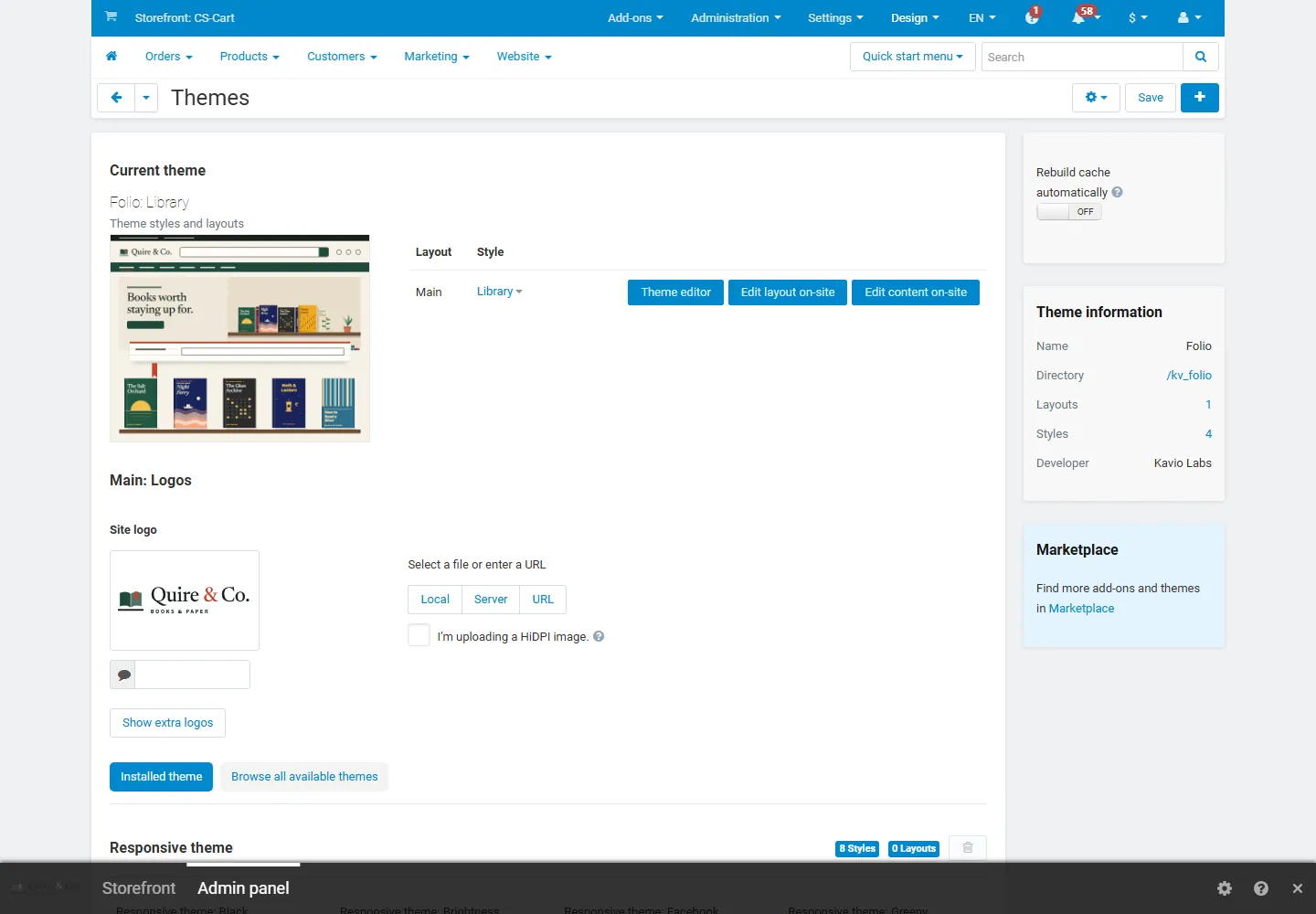
| Status (card) | Colour | Storefront |
|---|---|---|
| Valid | Green | Folio design. |
| Development host | Blue | Folio design. |
| Pending · N days left | Blue | Folio design for 14 days after installation. |
| Grace period · N days left | Amber | Folio design for 14 days after the first failed check. |
| Not activated, Invalid key, Revoked, Domain mismatch, Not verified | Red | Standard Responsive look; the store keeps working. |
When your updates period ends, the theme keeps working; only updates and support stop. Licence information appears in the admin panel only, for administrators who may manage add-ons; vendors and customers never see it.