

Usage
Overview · Installation · Configuration · Developer notes · FAQ
The add-on adds the tab AI content to the product page, the action Generate content with AI to Products → Products, and the page Products → AI content generator with Review, Bulk generation, Bulk jobs, History, Usage and costs, and Prompt templates.
What the AI knows about a product
Section titled “What the AI knows about a product”Each request contains the product name, code, price, categories, brand, product features, the current short and full description, your store name, the tone, the length target, your focus keywords and your store guidelines. The fixed instructions tell the model to use only these facts and never to invent specifications, materials, prices, certifications, guarantees or delivery promises. Texts are written in the language you are editing in the admin panel.
| Content type | Written to |
|---|---|
| Full description | Full description (simple HTML: paragraphs, a list, bold) |
| Short description | Short description |
| Key feature bullets | Short description, or appended to the full description (setting) |
| Meta title | Page title |
| Meta description | Meta description |
| Meta keywords | Meta keywords |
| Search words | Search words (used by the store search) |
On the product page
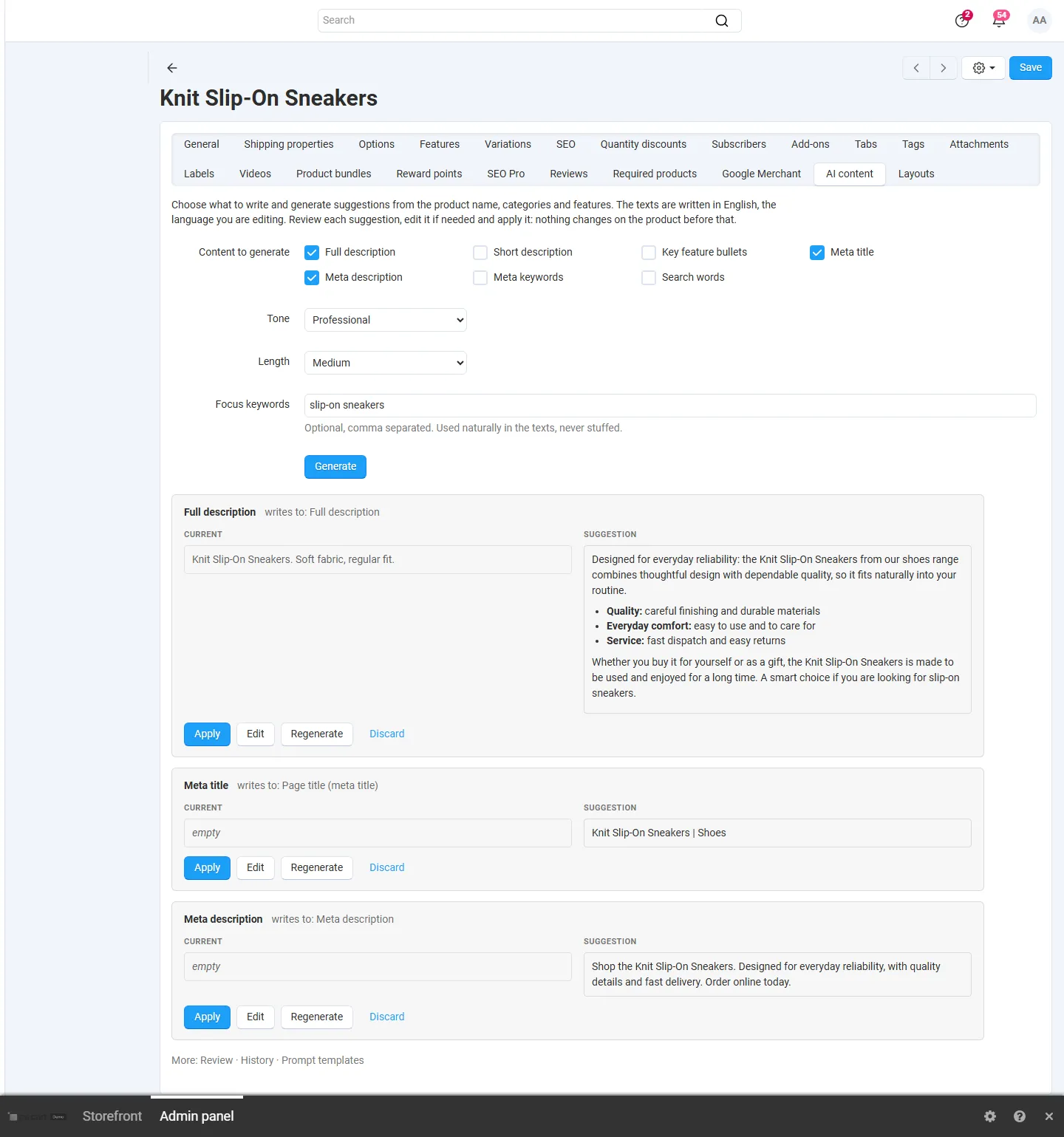
Section titled “On the product page”- Open a product and the tab AI content.
- Tick the content you want, choose the tone and length, and add focus keywords if you like.
- Click Generate. One suggestion card per content type appears, with the current text on the left and the suggestion on the right.
- Apply saves that field to the product at once (and updates the open form, so a later Save keeps it). Edit lets you change the suggestion first, Regenerate asks again, Discard drops it.
Suggestions that you neither apply nor discard stay in the Review list.
Bulk generation
Section titled “Bulk generation”- In Products → Products, tick products, open Actions and click Generate content with AI, or open Products → AI content generator → Bulk generation and choose categories (subcategories included if you like). Up to 2,000 products per job.
- Choose the content types (and a prompt template where you have several), the tone, the length and focus keywords.
- Choose the mode:
- Review first (recommended): results wait in the Review list until you apply them;
- Fill empty fields only: texts are applied directly, but only to fields that are empty; filled fields are skipped without a request.
- Choose how to run it: In this browser (keep the page open; a progress bar shows the progress) or By cron (runs in the background; needs the cron job from the settings).
- Click Start. On the job page you can Pause, Resume, Retry failed and Cancel job; Review results opens the job’s texts.
If the provider is busy (rate limit), the job waits and continues by itself. If the API key is rejected or the monthly budget is used up, the job pauses with a message; fix the cause and click Resume.
Review
Section titled “Review”Products → AI content generator → Review lists all generated texts that wait for a decision, with the current value and the suggestion. View / edit opens the full texts and lets you edit the suggestion before applying it. Tick items to Apply selected or Discard selected. Filter by content type; links from a bulk job or a product show only their items.

History and undo
Section titled “History and undo”History lists every applied text with the value before and after. Undo restores the previous value. If the field was changed after the text was applied (by a person, an import or another add-on), Undo does nothing and tells you so, so newer work is never lost.
Prompt templates
Section titled “Prompt templates”Prompt templates shows one default prompt per content type. Edit changes it, Reset restores the original, Add a template creates a variant (for example a shorter description for accessories) that you can choose when you start a bulk job. Variables in curly brackets are filled with the product data:
{product_name} {product_code} {price} {list_price} {categories} {main_category} {brand} {features} {short_description} {full_description} {current_value} {keywords} {store_name} {vendor} {language} {tone} {length_words} {max_chars}
The fixed instructions and your store guidelines are sent before every prompt.
Usage and costs
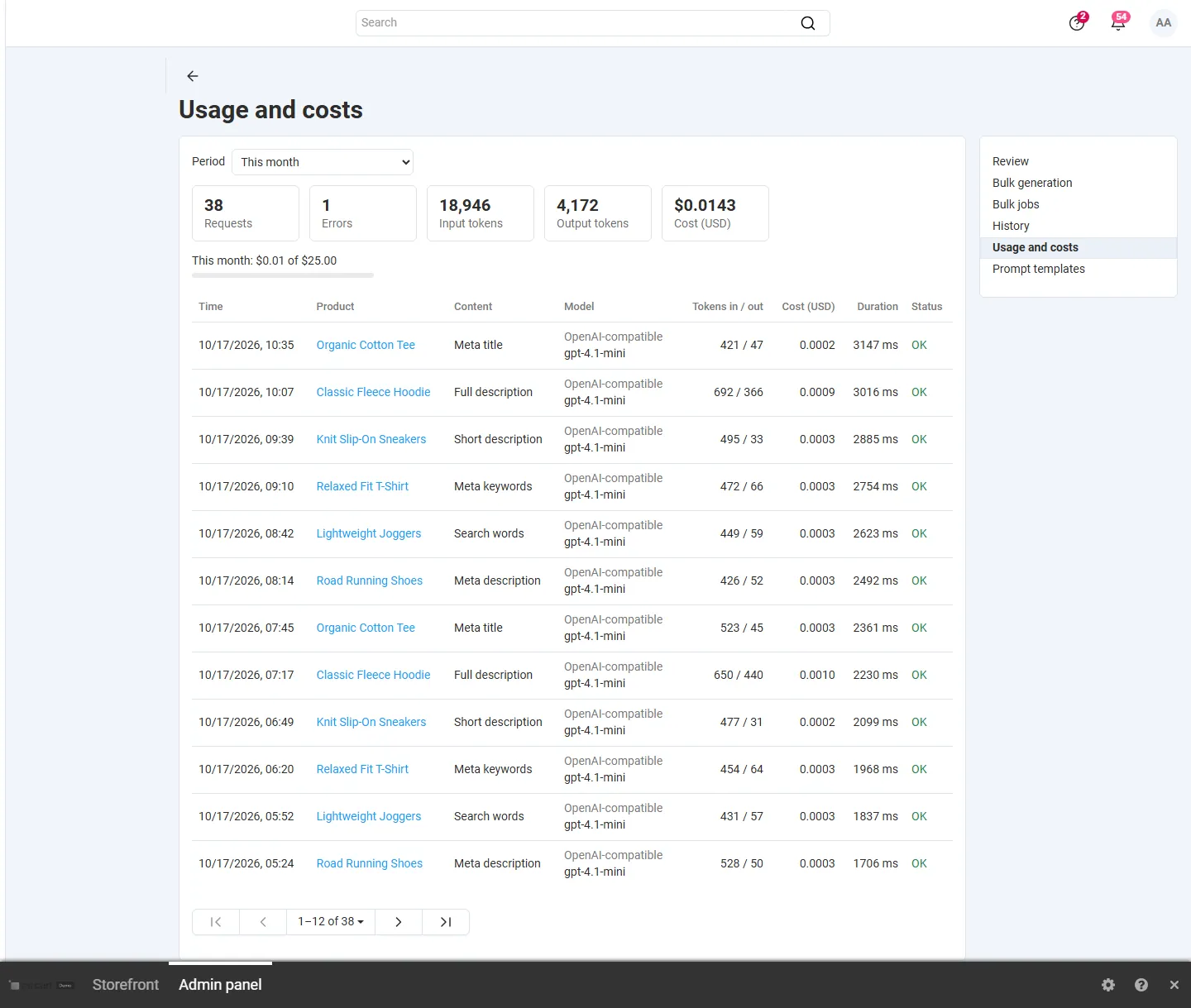
Section titled “Usage and costs”Usage and costs shows the requests, errors, input and output tokens and the cost of this month, last month or all time, the budget used, and a line per request with the product, content type, model, tokens, cost, duration and status. Failed attempts are listed too (they cost nothing unless the provider reported tokens).
Multi-Vendor
Section titled “Multi-Vendor”Administrators generate texts for the products of every vendor; the {vendor} variable holds the vendor name. Vendors do not see the add-on in 1.0.0.
CS-Cart Ultimate
Section titled “CS-Cart Ultimate”With a storefront selected in the admin panel, texts of products shared with that storefront are read and saved for that storefront only, like on the product page. Bulk jobs remember the storefront and apply their texts there, also when they run by cron.