

Configuration
Settings
Section titled “Settings”Add-ons > Manage add-ons > Product Personalizer > Settings > General
| Setting | Default | What it does |
|---|---|---|
| Enable the personalizer | On | Shows the personalizer on product pages that have a template. Items already in a cart or in an order keep their personalization when this is off. |
| Show surcharges to shoppers | On | Shows the price of each personalization option on the product page and the surcharge per item in the cart. |
| Review proofs after the order | On | New personalized order items get the proof status Waiting for review. Turn it off if you produce without a manual check. |
| Proof width (px) | 1000 | Width of the server-rendered proof images (400 – 2400). The height follows the image of the view. |
| Largest customer image (MB) | 8 | Store-wide size limit for customer images (1 – 20 MB). An image field can set a lower limit. |
| Keep unused uploads for (days) | 30 | Images and proofs that are not part of an order are deleted after this many days. Ordered items keep their own copies until the order is deleted. |
| Cleanup | Shows the cron command (see Installation). | |
| Vendors manage their own templates | On | Multi-Vendor only: vendors create templates for their own products in the vendor panel. |
On CS-Cart (Ultimate) the general settings can be set per storefront.
Templates
Section titled “Templates”Products > Personalization templates lists the templates with their fields, views and assignments. A template has three tabs.
General
Section titled “General”- Name: shown only in the admin panel.
- Status: disabled templates are not used.
- Require “I approve this design”: shoppers must tick the approval checkbox before a personalized item can be added to the cart.
- Assignment: the products and categories that use the template. Vendors can also choose All my products.
Which template a product uses:
- the product’s own setting (product editor, Personalization section: a template, No personalization, or Inherit);
- otherwise the nearest category of the product’s main category path that has a template (a vendor’s own category template comes before the marketplace’s);
- otherwise the vendor’s All my products template (Multi-Vendor).
A vendor’s template never applies to another vendor’s product. Booking products (Booking & Reservations) and auction products (Auctions) are never personalized.
Views and print areas
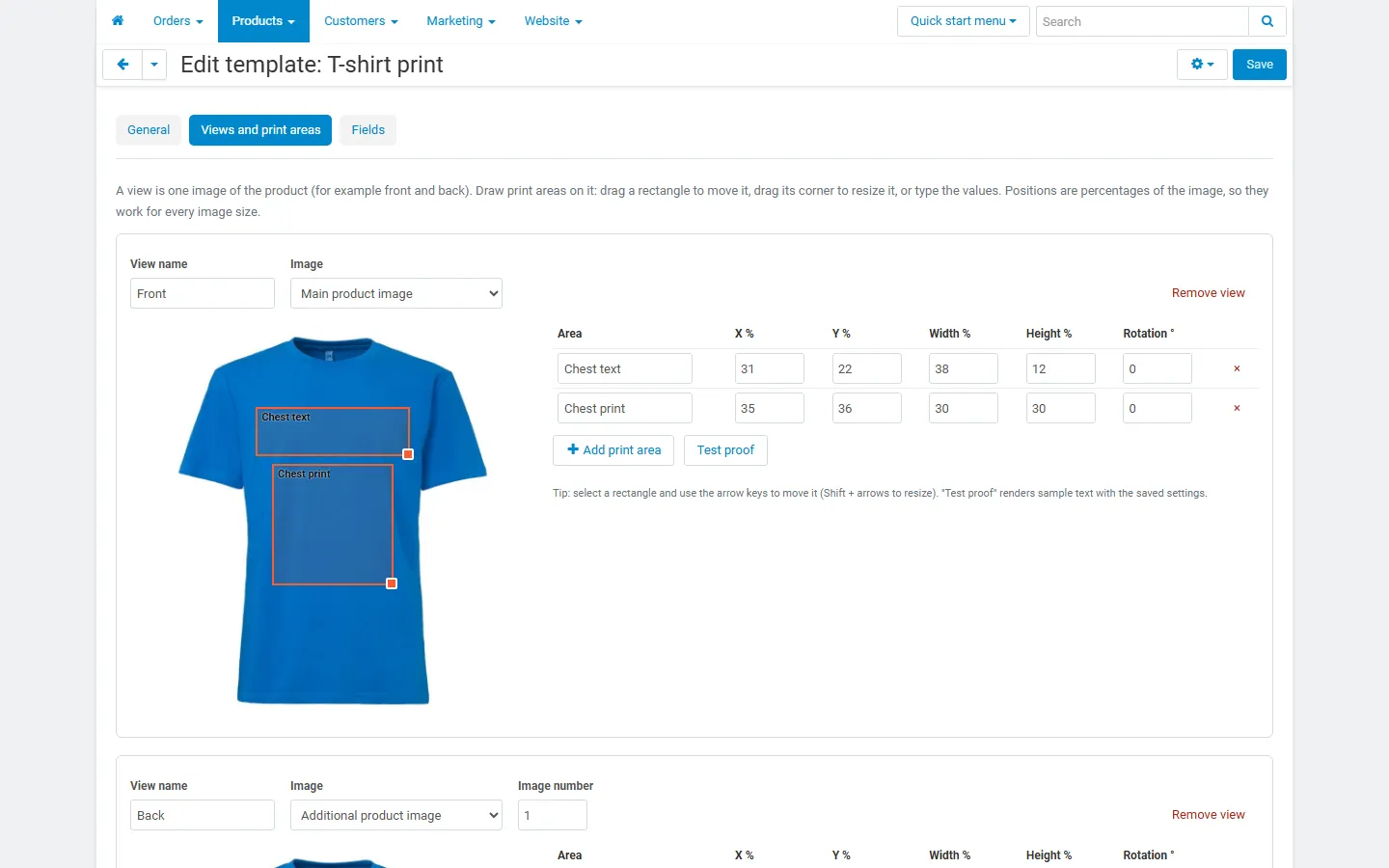
Section titled “Views and print areas”A view is one image of the product: the main product image, an additional product image (by its number) or an own mock-up image you upload. Add one view per side, for example Front and Back; shoppers switch between them with tabs.
Draw the print areas on the view: drag a rectangle to move it, drag its corner to resize it, or type the values. X, Y, width and height are percentages of the image, so the areas fit every image size. Rotation turns the area clockwise (for example for a label on a slanted surface). Select a rectangle and use the arrow keys to move it (Shift + arrows to resize). Test proof renders sample text with the saved settings.
Fields
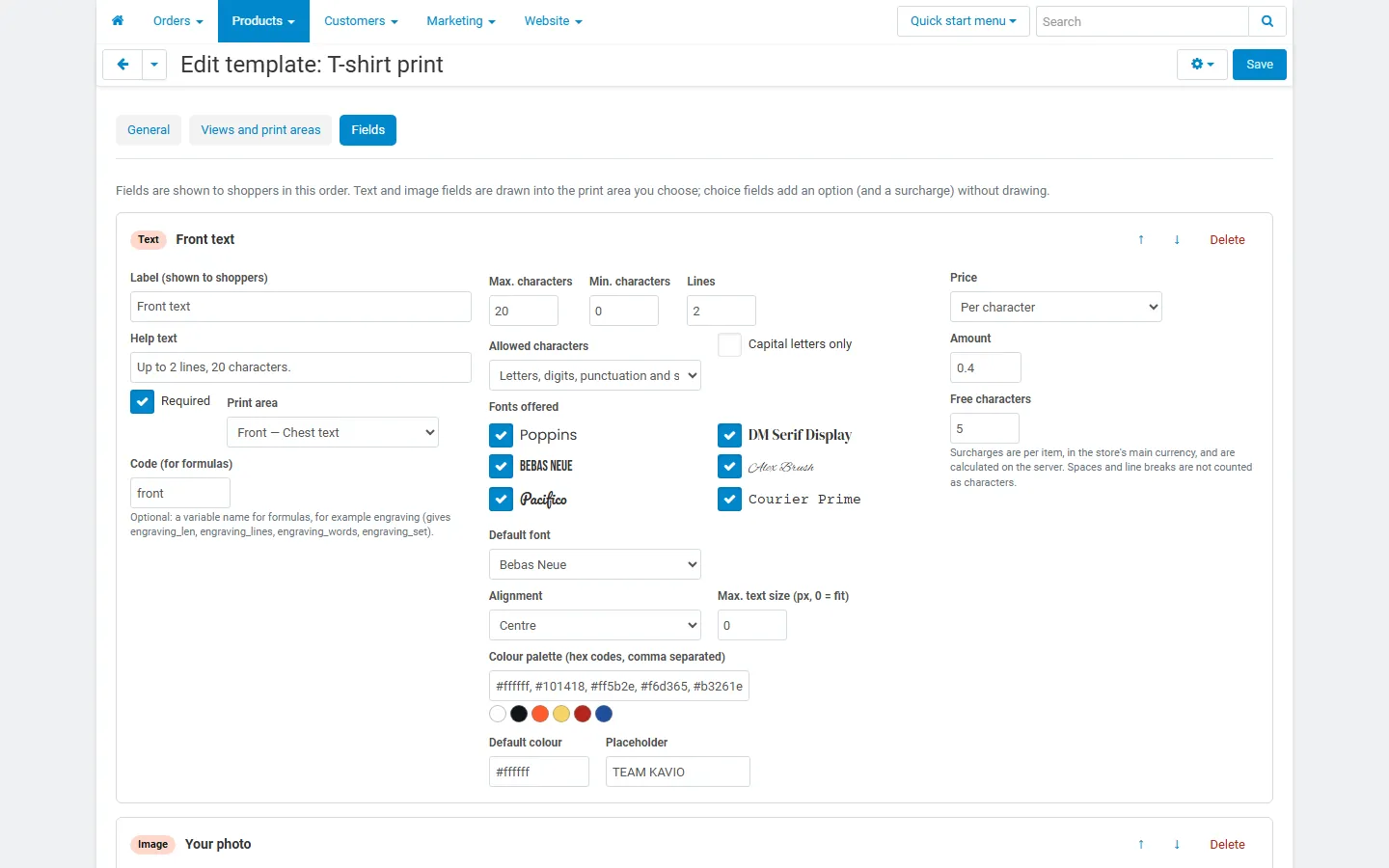
Section titled “Fields”Fields are shown to shoppers in the order of the list. Text and image fields are drawn into the print area you choose; choice fields add an option and its surcharge without drawing.
| Field | Settings |
|---|---|
| Text | Maximum characters and lines, minimum characters, allowed characters (letters, digits, punctuation and symbols / letters, digits and basic punctuation / letters only / digits only / only the characters you list), capital letters only, the fonts offered and the default font, the colour palette (hex codes) and the default colour, alignment, maximum text size, placeholder. |
| Image | Accepted types (JPG, PNG, WebP), maximum size in KB, minimum and maximum width and height in pixels, fit (whole image visible / fill the area and crop). |
| Choice | The options with their surcharge and a formula value; shown as a drop-down list or as radio buttons. |
Every field has a label, a help text, Required and an optional code for formulas.
Text is fitted into its print area: the largest size (up to the maximum) at which every line fits. Spaces and line breaks are kept; control characters are removed.
Six fonts are bundled with the add-on, licensed under the SIL Open Font License 1.1 (the license texts are in js/addons/kv_product_personalizer/fonts/):
| Font | Style |
|---|---|
| Poppins | Modern sans-serif |
| DM Serif Display | Classic serif |
| Bebas Neue | Bold capitals |
| Alex Brush | Elegant script |
| Pacifico | Casual script |
| Courier Prime | Typewriter |
The same font files are used for the live preview in the browser and for the proof on the server, so the result matches.
Surcharges
Section titled “Surcharges”Surcharges are added to the price of each item, in the store’s main currency, and calculated on the server.
| Price mode | Amount |
|---|---|
| No surcharge | – |
| Fixed surcharge when filled in (text) / per uploaded image (image) | The amount, when the field is filled in |
| Per character (text) | Amount x (characters without spaces and line breaks − free characters) |
| Option surcharges (choice) | The surcharge of the chosen option (can be negative) |
| Formula | The result of the formula (see below) |
Changing a surcharge also updates personalized items that are already in open carts. Placed orders keep their prices.
Formulas (with Advanced Product Options & Price Formulas)
Section titled “Formulas (with Advanced Product Options & Price Formulas)”When the add-on Advanced Product Options & Price Formulas is installed, active and licensed, a field can use the price mode Formula. The formula uses the same engine and functions (min, max, round, ceil, floor, if, clamp, round_to, …) and these variables:
| Variable | Value |
|---|---|
len, words, lines |
Characters (without spaces), words and lines of all text fields together; inside a field’s own formula, of that field |
images |
Number of uploaded images |
set |
Number of filled fields |
qty |
Quantity of the cart line |
base, price |
Product price before the personalization |
<code> |
The value of a field with a code: the number typed (or the character count), 1 for an uploaded image, the formula value of the chosen option |
<code>_len, <code>_words, <code>_lines, <code>_set |
Counts of that field and 1 when it is filled |
Example: engraving at 4.00 per started block of 10 characters, free with the gift box option (formula value 1): if(box == 1, 0, ceil(engraving_len / 10) * 4).
Without that add-on the price mode Formula is not offered, and existing formula fields add nothing. The formulas of the options pricing add-on itself cannot read personalization values in its version 1.0.
Notifications
Section titled “Notifications”Each proof review e-mail can be switched off in Administration > Notifications (group Personalization), and its text edited in Design > Email templates (Personalization: proof reviewed). The e-mail goes to the customer when you mark a proof Approved or Changes needed with Send the customer an e-mail ticked.
License
Section titled “License”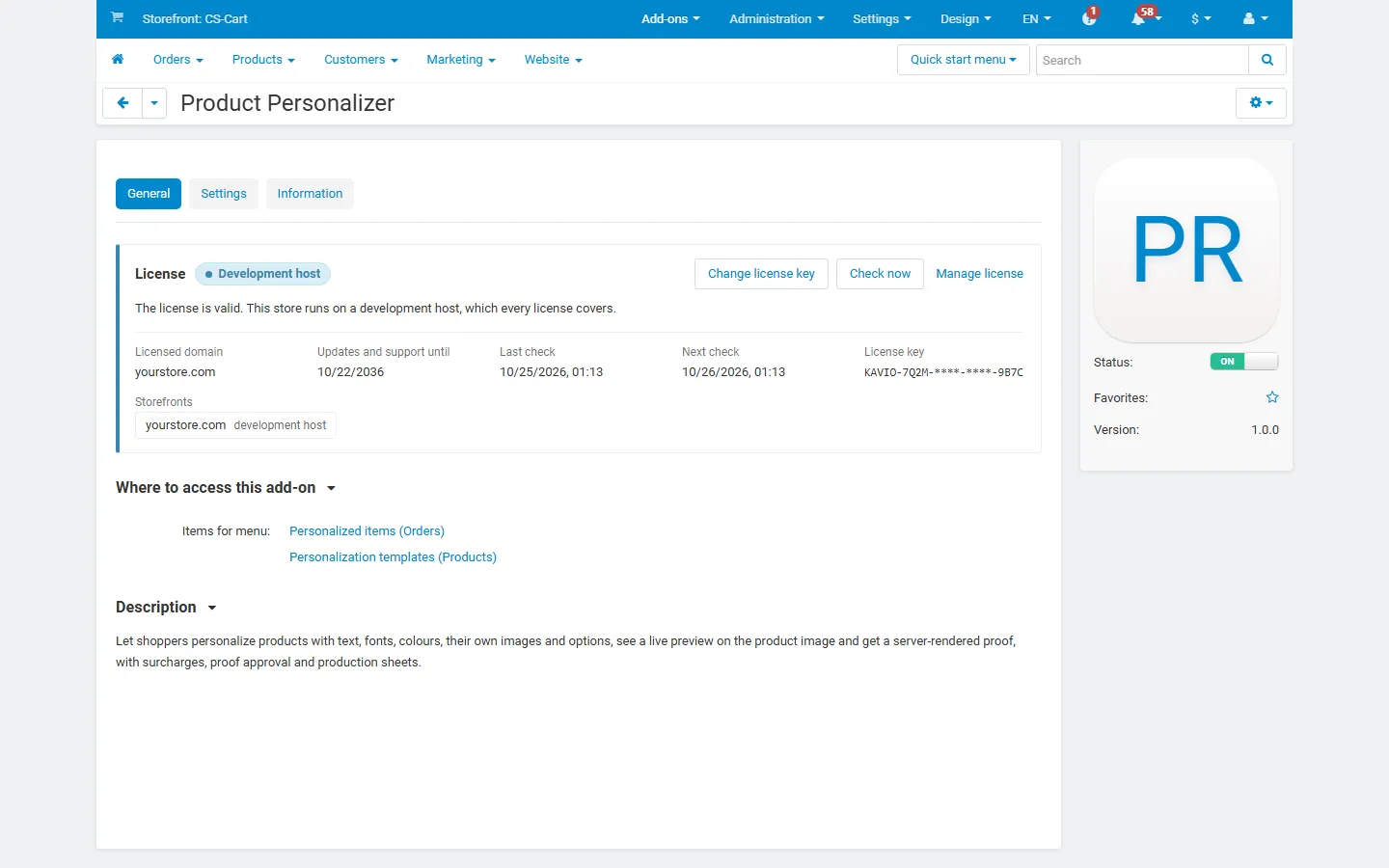
The License section shows the license status, the licensed domain and Check now. Enter your Kavio Labs license key there, or the CS-Cart Marketplace license number in Add-ons > Manage add-ons.
What switched off means: the personalizer is hidden and no new personalized items can be added to the cart; items already in a cart keep their personalization and price, placed orders keep their personalization, proofs and downloads, and all templates stay saved.