

Configuration
Overview · Installation · Usage · Developer notes · FAQ
Open Add-ons → Manage add-ons → WhatsApp Chat Button → Settings. The settings have four sections: General, Appearance, Display and privacy and License. In CS-Cart Ultimate each storefront has its own settings (select the storefront at the top of the admin panel).
General
Section titled “General”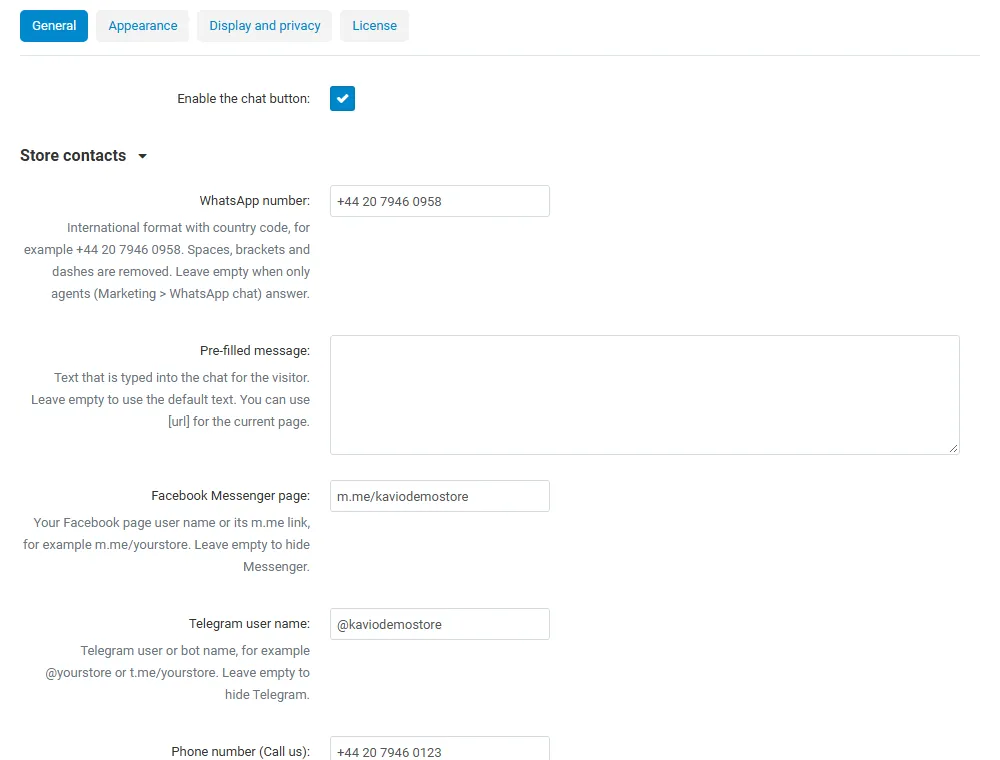
| Setting | Default | Description |
|---|---|---|
| Enable the chat button | On | Switches the button, the Ask about this product button and the cart help link on or off without uninstalling. |
| Store contacts | ||
| WhatsApp number | empty | International format with country code, for example +44 20 7946 0958. Spaces, brackets and dashes are removed. Leave empty when only agents answer. |
| Pre-filled message | empty | Text that is typed into the chat for the visitor. Empty = “Hello! I have a question.” [url] inserts the current page address. |
| Facebook Messenger page | empty | Page user name or its m.me link, for example m.me/yourstore. Empty hides Messenger. |
| Telegram user name | empty | User or bot name, for example @yourstore or t.me/yourstore. Empty hides Telegram. |
| Phone number (Call us) | empty | Shown as Call us (a tel: link). |
| SMS number | empty | Shown as Send an SMS with the pre-filled message. |
| E-mail address | empty | Shown as E-mail us with the pre-filled message as the body. |
| Offer “Open a support ticket” | Off | Adds a link to the ticket form of our Help Desk & Support Tickets add-on. Shown only while that add-on is active. |
| Agents and departments | ||
| Agents in the chat panel | List every agent | List: a row per agent with name, role and online state. Rotate: one “Chat with our team” row that sends each visitor to one online agent; the visitor keeps that agent for the session. |
| Outside working hours | Show them with “leave a message” | Leave a message: offline agents stay in the panel with “Back tomorrow at 08:00” and can still receive a message. Hide: offline agents are not shown. |
| Vendors can use their own WhatsApp number | On | Multi-Vendor only. See Vendor numbers. |
Invalid values (a number with too few digits, a Messenger or Telegram name with invalid characters) are ignored on the storefront, so a typo never shows a broken link.
Appearance
Section titled “Appearance”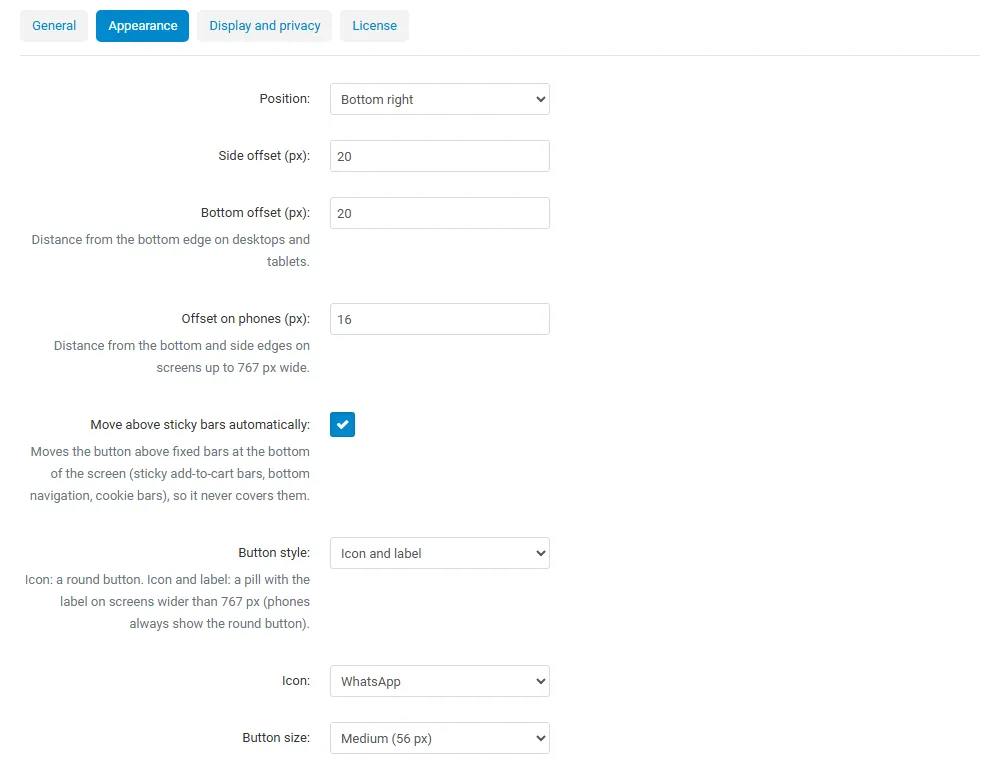
| Setting | Default | Description |
|---|---|---|
| Position | Bottom right | Bottom right or bottom left. Use Bottom left when another chat widget already uses the right corner. |
| Side offset (px) | 20 | Distance from the side edge on desktops and tablets. |
| Bottom offset (px) | 20 | Distance from the bottom edge on desktops and tablets. |
| Offset on phones (px) | 16 | Distance from the bottom and side edges on screens up to 767 px wide. |
| Move above sticky bars automatically | On | Moves the button above fixed bars at the bottom of the screen: sticky add-to-cart bars, bottom navigation of mobile themes, cookie notices. |
| Button style | Icon and label | Icon: a round button. Icon and label: a pill with the label on screens wider than 767 px; phones always show the round button. |
| Icon | WhatsApp logo or a neutral chat bubble (for stores that mainly use other channels). | |
| Button size | Medium (56 px) | Small (48 px), Medium (56 px) or Large (64 px). |
| Button colour | #25D366 |
Background of the button and the panel header. |
| Icon and text colour | #0B3D2E |
Icon, label and panel header text. Keep a strong contrast with the button colour. |
| Button label | empty | Empty = “Chat with us”. |
| Greeting and panel | ||
| Show a greeting bubble | On | A short message next to the button after a delay. A visitor who closes it does not see it again in the same session. |
| Greeting text | empty | Empty = “Hi there! Questions about a product or your order? Chat with us.” |
| Show the greeting after (seconds) | 6 | 0 shows it at once. |
| Panel title / Panel subtitle | empty | Empty = “Need help?” / “Our team usually replies within a few minutes.” |
Display and privacy
Section titled “Display and privacy”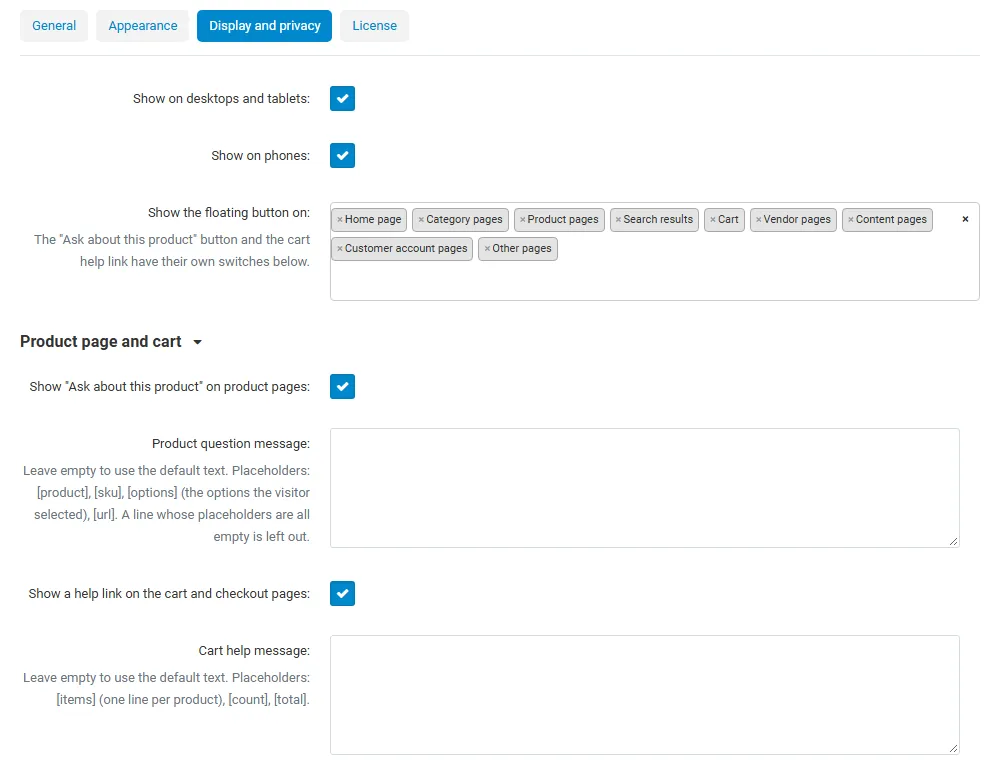
| Setting | Default | Description |
|---|---|---|
| Show on desktops and tablets | On | Hide the floating button on screens wider than 767 px. |
| Show on phones | On | Hide the floating button on screens up to 767 px. |
| Show the floating button on | all pages except checkout | Home page, category pages, product pages, search results, cart, checkout, vendor pages (Multi-Vendor), content pages, customer account pages, other pages. |
| Product page and cart | ||
| Show “Ask about this product” on product pages | On | Works independently of the page list above. |
| Product question message | empty | Placeholders: [product], [sku], [options] (the options the visitor selected), [url]. A line whose placeholders are all empty is left out. Empty = “Hello! I have a question about this product:” followed by the name, the SKU, the options and the link. |
| Show a help link on the cart and checkout pages | On | “Questions about your order? Chat with us”, below the cart buttons and below the Place order button. |
| Cart help message | empty | Placeholders: [items] (one line per product: quantity, name, options, SKU), [count], [total]. Empty = “Hello! I need help with my order:” with the items and the total. |
| Privacy and analytics | ||
| Wait for cookie consent | No, show it right away | The button loads no third-party script and sets no cookie, so it needs no consent. If your privacy policy asks for it, the button stays hidden until the visitor allows Preferences (functional) or Marketing in our Cookie Consent add-on. |
| Send click events to Google Analytics / Tag Manager | On | Pushes kv_chat_open and kv_chat_click to the dataLayer, or sends them through our Ecommerce Tracking Pro add-on when it is active. See Usage. |
| Count clicks for the statistics page | On | Counts clicks per day, channel, agent and place. Counts only. |
Agents and working hours
Section titled “Agents and working hours”Open Marketing → WhatsApp chat. The Agents tab lists your agents and departments with their channel, working hours, position and status.
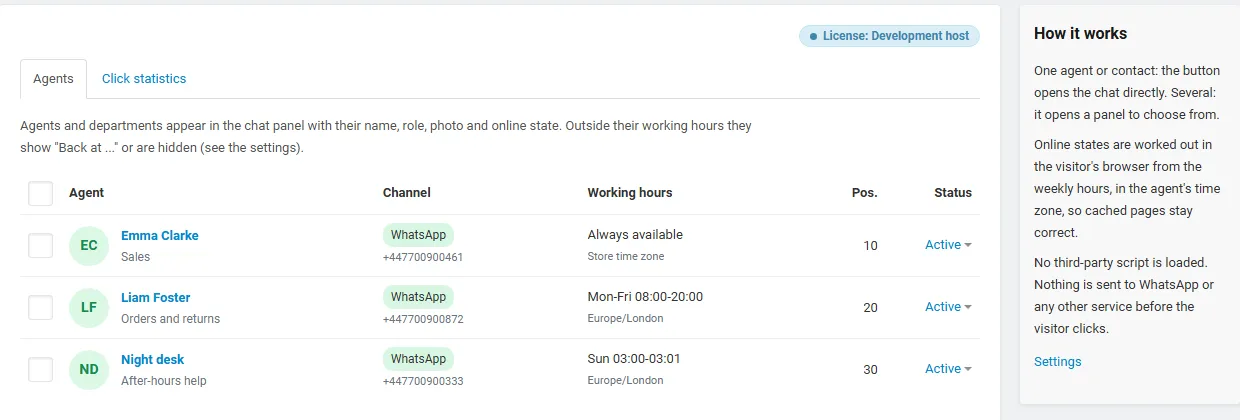
Click + to add an agent:
| Field | Description |
|---|---|
| Name | Shown in the chat panel, for example “Emma” or “Sales team”. |
| Role or department | Optional, for example “Sales” or “Orders and returns”. |
| Photo | Square image, shown at 40 x 40 px. Without a photo the initials are shown. |
| Position, Status | Order in the panel; disabled agents are not shown. |
| Channel | WhatsApp, Messenger, Telegram, phone, SMS or e-mail. |
| Number, name or address | The contact for the channel, in the same format as the store contacts. |
| Pre-filled message | Optional. Replaces the general pre-filled message for this agent. Product pages and the cart always use the product and cart messages. |
| Working hours | Always available, or one time range per weekday. An end before the start runs past midnight (22:00 – 02:00); 00:00 as the end means midnight; the same start and end means the whole day. |
| Time zone | The time zone of the working hours (default: the store time zone). Visitors in other time zones see the correct online state. |
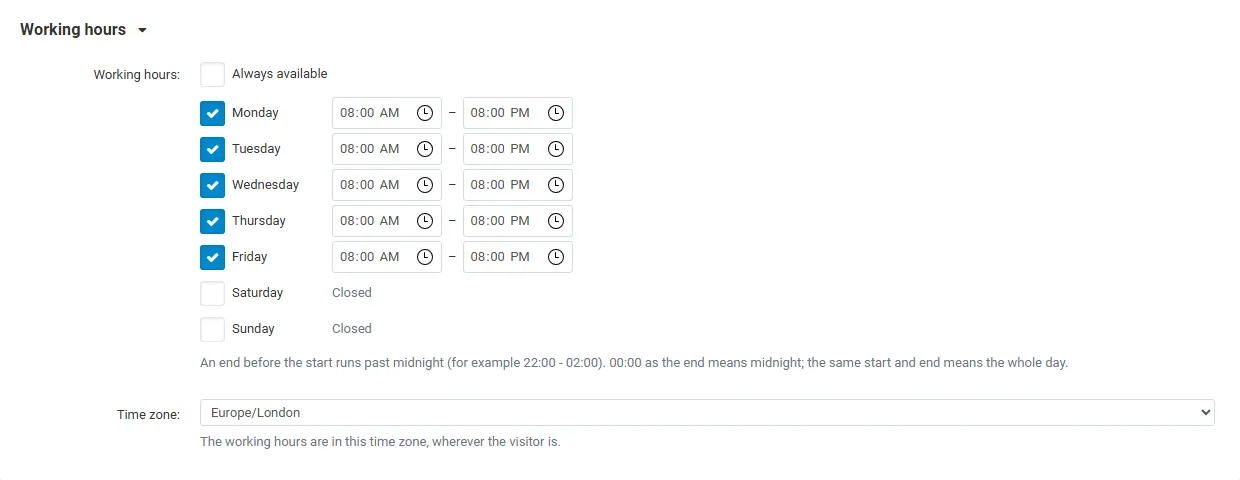
In CS-Cart Ultimate an agent belongs to all storefronts or to one storefront. A storefront administrator sees and edits the shared agents and the agents of their own storefront.
Agents are managed by administrators with the WhatsApp chat: Can edit privilege (Customers → User groups → Privileges); Can view gives read-only access to the agents and the statistics.
Vendor numbers (Multi-Vendor)
Section titled “Vendor numbers (Multi-Vendor)”With Vendors can use their own WhatsApp number on, vendors see Marketing → WhatsApp chat in the vendor panel. There they switch Use my number on my products and my store page on and enter their number, an optional pre-filled message, working hours and a time zone.
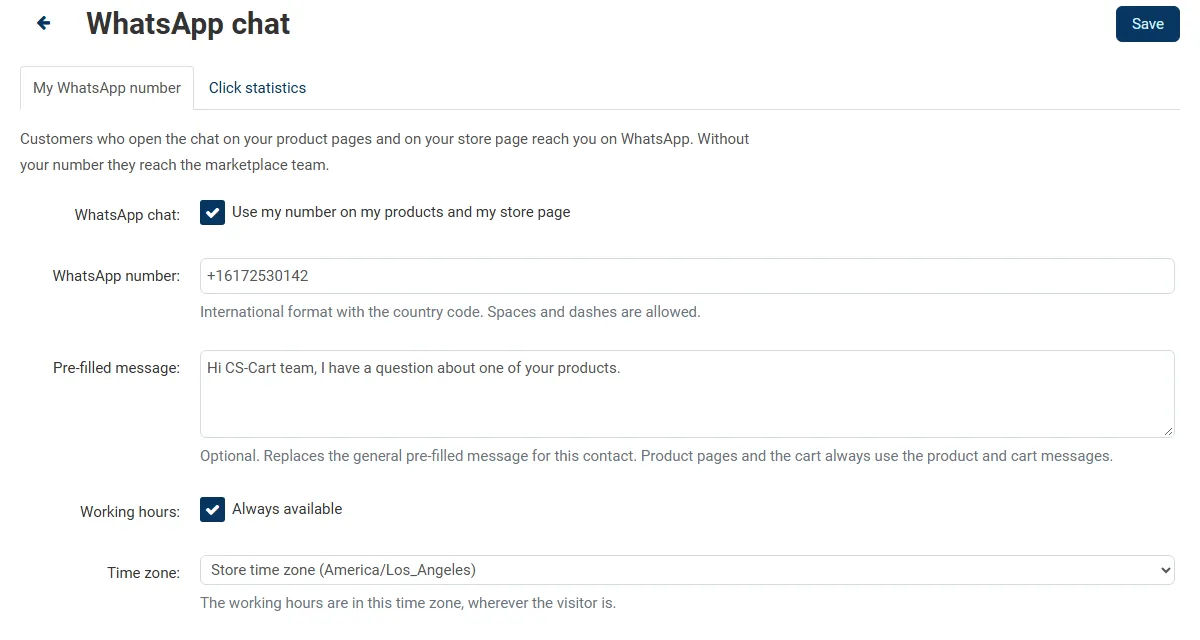
On that vendor’s product pages and store page the chat panel shows the vendor first, followed by your store support. Administrators see every vendor number on the Vendor numbers tab and can edit it. When you switch the setting off, vendor numbers are no longer used and the vendor page is hidden; the saved numbers are kept.
License
Section titled “License”The license status is shown in a License card at the top of the add-on page, above the tabs, so you see it on every tab. The License tab holds the key itself. The key is stored once for the whole installation.
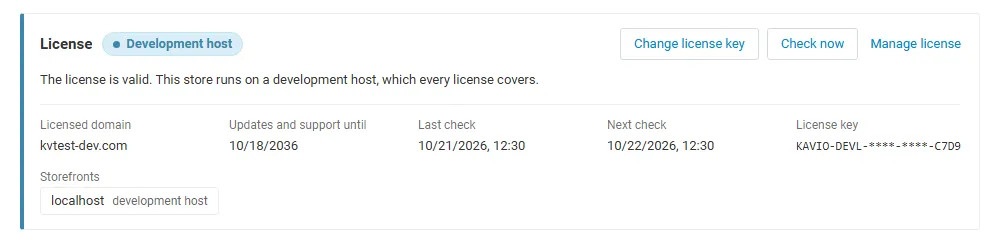
The License card shows:
- the status in color: green when valid, blue for a development host or the 14-day period before a key is required (with the days left), amber when the license server could not be reached (with the days left) or a Marketplace number is still being verified, red when the add-on is switched off;
- in plain words what the status means and, when the add-on is (or will be) switched off, what stops: the chat button, the “Ask about this product” button and the cart help link are hidden on the storefront and no new clicks are counted; agents, settings and statistics stay in the admin panel;
- the licensed domain, every storefront with its result (covered, development host, not covered), the end of the updates and support period, the last and the next check, and the key in use (masked);
- the actions Enter license key / Change license key, Check now, Manage license and, without a valid license, Buy a license.
In Add-ons → Manage add-ons the add-on’s row shows a small license badge next to its name. The WhatsApp chat pages show the status as a small chip.