

Usage
The file
Section titled “The file”One row per category and language, like the core product file. Example (semicolon-separated):
Category ID;Path;Language;Status;Position;Page title;SEO name166;Electronics;en;A;10;Electronics and gadgets;electronics;Apparel///Women///Dresses;en;A;10;Women's dresses;womens-dresses;Apparel///Women///Tops & Blouses;en;A;20;Tops and blouses;tops-and-blouses| Column | Format |
|---|---|
| Category ID | The category’s ID in this store. Empty for new categories. |
| Path | Names from the root down, joined with the category delimiter (default ///). The last name is the category’s own name. In a row of another language, the path holds that language’s names. |
| Language | Two-letter code. With several languages, every category needs a row for each language of the file, one after the other. |
| Store | Ultimate only: the store name. Needed when you import in “All stores” mode. |
| Storefront ID | Multi-Vendor only: 0 for all storefronts, or a storefront ID. |
| Status | A active, H hidden, D disabled. |
| Position | Whole number. |
| Usergroup IDs | 0 (all), or IDs such as 1,2 (1 = guest, 2 = registered customer). |
| Description | HTML allowed. |
| Page title, Meta description, Meta keywords | Up to 255 characters. |
| SEO name | Needs the SEO add-on. Empty = keep the current one. |
| Image | A URL (https://...) or a file name/path inside the images directory. Alt texts: kids.jpg#{[en]:Kids;[de]:Kinder;}. Empty = keep the current image. |
| Product details view, Product columns, Default view, Available views | The layout settings of the category page. Available views is a comma-separated list, e.g. products_multicolumns,products_without_options. |
| Age verification, Age limit, Age warning message | Y/N, a number, a text (used by the core Age verification add-on). |
| Product count | Export only. |
Columns you leave out are not changed. Rows of other languages only change the texts of that language (name, description, page title, meta texts, SEO name, age warning).
Exporting
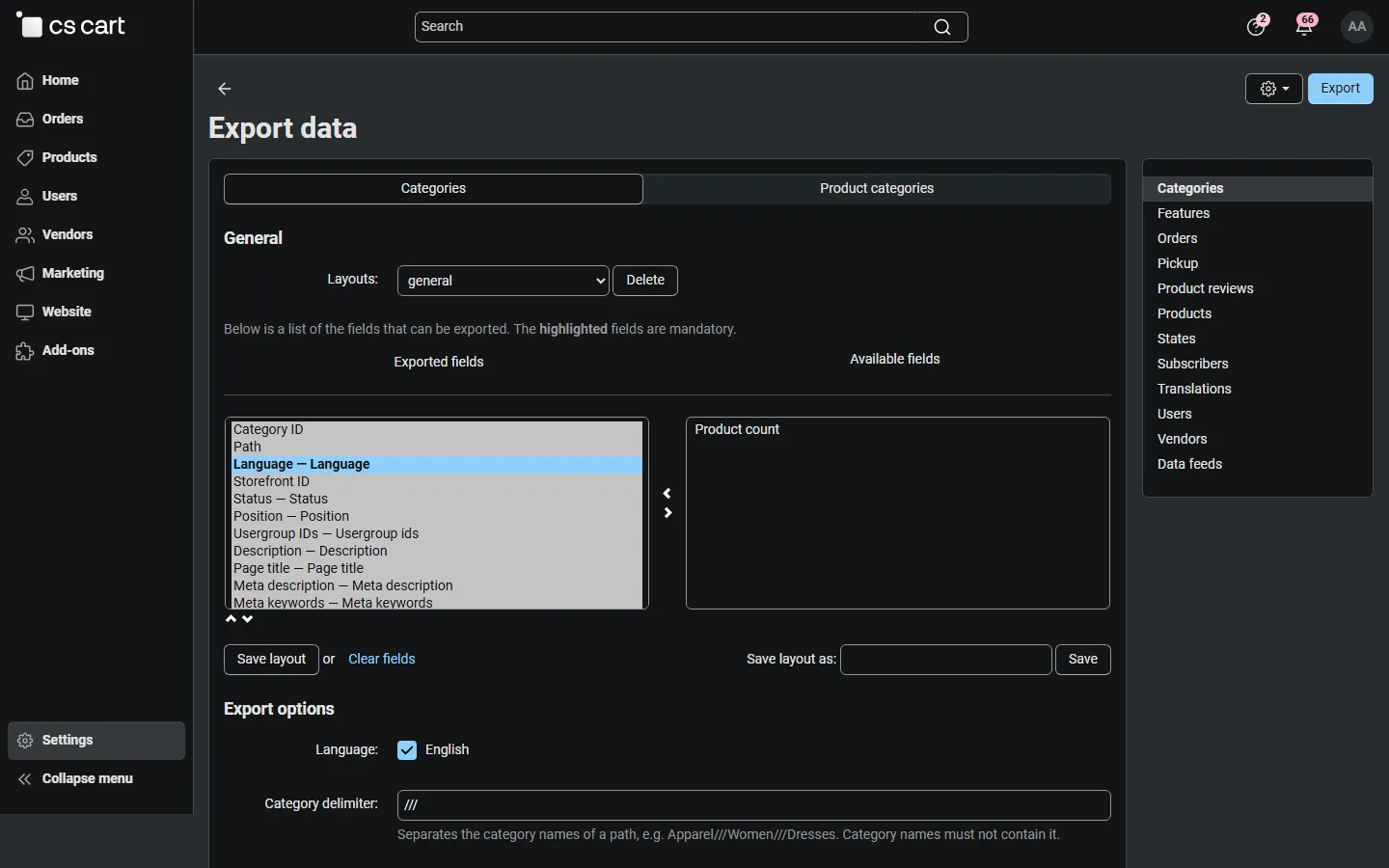
Section titled “Exporting”- Go to Administration → Export data → Categories.
- Choose the columns (or keep the general layout), the languages and, if you like, one root category in Export subtree.
- Choose Images: Image URL or Copy to the images directory.
- Click Export. Parents always come before their subcategories in the file.
Importing
Section titled “Importing”- Go to Administration → Import data → Categories.
- Tick Dry run (preview only), choose the file and click Import.
- Read the summary: created, parents created, updated, moved, unchanged, errors and warnings, and the first messages, e.g. Row 4 (Electronics): Changed: Page title. The link at the end opens the full report (CSV).
- Fix the file if needed, untick Dry run and import the same file.
Product counts of the changed categories are refreshed at the end. If an import changes an SEO name, a 301 redirect from the old URL is created (setting).
How rows are matched
Section titled “How rows are matched”- Category ID, then path (default): a row whose Category ID is a category of this store updates that category. Its Path can rename it (last name) and move it (parent path). Rows without an ID, or with an ID that does not exist here, are matched by path.
- Path only: IDs are ignored. Use it for a file from another store, where the same IDs belong to other categories.
- Paths are matched level by level in the file’s first language, without regard to upper and lower case. If two categories with the same name share a parent, the oldest is used and a warning is shown.
- A category cannot be moved into itself or into its own subcategories (row error).
Errors and warnings
Section titled “Errors and warnings”Rows with errors are skipped; the rest of the file is imported. Typical errors: an empty path or an empty name in it (A//////B), an invalid status, an unknown user group, an unknown store, a missing category while Create missing categories is off. Warnings do not stop the row: an image file that is not found, a category listed twice, a path with a different number of levels in another language.
Product categories
Section titled “Product categories”Export data / Import data → Categories → Product categories lists which products are in which categories: one row per link with Product code, Product ID, Category ID, Category (path in the default language), Link type (M main, A additional) and Position (the product’s position in that category).
- Add: adds or updates the listed links; other links stay. A new main category turns the old main category into an additional one.
- Replace: each product in the file keeps exactly the listed links. If no row is marked
M, the current main category stays when it is listed, else the first row becomes the main category. - Products are found by product code, then by product ID; categories by ID, then by path.
- Categories filled by our Smart Collections add-on are left to it: their links are not exported, and rows for them are refused.
Console and cron
Section titled “Console and cron”The same export and import run from the store root, for example from cron:
php admin.php --dispatch=kv_category_import_export.export --pattern=kv_categories --file=categories.csv --lang=en,dephp admin.php --dispatch=kv_category_import_export.import --pattern=kv_categories --file=categories.csv --dry_run=Yphp admin.php --dispatch=kv_category_import_export.import --pattern=kv_category_products --file=links.csv --mode=replace| Parameter | Values |
|---|---|
--pattern |
kv_categories (default) or kv_category_products |
--file |
Export: a file name in the export directory. Import: a path relative to that directory, or an absolute path. |
--lang |
Export languages, comma-separated (default: the store’s default language) |
--delimiter |
S semicolon (default), C comma, T tab |
--category_delimiter |
Default /// |
--root |
Export one root category and its subcategories |
--images |
url (default) or file |
--dry_run |
Y for a preview |
--match |
id or path |
--create |
Y or N |
--mode |
add or replace (product categories) |
--switch_company_id |
Ultimate: work in one store |
The command prints the summary and exits with code 1 when an error occurred, so cron can alert you.