

Usage
Setting up a tier ladder
Section titled “Setting up a tier ladder”-
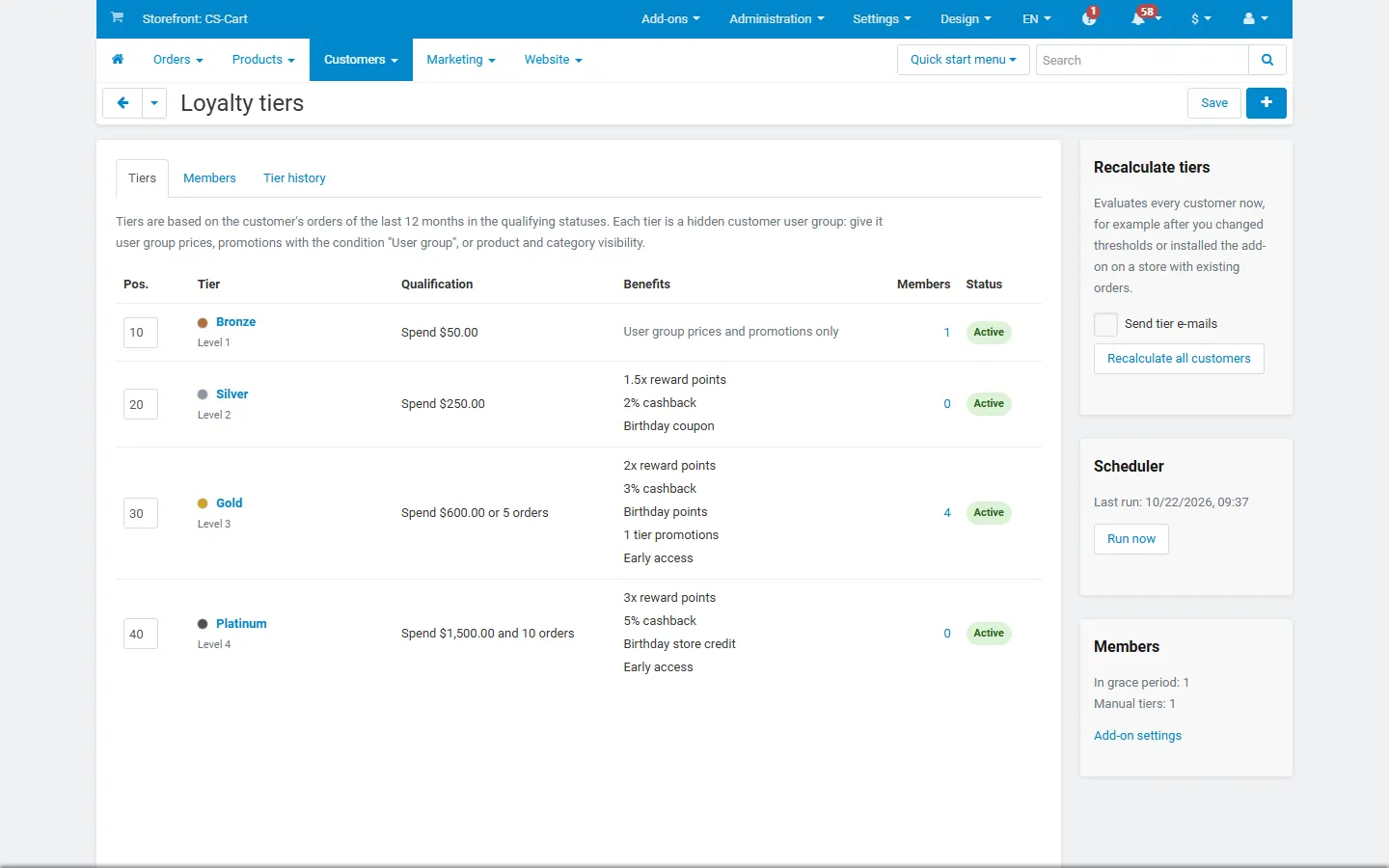
Open Customers → Loyalty tiers and add your tiers from the lowest to the highest, for example:
Tier Goal Benefits Bronze Spend $50 Members-only offers Silver Spend $250 1.5x reward points, 2% cashback, birthday coupon Gold Spend $600 or 5 orders 2x points, 3% cashback, birthday points, free shipping, early access Platinum Spend $1,500 and 10 orders 3x points, 5% cashback, birthday store credit, early access -
Give the tiers their discounts with core features (next section).
-
Click Recalculate all customers once. Customers with existing orders get their tier; from then on every order status change and the daily schedule keep tiers up to date.
Tier perks with core features
Section titled “Tier perks with core features”Every tier is a customer user group, so you give it perks where CS-Cart already handles user groups:
- Discounts and free shipping: Marketing → Promotions, add a cart or catalog promotion with the condition User group = the tier and the bonus you want (discount, free shipping, free product, coupon). The promotion is listed as a perk on the My tier page and in the tier e-mails.
- Tier prices: on a product’s Pricing tab, add a price for the tier’s user group.
- Reward points per tier: Marketing → Reward points (core add-on) can give each user group its own points. The tier’s multiplier then multiplies whatever an order earns.
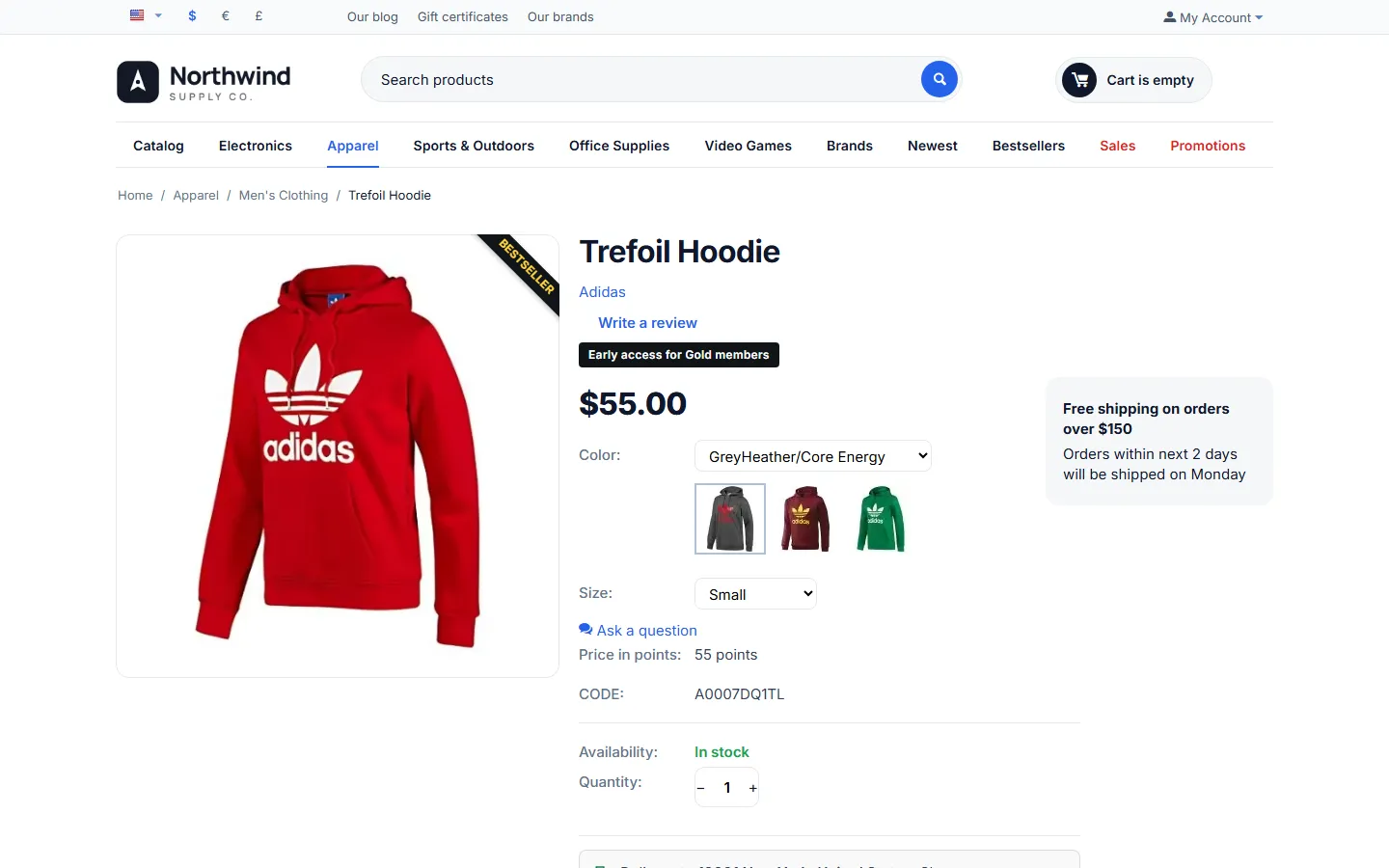
- Members-only products and categories: set User groups on a product, category, page, payment or shipping method. A product limited to an early-access tier shows the Early access label to members; other customers do not see it.
How customers move between tiers
Section titled “How customers move between tiers”- After every order status change, the customer’s spend and orders are recalculated at the end of the request (a Multi-Vendor checkout split between vendors is seen once).
- Upgrade: at once, with an e-mail and the new user group.
- Downgrade: the customer keeps the tier during the grace period and gets a “keep your tier” e-mail with what is missing. Reaching the goals again ends the grace period; otherwise the customer moves to the tier the stats qualify for when it ends.
- Rolling window: the daily schedule re-evaluates tier members, because orders leave the window with time.
- Membership is the customer’s link to the tier user group: the current tier’s group is active, the other tier groups are not. User groups that are not tiers are never changed.
Members
Section titled “Members”Customers → Loyalty members lists every evaluated customer with tier, spend and orders in the window and the date they reached the tier. The counters on top filter by tier, customers without a tier and customers in a grace period. The tools menu exports members and the tier history as CSV.
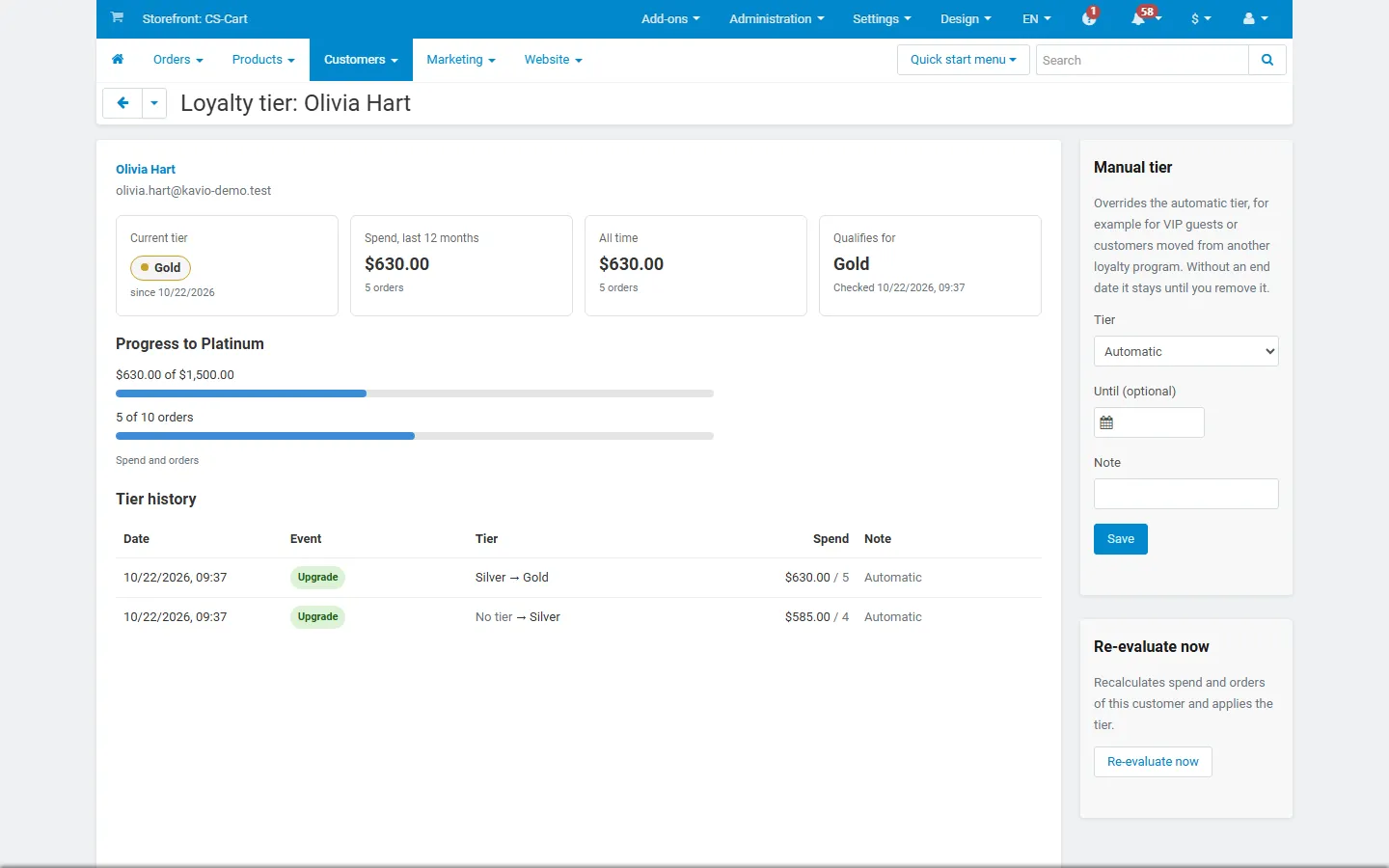
The member page (click a customer, or Loyalty tier in the tools of a customer’s profile) shows the current tier, spend and orders in the window and in total, the tier the stats qualify for, progress to the next tier, the history and the rewards given.
Manual tiers
Section titled “Manual tiers”On the member page, choose a tier under Manual tier, optionally an end date and a note, and save. The manual tier wins over the automatic one until the end date (or until you choose Automatic again); then the customer moves to the tier the stats qualify for at once. Use it for VIP guests, staff, or customers moved from another loyalty program.
Import: in Loyalty members, upload a CSV (or paste rows) with e-mail; tier name or ID; until date YYYY-MM-DD (optional); note (optional). An empty tier removes the manual tier. A header row is optional; commas or semicolons work.
Tier history
Section titled “Tier history”Customers → Loyalty members → Tier history lists upgrades, downgrades, grace periods and manual tiers with filters by event, tier and period, totals for the period (also the extra points from multipliers and the birthday rewards) and a CSV export.
Rewards
Section titled “Rewards”- Points multiplier: the cart and the order show the multiplied reward points; the Reward points add-on grants them on its own status rules.
- Tier cashback: added to the wallet cashback of the order; the Store Credit Wallet add-on shows it at checkout, credits it on its cashback status and reverses it on cancellation.
- Birthday reward: once a year on the birthday (or within the “late” days), for the customer’s tier at that moment, with the birthday e-mail.
The customer side
Section titled “The customer side”- My tier (
index.php?dispatch=kv_loyalty_tiers.view, also linked from the account menu): the current tier and since when, spend and orders in the window, progress bars to the next tier, a “keep your tier” box during a grace period, all perks and the tier ladder. - Account menu: a tier badge such as “Gold member”.
- Profile: the optional Birthday field.
Multi-Vendor
Section titled “Multi-Vendor”Tiers are marketplace-wide. Spend counts the customer’s orders from all vendors; a checkout split between vendors counts as one order with its full amount. Vendors see the tier user groups in their user group prices and promotions, so they can offer tier prices on their own products; the marketplace owns the ladder.