

Usage
How the KPIs are measured
Section titled “How the KPIs are measured”CS-Cart keeps no history of order status changes, so the add-on records, for every vendor order (not the parent order of a multi-vendor checkout), the time it was placed, first accepted, first shipped, given a tracking number and cancelled, and who cancelled it. The nightly run also reads orders, shipments and statuses the add-on did not see (for example orders placed while it was switched off), so the numbers stay complete.
All KPIs cover the orders placed in the rolling window (30 days by default). Orders in a status that never counts (failed, declined, incomplete) and orders you excused are left out.
| KPI | Formula |
|---|---|
| Late shipment rate | Due orders shipped after the due date or still unshipped after it ÷ all due orders. An order is due when it was shipped or its due date has passed; cancelled orders are not due. The due date is the end of the last handling day (placement + handling time in business days). |
| On-time shipment rate | 100% − late shipment rate (used by the badge and the rating formula). |
| Cancellation rate | Orders cancelled by the counted parties (vendor and administrator by default) ÷ all orders. |
| Acceptance time | Average hours from placement to the first accepted status set by the vendor or an administrator, or to the first shipment. Orders still waiting count with their current age, so a vendor cannot improve the average by ignoring orders. |
| Tracking upload rate | Shipped orders with a tracking number ÷ shipped orders. |
| Return rate | Orders with a return request (RMA add-on) ÷ all orders. |
| First response time | For each customer conversation in the Message center with a customer message in the window: hours from the first such message to the vendor’s next reply (still unanswered: until now). Average over the conversations. |
| Review average | Average rating of approved reviews of the vendor’s products in the review window (Product reviews, or Comments and reviews). Off in the default policy. |
A KPI is rated only with enough data: the policy’s minimum orders (10 by default) for the order KPIs, 3 conversations for the response time and 5 reviews for the review average. Below that it shows Not enough data.
Levels
Section titled “Levels”Each KPI is Good, Warning (past the warning threshold) or Breach (past the breach threshold). The vendor’s level is the worst of its rated KPIs; a vendor with no rated KPI is Not enough data. The score (0–100) averages the KPIs: 100 for good, 50 for warning, 0 for breach.
League table
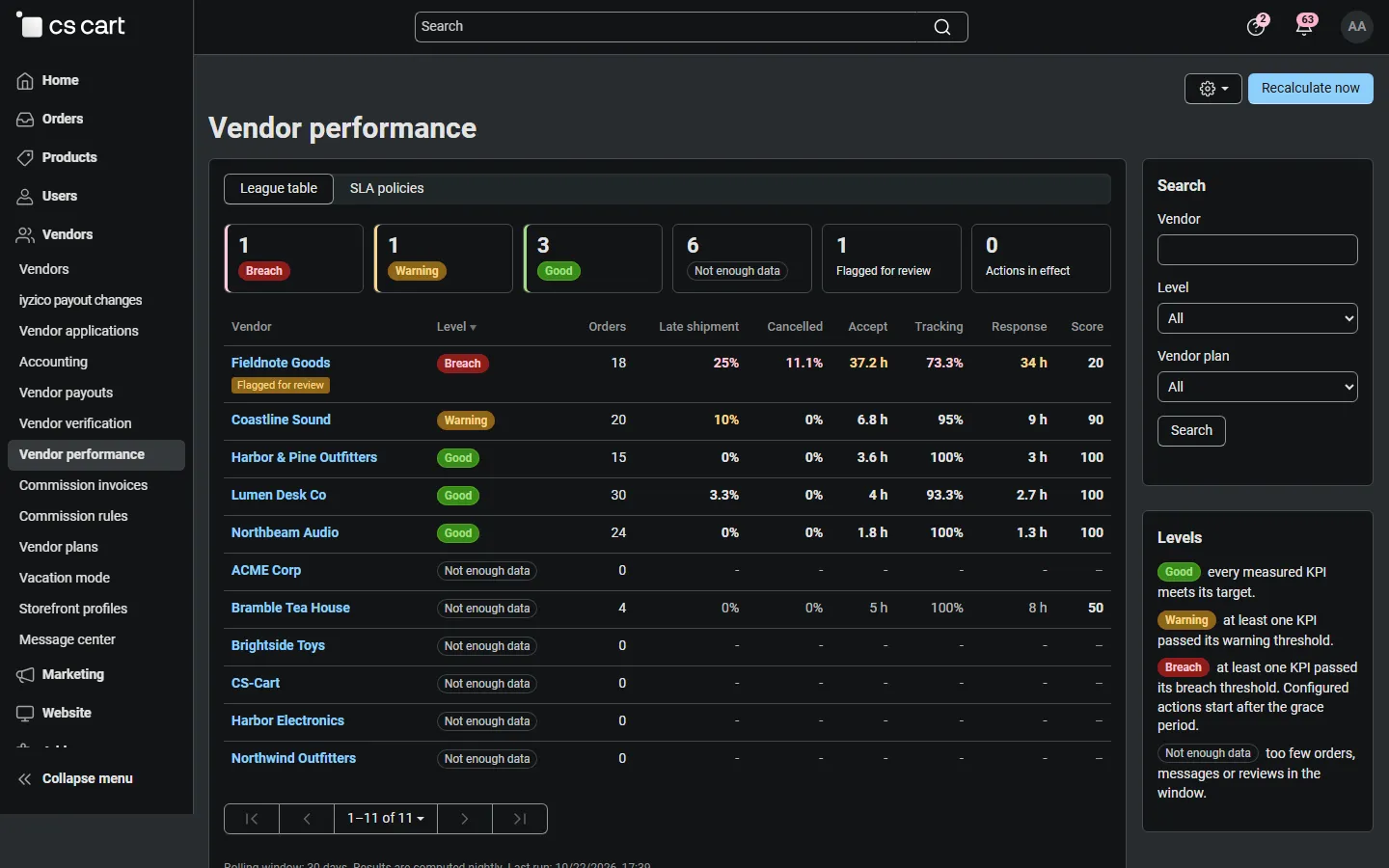
Section titled “League table”Vendors → Vendor performance lists all vendors with their level, orders in the window, the KPIs measured by your policies and the score. Click the counters to filter by level, by review flag or by vendors with an action in effect; the sidebar filters by name and vendor plan. Click a column header to sort. ⚙ → Export CSV downloads the current list with every KPI. Recalculate now runs the computation at once.
Vendor drill-down
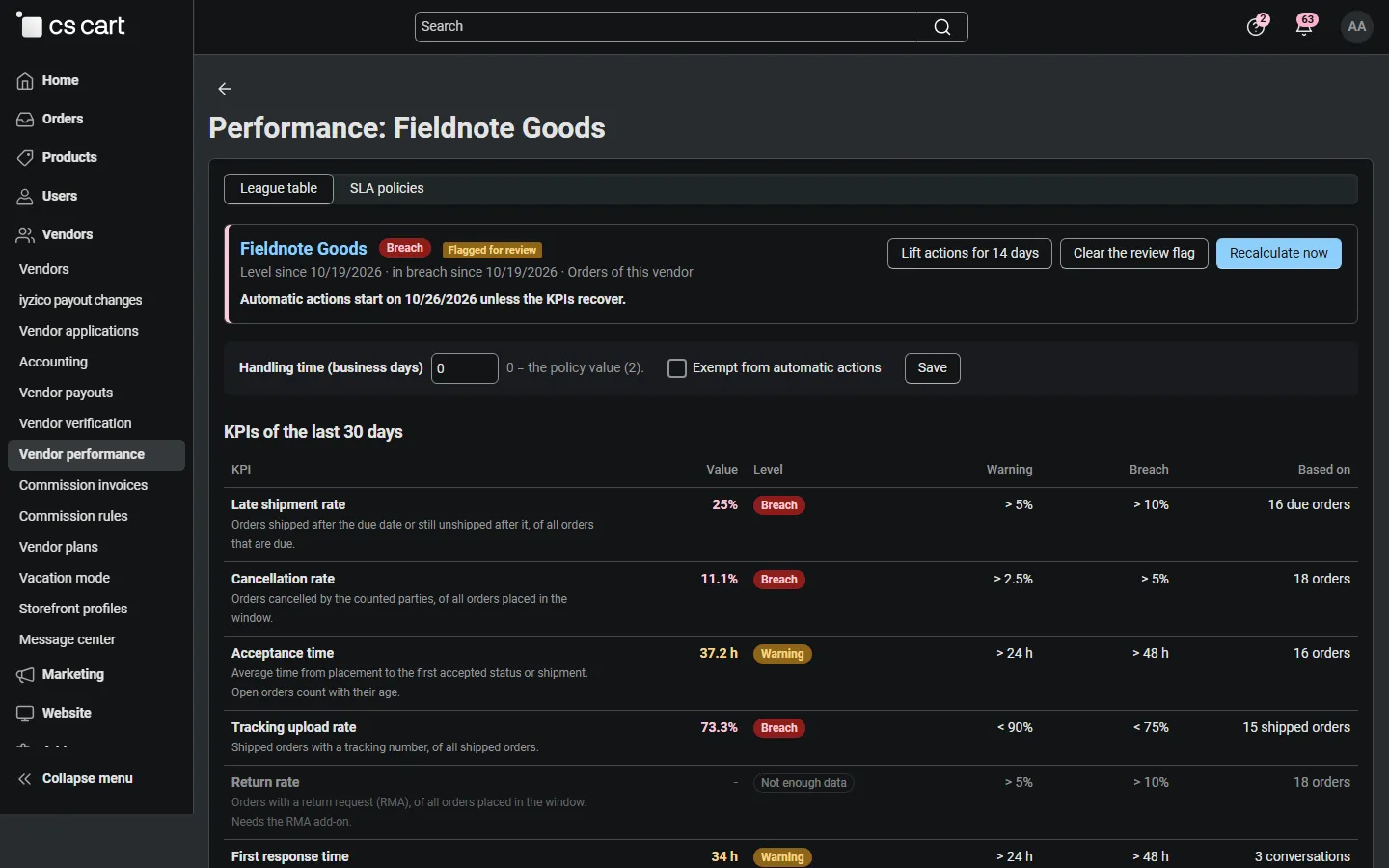
Section titled “Vendor drill-down”Click a vendor to see:
- the level, since when, the review flag and actions in effect, and when the actions will start if the vendor stays in breach;
- Lift actions for 14 days (you can end the lift early), Clear the review flag and Recalculate now;
- a vendor-specific handling time and Exempt from automatic actions;
- every KPI with its value, level, thresholds and the sample it is based on;
- a 30-day trend of the score and the late shipment rate;
- the late and overdue orders and the cancelled orders of the window, each with Excuse (for example a carrier strike or a customer request); excused orders do not count from the next run on, and Count again reverses it;
- the history of level changes, actions, lifts, exemptions and excused orders, with the user who made each change.
Automatic actions
Section titled “Automatic actions”All actions are opt-in per policy and fully reversible:
- When a vendor enters Breach, it is flagged for review (if the policy says so), the vendor gets an e-mail with the KPIs to fix, and you get the daily digest.
- If the vendor is still in breach after the grace period, the configured actions start: hide products and/or pause new orders. The vendor is e-mailed and its panel shows what applies.
- As soon as a nightly run finds the vendor out of breach, the actions end and the vendor is e-mailed again.
Exempt vendors and vendors whose actions you lifted are never acted on. The add-on never changes the vendor’s account status, payouts or products: hiding is a storefront filter, and pausing refuses Add to cart and checkout for that vendor’s products with a clear message.
Vendor panel
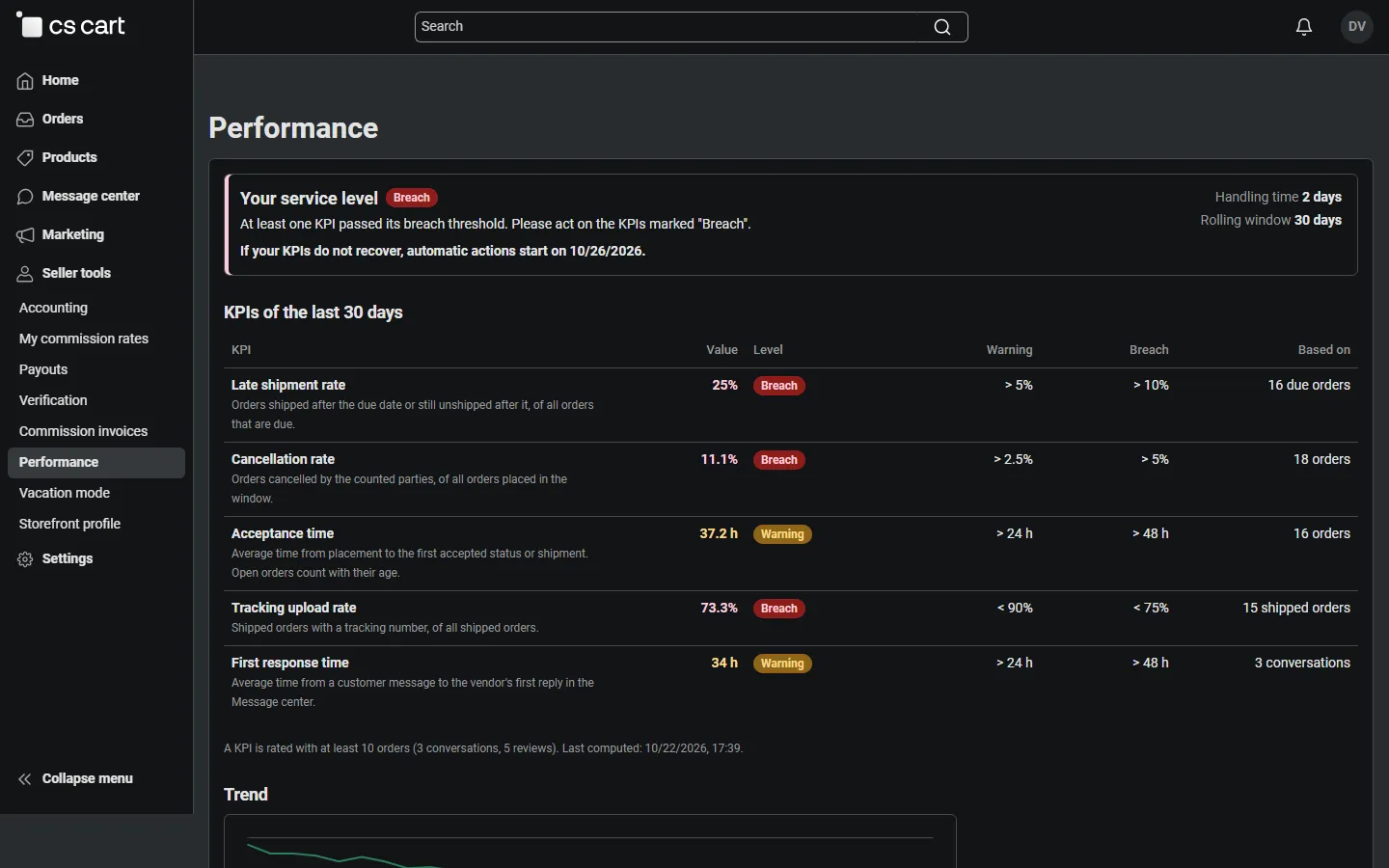
Section titled “Vendor panel”Vendors find Performance in their menu: their level, handling time, every KPI with its targets, the trend, their late and cancelled orders, and what happens next. While a KPI is in warning or breach, their dashboard shows a notice with a link to the page. Vendors cannot change anything here.
Storefront badges
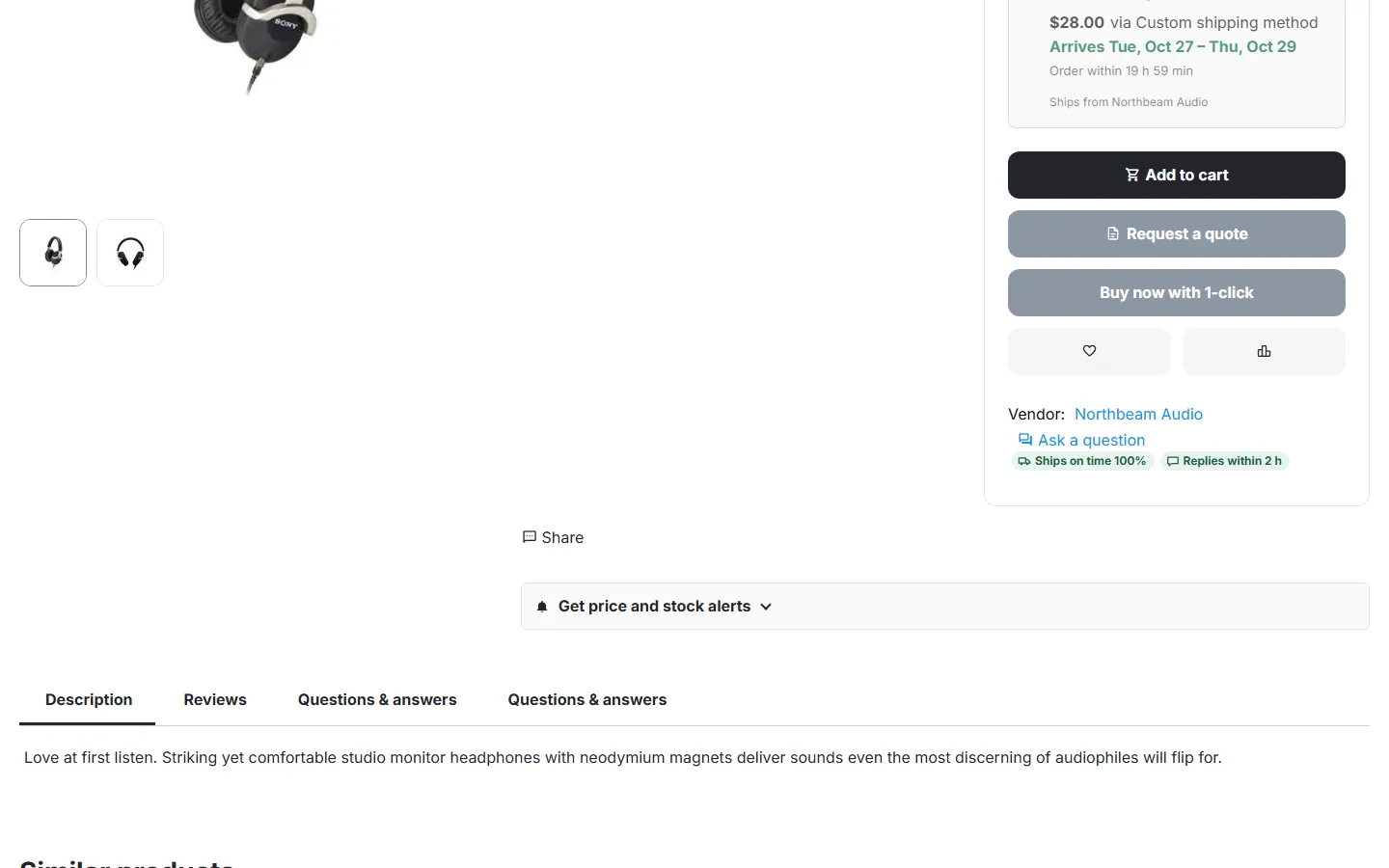
Section titled “Storefront badges”With Show performance badges on the storefront on, vendors who meet your badge thresholds get “Ships on time 98%” and “Replies within 4 h” next to their name on product pages and lists, and on their vendor page. A vendor that does not accept new orders shows “Not accepting new orders right now” instead.
Vendor rating formula
Section titled “Vendor rating formula”With the core Vendor rating add-on, the formula editor offers our variables: slaScore, slaOnTimeRate, slaLateRate, slaCancelRate, slaReturnRate, slaTrackingRate, slaResponseHours, slaAcceptHours. Example: paidOrdersTotal / 1000 + slaScore. Values come from the last nightly results; a vendor without enough data gets a neutral slaScore of 50.