

Usage
How it works
Section titled “How it works”- Every product option (and every global option) gets a section Advanced pricing & rules in its editor: a formula code, limits for numbers and text, “Required when shown”, a price rule and conditions.
- A product can also have a Price formula tab: a formula for the whole product, a minimum price per item and a one-time setup fee, plus a test calculator.
- On the product page the add-on hides the options whose conditions are not met, checks the inputs and shows the price breakdown. When the customer changes an option, a number, a text used by a formula or the quantity, the price is recalculated without a page reload.
- When the product is added to the cart, the server checks everything again: invalid input is refused with a message, values of hidden options are removed, empty number fields get their default value.
- The cart line price includes the per-item amounts; one-time fees are added once per cart line as One-time fees. The order keeps the breakdown of every item.
The core option modifiers (fixed amount or percent per variant) keep working and are applied first.
Option rules
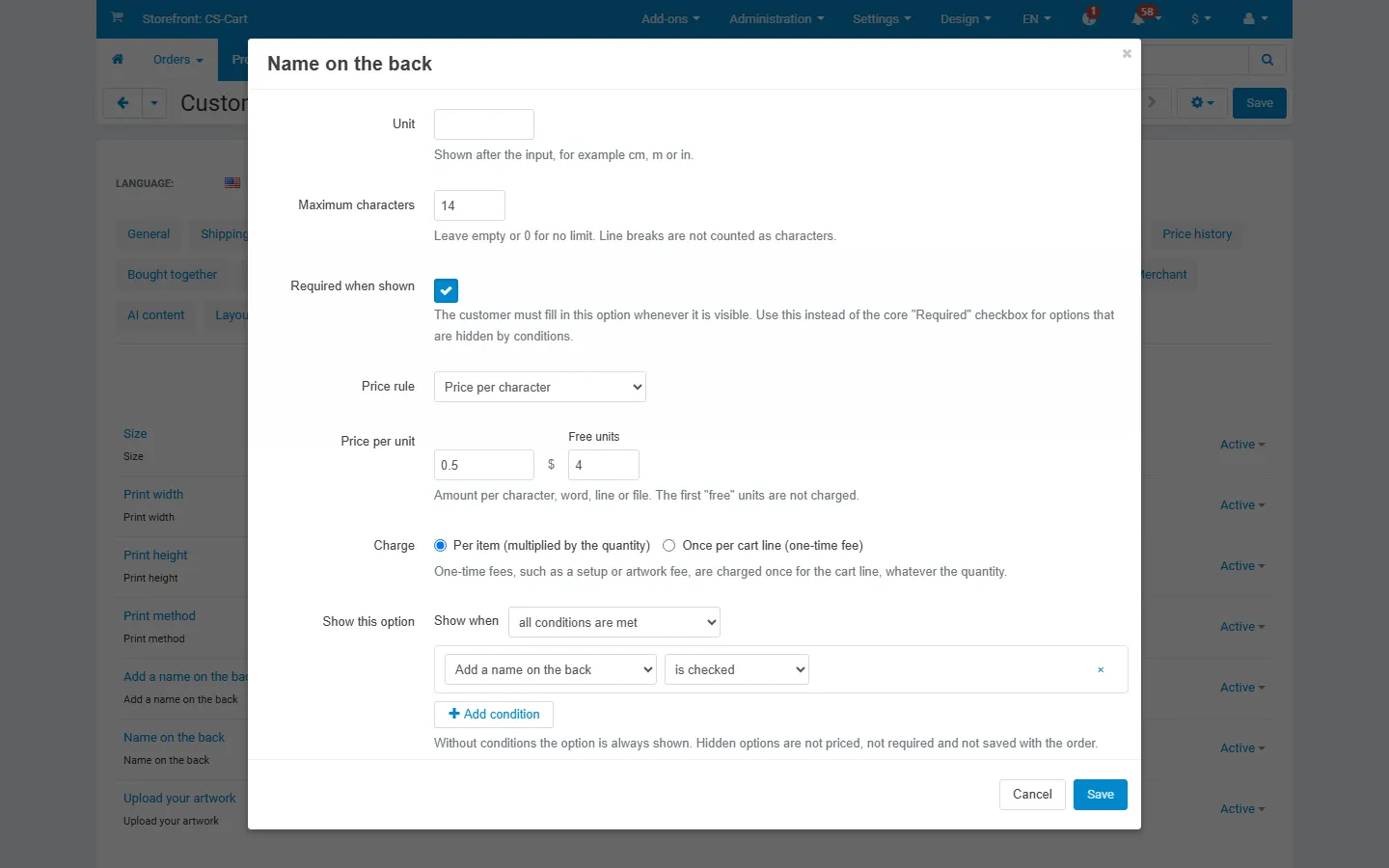
Section titled “Option rules”Open Products → Products → product → Options, click an option (or Products → Options for global options) and scroll to Advanced pricing & rules.
| Field | Applies to | Description |
|---|---|---|
| Formula code | all types | Short name of the option in formulas, for example width, material, engraving. Lowercase letters, digits and underscores, starting with a letter; unique within a product. Not allowed: qty, base, price, options, function names and the endings _len, _words, _lines, _files, _set. |
| Input type | Text, Textarea | Number turns the field into a number input: decimal comma and point are both accepted. |
| Number limits | Number inputs | Minimum, maximum, step (counted from the minimum) and default. The default is used when the field is left empty and is written into the order. |
| Unit | Text, Textarea | Shown after the input, for example cm. |
| Maximum characters / lines | Text, Textarea | Text limits; the product page shows a counter of the characters left. Line breaks do not count as characters. |
| Required when shown | all types | The customer must fill in the option whenever it is visible. Use this instead of the core Required checkbox for options that can be hidden: the core checkbox would also require the option while it is hidden. |
| Price rule | see below | None, Formula, Price per character, word, line (Textarea) or uploaded file (File). |
| Price per unit, Free units | count rules | For example 0.50 per character with 5 free characters. |
| Charge | price rules | Per item (added to the item price, multiplied by the quantity) or Once per cart line (a one-time fee). |
| Show this option | all types | Conditions; see below. |
Select, radio and checkbox options have a Formula value per variant (click the arrow of a variant on the Variants tab), for example the price per square metre of each material. A checked checkbox without a value counts as 1.
Formulas
Section titled “Formulas”A formula is a calculation like in a spreadsheet. The result is the amount added per item (or once, with Once per cart line).
| Variable | Value |
|---|---|
qty |
quantity of the cart line (on the product page: the chosen quantity) |
base |
product price before option prices |
price |
price with the core option modifiers |
options |
sum of the core option modifiers |
code |
number input: the number; select/radio: the variant’s formula value; checkbox: its value when checked, else 0; file: the number of files; text: the number it contains, else 0 |
code_len, code_words, code_lines |
characters, words and non-empty lines of a text |
code_files |
number of uploaded files |
code_set |
1 when the option is shown and filled in, else 0 |
Hidden options count as 0. Operators: + - * / % ^ and brackets, comparisons < <= > >= == !=, and, or, not, and condition ? a : b. Functions: min, max, round(x) or round(x, decimals), ceil, floor, abs, sqrt, pow, clamp(x, low, high), if(condition, a, b), round_to(x, step), ceil_to(x, step), floor_to(x, step).
Examples:
width * height / 10000 * material: price per square metre with sizes in cm and the rate as the material’s formula value;max(0, engraving_len - 10) * 0.5: 0.50 per character after the first 10;qty >= 50 ? -2 : 0: 2.00 off per item from 50 items;ceil_to(length, 0.5) * 12: length rounded up to the next half metre.
Click Check formula to test the formula: it reports typos, unknown variables or functions and the position of the problem. A formula that fails while customers shop (for example a division by zero) counts as 0, so it never breaks the product page or the cart.
Conditions
Section titled “Conditions”Click Add condition, choose another option of the product and the operator:
- select and radio options: is one of / is not one of the variants you tick;
- checkboxes: is checked / is not checked;
- text and number inputs: equals, does not equal, is greater than, is at least, is less than, is at most a number, or is filled in / is empty;
- file options: is filled in / is empty.
Choose whether all conditions or any condition must be met. Conditions can depend on options that are themselves conditional. A hidden option is not shown, not priced, not required and not saved with the order; its uploaded files are dropped.
Product formula, minimum price, setup fee
Section titled “Product formula, minimum price, setup fee”Open the product’s Price formula tab.
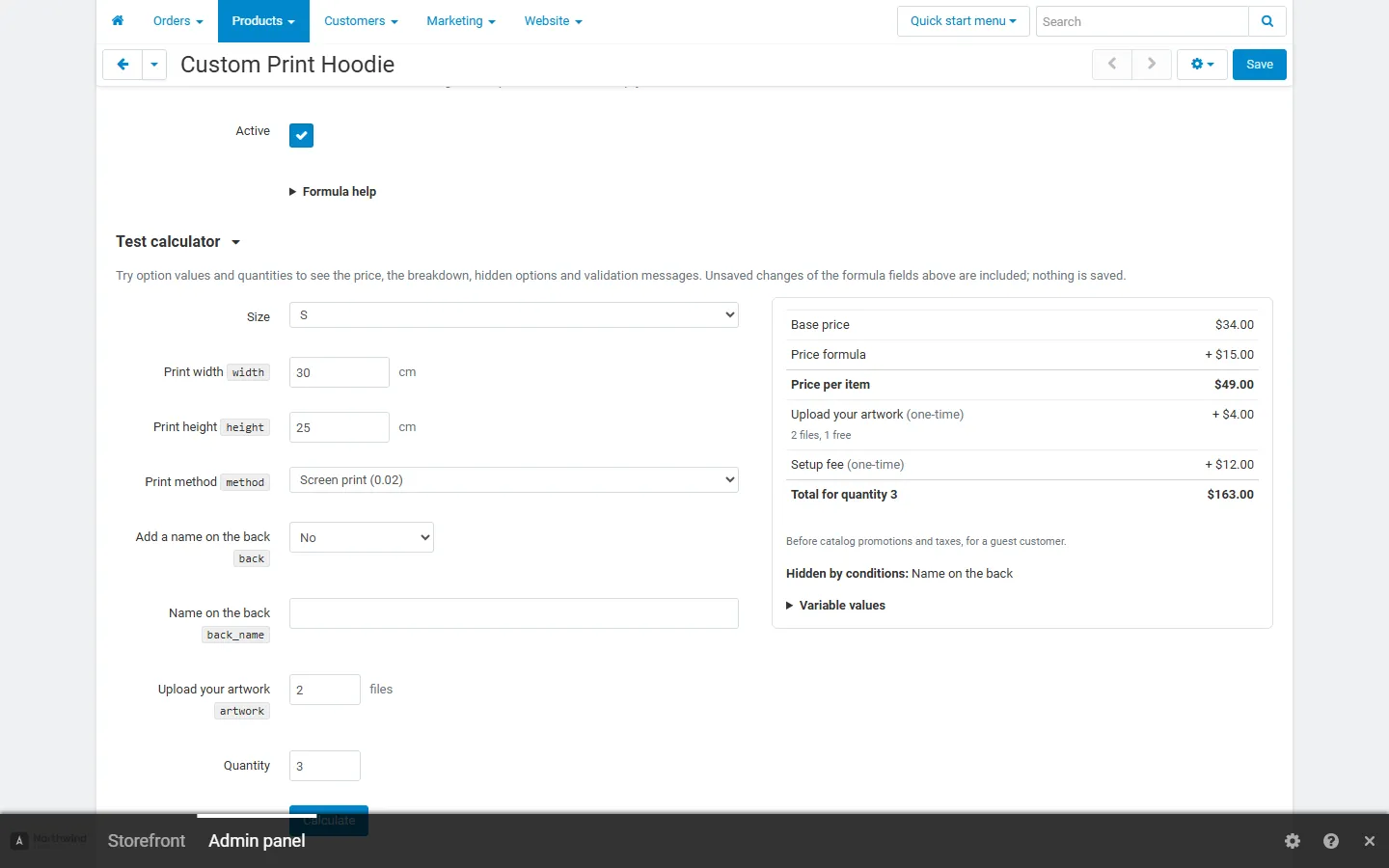
- Price formula can use the codes of all options of the product. Add the result to the price adds it to the price per item. Replace the base price with the result makes the result the price per item: the product’s own price can then be a “from” price for category pages, and the list price and quantity discounts of the product are not used (use
qtyin the formula instead). - Minimum price per item: the price per item before discounts never goes below this amount. The breakdown shows the difference as Minimum price adjustment.
- One-time setup fee: a number or a formula, charged once per cart line.
- Active: switch the product formula off without deleting it.
Test calculator
Section titled “Test calculator”Choose option values, the number of uploaded files and a quantity, and click Calculate. The result shows the price per item, the breakdown, one-time fees, the total, the options hidden by conditions, the messages customers would see and the value of every variable. Unsaved changes of the formula fields are included, so you can try a formula before saving the product. Prices are shown for a guest before catalog promotions and taxes.
Products → Option price rules
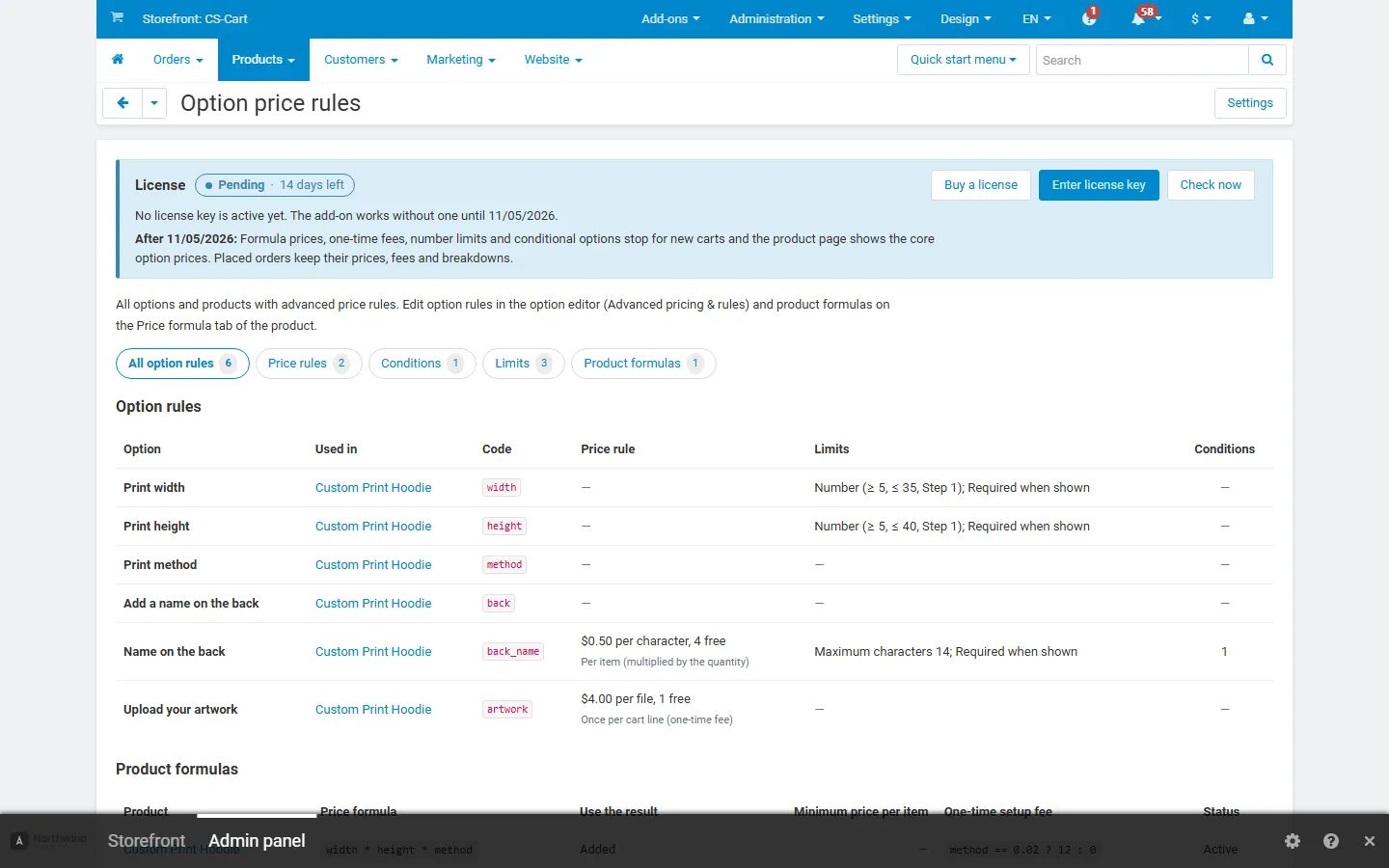
Section titled “Products → Option price rules”An overview of all option rules (option, product or global option, code, price rule, limits, number of conditions) and product formulas, with filters and links to the editors.
Storefront
Section titled “Storefront”- The product page hides conditional options, adds the unit and the number keyboard on phones to number inputs, marks options that are required while shown and shows a counter for text limits. Out-of-range numbers get a message under the field and add to cart is blocked until they are corrected.
- The Price breakdown under the options lists the base price, option prices, formula amounts, the minimum price adjustment, the price per item, one-time fees, per-file fees and the total for the chosen quantity.
- The price updates when an option, a number or text used by a formula or condition, or the quantity changes.
- The cart and checkout show the formula amounts under each item and a One-time fees total line. The same applies when options are edited in the cart.
Orders, invoices and e-mails
Section titled “Orders, invoices and e-mails”Each order item keeps its breakdown (shown in the customer’s order details, the admin order page, invoices and order e-mails), and one-time fees appear as their own rows and total line. The amounts are stored with the order: changing a rule later does not change placed orders. When you edit a placed order, unchanged items keep their amounts; items whose options or quantity you change are recalculated with the current rules.
On Multi-Vendor, each vendor’s sub-order carries the one-time fees of its own products.
Vendors (Multi-Vendor)
Section titled “Vendors (Multi-Vendor)”With Vendors can edit price rules on, vendors see Advanced pricing & rules in the option editor of their own products, the Price formula tab and the test calculator. Vendors cannot see or test other vendors’ products, and the overview page is for administrators only.
Products priced in another currency
Section titled “Products priced in another currency”With our Product Price in Any Currency add-on, a product priced in, say, EUR uses formulas, rates, the minimum price and the setup fee in EUR: base and price are given in EUR and the results are converted like the product price. The Price formula tab shows a note.
Other Kavio Labs add-ons
Section titled “Other Kavio Labs add-ons”- B2B Quick Order Form: a product that needs customer input (a required option, or a number or text field) cannot be added from the quick order list. The row is refused with a notice that asks the customer to open the product page and choose the options there.
- Product Cost & Profit: the reports count the one-time setup and artwork fees as an order surcharge, like gift wrap fees, so the Items figures exclude them. The order total includes them.