

Usage
Overview · Installation · Configuration · Developer notes · FAQ
Create a look
Section titled “Create a look”- Go to Products > Shop the Look and click +.
- General tab: enter the name, upload the photo (a wide or portrait lifestyle photo, at least 1200 px wide), and optionally a short story, a hotspot style, the position and the status. Click Create.
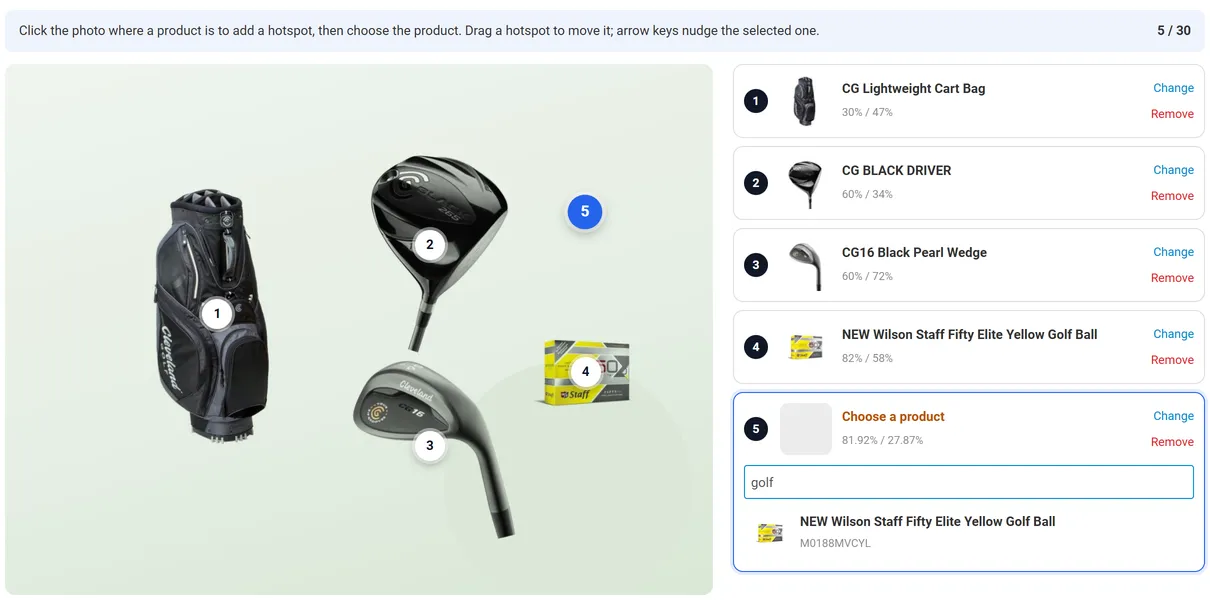
- The Hotspots tab opens. Click the photo where a product is: a numbered hotspot appears and the product search opens next to it. Type a product name, code or ID and pick the product.
- Repeat for every product. Drag a hotspot to move it; select a hotspot and use the arrow keys to nudge it (Shift = big steps), Delete removes it. Change picks another product, Remove deletes the row.
- Click Save.
The SEO tab has the SEO name of the look page (with the SEO add-on), the page title and the meta description. Preview on storefront in the gear menu opens the look page.
Show looks on the storefront
Section titled “Show looks on the storefront”Block Manager
Section titled “Block Manager”-
Go to Design > Layouts, open the page (for example Homepage) and click + in a grid, Add block.
-
Choose the Shop the Look block and a template:
- Shop the Look: spotlight: one look large; several looks become tabs with arrows.
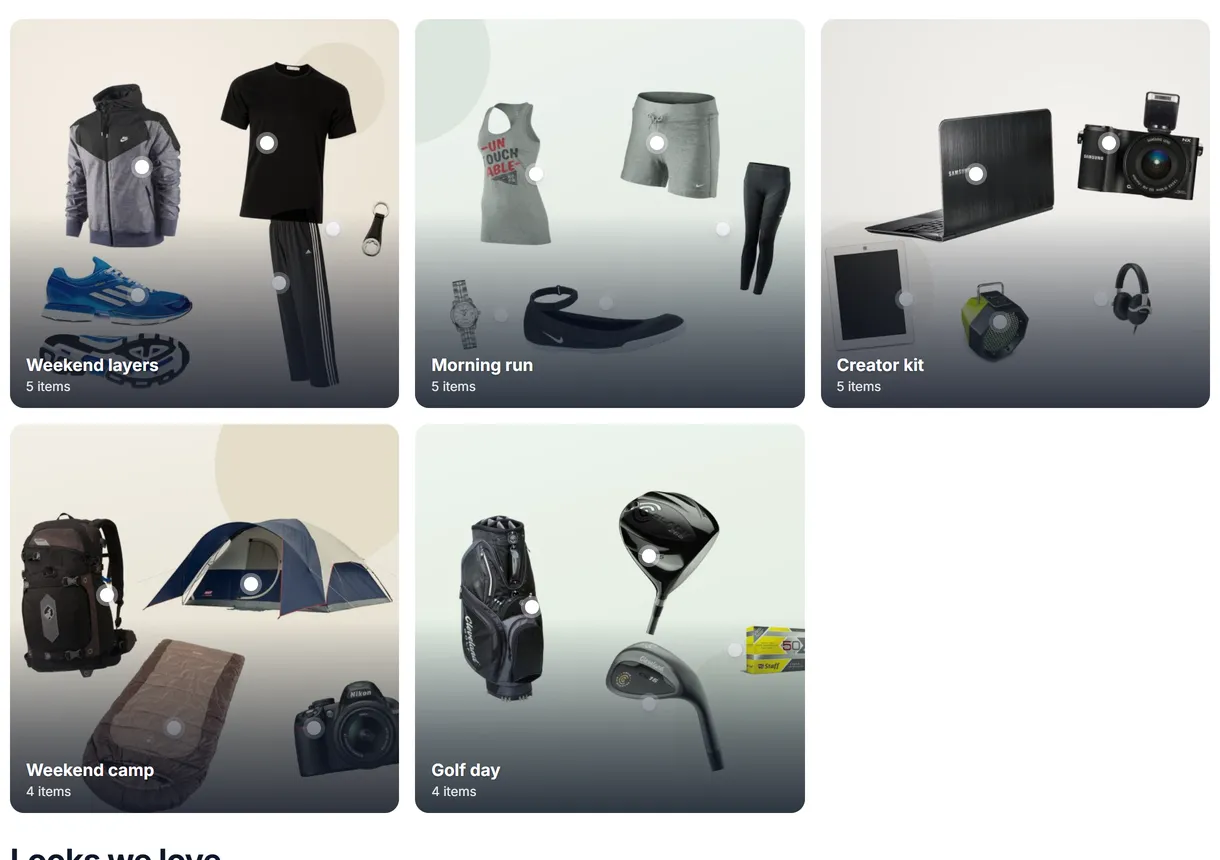
- Shop the Look: lookbook grid: square tiles; a tile opens the look in a dialog.
- Shop the Look: carousel: portrait cards in a swipeable row.
-
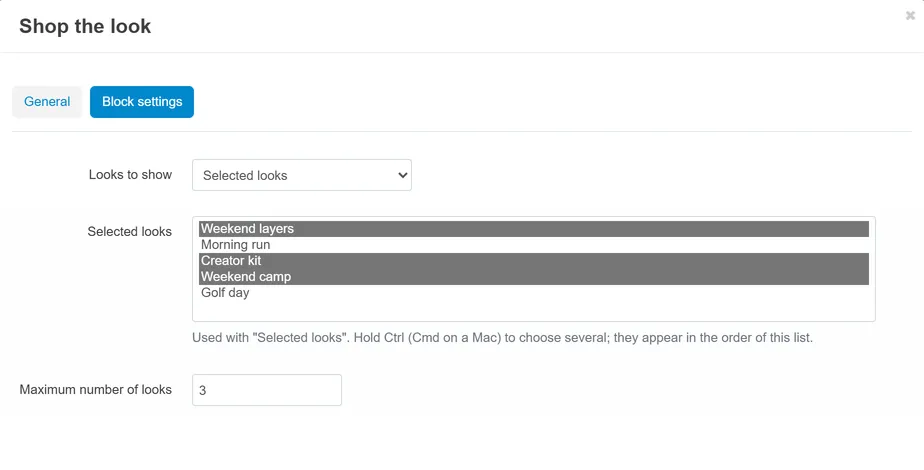
On the Block settings tab choose Looks to show:
- All active looks (by position),
- Selected looks (pick them in the list; hold Ctrl or Cmd for several),
- Looks with the current product (product pages),
- Looks with products of the current category (category pages),
- Looks of the current vendor (vendor store pages, Multi-Vendor),
and the maximum number of looks.
Product pages
Section titled “Product pages”With “Show Complete the look on product pages” on, every product page shows the looks that contain the product, above the product tabs. No block is needed.
Look pages and the lookbook page
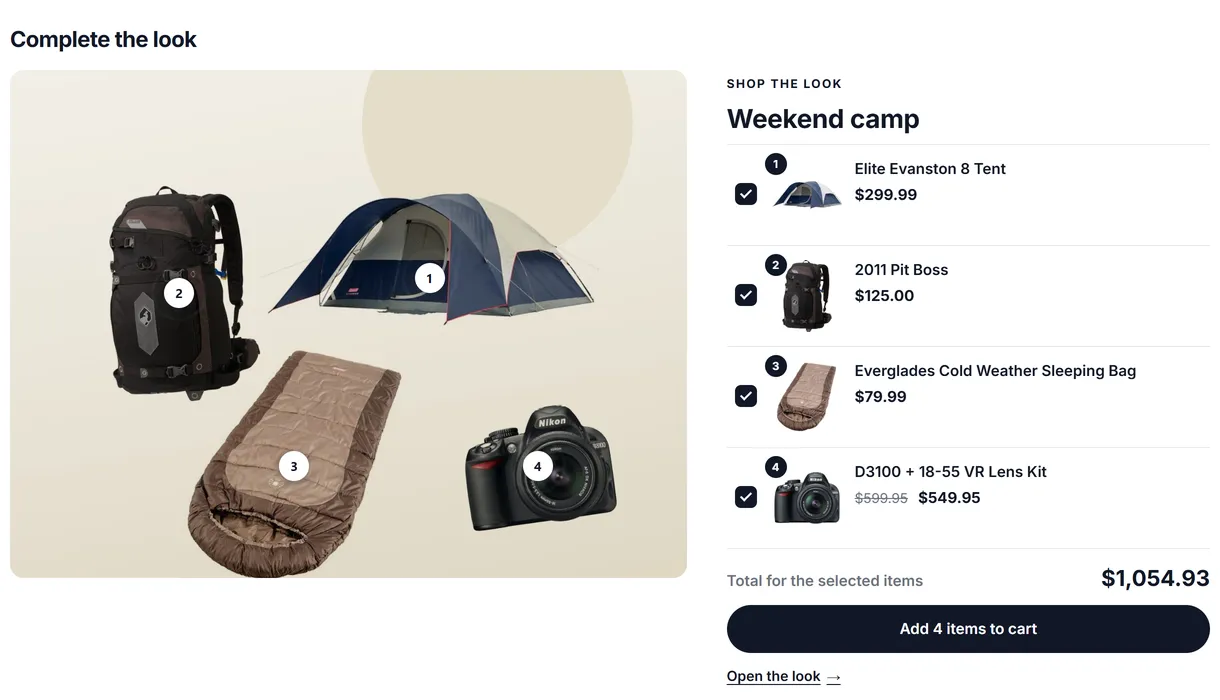
Section titled “Look pages and the lookbook page”Every active look has a page with its photo, the item list and more looks; the lookbook page lists all looks. Link the lookbook page from a menu or a banner (see Configuration).
What shoppers see
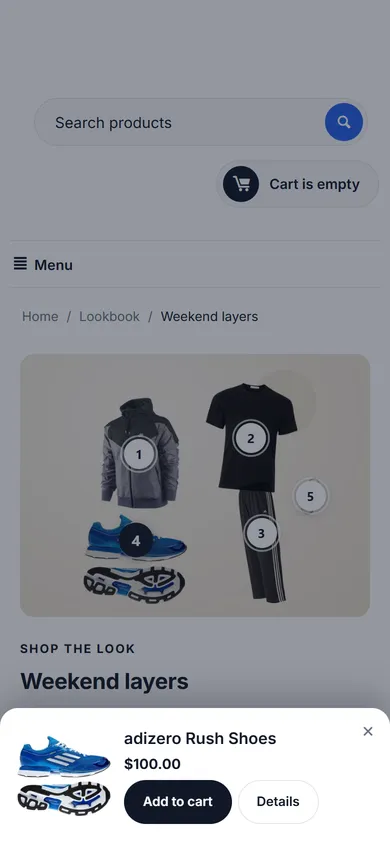
Section titled “What shoppers see”- Pins on the photo; hover or tap opens the product card with price, Add to cart and Details. Products with options show Choose options, which scrolls to the pickers in the item list.
- The item list with a checkbox, price and pickers per item; the total follows the selected items, options and variations; Add N items to cart adds them in one request and shows the usual “added to cart” dialog.
- On phones the card slides up as a bottom sheet and the item list stacks below the photo.
Analytics
Section titled “Analytics”Products > Shop the Look > Analytics shows views, hotspot clicks, clicks per view, add-to-carts, ordered items and revenue for 7, 30, 90 or 365 days, a daily chart and the looks ranked by revenue. The Performance tab of a look shows the same per hotspot. The look list shows the last 30 days.
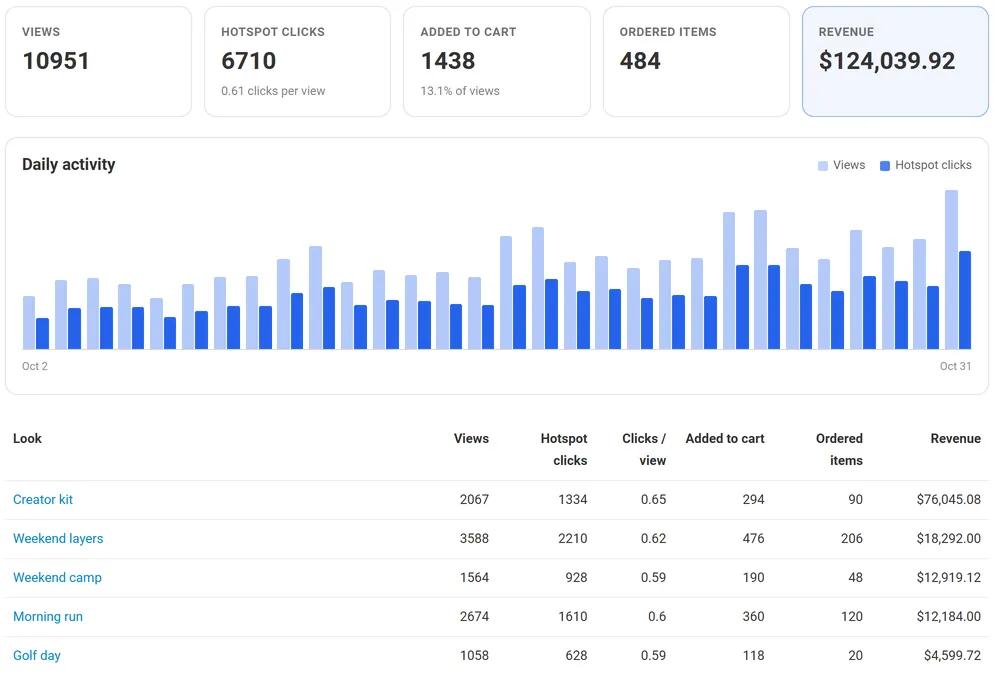
- A view counts when half of the photo is on the screen, once per look and browser session.
- A hotspot click counts the first opening of a hotspot card per page view.
- Added to cart counts every product added from a look (whole look or single item).
- Ordered items and revenue count products added from a look and then ordered (units and item subtotals). Multi-Vendor orders split into vendor orders are counted once.
Multi-Vendor
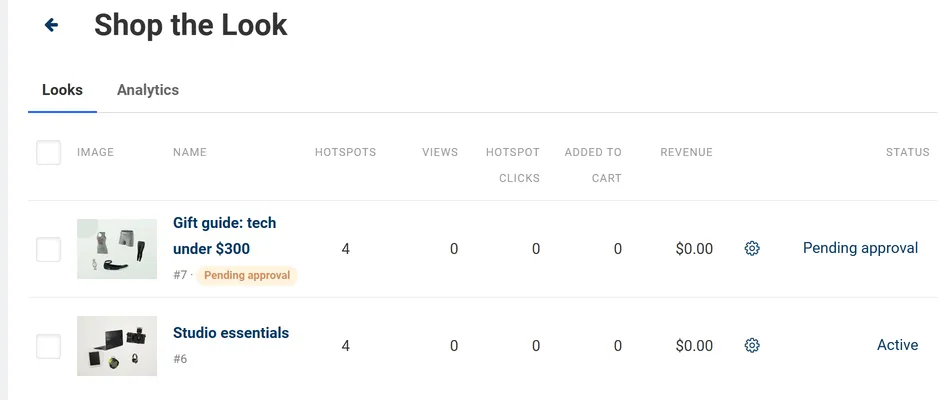
Section titled “Multi-Vendor”Vendors open Products > Shop the Look in the vendor panel and create looks with their own products (other vendors’ products are dropped from the hotspots when saved). With approval on, the look is “Pending approval” until an administrator opens it and sets the status to Active; the look list shows how many looks wait.
Statuses
Section titled “Statuses”| Status | Storefront |
|---|---|
| Active | Shown in blocks, on product pages and on its look page. |
| Disabled | Hidden; statistics stay. |
| Pending approval (Multi-Vendor) | Hidden until approved. |
License
Section titled “License”When the license is not active (after the trial and grace periods), looks, look blocks, look pages and the product page section are no longer shown and no new statistics are collected; your looks, hotspots and statistics stay saved and the admin pages keep working.