

Usage
Overview · Installation · Configuration · Developer notes · FAQ
What customers see
Section titled “What customers see”With the built-in check, a small line Protected against spam appears under the protected form. When the customer starts typing, the browser solves a short task in the background and the line turns into Spam check complete. There is nothing to click and nothing to type. If the customer sends the form before the check is done (for example with a password manager), the form waits a moment and is sent by itself.
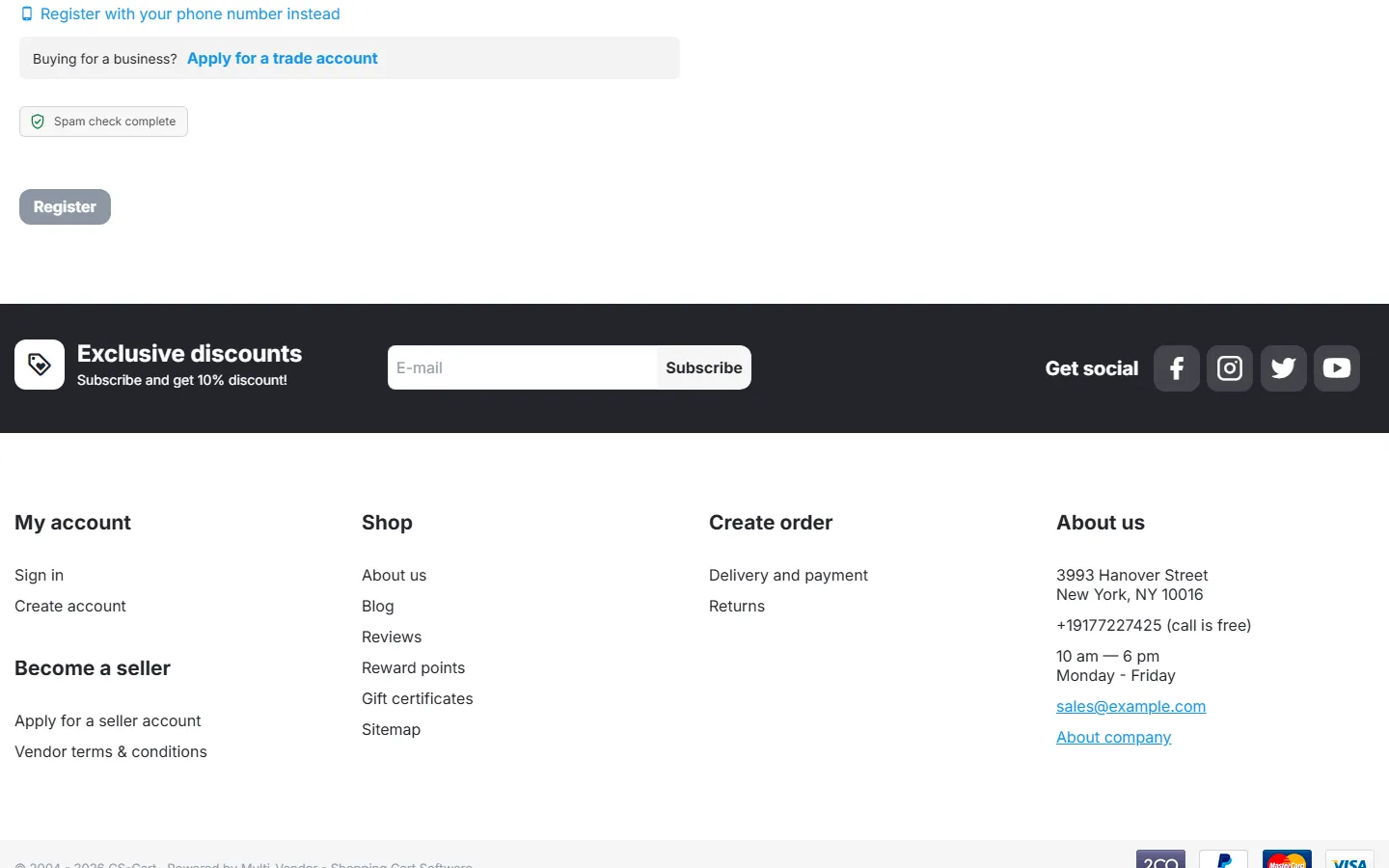
With Cloudflare Turnstile or hCaptcha the provider’s box appears in the form. Turnstile usually passes without a click; hCaptcha shows I am human. The provider’s script loads only when a protected form is on screen or used.
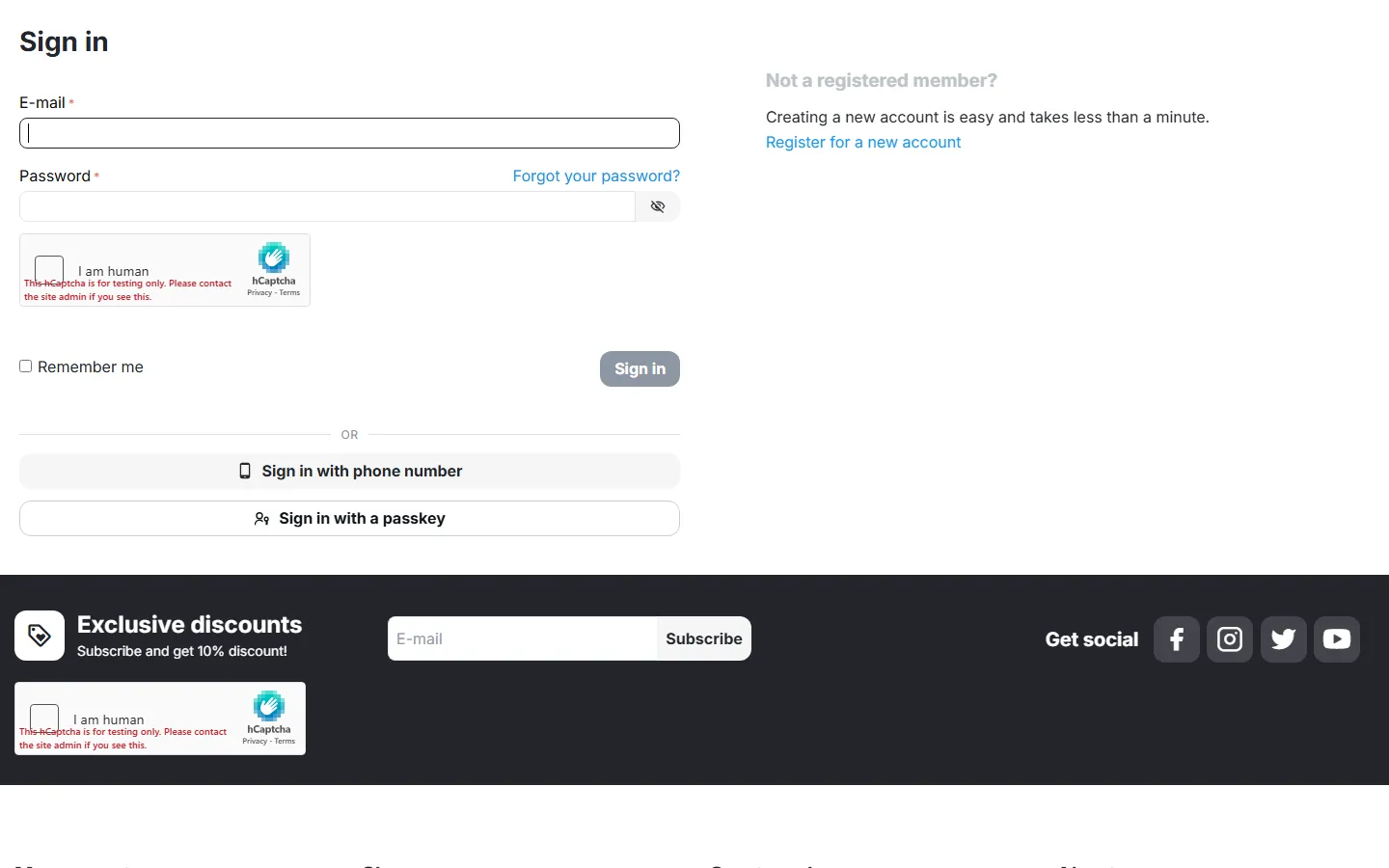
When a check fails, the form is not processed and the customer sees a short message, for example The spam check failed. Please try again. or Too many attempts from your network. Please try again in 8 min. Entered data is kept where CS-Cart supports it (registration, checkout, contact forms).
Forms set to Rate limit only look exactly as before; only the attempt limit and the hidden field apply.
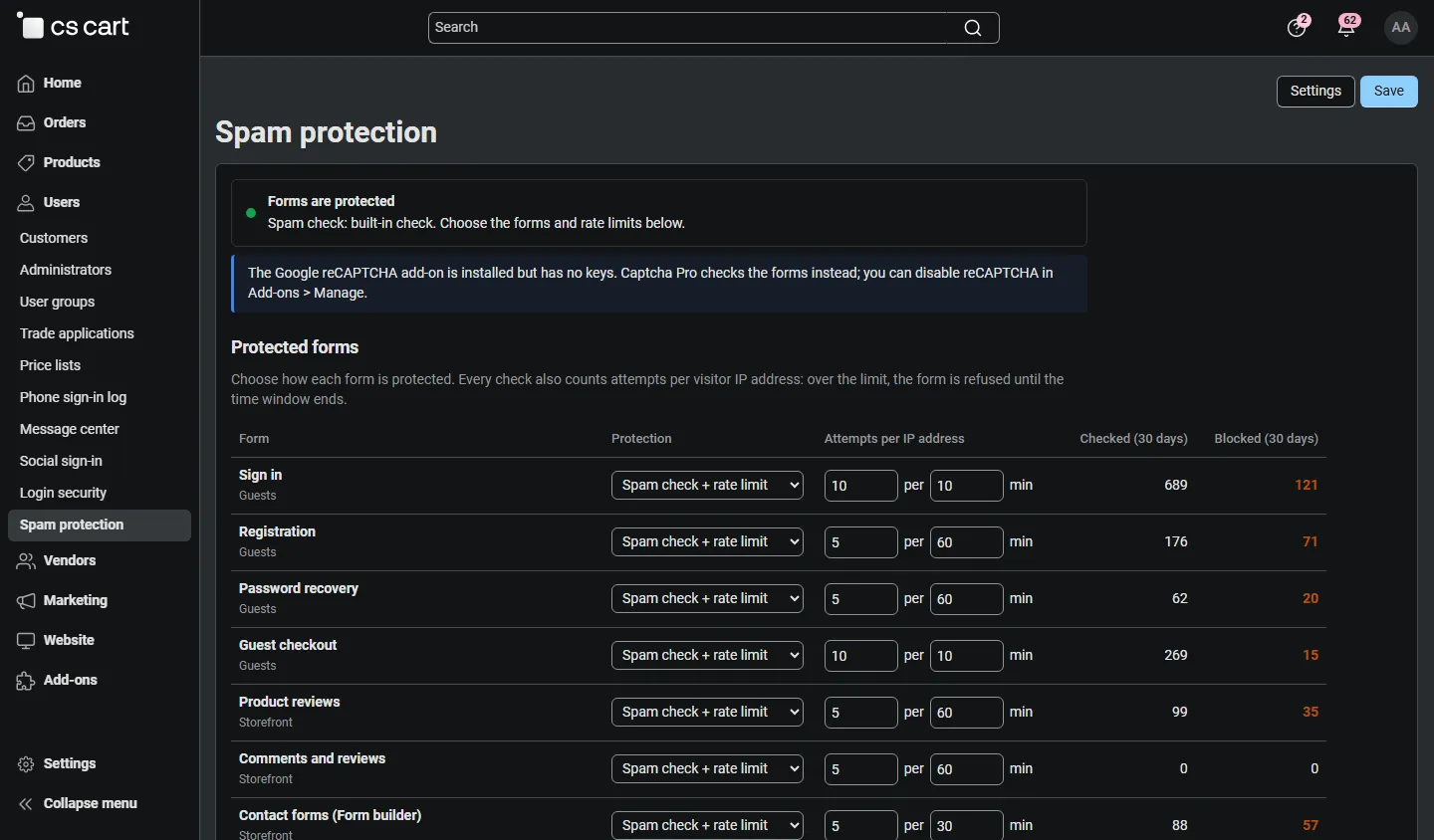
The Spam protection page
Section titled “The Spam protection page”Customers → Spam protection shows:
- the status: whether forms are protected and by which check, and notes about Google reCAPTCHA, missing provider keys or invalid allow-list entries;
- the forms with their protection, attempts per IP address and the checked and blocked submissions of the last 30 days (see Configuration);
- the statistics.
Statistics
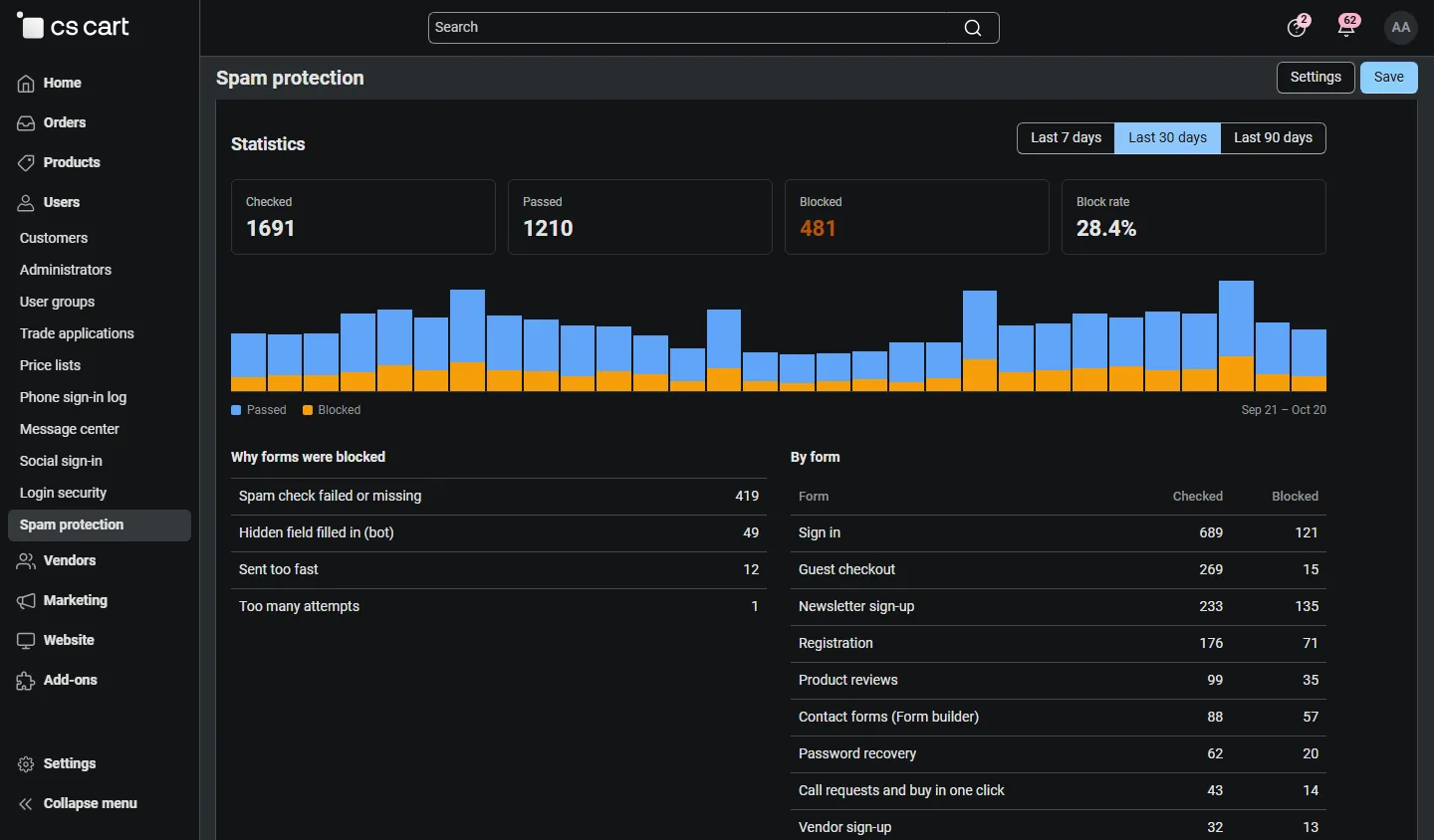
Section titled “Statistics”Choose the last 7, 30 or 90 days to see checked, passed and blocked submissions, the block rate, a daily chart, the reasons (check failed or missing, hidden field filled in, sent too fast, used twice, expired, too many attempts, provider not reachable) and the numbers per form. Submissions from allowed IP addresses and those accepted by the built-in check during a provider outage are listed separately. Only daily counters are stored, never IP addresses or form contents. Delete old statistics removes counters older than the retention period.
Admin and vendor panel sign-in
Section titled “Admin and vendor panel sign-in”Set Admin and vendor panel sign-in to Spam check + rate limit on the Spam protection page to protect the sign-in page of the admin panel and, on Multi-Vendor, the vendor panel. Add your office IP addresses to the allow-list so you are never slowed down. The emergency switch is described in Configuration.
Google reCAPTCHA
Section titled “Google reCAPTCHA”CS-Cart installs the Google reCAPTCHA add-on on every store. Captcha Pro handles it like this:
- reCAPTCHA installed but without keys (the usual case): Captcha Pro checks the forms. The status shows a short note; you can disable reCAPTCHA in Add-ons → Manage add-ons at any time.
- reCAPTCHA set up with keys: Captcha Pro stays inactive and the forms keep Google reCAPTCHA. The Spam protection page shows Switch to Captcha Pro: it turns on Captcha Pro for the forms that reCAPTCHA protected and disables the reCAPTCHA add-on. Nothing else of reCAPTCHA is changed, so you can switch back by enabling it again.
Other Kavio Labs add-ons
Section titled “Other Kavio Labs add-ons”- Login Security: 2FA & Passkeys: the spam check runs first, then the password, then the second step.
- Social Login Pro and Phone OTP Login: their sign-in flows are not forms with a captcha; they have their own protection (provider checks, code limits) and work unchanged.
- Vendor Registration Builder: its vendor sign-up form is protected through the Vendor sign-up form.
Multi-Vendor and Ultimate
Section titled “Multi-Vendor and Ultimate”- Multi-Vendor: one configuration for the marketplace. Vendor sign-up and the vendor panel sign-in are covered; vendors have no access to the Spam protection page.
- Ultimate: the check, keys and allow-list are storefront settings, and the forms page works per storefront (select it in the admin panel); a storefront without its own form settings uses those of all storefronts. Statistics are kept per storefront.