

Configuration
Open Add-ons → Manage add-ons → Category Import & Export → Settings.
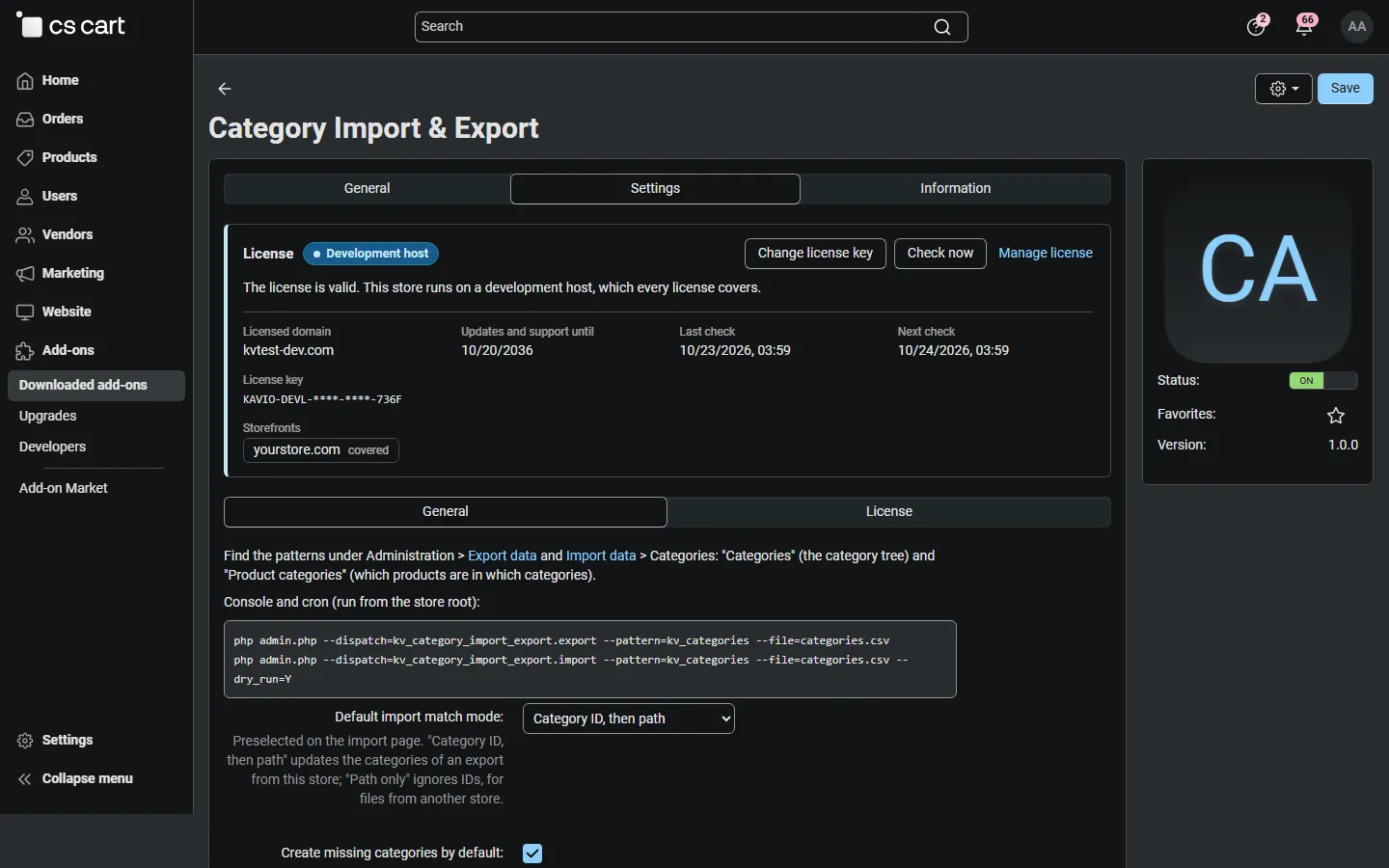
General
Section titled “General”| Setting | Default | Description |
|---|---|---|
| How to use | Links to the Export data and Import data pages and the console commands. | |
| Default import match mode | Category ID, then path | Preselected on the import page. Category ID, then path updates the categories of an export from this store; Path only ignores IDs, for files from another store. |
| Create missing categories by default | On | Preselected on the import page. When on, categories and parent categories that do not exist yet are created. |
| Create 301 redirects when an import changes an SEO name | On | The same as the SEO add-on does when you edit a category: the old URL redirects to the new one. |
Export options (Categories)
Section titled “Export options (Categories)”| Option | Description |
|---|---|
| Language | One or more languages. Each category gets one row per language. |
| Category delimiter | Separates the names of a path (default ///). Category names must not contain it. |
| Export subtree | All categories, or one root category with all its subcategories. |
| Images | Image URL: the address of each category image. Copy to the images directory: the images are copied to the images directory (subfolder categories/) and the file contains their paths. Use it to move a catalog with its images to a store that cannot reach the first one. |
| Images directory | Inside the export/import files directory (default exim/backup/images/). |
| CSV delimiter, Output, File name | The core options: semicolon, comma or tab; direct download, screen or server. |
The columns themselves are chosen with the core layouts: move fields between Exported fields and Available fields and save the layout. The add-on installs a layout called general with all columns except Product count.
Import options (Categories)
Section titled “Import options (Categories)”| Option | Description |
|---|---|
| Category delimiter | Must match the file (default ///). |
| Images directory | Where the import looks for image file names that are not URLs. |
| Match by | Category ID, then path or Path only (see Usage). |
| Create missing categories | Creates categories and parents that are not found; when off such rows are errors. |
| Dry run (preview only) | Checks the file and reports what would happen, without changing anything. |
| CSV delimiter, Select file | The core options: a local file, a file on the server or a URL. |
Import options (Product categories)
Section titled “Import options (Product categories)”| Option | Description |
|---|---|
| Links mode | Add: adds or updates the listed links and keeps the others. Replace: each product in the file keeps only the links listed for it. |
| Dry run (preview only) | Reports the links that would be added and removed. |
License
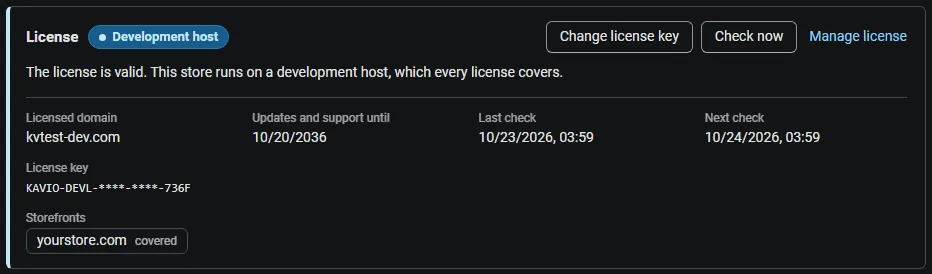
Section titled “License”The license status is shown in a License card at the top of the add-on page, above the tabs. The License tab holds the key itself.
| Setting | Description |
|---|---|
| License key | Your Kavio Labs license key (KAVIO-XXXX-XXXX-XXXX-XXXX) or your CS-Cart Marketplace license number. If you entered the Marketplace license number in Add-ons → Manage add-ons, leave this empty. |
| License status | Points to the License card and explains what the check sends. |
What the license covers. A license is bound to the base domain you entered at purchase (for example yourstore.com) and covers its subdomains. Local development hosts (localhost, private IP addresses, *.local, *.test) are always allowed.
When the add-on checks. When you save the key, and then once a day, only in the admin panel or from cron, never while visitors browse the storefront:
php /path/to/store/admin.php --dispatch=kv_category_import_export_license.checkWhat is sent. The license key, the add-on ID and version, the host names of your storefronts, your CS-Cart version and edition, and a random one-time value. No categories, products or files are sent.
Without a valid license, category import and export are switched off: the Categories section disappears from Administration → Export data / Import data and console runs are refused. Your categories, product links and exported files are not changed.
| Status (card) | Color | What happens |
|---|---|---|
| Valid / Development host | Green / Blue | Everything works. |
| Pending · N days left / Grace period | Blue / Amber | Everything works (14 days). |
| Not activated, Invalid key, Revoked, Domain mismatch, Not verified | Red | Import and export are switched off; your data is not changed. |
When your updates and support period ends, the add-on keeps working. Only updates and support stop.