

Usage
Create a category collection
Section titled “Create a category collection”- Open Products → Smart collections and click Add collection.
- Enter a name, keep Delivery: Category and choose a category, or tick Create a new category with the collection name.
- On the Conditions tab add rules, for example On sale (discount) at least 10 % and Stock: in stock. Click Preview to see how many products match.
- Choose the sort order and, if you want a top list, a maximum number of products.
- Click Create. The add-on fills the category right away (up to the batch limit; larger collections continue on the next scheduled run).
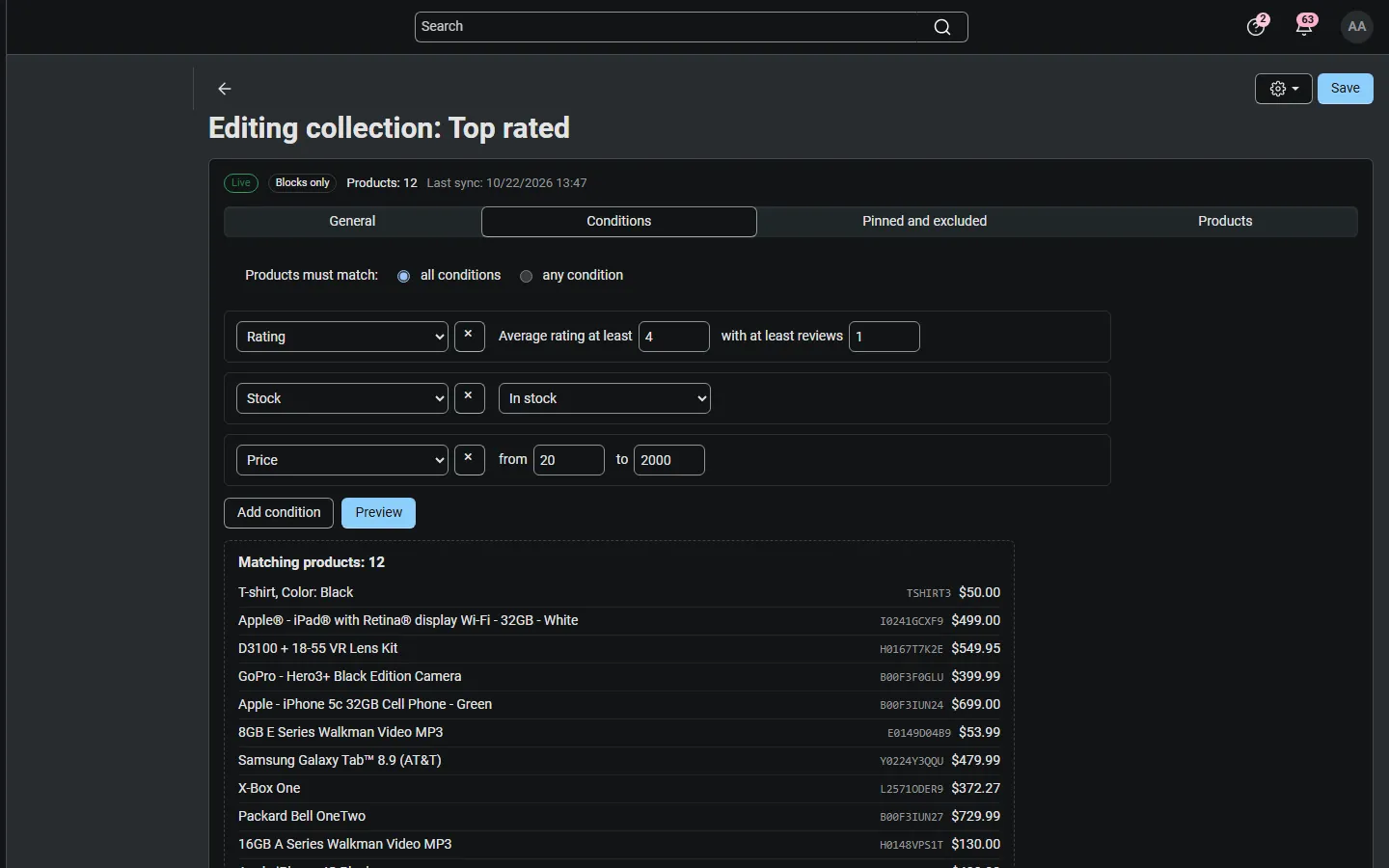
The category now works like any other category: add it to your top menu, use its product filters, its SEO name and its place in the sitemap. The products keep their main categories; the collection adds additional links, which the product editor shows in the product’s category list.
Show a collection in a block
Section titled “Show a collection in a block”- Create a collection with Delivery: Blocks only (category collections work as well).
- Go to Design → Layouts, open the location (for example the home page) and add a Products block to a grid.
- On the Content tab choose the filling Smart collection, pick the collection and the number of products.
- Choose a template (grid, scroller, list) on the General tab and save.
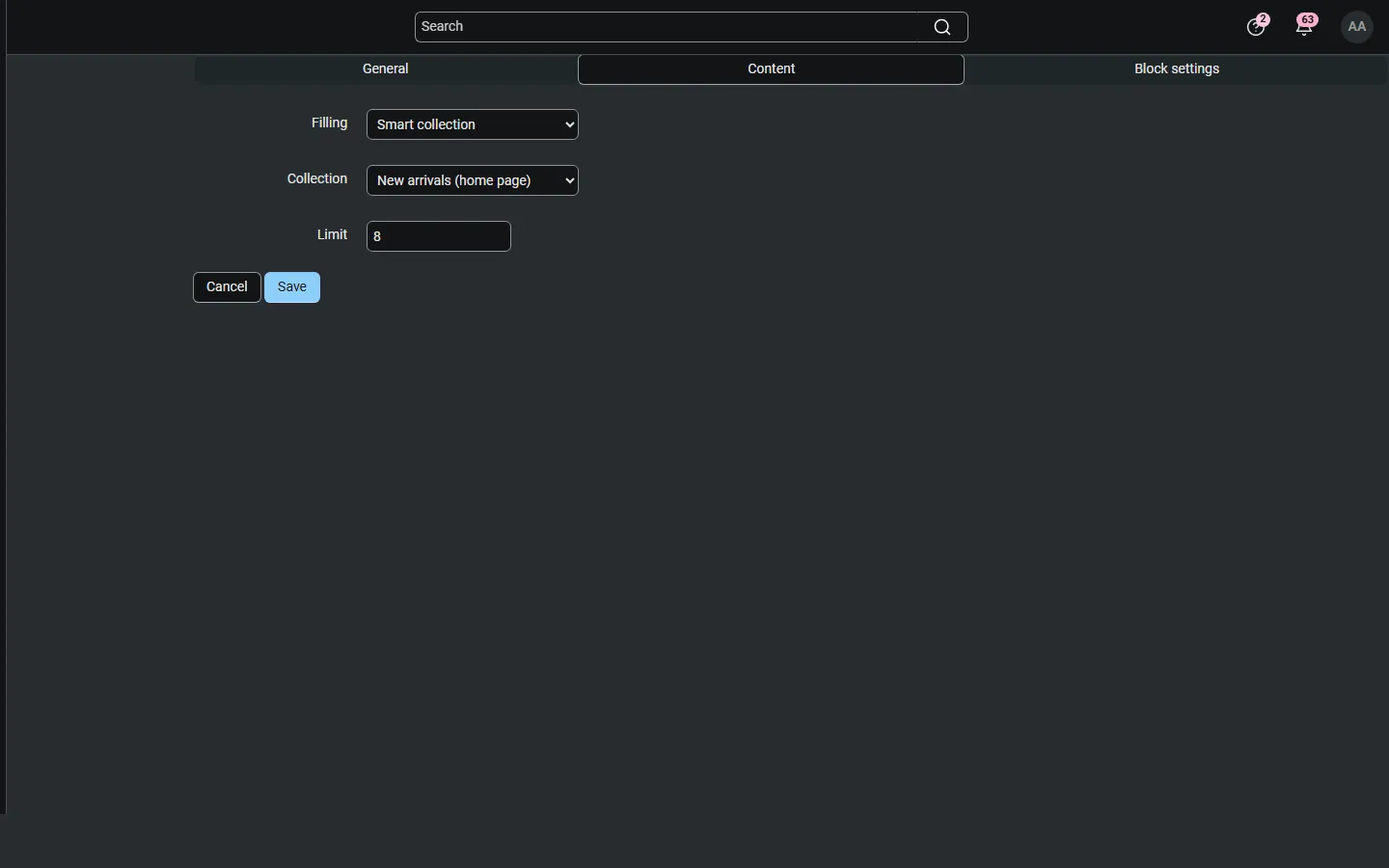
The block lists the collection in its order. It is cached like other product blocks and refreshed when the collection changes.
When collections update
Section titled “When collections update”- On product save. When a product is saved, cloned or its status is toggled, it is re-checked against every unlimited collection at the end of the same request and added or removed. Stock changes from orders are re-checked when a collection uses a stock rule.
- Scheduled sync. The cron job (or, without cron, the admin fallback every 10 minutes) syncs collections that are waiting (new, changed, with a product limit, partly synced) and re-syncs every collection at least every 24 hours, so time windows, bestsellers and schedules stay current. Product imports mark all collections for the next run.
- Sync now. From the collection’s gear menu or for all collections from the list.
Each run changes at most Link changes per collection and run links per collection. A collection of 12,000 products with the default of 500 is complete after 24 runs; raise the setting if your server allows it (in our tests one run of 5,000 changes took well under a second).
What the add-on changes in your catalog
Section titled “What the add-on changes in your catalog”- It adds additional category links (never main categories) and remembers each link it created.
- It removes only links it created, and only while they are still additional links. If you make the collection category a product’s main category, or the product was already in the category before, the link is yours and stays.
- If you remove a managed link by hand while the product still matches, the next sync adds it again. Use Excluded products to keep a product out.
- Clear links and disable removes every link of the collection and disables it. Delete does the same and deletes the collection. Deleting the category disables the collection.
The collection list
Section titled “The collection list”The list shows each collection with its delivery type, category, rules, product count, the last sync and its status. Chips mark scheduled collections, collections waiting for a sync and sync errors. Bulk actions: sync, activate, disable, delete. The gear menu offers Sync all collections now, CSV export and import and the settings.
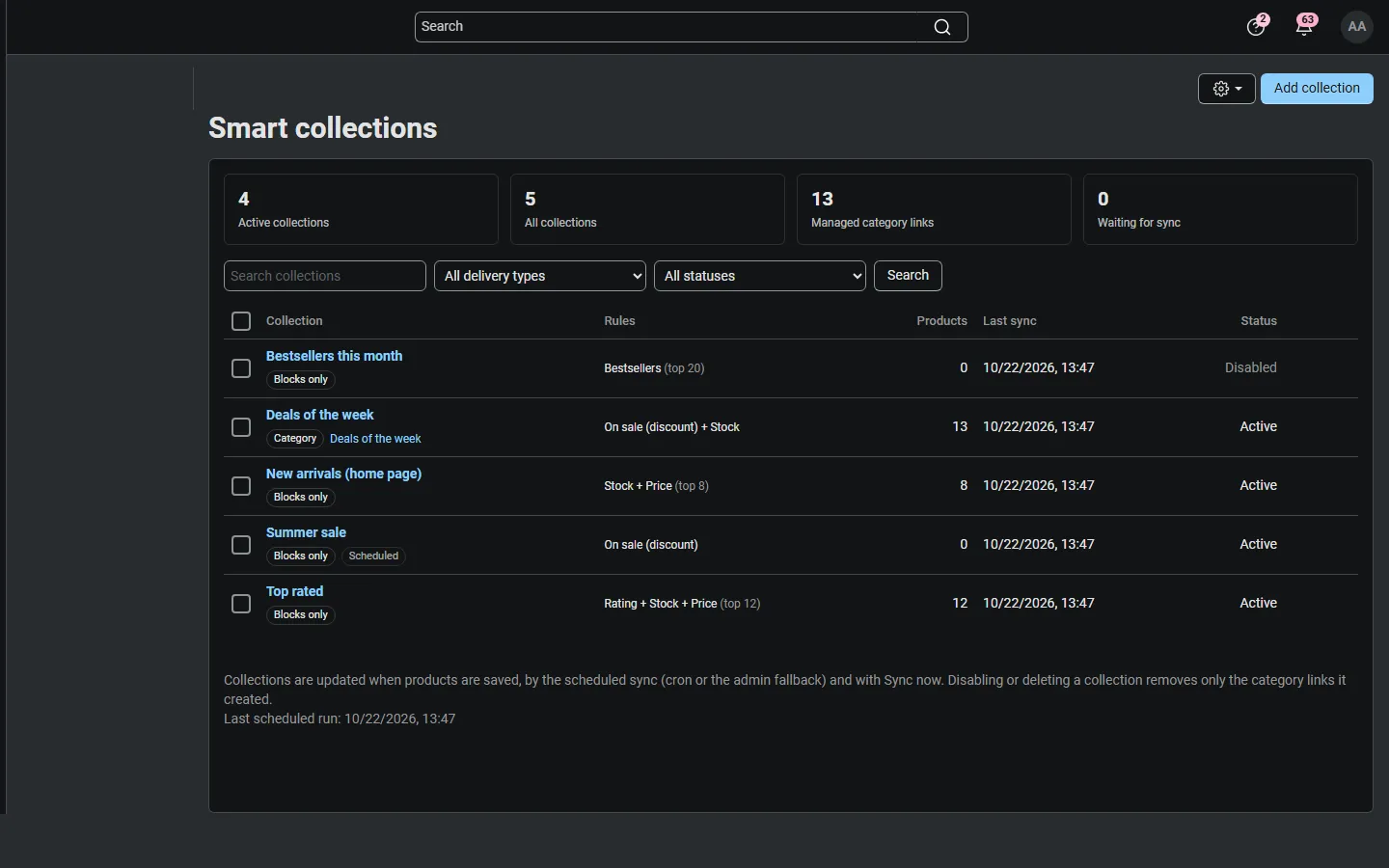
Export collections (CSV) writes one row per collection with its rules as JSON. Edit the file and import it again (rows with a collection_id update that collection, others create new ones), or move collections to another store; check the category ids there. Export products (CSV) in a collection’s gear menu writes its current products in order.
Multi-Vendor
Section titled “Multi-Vendor”Collections are managed by the marketplace administrator. They can contain products of every vendor; the Vendor rule limits a collection to some vendors or excludes them. Vendors have no access to the collections pages.
CS-Cart Ultimate
Section titled “CS-Cart Ultimate”A category collection belongs to the storefront of its category and collects that storefront’s own and shared products. A Blocks only collection belongs to the storefront you selected when you created it. With a storefront selected in the admin panel, the list shows only its collections.