

Usage
How it works
Section titled “How it works”- A vendor creates a campaign in the vendor panel (Marketing → Sponsored products → New campaign): products, placements, a price model and a budget.
- The marketplace approves it (unless approval is off for that vendor).
- The campaign’s products appear in the sponsored slots of the chosen placements, marked “Sponsored”.
- Each valid click (cost per click) or each day the campaign is shown (fixed daily price) is charged. The charge lowers the amount the vendor has available for ads at once.
- Once a day (or every hour) the charges are posted to the vendor’s balance as a Payout row in Vendors → Accounting.
- Vendor and administrator follow impressions, clicks, spend and the revenue of orders that followed a click.
Campaigns (vendor panel)
Section titled “Campaigns (vendor panel)”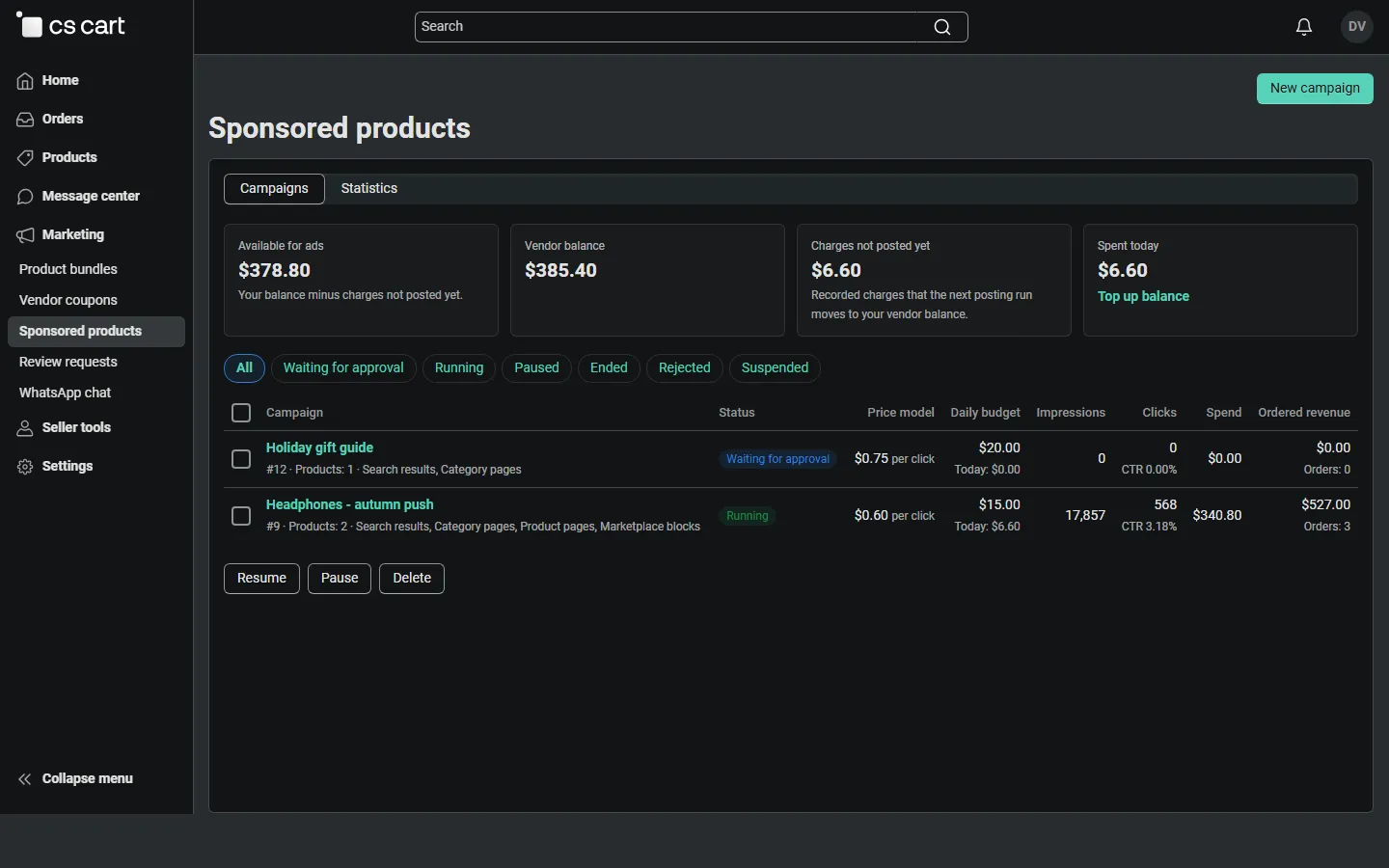
The campaign list starts with four figures:
- Available for ads: the vendor balance minus charges not posted yet (and minus the minimum balance the marketplace keeps). A click is only charged while this covers it.
- Vendor balance: the core balance from Accounting.
- Charges not posted yet: recorded charges that the next posting moves to the balance.
- Spent today, and Top up balance when the Vendor debt payout add-on is active (the vendor pays an amount into the balance through the storefront).
Each campaign shows its status, price, daily budget with today’s spend, impressions, clicks with CTR, spend and ordered revenue. Select campaigns to Resume, Pause or Delete them. A campaign that already has charges cannot be deleted (the charges belong to the accounting records); pause it instead.
Statuses:
| Status | Meaning |
|---|---|
| Running | Approved, active, within its dates, budget and balance available |
| Waiting for approval | New or changed products; the marketplace has not reviewed it yet |
| Scheduled | Approved, the start date is in the future |
| Daily budget reached | Paused until midnight; resumes by itself |
| Not enough balance | The available amount does not cover the next charge; resumes by itself when the balance grows (an order, a top-up) |
| Paused | Paused by the vendor |
| Ended | The end date passed or the total budget is spent. Extend the date or the budget and resume it |
| Rejected / Suspended | Stopped by the marketplace, with the reason |
Creating a campaign
Section titled “Creating a campaign”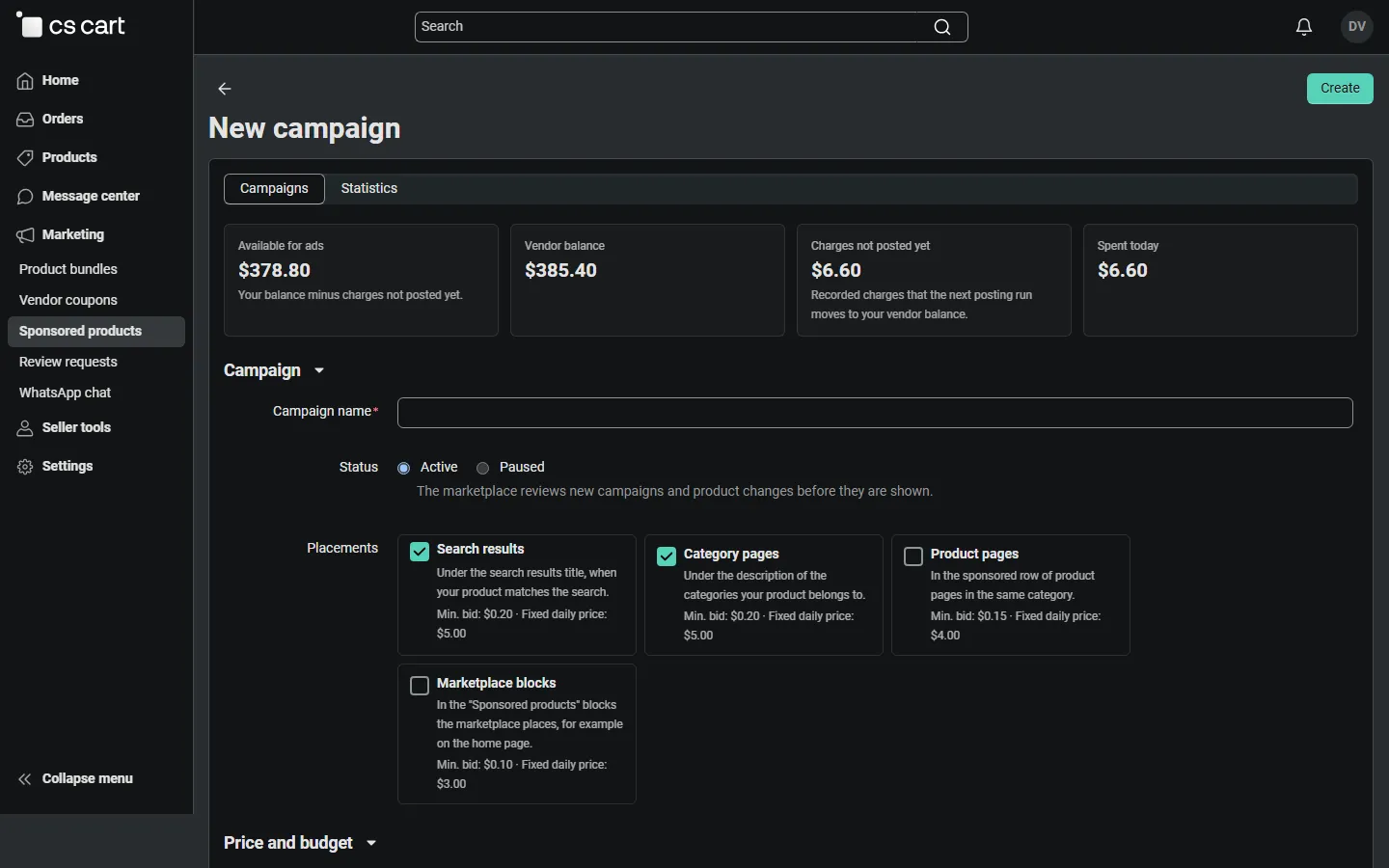
- Campaign name and Status (Active or Paused).
- Placements: search results, category pages, product pages and marketplace blocks, each with its minimum bid and fixed daily price.
- Price model:
- Cost per click: the bid is paid for every valid click (at least the minimum bid of every chosen placement; higher bids are shown first). The daily budget caps the spend of a day: when the next click would exceed it, the campaign pauses until midnight.
- Fixed daily price: the sum of the daily prices of the chosen placements is paid once for every day on which the campaign is shown. Fixed-price campaigns are shown before CPC campaigns; clicks are free.
- Total budget (optional): the campaign ends when it is spent.
- Start date and End date (optional).
- Products: up to 50 of the vendor’s own products.
Moderation (administrator)
Section titled “Moderation (administrator)”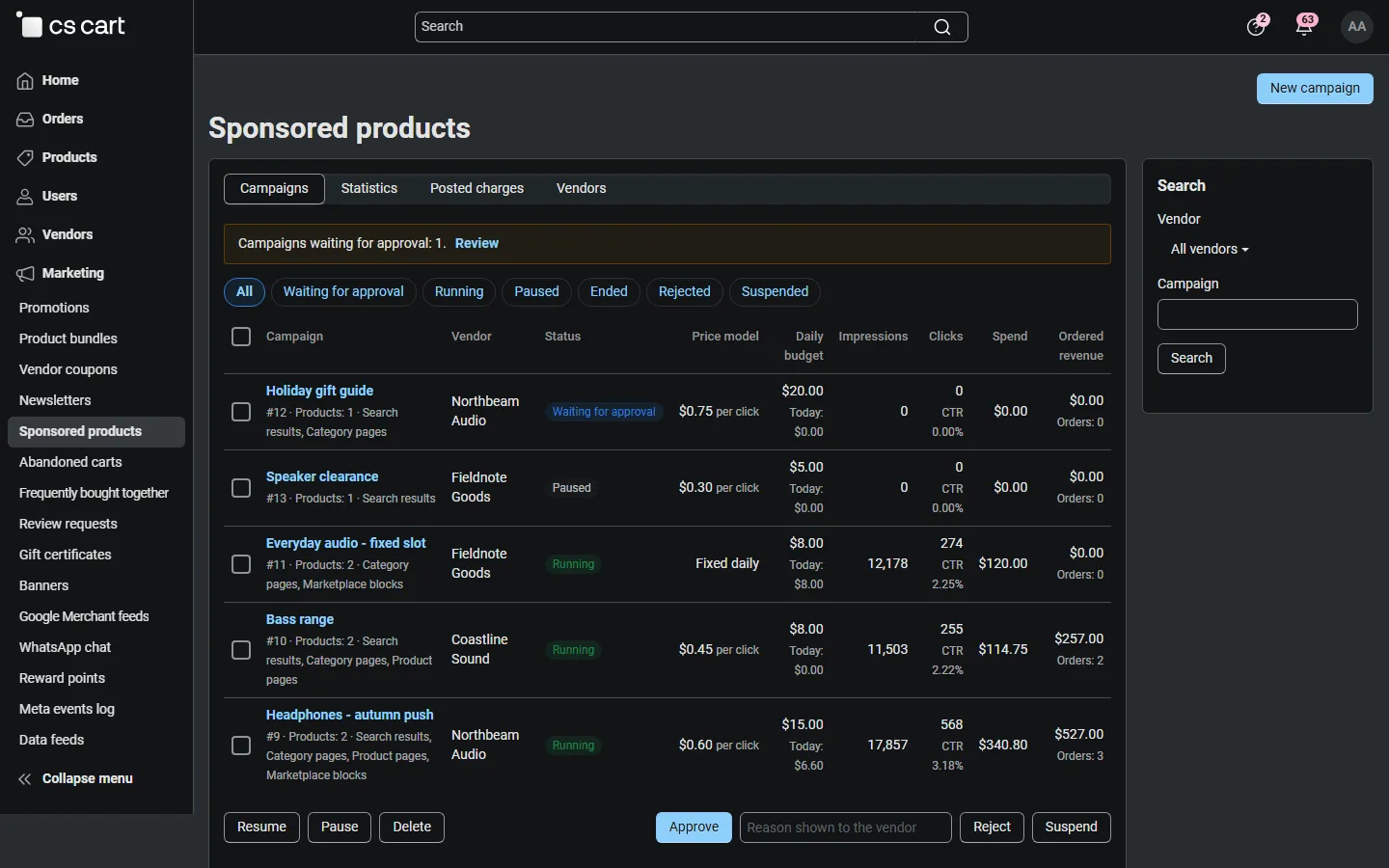
Marketing → Sponsored products lists the campaigns of all vendors, the ones waiting for approval first. Select campaigns and Approve, Reject (the reason is shown to the vendor) or Suspend them; Resume, Pause and Delete work as for vendors. A rejected campaign goes back to review when the vendor saves it again; a suspended one stays suspended until you approve it.
The Vendors tab lists every vendor with campaigns: their spend, charges not posted yet, whether their balance covers their campaigns, Automatic approval and Blocked (blocked vendors cannot create campaigns and their campaigns are not shown).
On the storefront
Section titled “On the storefront”- Category pages: “Sponsored products” under the category description.
- Search results: “Sponsored results” under the page title, only for products that match the search.
- Product pages: “Sponsored products related to this item” after the product tabs, as a row that scrolls sideways on phones.
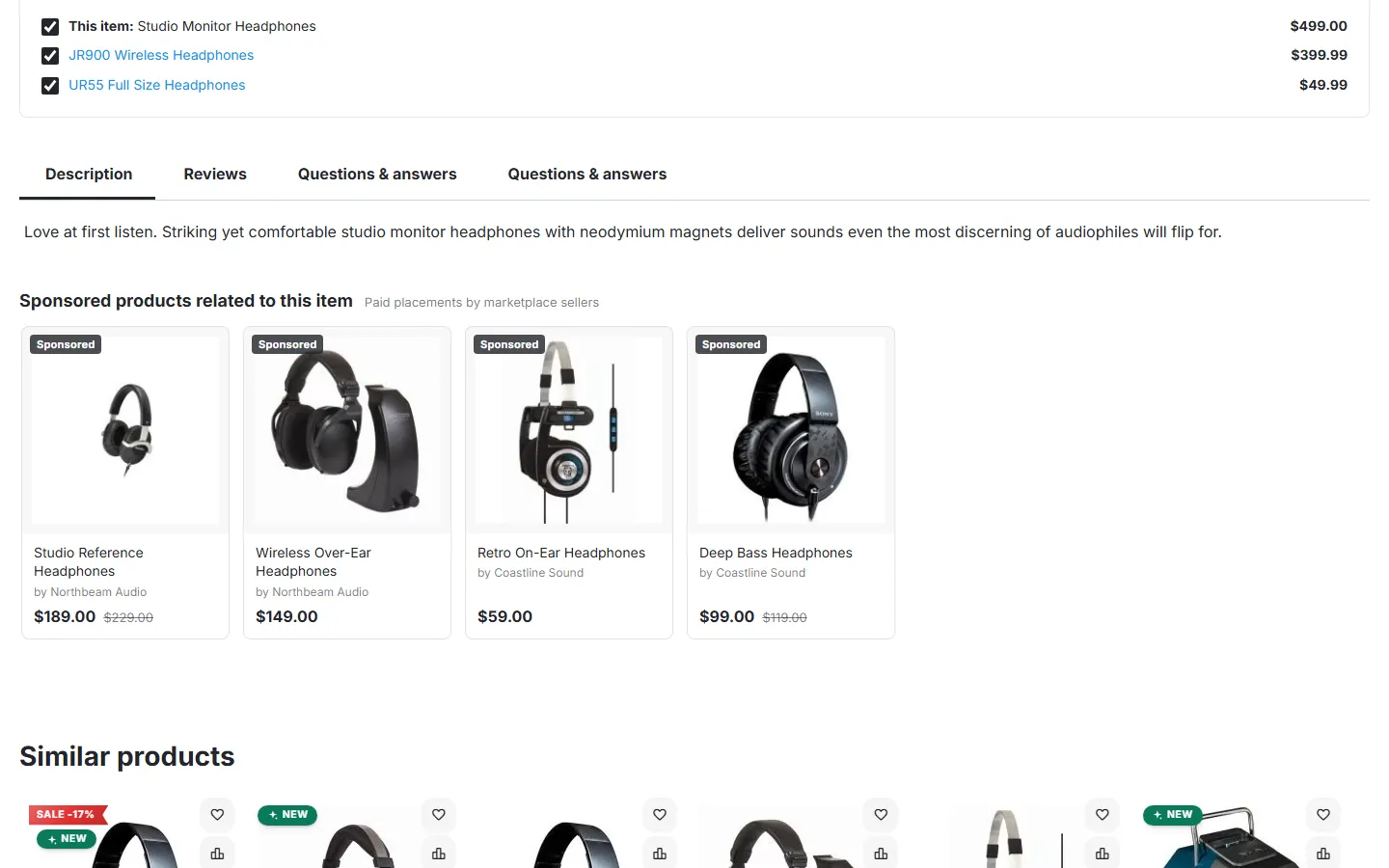
Every card shows a “Sponsored” label, the product image, name, vendor and price, and links to the product with rel="sponsored". The slots look the same for every visitor and are cached with the page; a small script reports impressions (a card at least half visible for one second) and clicks.
The Sponsored products block
Section titled “The Sponsored products block”In Design → Layouts, add a block of the type Sponsored products to any location, for example the home page. Templates: grid or scrollable row. Block settings: Number of products and Only products of the current category or product page. The block shows campaigns that chose the Marketplace blocks placement and uses the block’s minimum bid and daily price.
Statistics
Section titled “Statistics”Statistics shows impressions, clicks (with CTR), spend (with the average cost per click), ordered revenue (with orders and ROAS) and invalid clicks for a period, and a table per day and campaign. Vendors see their own campaigns; administrators all vendors or one vendor. Export CSV downloads the same table.
Ordered revenue counts the order lines of a sponsored product (or another variation of it) bought within the attribution window after a click by the same visitor or signed-in customer, without failed, declined and cancelled orders.
Posted charges (administrator)
Section titled “Posted charges (administrator)”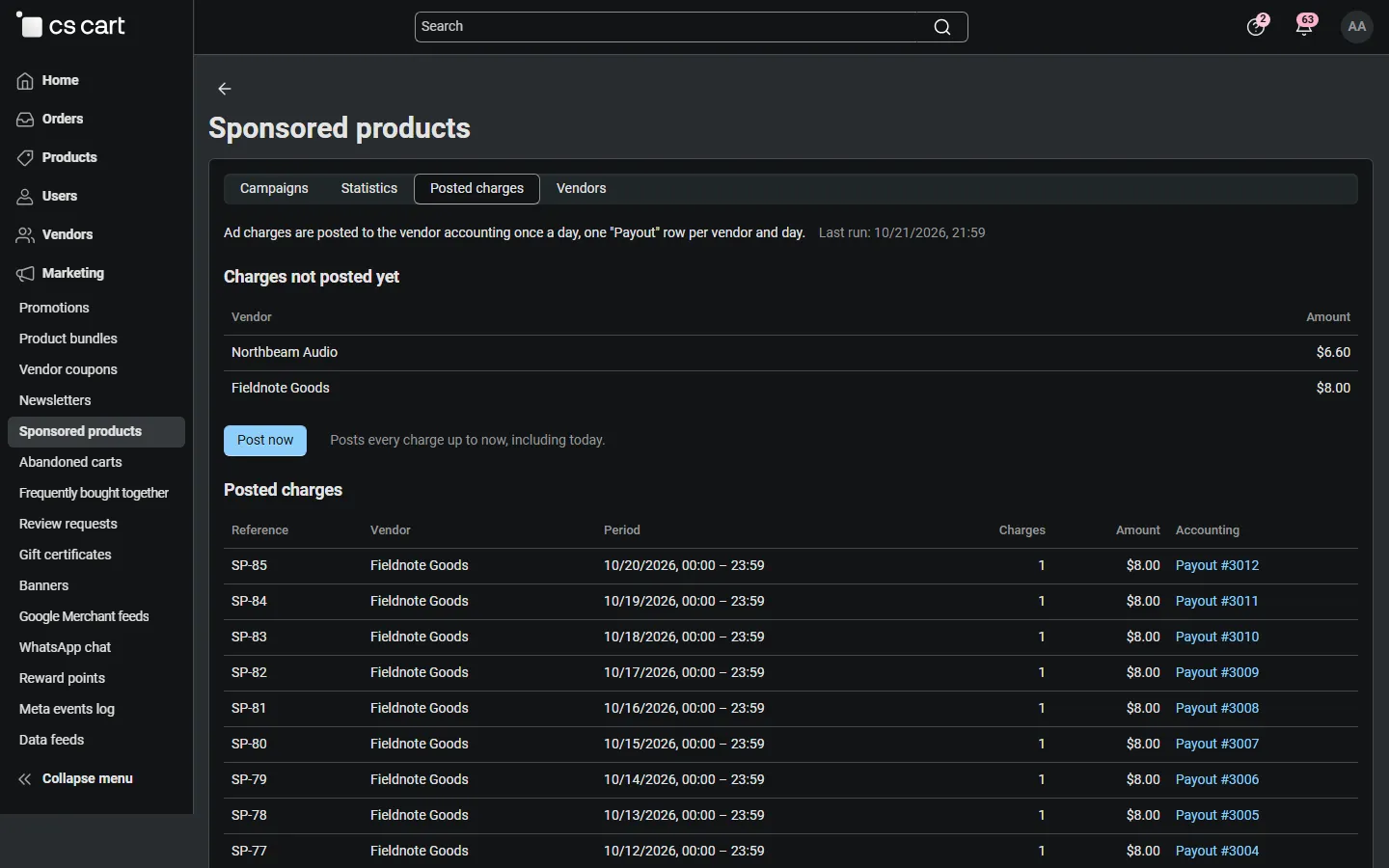
The Posted charges tab lists the charges not posted yet per vendor (with Post now) and every posting with its reference (SP-n), period, number of charges, amount and the core Payout row. If someone deletes that row in Accounting, the posting is marked Removed in Accounting.