

Usage
Overview
Section titled “Overview”Marketing → Mobile app → Overview shows the launch checklist, installed apps per platform, the active apps of the last 30 days, the push opt-in rate, the pushes sent and opened, the latest campaigns and the phone preview.
Push campaigns
Section titled “Push campaigns”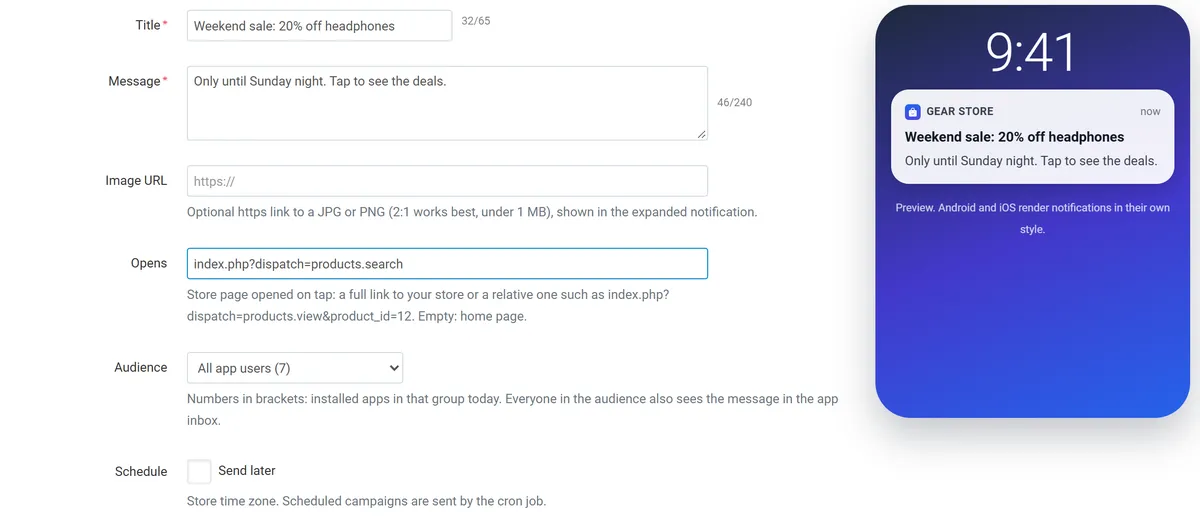
- Campaigns → New campaign.
- Title (up to 65 characters), message (up to 240), optional image (https link, 2:1 works best) and the page the
push opens (a full link to your store or
index.php?dispatch=...). - Audience: all app users, Android users, iOS users, signed-in customers, guests, customers in user groups, or one customer. The numbers show how many installed apps are in each group.
- Send now, or tick Send later and pick the date and time (sent by the cron job).
While a campaign is sending, the page shows the progress. Every app in the audience also gets the message in its inbox; apps without push permission get the inbox message only. The list shows sent, failed (for example uninstalled apps; their tokens are removed automatically) and opened counts. Duplicate a campaign to send it again.
The Push notifications page has Send a test push for one of your own devices.
Order status pushes
Section titled “Order status pushes”When an order reaches a selected status, the customer’s apps get a push and an inbox message. The add-on knows the apps of signed-in customers and the app that placed the order, so guests who ordered in the app are reached too. The list is under Campaigns → Order status.
Devices
Section titled “Devices”Devices lists the installed apps: platform and OS version, customer, app version and build, push permission, install date and last opening. The app reports itself when it opens a store page; it uses a random installation ID, no hardware identifiers.
Building and publishing
Section titled “Building and publishing”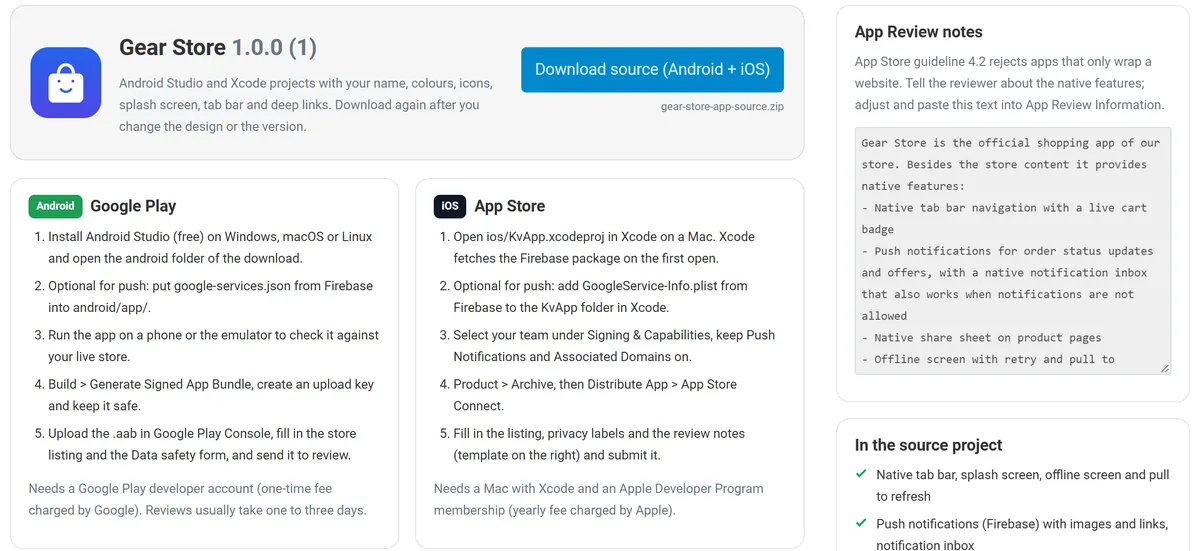
- Upload the icon and save the design.
- Build and publish → Download source (Android + iOS). The zip contains
android/,ios/,store-assets/andBUILD.mdwith every step. - Android: open
android/in Android Studio, addgoogle-services.json, run it, then build a signed App Bundle and upload it in Google Play Console. - iOS: open
ios/KvApp.xcodeprojin Xcode on a Mac, addGoogleService-Info.plist, select your team, archive and upload to App Store Connect. Paste the App Review notes from the same page into App Store Connect. - For every update raise the build number on App design and download the source again.
You can also hand the zip to a developer; the accounts stay yours.
Inside the app
Section titled “Inside the app”- Home, catalog, search, cart and account tabs open the matching store pages; the active tab follows the page.
- The cart tab shows the number of items, the inbox tab the unread messages.
- Store pages and checkout redirects stay in the app; links to other sites open in an in-app browser tab; phone, e-mail and messaging links open the matching app.
- Product pages get a Share button that opens the phone’s share sheet.
- Without a connection the app shows an offline screen with Try again.