

Configuration
Overview · Installation · Usage · Developer notes · FAQ
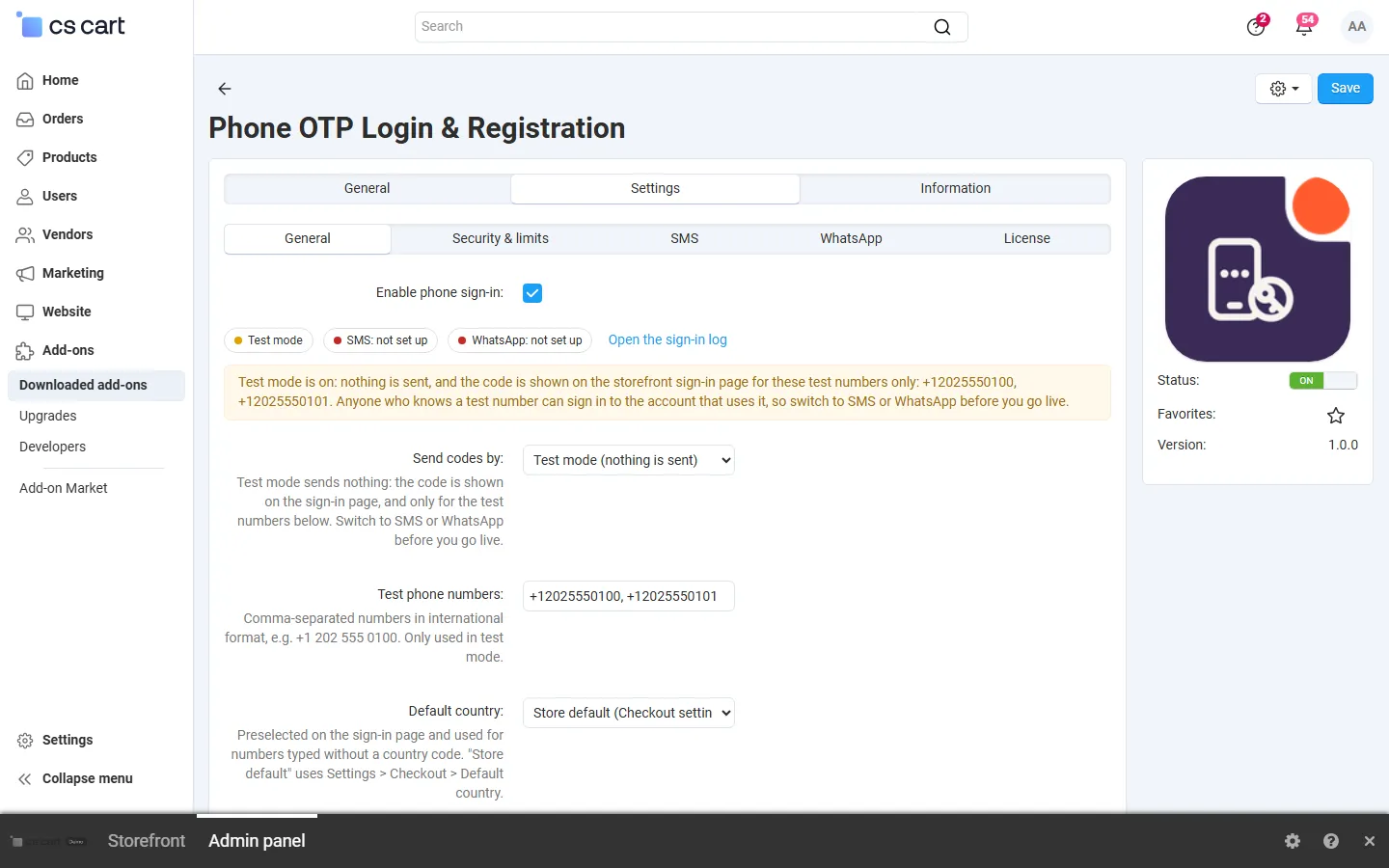
Open Add-ons → Manage add-ons → Phone OTP Login & Registration → Settings. The General tab starts with a status line (delivery, SMS and WhatsApp set up or not, link to the sign-in log) and a warning while test mode is on. In CS-Cart Ultimate each storefront can have its own values.
General
Section titled “General”| Setting | Default | Description |
|---|---|---|
| Enable phone sign-in | On | Switches the storefront features on or off. |
| Send codes by | Test mode | Test mode (nothing is sent; the code is shown on the sign-in page, only for the test numbers), SMS, WhatsApp, or WhatsApp, SMS if WhatsApp fails. Phone sign-in is hidden in the storefront while the selected delivery is not set up. |
| Test phone numbers | +1 202 555 0100, +1 202 555 0101 | Numbers in international format that get the code on screen in test mode. Other numbers get nothing in test mode. |
| Default country | Store default | Preselected on the sign-in page and used for numbers typed without a country code. Store default is Settings → Checkout → Default country. |
| Allowed countries | All | Codes are only sent to numbers of these countries. Limit the list to the countries you sell to: it protects you from SMS pumping fraud (bots that request codes for expensive foreign numbers). |
| Show “Sign in with phone number” under the login forms | On | Header login pop-up, sign-in page, checkout sign-in. |
| Show “Phone sign-in” on the profile page | On | The panel where customers verify or change their number. |
| New customers can register with their phone number | On | After the code is confirmed, a number without an account gets a short registration form. Off: only existing accounts can sign in by phone; the registration page link is hidden. |
| First and last name | Required | Required, optional or not asked in the registration form. |
| Optional | Required, optional or not asked. Customers without an e-mail address get no e-mail notifications; checkout asks for one when it is needed. | |
| Match phone numbers saved in customer profiles | On | Customers who typed their number in their profile before can sign in with it right away; it counts as verified after the first sign-in. When several accounts share a number, sign-in by phone is refused for that number and the customer is asked to sign in with e-mail. |
Security & limits
Section titled “Security & limits”| Setting | Default | Description |
|---|---|---|
| Code length (digits) | 6 | 4 to 8 digits. |
| Code lifetime (minutes) | 5 | 1 to 30. A new code replaces the previous one. |
| Wait before “Resend code” (seconds) | 60 | 15 to 600. The customer sees a countdown. |
| Wrong codes allowed per code | 5 | After that the code is void and a new one must be requested. |
| Codes per phone number (per hour) | 5 | |
| Codes per IP address (per hour) | 10 | |
| Codes for the whole store (per hour) | 300 | A safety cap. When it is reached customers see “try again later” and can still sign in with e-mail. |
| Wrong codes per IP address (per hour) | 20 | Stops guessing across many numbers. |
| Keep the log for (days) | 30 | Older entries are deleted automatically. |
| Setting | Description |
|---|---|
| SMS provider | Twilio or Other gateway (HTTP API). |
| SMS text | Default: [code] is your [store] verification code. It expires in [minutes] minutes. Placeholders: [code] (required), [store] (company name), [minutes]. |
| Add the automatic code fill line | Appends @yourstore.com #123456 as the last line, so Chrome and Android fill in the code automatically (WebOTP). |
| Twilio: Account SID, Auth token | From the Twilio Console (Account SID starts with AC). The token is stored like a password and never shown in logs. |
| Twilio: Sender | Your Twilio number in international format, or an alphanumeric sender ID where the destination country allows it. |
| Twilio: Messaging Service SID | Optional (MG…); used instead of the sender when set. |
| HTTP gateway: API URL, Method, Body format, Request body, Extra headers, Sender, Success text | For any gateway with an HTTP API. Placeholders in the URL and body: {to} (+E.164), {to_digits} (without +), {text}, {code}, {from}; values are URL- or JSON-encoded automatically. Headers are one per line (for example Authorization: Bearer YOUR_KEY). If Success text is set, the answer must contain it to count as sent; otherwise any HTTP 2xx answer counts. |
| Setting | Description |
|---|---|
| Phone number ID | Meta App Dashboard → WhatsApp → API Setup. |
| Access token | A permanent system user token with the whatsapp_business_messaging permission. |
| Graph API version | Default v23.0. |
| Authentication template name | Create a template of the Authentication category in WhatsApp Manager (Meta writes the text; you choose the copy-code button) and enter its name, for example login_code. |
| Template language code | For example en_US or en, as approved in WhatsApp Manager. |
| The template has a “Copy code” button | On for templates with a copy-code or one-tap button (they need the code as button parameter); off for templates without a button. |
WhatsApp only delivers to numbers that use WhatsApp. Choose WhatsApp, SMS if WhatsApp fails to fall back to SMS automatically.
License
Section titled “License”The license status is shown in a License card at the top of the add-on page, above the tabs, so you see it on every tab. The License tab holds the key itself. The key is stored once for the whole installation.
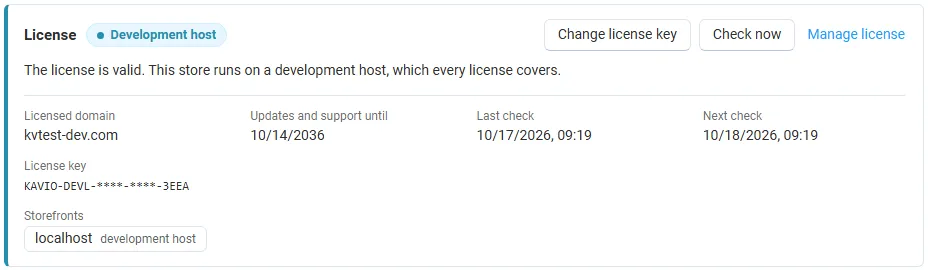
The License card shows:
- the status in color: green when valid, blue for a development host or the 14-day period before a key is required (with the days left), amber when the license server could not be reached (with the days left) or a Marketplace number is still being verified, red when the add-on is switched off;
- in plain words what the status means and, when the add-on is (or will be) switched off, what stops: the phone sign-in buttons are hidden and no new codes are sent; customers sign in with e-mail and password as before; verified numbers and the log are kept;
- the licensed domain, every storefront with its result (covered, development host, not covered), the end of the updates and support period, the last and the next check, and the key in use (masked);
- the actions Enter license key / Change license key (opens the License tab), Check now (verifies at once and stays on the page), Manage license (your licenses on cs-cart.kaviolabs.com) and, without a valid license, Buy a license.
In Add-ons → Manage add-ons the add-on’s row shows a small license badge next to its name, for example License: Valid or License: Pending · 9 days left. The sign-in log page shows the license status in a bar at the top.
| Setting | Description |
|---|---|
| License key | Your Kavio Labs license key (KAVIO-XXXX-XXXX-XXXX-XXXX, from My licenses on cs-cart.kaviolabs.com) or your CS-Cart Marketplace license number. If you entered the Marketplace license number in Add-ons → Manage add-ons (the add-on’s license field), leave this empty: the add-on uses that number. |
| License status | Points to the License card and explains what the check sends. |
What the license covers. A license is bound to the base domain you entered at purchase (for example example.com) and covers every subdomain of it (www.example.com, shop.example.com, staging.example.com). Local development hosts are always allowed: localhost, 127.0.0.1 and other private IP addresses, and host names ending in .localhost, .test, .local, .example or .invalid. A store on a different base domain needs its own license. If you move your store to a new domain, contact support.
When the add-on checks. When you save the key, and then once a day. The check runs only in the admin panel (on a page you open) or from cron, never while customers browse the storefront or sign in, and takes a few seconds at most. A cron job keeps the license verified even when nobody opens the admin panel:
php /path/to/store/admin.php --dispatch=kv_phone_otp_login_license.checkWhat is sent. The check sends this to https://cs-cart.kaviolabs.com and nothing else: the license key, the add-on ID and version, the host names of your storefronts, your CS-Cart version and edition, and a random one-time value. No customer, phone number, order or personal data is sent. The server answers with a digitally signed result, so a forged answer is ignored.
Statuses.
| Status (card) | Color | What happens |
|---|---|---|
| Valid | Green | The license is valid for this domain. Everything works. |
| Development host | Blue | The store runs on a local development host, which every license covers. Everything works. |
| Pending verification | Amber | A CS-Cart Marketplace license number was accepted, but the Marketplace has not confirmed it yet. Everything works. |
| Pending · N days left | Blue | No verified key yet (a new installation). Everything works for 14 days. |
| Grace period · N days left | Amber | The last checks failed (for example a network problem). The add-on keeps working for 14 days after the first failed check. |
| Not activated, Invalid key, Revoked, Domain mismatch, Not verified | Red | The phone sign-in buttons are hidden and no new codes are sent. A code that was already sent can still be used to finish signing in or registering. Customers sign in with e-mail and password as before; verified numbers and the log are kept. Domain mismatch shows the licensed domain next to the domain your store runs on. |
When your updates and support period ends, the add-on keeps working. Only updates and support stop.
License information appears in the admin panel only, and only for administrators who may manage add-ons; vendors and customers never see it.